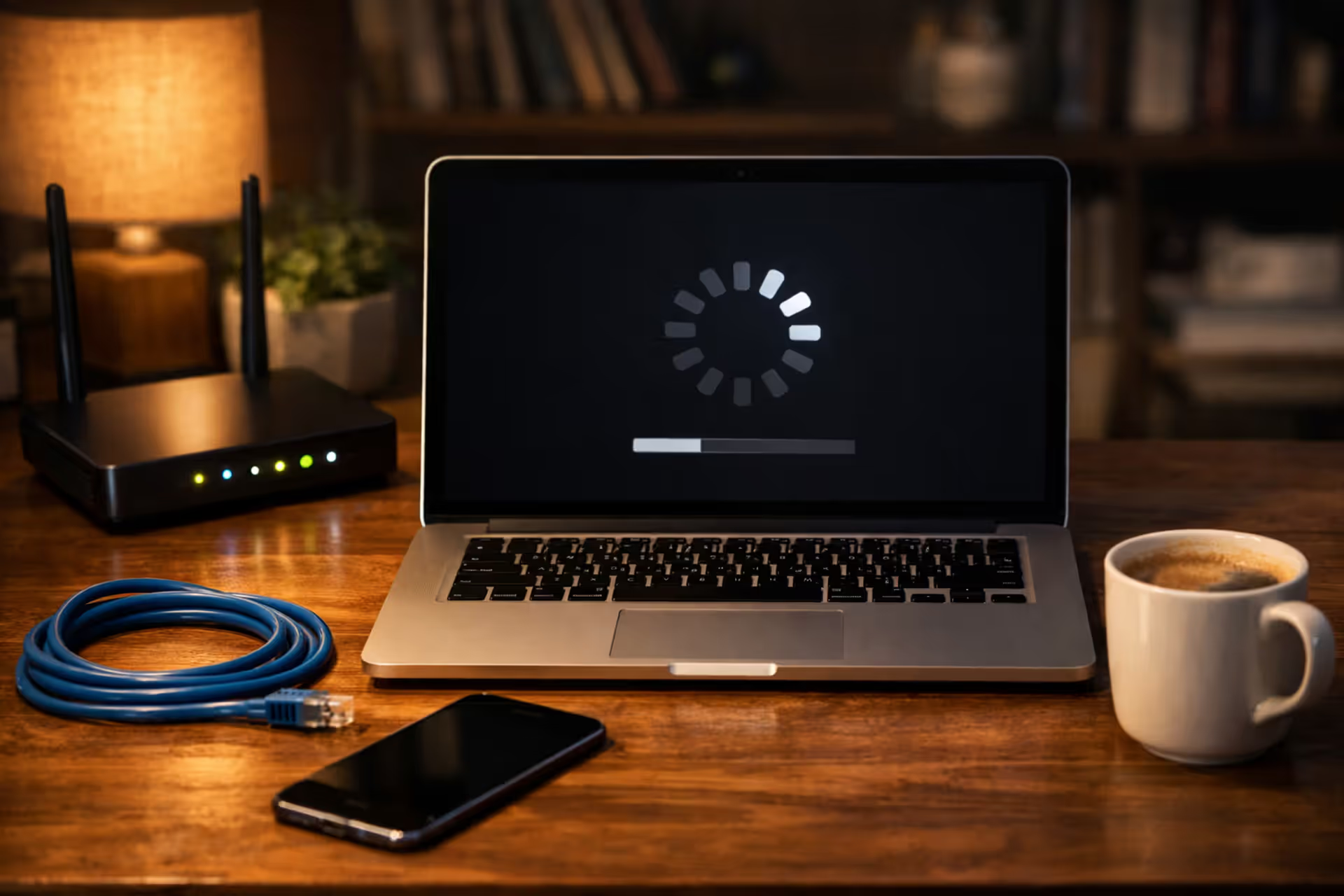
A laptop screen showing a buffering loading indicator on a home desk next to a WiFi router with blinking LED lights, ethernet cable, smartphone and coffee mug in warm evening lighting
Why Is My Internet So Slow Right Now?

Content
That endless buffering wheel appears again. Your video call freezes mid-sentence. Webpages take thirty seconds to load when they worked perfectly this morning. Before panic-buying a new router or threatening to cancel your service plan, you need to understand what's actually broken.
Internet slowdowns stem from multiple potential failures working independently or together. Your connection performance depends on an interconnected system—your provider's infrastructure capacity, your home networking hardware configuration, competing traffic from other household devices, and even physical environmental factors. Effective diagnosis means testing each component systematically instead of making expensive assumptions.
How to Tell If Your ISP Is Actually the Problem
When speeds drop, blaming your internet provider feels natural, but home network configuration causes more than half of all performance complaints. Before spending an hour navigating customer service menus, confirm whether the bottleneck exists beyond your property line.
Running an Accurate Speed Test
Speed measurements reveal meaningful data only after you control for interference. Running tests while your household streams videos across multiple devices creates useless noise instead of actionable information.
Take an ethernet cable and plug one device straight into your modem. Remove your router from the equation completely—this step isolates whether your ISP delivers what you're paying for versus whether your local equipment creates the problem. Shut down every program on that test device: close browser tabs, stop cloud backup services, disable automatic updaters. Visit speedtest.net, fast.com, and your provider's proprietary testing platform. Each service connects to different servers and testing methodologies, painting a more complete diagnostic picture.
Perform measurements during three distinct periods: early morning hours (6-8 AM), mid-afternoon windows (2-4 PM), and prime evening time (7-10 PM). One snapshot tells you almost nothing useful. Repeated measurements across different timeframes expose patterns. When your speeds match your subscription tier during quiet hours but crater after dinner, you're witnessing capacity limits, not equipment failure.
Capture screenshots showing your results. Provider support teams respond more seriously to documented evidence than frustrated descriptions of "things being slow."
Recognizing Peak-Hour Throttling and Network Congestion

Author: Caroline Prescott;
Source: flexstarsolutions.com
Cable internet infrastructure functions on shared bandwidth pools distributed across neighborhoods. When everyone returns home simultaneously and fires up 4K streams, available capacity gets divided among more users. This represents normal infrastructure behavior, not intentional speed restriction.
True throttling occurs when providers deliberately limit specific services or reduce speeds after monthly data cap violations. Natural congestion happens because too many simultaneous users compete for fixed infrastructure capacity. Understanding this distinction matters—one potentially violates your service agreement while the other reflects physical network limitations.
Congestion indicators include: performance degradation occurring at predictable daily intervals, wired ethernet connections performing identically to wireless, and all household devices slowing together. When router restarts accomplish nothing but waiting until late evening magically restores performance, your provider's local infrastructure can't support neighborhood demand.
Understanding Your Speed Test Numbers
| Connection Type | Advertised Speed | Expected Peak Results | Acceptable Minimum | Typical Performance Barriers |
| Cable | 100-1000 Mbps | 85-95% of plan rate | 60% of plan rate | Shared node congestion, modem age, coaxial wiring issues |
| Fiber | 300-2000 Mbps | 95-100% of plan rate | 90% of plan rate | Optical network terminal problems, internal house wiring, router CPU limits |
| DSL | 5-100 Mbps | 40-80% of plan rate | 50% of plan rate | Central office distance, telephone line interference, copper deterioration |
| 5G Home | 50-300 Mbps | 60-85% of plan rate | 40% of plan rate | Cell tower proximity, atmospheric conditions, construction materials, tower capacity |
Marketing materials describe theoretical maximums under perfect conditions. Cable and DSL providers use qualifying "up to" language because real-world results fluctuate based on network demand and your physical location relative to infrastructure. Fiber connections deliver more predictable performance through dedicated lines rather than shared neighborhood capacity.
Router Issues That Kill Your Internet Speed
Your router converts the modem's internet signal into wireless networks your devices understand. When routers malfunction or operate under poor conditions, they create performance problems that perfectly mimic provider issues while requiring completely different fixes.
Overheating, Outdated Firmware, and Poor Placement
Consumer networking equipment generates significant heat during operation. Most households tuck routers inside entertainment centers, closets, or behind couches where heat accumulates dangerously. Budget routers lack sophisticated thermal management. Rising internal temperatures force processors to reduce performance preventing permanent damage. Touch your router's case—uncomfortable heat levels probably indicate thermal throttling.
Position routers in open locations with unobstructed airflow surrounding all sides. Never stack game consoles, cable boxes, or other heat-producing electronics on top. If your current router location requires a closed cabinet, either leave doors open permanently or find a better spot.
Firmware patches address security vulnerabilities and fix performance bugs, yet routers lack smartphone-style automatic updates. Visit your hardware manufacturer's support website biannually to check for updates. Equipment exceeding five years old typically receives no further support—manufacturers abandon older models to encourage replacement purchases.
Router placement causes more home networking problems than any other single factor.Installation technicians place equipment wherever the cable entry point exists, typically corners or basements. Radio signals degrade passing through structural barriers. Simply relocating a router ten feet can transform speeds in distant rooms
— Marcus Chen
Physical barriers matter more than absolute distance. Radio waves pass through drywall with minimal attenuation but struggle penetrating brick, poured concrete, metal framing, and large water volumes. Positioning your router beside an aquarium or on a bathroom's opposite wall creates connectivity dead zones. Place equipment centrally on your home's main floor, away from large appliances and metal objects.
When to Restart vs. Replace Your Router
Power cycling clears accumulated temporary data, resets network connections, and frequently resolves mysterious performance drops. Execute proper restart sequences: disconnect the router and modem from power, wait a full thirty seconds, reconnect the modem first, allow indicator lights to stabilize completely, then restore router power. This order matters because your router must re-authenticate credentials with your provider.
If power cycling temporarily fixes problems but you need weekly restarts, your hardware is deteriorating. Memory management failures, inadequate cooling, or component degradation cause progressive performance decay. Budget networking equipment typically survives 3-4 years. Premium models might function 5-7 years before noticeable decline.
Replace routers when: measured speeds drop despite provider tests confirming good service delivery, you require daily power cycles, wireless connections drop randomly, or your equipment exceeds five years old. Upgrading from WiFi 5 (or older standards) to WiFi 6 can triple throughput for compatible devices even without changing your subscription plan.
Why Your Internet Slows Down at Specific Times
Predictable slowdown patterns indicate capacity constraints rather than equipment failure. When your connection works flawlessly at 2 PM but becomes unusable at 8 PM, you're experiencing bandwidth competition or infrastructure congestion.
Evening Bandwidth Crunch in Residential Areas
Residential internet design assumes statistical distribution—not every subscriber maxes out bandwidth simultaneously. Providers sell more total capacity than infrastructure can deliver because models predict average usage patterns. This approach works until synchronized evening streaming creates demand spikes.
The pandemic permanently altered internet consumption patterns. Remote work and distance learning generated daytime traffic previously concentrated in evening hours. Many providers haven't upgraded infrastructure matching new demand patterns, particularly neighborhoods with aging cable infrastructure.
You cannot personally resolve provider capacity issues. Document peak-hour performance using the systematic testing methodology described earlier. If you consistently measure under 60% of your subscribed speed during high-demand periods, contact your provider. Request service credits or plan adjustments. When they cannot resolve capacity problems, consider switching providers—though many American households lack competitive options.
Multiple Devices Competing for the Same Connection
Today's typical household connects 10-25 devices wirelessly: smartphones, tablets, laptops, smart TVs, game consoles, security cameras, voice assistants, and connected appliances. Every device consumes some bandwidth continuously, even appearing idle.
Background processes devastate available capacity without obvious indicators. Your laptop synchronizes files to cloud storage. Your smartphone downloads application updates automatically. Your smart TV preloads content you might eventually watch. Security cameras upload recorded footage continuously. These processes rarely display visible notifications yet can monopolize 50-80% of your connection.
Locate bandwidth-monopolizing devices through your router's administrative dashboard. Contemporary routers display connected devices and real-time usage statistics. Access router settings by entering its IP address (typically 192.168.1.1 or 192.168.0.1) into your browser's address bar. Navigate to "connected devices," "client list," or "traffic monitor" sections.
The worst offenders typically include: security cameras streaming high-resolution footage continuously, game consoles downloading massive patch files, computers executing cloud backup operations, and smart TVs streaming ultra-high-definition content. One 4K stream requires 25 Mbps. Three simultaneous 4K streams consume 75 Mbps—your complete capacity with a 100 Mbps plan.
Allocate bandwidth priority using Quality of Service (QoS) configuration in your router's settings. QoS designates which devices receive preferential bandwidth access, ensuring work video conferences don't stutter because someone launched a streaming session. Configuration varies by manufacturer, but typically involves assigning devices into high, medium, or low priority tiers.
Hidden WiFi Interference Ruining Your Connection
Wireless networks operate on radio frequencies shared with numerous other household devices. Interference doesn't completely block signals—instead it generates noise forcing your router to retransmit packets repeatedly, degrading apparent speed.
Household Devices That Disrupt WiFi Signals
Microwave ovens operate at 2.4 GHz, identical to WiFi's most common frequency. Running your microwave during video calls demonstrates this interference dramatically—connections stutter or disconnect entirely. Microwave shielding isn't perfectly effective, allowing leaked radiation to disrupt nearby wireless signals.
Cordless landline phones, baby monitors, Bluetooth gadgets, and wireless security cameras all broadcast on the crowded 2.4 GHz spectrum. Older homes with multiple cordless phone stations create persistent interference. Baby monitors particularly problematic because they transmit continuously at high power ensuring reliable audio transmission.
Migrating your router to 5 GHz operation eliminates most household interference sources. The 5 GHz spectrum remains less crowded and less vulnerable to appliance interference. The compromise: 5 GHz transmissions don't penetrate structural barriers as effectively, reducing coverage range. Modern dual-band routers broadcast both frequencies simultaneously. Connect nearby devices to 5 GHz and distant devices to 2.4 GHz for optimal performance.
Neighbor Networks and Channel Overlap
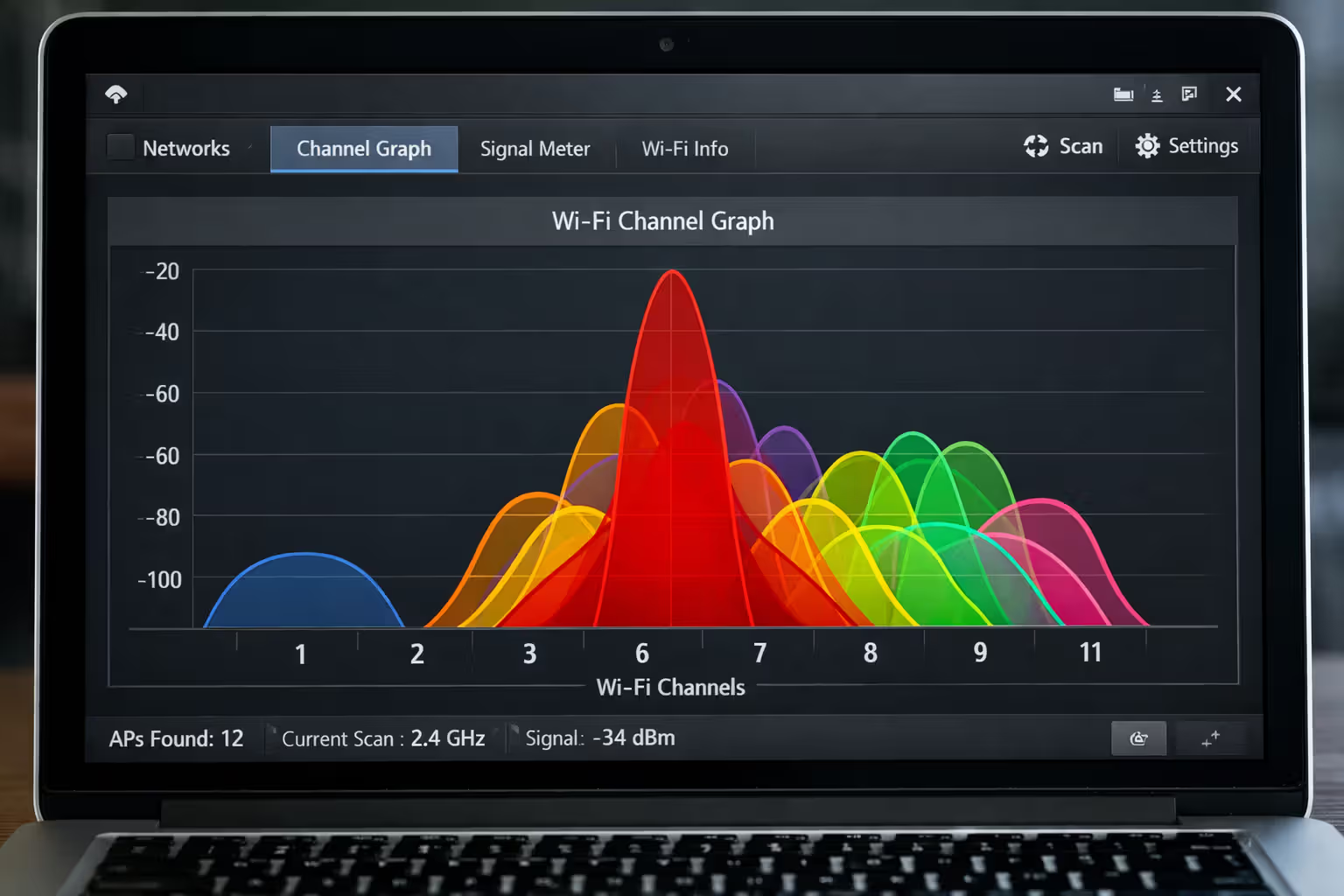
WiFi channels function like highway lanes. Routers in apartment complexes and dense residential areas compete for limited channels. When numerous routers broadcast on overlapping channels, mutual interference degrades everyone's performance.
Most routers select channels automatically, but this feature frequently fails because every router makes identical "optimal" selections. Manually choosing the least congested channel significantly improves performance in crowded environments.
Install a WiFi analyzer application (WiFi Analyzer for Android or NetSpot for Windows/Mac). These tools visualize which channels surrounding networks occupy. For 2.4 GHz operation, only channels 1, 6, and 11 avoid overlap. Select whichever channel has minimal competing traffic. For 5 GHz bands, more options exist, but identical principles apply—identify the emptiest channel.
Common interference indicators include: speeds fluctuating dramatically without predictable patterns, connections dropping when moving between rooms, and performance improving dramatically late at night when neighboring households sleep. If your speeds double at 2 AM, you're experiencing interference or congestion from surrounding wireless networks.
Author: Caroline Prescott;
Source: flexstarsolutions.com
Device-Level Problems Disguised as Slow Internet
Sometimes your internet connection works perfectly—the actual problem exists on your specific device. Individual misbehaving computers or smartphones can appear to suffer slow internet while other household devices function normally.
Background Updates and Cloud Syncing
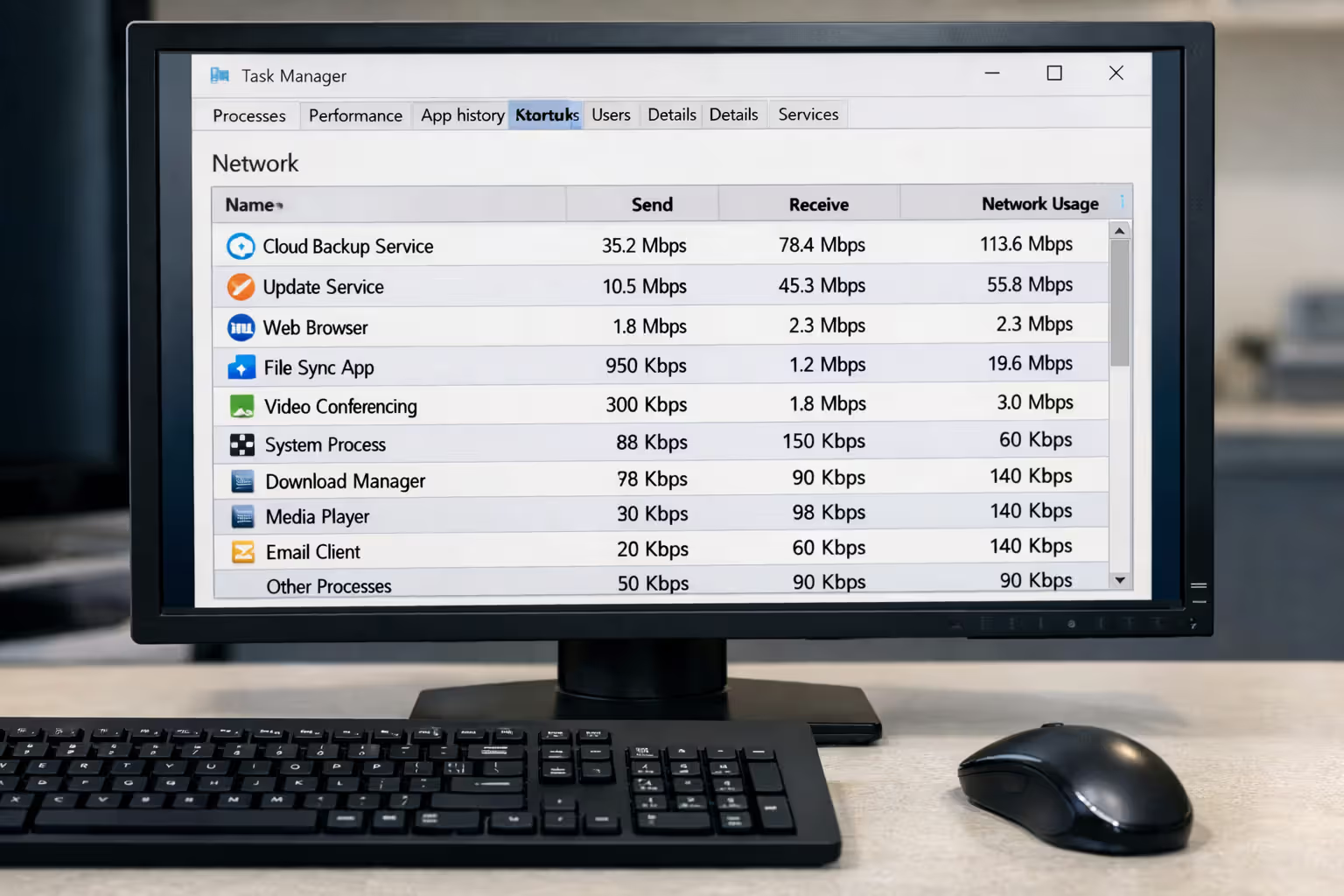
Operating systems, applications, and cloud storage services update automatically without prominent notifications. Your computer might download a 5 GB Windows update during work hours. Your smartphone backs up 20 GB of photos to iCloud. Your Dropbox client synchronizes a colleague's shared folder containing thousands of files.
These background operations prioritize themselves above your active browsing. You perceive slow speeds because available bandwidth is already consumed by hidden tasks.
Monitor active network operations: On Windows, launch Task Manager (Ctrl+Shift+Esc), select "Performance," then "Open Resource Monitor." The "Network" panel reveals which processes consume bandwidth. On Mac, launch Activity Monitor and click the "Network" tab. On smartphones, navigate Settings > Network or Data Usage to identify bandwidth-hungry applications.
Pause cloud synchronization during critical work periods. Schedule backups and updates for overnight hours when devices sit unused. Disable automatic updates for applications you rarely use. These straightforward changes prevent background processes from destroying usable bandwidth during important times.
Malware and Browser Extensions Draining Bandwidth
Malicious software operates silently, exploiting your connection to transmit spam, participate in distributed botnets, or mine cryptocurrency. You won't observe obvious symptoms beyond sluggish performance and unexplained bandwidth consumption.
Browser extensions represent a more frequent culprit. That free VPN extension or ad blocker might route all traffic through remote proxy servers, adding latency and reducing speeds. Poorly programmed extensions create memory leaks progressively degrading browser performance until restart.
Test by launching your browser in incognito or private mode, which temporarily disables extensions. If speeds improve dramatically, an extension causes your problems. Re-enable extensions individually to isolate the problematic one.
Execute malware scans monthly using established tools like Malwarebytes (free version sufficient). Windows Defender provides adequate protection with regular updates. Macs aren't immune—Mac-targeting malware increased 400% between 2019 and 2023.
Author: Caroline Prescott;
Source: flexstarsolutions.com
8 Immediate Actions to Speed Up Your Internet Right Now
When experiencing slowdowns, execute these steps sequentially. Each requires five minutes or less and addresses specific common problems.
- Power cycle your networking equipment. Disconnect both modem and router from power, wait a full thirty seconds, reconnect the modem first, then restore router power after modem lights stabilize completely. This clears temporary glitches and establishes fresh connections.
- Use wired ethernet connections. Plug directly into your router using ethernet cable to eliminate wireless variables. If speeds improve dramatically, your problem involves WiFi issues, not internet service.
- Locate bandwidth-consuming devices. Open your router's administrative dashboard and identify which devices currently consume bandwidth. Stop active downloads, close streaming applications, and disconnect devices not actively in use.
- Change WiFi channels manually. Use WiFi analysis software to identify the least congested channel, then manually configure your router to broadcast on that channel through administrative settings.
- Minimize distance from router. Physical separation and structural barriers degrade wireless signals. Test speeds in your router's immediate vicinity to establish baseline performance.
- Temporarily disable VPN services. VPNs add encryption overhead and route traffic through distant servers, typically reducing speeds 20-50%. Disconnect temporarily to test whether your VPN service causes the slowdown.
- Clear browser accumulated data and close excess tabs. Web browsers consume surprising memory and bandwidth when accumulating dozens of open tabs. Close everything except active work.
- Measure speeds during different time periods. Test during low-usage hours (early morning) to determine whether you're experiencing ISP capacity issues or equipment problems.
Bandwidth Requirements for Common Activities
| Activity | Quality Level | Required Speed | Hourly Data Consumption |
| Streaming Video | SD (480p) | 3 Mbps | 1.5 GB |
| Streaming Video | HD (1080p) | 5-8 Mbps | 3 GB |
| Streaming Video | 4K (2160p) | 25 Mbps | 7 GB |
| Video Conferencing | Standard quality | 1-2 Mbps | 0.5-1 GB |
| Video Conferencing | HD quality | 3-4 Mbps | 1.5-2 GB |
| Online Gaming | Typical games | 1-3 Mbps | 40-150 MB |
| Music Streaming | High quality | 0.3 Mbps | 150 MB |
| File Downloads | 10 GB file | Varies by connection | 10 GB (one-time) |
| Security Cameras | 1080p continuous | 2-4 Mbps per camera | 1-2 GB |
This breakdown explains why households with 100 Mbps plans still experience congestion. Two 4K streams (50 Mbps) combined with video conferencing (4 Mbps), gaming (3 Mbps), and two security cameras (8 Mbps) total 65 Mbps—leaving only 35 Mbps for all other devices. Adding background updates and cloud syncing easily exceeds total capacity.
Frequently Asked Questions About Sudden Internet Slowdowns
Internet slowdowns frustrate everyone, but random troubleshooting wastes valuable time. Work systematically: measure actual performance using proper testing methodology, eliminate wireless variables by testing through wired connections, identify and manage bandwidth-consuming devices and activities, investigate interference from household appliances and neighboring networks, and verify equipment functions correctly. Most performance problems trace to congestion, interference, or device-level issues rather than provider service failures. Document your diagnostic findings before contacting support, and consider upgrading aging equipment—routers exceeding five years old cannot deliver modern performance regardless of your subscription tier.