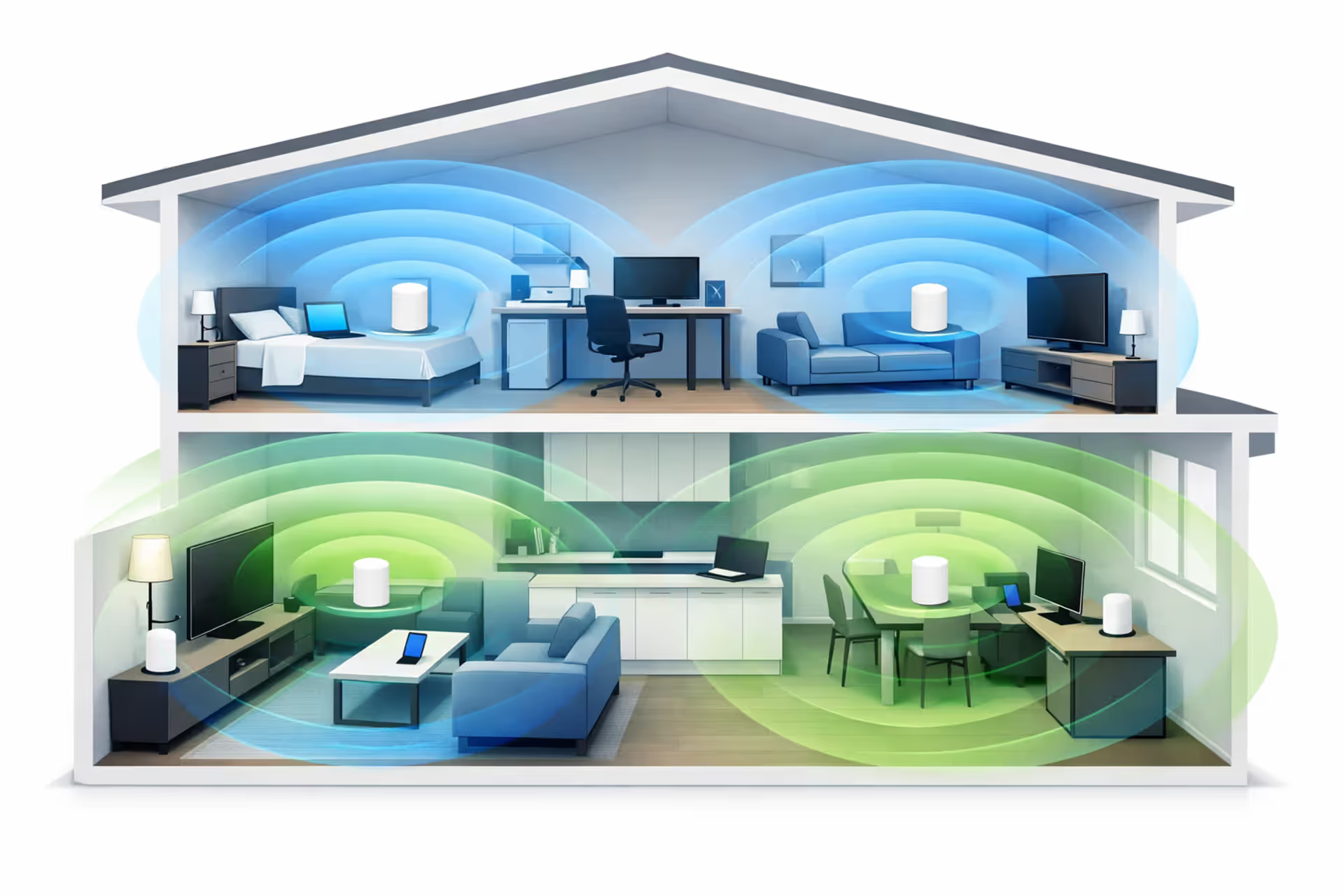
Modern WiFi router with glowing LED indicators on a clean desk next to a laptop showing router admin panel interface in a home office setting
How to Configure a WiFi Router for Optimal Performance

Content
Ever wonder why your neighbor's internet seems faster than yours, even though you both have the same plan? Chances are, they actually took the time to configure their router properly. Most folks plug in the box, connect to the default network, and call it done. That approach leaves speed on the table and creates security gaps you don't want.
I'm walking you through everything that actually matters when setting up your router. We'll skip the useless stuff and focus on changes that make a real difference.
Accessing Your Router's Admin Panel for the First Time
You can't adjust anything until you get into the control panel. Every router has one—it's basically a mini-website that lives on the device itself.
Finding Your Router's IP Address and Default Login Credentials
Flip your router over. See that white or silver sticker with a bunch of numbers and codes? That's where manufacturers hide the important stuff. You're looking for something labeled "Default Gateway," "Router Address," or just "IP." The numbers usually follow a pattern—you'll see something in the 192.168.x.x range, or occasionally 10.0.0.1 if you've got certain ISP equipment.
No sticker? Someone probably peeled it off. Here's the workaround for Windows machines: hit the Windows key, type "cmd" to open Command Prompt, then punch in ipconfig and press Enter. You'll see a wall of text. Scan for "Default Gateway" under whatever connection you're using (WiFi or Ethernet). That string of numbers next to it? That's your ticket in.
Mac people have a different path. Launch Terminal from your Applications folder (it's in Utilities). Type netstat -nr | grep default and hit return. The IP address that pops up after "default" is what you need.
Now comes the fun part. Open any browser—Chrome, Firefox, Safari, doesn't matter—and type that IP address into the URL bar like you're visiting a website. Instead of Google or YouTube, you'll land on a login screen demanding credentials.
Username and password depend on who made your router. Netgear loves using "admin" for both fields. TP-Link does the same. Linksys often wants "admin" as the username but leaves the password blank. Asus switches it up with "admin" and "password." Your best bet? Check that sticker again or Google "
default login."Newer mesh systems from companies like Eero or Google Nest WiFi skip the web interface entirely. They force you through a smartphone app instead, which honestly makes life easier for basic setup.

Author: Marcus Leland;
Source: flexstarsolutions.com
What to Do If Default Passwords Don't Work
Bought a used router off Facebook Marketplace? Inherited one from the previous tenant? Someone changed the admin password, and you're locked out. There's only one solution that doesn't involve mind reading.
Every router has a recessed reset button hiding somewhere on the back or bottom. It's tiny—deliberately so, since you shouldn't press it by accident. You'll need a paperclip, a pen tip, or one of those SIM card ejector tools.
Plug in the router and wait for it to fully boot up. Now stick your tool into that little hole and hold the button down. Keep holding. You need to maintain pressure for at least 10 seconds, sometimes up to 20. The lights on the front will start doing weird things—flashing in patterns, turning different colors, or going dark completely. That's good. Keep holding until they settle into a normal pattern.
When you let go, the router reboots itself with every setting wiped back to factory fresh. Your custom WiFi name? Gone. That password you changed? Gone. Port forwarding rules? All gone. You're starting from scratch, which is annoying but necessary.
One exception: if your internet provider gave you the router (Comcast, Spectrum, AT&T, etc.), it might have special firmware that ties the admin password to your account. Resetting won't help. Call their support line instead. They can either tell you the password or reset it from their end.
Essential Router Settings Every User Should Change
Factory settings exist because routers need to work out of the box for grandma and tech nerds alike. But keeping defaults after setup? That's like moving into a new apartment and not changing the locks.
Updating Your WiFi Network Name (SSID) and Password
Your network name broadcasts constantly to every device within range. Default names scream valuable information to anyone paying attention. "NETGEAR37" tells attackers you're running Netgear hardware, probably a specific model range. "TP-Link_5G_A42B" narrows it down even further. Hackers maintain databases of known vulnerabilities for specific router models. Why make their job easier?
Pick something unique that doesn't identify you personally. "Smith Family WiFi" is terrible—now everyone knows your last name. Same goes for your address, phone number, or anything that appears in public records. Get creative: "Pretty Fly for a WiFi," "The LAN Before Time," or just "Home Network" all work fine.
The default WiFi password usually sits somewhere between terrible (8 random characters) and okay (12 random characters). Either way, you should change it. Longer passwords make brute-force attacks impractical. Shoot for 15+ characters mixing uppercase, lowercase, numbers, and symbols.
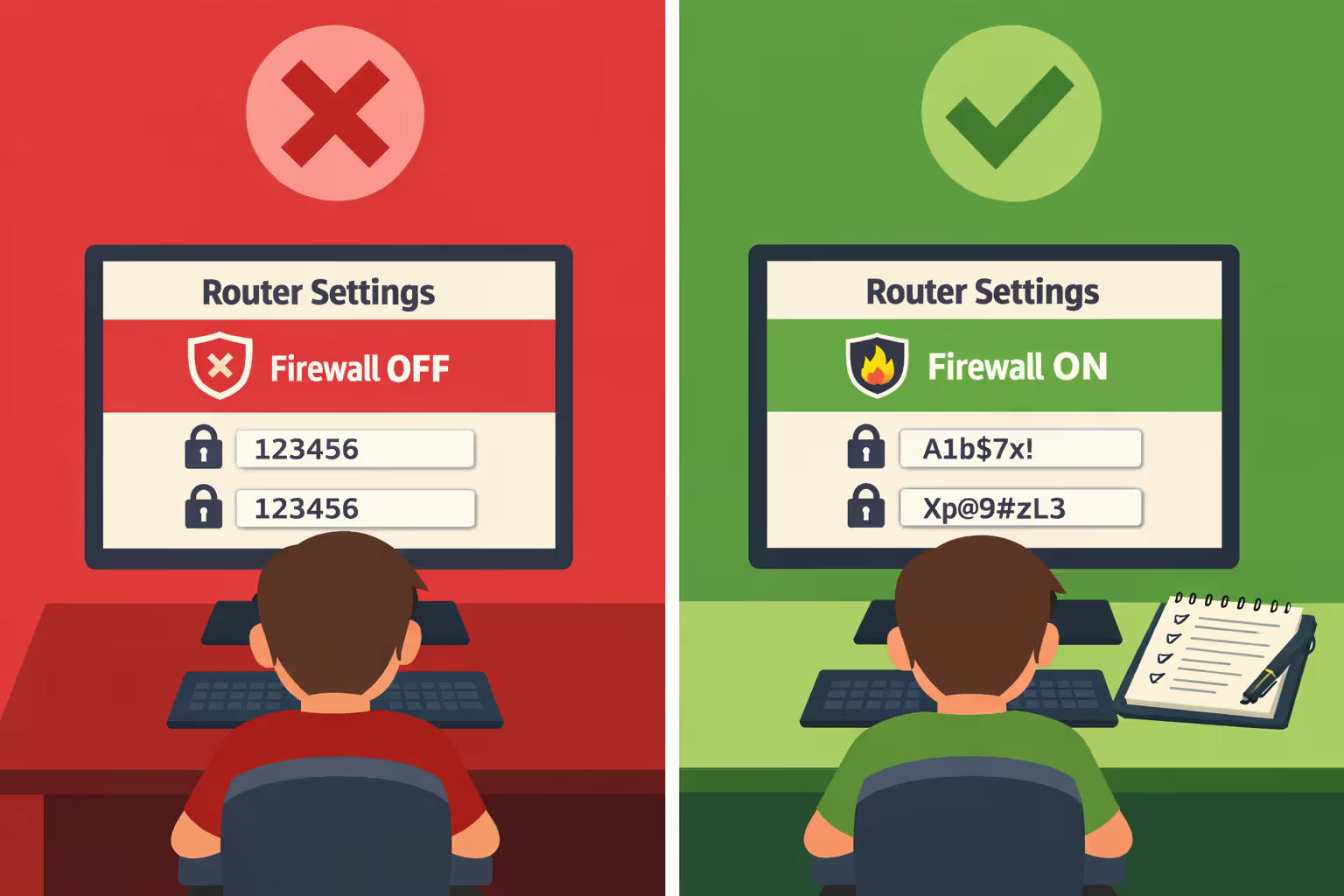
Don't stress about memorizing it. Write it down on a physical piece of paper and stick it in a drawer. Or save it in a password manager if you use one. Anyone who needs your WiFi is either in your house already (where they can ask you) or shouldn't be getting access anyway.
Navigate to your wireless settings section. The exact location varies—might be under "WiFi," "Wireless," or "Network." You'll spot fields for the 2.4 GHz network name and 5 GHz network name. Some people use identical names for both bands, letting devices choose automatically. Others prefer distinct names like "HomeNetwork" and "HomeNetwork-5G" to control which band specific devices use.
Enabling WPA3 or WPA2 Encryption
Encryption scrambles all data flowing between your laptop and the router. Without it, your neighbor could intercept your passwords, credit card numbers, or private photos. It's that serious.
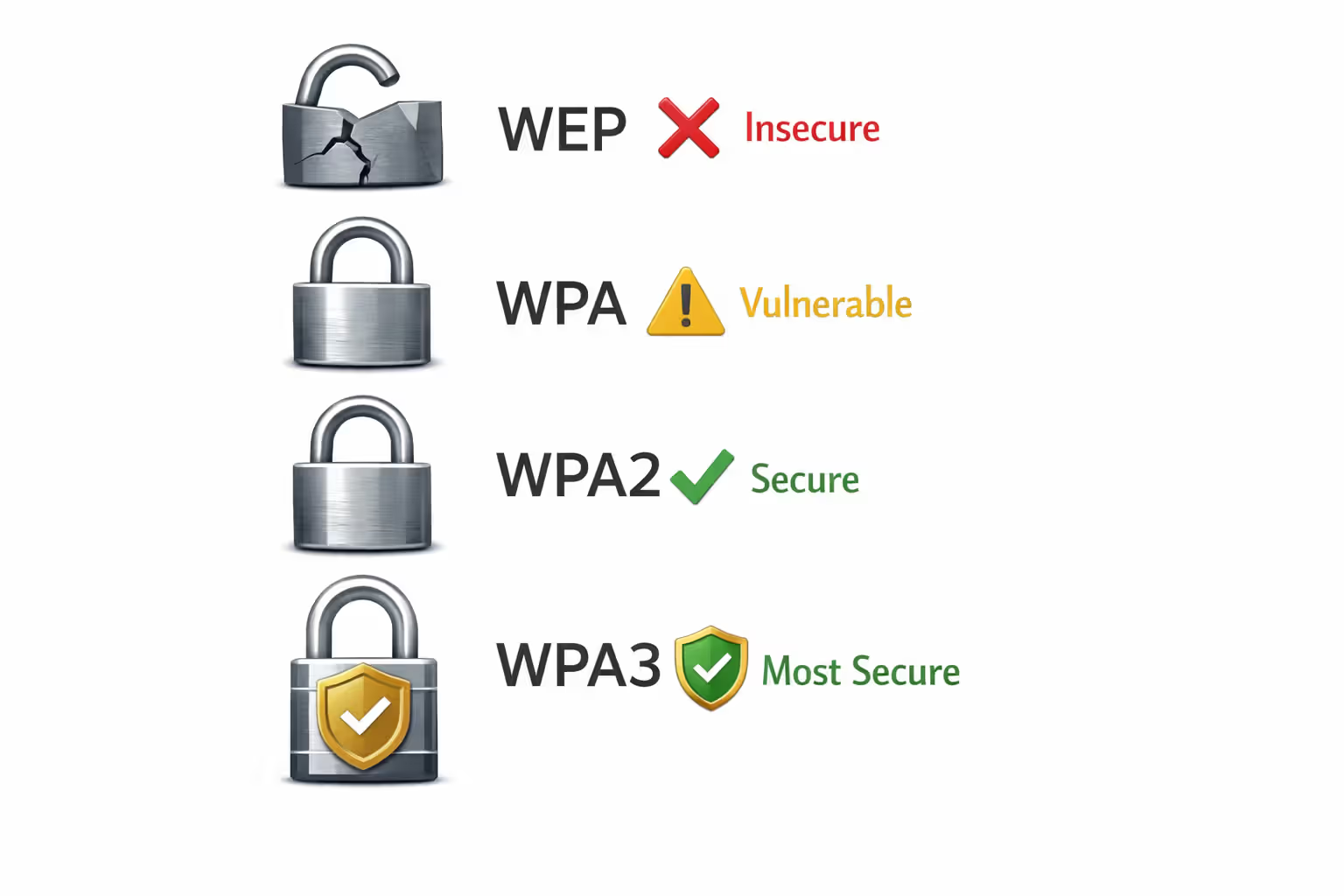
WPA3 launched in 2018 and patches several security holes found in WPA2. If you bought your router in the last couple years and your phones, laptops, and tablets aren't ancient, WPA3 works great. Enable it and enjoy better protection against password-cracking attempts.
Here's the catch: older devices from 2018 or earlier might not understand WPA3. They'll see your network but won't connect, giving you cryptic error messages. Most routers solve this with "WPA2/WPA3 Mixed Mode" or "WPA2/WPA3 Transitional." This setting lets old devices connect with WPA2 while newer gadgets get the benefits of WPA3.
Whatever you do, never—and I mean never—select WEP or the original WPA. These encryption methods are broken. Security researchers can crack them in under an hour using free tools downloaded from the internet. If your router only offers WEP, it's time to upgrade the hardware entirely.
Author: Marcus Leland;
Source: flexstarsolutions.com
Disabling WPS and Remote Management Features
WiFi Protected Setup sounds convenient. Press a button on your router, press a corresponding button in your device settings, and boom—connected without typing a password. The reality? It's a security disaster.
WPS supports two methods: push-button and PIN entry. The button method is mostly safe. The PIN method is catastrophically broken. That 8-digit PIN only offers about 11,000 possible combinations due to a design flaw. Automated tools can try every combination in 4-10 hours. Once they crack the PIN, they've got your actual WiFi password too.
Find WPS in your router settings—usually under wireless configuration or security—and turn it off. If you absolutely need it to connect one weird device that demands WPS, enable it temporarily, connect the device, then disable WPS again immediately.
Remote management lets you access your router's admin panel from anywhere on the internet. Sounds useful until you realize it means anyone on the internet can try to access your router's admin panel. They just need to find your public IP address (trivial) and then start guessing passwords.
The Cybersecurity and Infrastructure Security Agency published guidance stating that home users gain no meaningful benefit from remote router administration while significantly expanding their vulnerability to attacks. Unless you're running a business network and have implemented additional security layers, leave this feature disabled.
The first rule of any technology used in a business is that automation applied to an efficient operation will magnify the efficiency. The second is that automation applied to an inefficient operation will magnify the inefficiency
— Bill Gates
Optimizing WiFi Performance: Channels, Bandwidth, and Placement
Slow WiFi usually isn't about your internet plan. It's about interference, poor channel selection, and physics working against you.
How to Choose and Set the Best WiFi Channel for Your Environment
Think of WiFi channels like radio stations. When too many stations broadcast on the same frequency, they create static and interference. Your router faces the same problem—except the competing stations are your neighbors' networks.
The 2.4 GHz spectrum divides into 11 channels if you're in the United States (13 in Europe, 14 in Japan). But here's the trick: these channels overlap like crazy. Only three channels—1, 6, and 11—stay completely separate from each other. If you set your router to channel 3, you're creating interference with anyone using channels 1, 2, 4, 5, or 6.
Download a WiFi analyzer app for your phone. WiFi Analyzer on Android is free and simple. Mac users can hold Option and click the WiFi icon in the menu bar for basic info, or download NetSpot for detailed analysis. Windows folks need NetSpot or a similar third-party tool.
Run the app and look at which channels nearby networks occupy. Living in an apartment building? You might see 20+ networks. If channels 1 and 6 are packed but channel 11 looks empty, switch to 11. Sometimes all three are crowded—pick the one with the weakest competing signals.
The 5 GHz band operates differently. You get over 20 non-overlapping channels with plenty of room for everyone. Channels 36, 40, 44, and 48 occupy the lower portion of the band. Channels 149, 153, 157, and 161 sit at the upper end. The middle channels (52-144) support something called DFS (Dynamic Frequency Selection), which means your router has to listen for weather radar and other priority signals before using them. This causes brief disconnections sometimes, so many people avoid DFS channels.
Here's a comparison showing what works best:
| Channel | Frequency Range | Typical Interference | When to Use This Channel | Device Support |
| 1 (2.4 GHz) | 2.412 GHz | Light if neighbors use 6 and 11 | Your first choice for 2.4 GHz | Every WiFi device ever made |
| 6 (2.4 GHz) | 2.437 GHz | Heavy (most common default) | Only when 1 and 11 are saturated | Every WiFi device ever made |
| 11 (2.4 GHz) | 2.462 GHz | Moderate in most neighborhoods | Solid alternative to channel 1 | Every WiFi device ever made |
| 36 (5 GHz) | 5.180 GHz | Usually clear | Close-range connections, less wall penetration | Devices from 2009 onward |
| 149 (5 GHz) | 5.745 GHz | Very light | Better range than lower 5 GHz channels | Devices from 2009 onward |
| 165 (5 GHz) | 5.825 GHz | Almost none | Apartments with dozens of networks | Devices from 2013 onward |
To actually change the channel, dig into your wireless settings page. Look for "Channel Selection" or just "Channel" under the 2.4 GHz and 5 GHz sections. You'll see "Auto" selected by default. This sounds smart but often fails miserably—the router picks a channel when you first power it on and never adapts to changing conditions. Manual selection works better.
2.4 GHz vs. 5 GHz: Which Band to Use and When
Here's what most articles won't tell you: the "better" band depends entirely on where you're sitting and what you're doing.
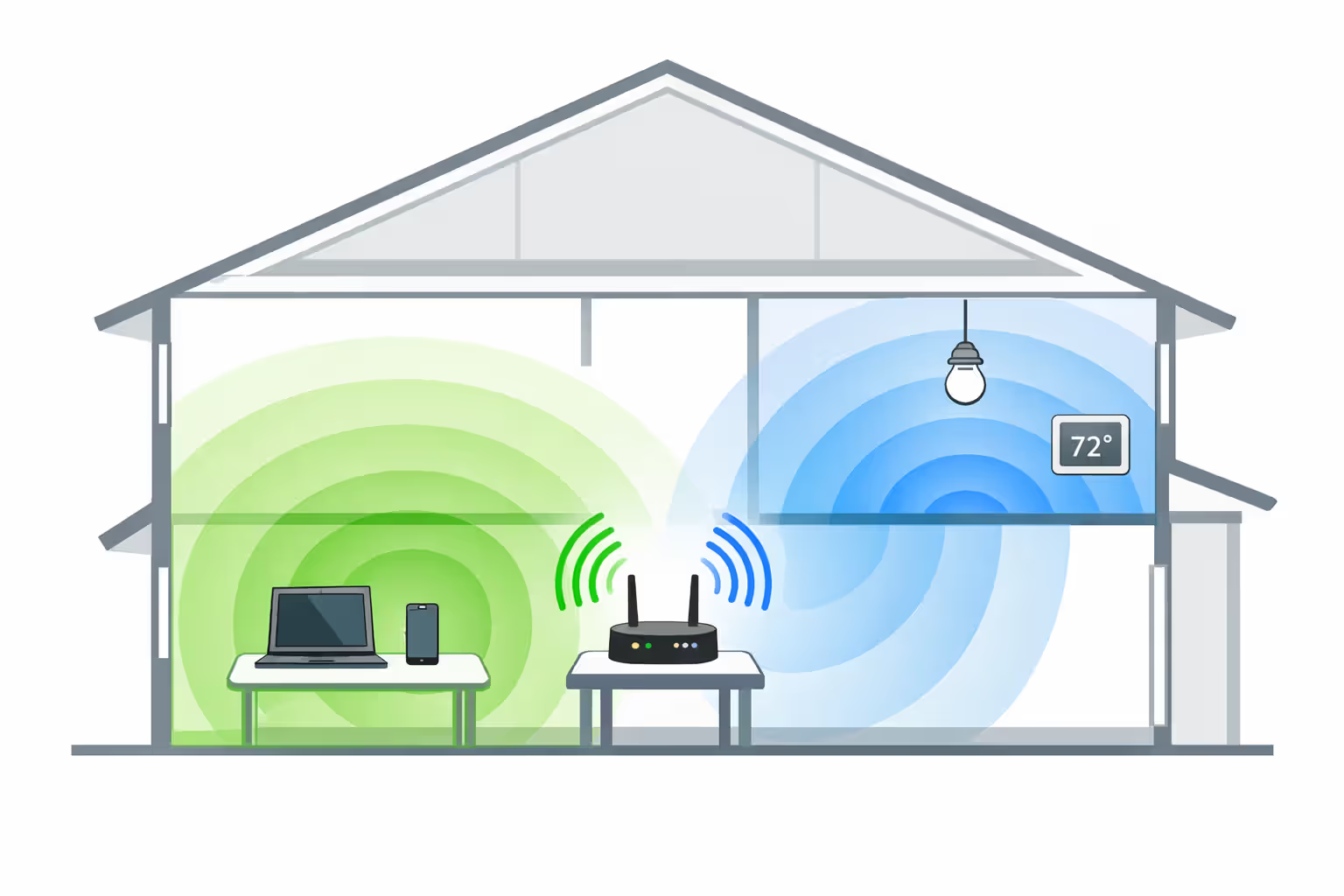
The 2.4 GHz band travels farther and punches through walls more effectively. Radio waves at this frequency bend around obstacles and diffract through openings. The downside? Maximum theoretical speeds cap around 300 Mbps, and real-world speeds rarely exceed 100 Mbps. Plus, 2.4 GHz gets crowded. Bluetooth devices, microwave ovens, baby monitors, and wireless security cameras all share this frequency range.
The 5 GHz band offers dramatically faster speeds—1,300 Mbps or higher depending on your router. Less interference too, since fewer devices operate at these frequencies. The trade-off comes from physics: higher frequency signals don't penetrate solid objects well. That 5 GHz signal struggles with walls, floors, and furniture.
My recommendation? Connect phones, laptops, and tablets to 5 GHz when you're in the same room or one room away from the router. These devices need speed for streaming, video calls, and downloads. Switch to 2.4 GHz for the bedroom on the opposite side of the house or the basement two floors down.
Author: Marcus Leland;
Source: flexstarsolutions.com
Smart home gadgets—thermostats, smart plugs, light bulbs—almost always use 2.4 GHz exclusively. They don't need speed, just reliable connectivity wherever they're installed. Same goes for older devices that predate 5 GHz support.
Don't disable either band unless you have a specific technical reason. Running both simultaneously gives your devices flexibility to choose what works best for their current location and needs.
Configuring Advanced Network Features
These features solve specific problems. You might not need all of them, but when you do need them, they're invaluable.
Setting Up a Guest Network to Isolate Visitors
Your friend comes over and asks for the WiFi password. Seems harmless, right? Except now their laptop has network access to your shared drives, printers, and smart home devices. If their computer happens to be infected with malware, that infection can spread across your network.
Guest networks create a separate, isolated bubble. Visitors get internet access but can't see or interact with anything else on your main network. It's like having two completely independent networks running on the same router.
Look for "Guest Network," "Guest WiFi," or "Guest Access" somewhere in your wireless settings. Enable it and create a different SSID—something like "Smith Guest" or "Visitor Network." Set a password (or leave it open if you're feeling generous and don't care about random neighbors connecting).
Most routers automatically enable "Client Isolation" or "AP Isolation" for guest networks. This prevents guest devices from communicating with each other too. Double-check that this setting is active.
Guest networks shine for Internet-of-Things devices too. That cheap security camera you bought off Amazon doesn't need to talk to your laptop. Neither does your smart TV, which is probably collecting data about your viewing habits anyway. Stick them on the guest network to limit potential damage if they get hacked.
The limitation: some routers restrict guest network speeds or cap the number of simultaneous connections. Check your manual. If guests can only get 50 Mbps while your main network supports gigabit speeds, that might matter. Or it might not—depends on your priorities.
Understanding and Adjusting DHCP Settings for Your Devices
DHCP handles the boring but essential task of assigning IP addresses to every device on your network. Your laptop connects and asks for an address. The router says "You're 192.168.1.105" and everyone's happy.
For 95% of people, DHCP settings explained in one sentence: leave them at default. They work fine. But that remaining 5% running home servers, network storage, or anything requiring port forwarding needs to pay attention.
Find DHCP settings under "LAN Setup," "Local Network," or something similar. You'll see an address range—often 192.168.1.100 through 192.168.1.200. This means the router hands out addresses within this pool automatically. Addresses outside this range stay available for manual assignment.
Why does this matter? Port forwarding rules point to specific IP addresses. If your gaming PC gets 192.168.1.105 today but 192.168.1.143 tomorrow, your port forwarding breaks. You need a static IP—an address that never changes.
Two ways to accomplish this: DHCP reservation (easier) or manual IP configuration (more reliable). DHCP reservation tells the router "Always give this device the same address." You'll enter the device's MAC address and assign it a specific IP outside the DHCP pool. Manual configuration means going into the device itself and setting a static IP, subnet mask, gateway, and DNS servers.
DHCP lease time controls how long a device keeps its assigned address before asking for renewal. Default settings (usually 24 hours) work well for homes. Shorten it to 2-4 hours if you run a coffee shop or somewhere with lots of temporary devices cycling through. Extend it to a week or more in static environments where the same devices connect daily.
Changing Your Router's DNS Servers for Speed and Security
DNS translates human-readable website names into computer-friendly IP addresses. Type "amazon.com" and DNS tells your browser "That's 205.251.242.103." Your internet provider runs DNS servers automatically, but they're often slow, log your browsing history, or both.
Cloudflare operates public DNS at 1.1.1.1 and 1.0.0.1. They promise not to log queries and claim to be the fastest option in most regions. Google runs 8.8.8.8 and 8.8.4.4—reliable and fast, though Google definitely logs your queries for their own purposes. Quad9 (9.9.9.9) takes a security-first approach, blocking known malicious domains automatically.
To change DNS on router settings, navigate to WAN configuration, Internet setup, or whatever your router calls external network settings. Look for "DNS Server" fields—you'll see primary and secondary slots. Switch from automatic/ISP-assigned to manual. Punch in your chosen DNS addresses. Save the changes and reboot your router.
The performance difference usually isn't dramatic. You might shave 50-100 milliseconds off the first load of a website. But that adds up across hundreds of page loads daily. Plus, the privacy benefits from using Cloudflare or security benefits from Quad9 matter more than raw speed for most people.
Test your results after changing. Visit a website you've never accessed before (so it's not cached). Then try your commonly-visited sites. Pages should load the same or slightly faster. If you notice slowdowns or DNS errors, switch to different servers.

Author: Marcus Leland;
Source: flexstarsolutions.com
Gaming and Streaming: QoS and Port Forwarding Setup
Nothing frustrates gamers more than lag spikes during crucial moments. These features give you control over network traffic priority.
Enabling QoS (Quality of Service) to Prioritize Gaming Traffic
Picture this: you're playing a ranked match in your favorite game when suddenly your ping jumps from 30ms to 200ms. You die, your team loses, and you want to throw your controller. What happened? Your roommate just started uploading a massive video file to the cloud, saturating your upload bandwidth.
QoS for gaming prevents this nightmare. It tells your router "Gaming packets go first, everything else can wait." Simple concept, surprisingly effective results.
Modern routers offer different QoS flavors. Basic implementations let you prioritize by device—your PlayStation gets high priority, your roommate's laptop gets low priority. More advanced systems detect traffic types automatically. They see gaming packets (small, frequent, latency-sensitive) and prioritize them over file downloads (large, infrequent, latency-tolerant).
Hunt through your settings for "QoS," "Traffic Control," "Bandwidth Management," or "Gaming Priority." Enable the feature and select your preferred method. Device-based priority is straightforward: you'll see a list of connected devices with priority dropdowns next to each. Set your gaming PC or console to "Highest" or "High." Everything else can stay at "Normal" or "Low."
Application-based QoS requires more thought but provides better results in multi-person households. You'll categorize traffic types—gaming, streaming video, video calls, web browsing, file downloads—and assign priority levels to each category. Gaming and video calls should top the list. Streaming video goes in the middle. File downloads and updates sit at the bottom.
The critical limitation: QoS only controls outbound traffic leaving your network. It can't manage incoming downloads from the internet. If your download speed is the bottleneck (saturated by someone streaming 4K Netflix), QoS won't help. It excels when upload bandwidth is limited and multiple activities compete for those precious outbound megabits.
Port Forwarding Basics: When and How to Open Ports Safely
Port forwarding creates a direct pathway through your router's firewall to a specific device. Certain games, game servers, and applications demand it for proper functionality—especially multiplayer titles with peer-to-peer networking.
You need three pieces of information before starting: the destination device's local IP address, which port numbers to forward, and whether those ports use TCP, UDP, or both protocols. Game documentation usually specifies this. Minecraft Java Edition needs TCP 25565. PlayStation Remote Play wants TCP ports 9295-9304 and UDP port 9296. Search "
port forwarding" for specifics.First, assign that device a static IP address using DHCP reservation or manual configuration. Port forwarding rules point to specific IPs. If your gaming PC's address changes from 192.168.1.50 to 192.168.1.142, your carefully-configured rule stops working.
Now dig into your router settings for "Port Forwarding," "Virtual Servers," "NAT Forwarding," or "Applications and Gaming." Create a new rule. You'll enter the external port number (what the internet sees), internal port number (usually the same), destination IP address, and protocol type (TCP/UDP/Both).
Some routers let you name each rule. Use descriptive labels: "Minecraft Server," "Xbox Live," "Plex Media Server." Six months from now, you'll forget why you forwarded port 32400.
Port forwarding basics include understanding the security implications. You're deliberately punching holes through your firewall. Only forward ports you actively need, and delete rules when they're no longer necessary. Never, under any circumstances, forward these ports unless you know exactly what you're doing: port 22 (SSH remote access), port 23 (Telnet), port 3389 (Windows Remote Desktop), or port 80/443 (web servers). Opening these without additional security creates an open invitation for attackers.
Common Router Configuration Mistakes and How to Avoid Them
I've seen every one of these errors personally—some I made myself when starting out.
Recycling the same password for admin access and WiFi. Think about it: you give your WiFi password to houseguests, friends, repair technicians. If that's also your admin password, they control your entire network. Keep these completely separate. Your admin password should be stronger and known only to you.
Clicking through pages without saving first. So many routers don't auto-save changes. You'll adjust five different settings, click to another section, and—poof—everything reverts. See that "Apply," "Save," or "Submit" button at the bottom of the page? Click it after every change before navigating away. Trust me on this one.
Disabling the firewall to troubleshoot connection problems. Your router's built-in firewall protects against external threats. When a game or application won't work, the solution is port forwarding, not turning off your firewall entirely. Disabling firewall protection to fix one problem creates a dozen security vulnerabilities.
Picking WiFi channels based on outdated recommendations. That article from 2016 suggesting channel 11 was great for its time. But network conditions change. Your neighbor upgraded their router. The apartment next door got new tenants. Download a WiFi analyzer and check current conditions in your actual environment right now.
Enabling features because they sound cool. UPnP (Universal Plug and Play), DMZ (Demilitarized Zone), port triggering—these serve legitimate purposes but also create security risks. UPnP allows devices to automatically open ports, which sounds convenient until malware exploits it. DMZ mode exposes one device completely to the internet, bypassing all firewall protection. Only enable features you understand and actively need for a specific purpose.
Forgetting to document your changes. Eight months from now, you'll stare at your port forwarding rules wondering what the hell port 32400 does and whether you still need it. Keep a simple text file noting what you changed, when you changed it, and why. Include screenshots if configurations look complicated. Future you will be grateful.
Author: Marcus Leland;
Source: flexstarsolutions.com
Frequently Asked Questions About Router Configuration
Router configuration isn't a one-and-done task you complete on installation day and forget about forever. Your network evolves. You add smart home devices, upgrade to a faster internet plan, move to a new house with different interference patterns. Revisit these settings whenever you notice performance degrading or after significant changes to your household technology.
The hour or two invested in proper configuration pays dividends in fewer connection problems, better security posture, and optimized performance for activities that matter to you—whether that's gaming, streaming, video calls, or just browsing without constant buffering.
Start with the essential security changes today. Tackle performance optimization when you have free time this weekend. Advanced features like QoS and port forwarding can wait until you actually need them for a specific purpose.
Your router forms the foundation of your home network. Treating it as a plug-in-and-forget appliance wastes its potential. These configuration steps give you control over one of the most critical pieces of technology in your home.