A blue Ethernet cable connecting a laptop to a home router on a modern desk in a cozy home office setting
What Is Hardwired Internet and How It Works

Content
Last Tuesday, my neighbor screamed at his router. I heard it through the wall. His Zoom presentation to a potential client had frozen for the third time, and I knew exactly what happened next—he yanked an Ethernet cable from his closet and plugged directly into his laptop. The meeting continued without another hitch.
WiFi 6E routers cost $300 now. Mesh systems blanket homes with wireless signals. Yet every esports tournament, every professional streaming setup, every data center still runs cables. There's a reason for that—and it might be the same reason you're reading this.
Physical cables seem ancient compared to invisible wireless networks. But when money's on the line, when your boss is watching, or when one laggy moment costs you the game, old-fashioned wires beat cutting-edge wireless every single time.
Hardwired Internet Explained: The Basics
What is hardwired internet? Think of it this way: instead of your data floating through the air as radio signals, it races through copper wires as electrical pulses. That's the entire concept. A cable connects your modem to your router, another cable connects your router to your computer, and data zips between them without ever leaving those protective plastic sheaths.
The technical term is Ethernet—named after "luminiferous ether," the fictional substance scientists once believed carried light waves through space. Modern Ethernet cables carry something very real: twisted pairs of copper wire, precisely wound to cancel out electromagnetic interference.
Here's what actually happens inside those cables. Eight thin copper wires twist together in four pairs. Each pair handles part of your data transmission. When you click a link, your computer converts that click into tiny voltage changes that pulse through the wires at nearly the speed of light. Your router receives those pulses, interprets them, and sends back the webpage you requested using the same method.
Compare that to WiFi's journey. Your router transforms data into radio waves, broadcasts them in all directions, and hopes your device catches the signal before it bounces off walls, fights through insulation, and competes with your neighbor's router broadcasting on the same channel. Every obstacle weakens the signal. Every competing network creates interference.
Hardwired internet meaning really boils down to predictability. Same cable, same path, same speed, every time.

Author: Caroline Prescott;
Source: flexstarsolutions.com
Three cable types dominate home networks:
Cat5e moves data at 1 Gbps for runs under 328 feet. You'll pay roughly $0.20–$0.40 per foot. This handles most home internet plans just fine—even gigabit connections—and costs less than coffee for a 25-foot run.
Cat6 pushes 10 Gbps up to 180 feet and includes thicker shielding. At $0.30–$0.60 per foot, it's worth the premium if your internet exceeds 1 Gbps or you're planning ahead for faster service. The extra shielding also helps in electrically noisy environments near fluorescent lights or motors.
Cat7 and Cat8 exist mainly for data centers and future-proofing enthusiasts. They handle 40+ Gbps and cost $0.50–$1.50 per foot. Unless you're running a home server farm, skip these—your router probably can't use their full capacity anyway.
The clear plastic connectors on cable ends (RJ45 plugs) matter more than most people realize. A poorly crimped connector causes intermittent failures that look exactly like ISP problems. I've watched people spend hours on support calls, only to discover their $15 cable had a sloppy connector.
Hardwired vs. WiFi: Performance Comparison
Asking whether Ethernet beats WiFi is like asking whether screwdrivers beat hammers. Wrong question. The right question: which tool fits your job?
| Comparison Point | Wired (Ethernet) | Wireless (WiFi 6) |
| Real Speed | 950 Mbps on gigabit plans (95% of maximum) | 450 Mbps average in typical homes (manufacturer claims 9,600 Mbps) |
| Response Time | 1–3 ms, rock steady | 8–25 ms, bounces around |
| Works When | Cable intact | Perfect conditions, no interference, clear line of sight |
| Hacking Difficulty | Must touch your equipment | Possible from parking lot |
| Setup Investment | $80–$400 including cables, switches, labor | $0–$250 for mesh upgrades |
| Mobility Factor | Zero—you're tethered | Total freedom within range |
| Perfect For | Desktops, consoles, streaming boxes, servers | Phones, tablets, laptops, IoT gadgets |
Speed consistency matters way more than peak speed. Your ISP sells you 500 Mbps, but WiFi delivers whatever's left after fighting through: - Three interior walls (each cuts signal 25–40%) - Your microwave running (goodbye 2.4 GHz band) - Eleven neighboring networks on the same channel - Two dozen smart home devices all talking at once - Your kid streaming in 4K upstairs
Meanwhile, plug in Ethernet and watch: 495 Mbps. Every test. Morning, noon, midnight. That consistency means your 80GB game downloads in 22 minutes instead of "anywhere from 30 to 90 minutes depending on who else is online."
Latency—that delay between asking and receiving—destroys real-time applications faster than slow speeds ever could. Video calls work fine on 5 Mbps if responses arrive predictably. Crank that up to 200 Mbps over janky WiFi with 50ms of jittery lag, and you're still watching frozen faces and robotic voices.
Benefits of wired internet show up clearest in network stability. Ethernet fails one way: physical damage to the cable. You'll know immediately because nothing works. WiFi fails a thousand ways—slightly, intermittently, mysteriously. Your connection drops for two seconds. Speed cuts in half. Latency spikes randomly. These micro-failures are invisible to speed tests but ruin your experience.
Security gets overlooked until it's too late. Intercepting Ethernet requires breaking into your home and physically tapping your cables—it happens in spy movies, not suburban neighborhoods. Cracking WiFi happens daily. Attackers sit in cars running software that tests millions of password combinations, spoofs your network name to steal credentials, or exploits router vulnerabilities you didn't know existed. Strong passwords help, but physical cables beat any wireless encryption.
When Hardwired Internet Makes the Biggest Difference
Some tasks tolerate wireless compromises. Others demand the rock-solid consistency only cables provide.
Gaming Performance and Competitive Advantage
Hardwired internet for gaming separates "just for fun" players from competitors who actually care about winning. In Valorant, Apex Legends, or any competitive shooter, 20 milliseconds might as well be 20 years—your opponent's bullet hits before your screen shows them peeking.
WiFi doesn't just add latency. It adds jitter—unpredictable variations in latency. Your ping hovers at 30ms, then spikes to 95ms for three packets, dropping back to 32ms. Those spikes cause rubber-banding (enemies teleporting across your screen) and trading kills (you die after reaching cover because the server still sees you exposed).
Watch any esports tournament. Every PC plugs into Ethernet. Not because 5ms versus 25ms ping sounds impressive—because consistency means their inputs register identically every time they click. No variables. No excuses.
Packet loss hits wireless networks constantly. One percent sounds negligible until you calculate the impact: at 3,600 packets per second (typical for online games), 1% loss means 36 packets fail every second. Each failure requires retransmission, adding delay and stuttering to your gameplay.
I switched my gaming PC to Ethernet after blaming my ISP for months. Turns out my internet was fine—my WiFi just sucked. First match after plugging in, I noticed enemies moved smoothly instead of stuttering. My shots registered immediately. I went from 0.82 K/D to 1.15 K/D in two weeks. Same skill, different connection.

Author: Caroline Prescott;
Source: flexstarsolutions.com
Remote Work and Video Conferencing Stability
Nothing screams "amateur hour" like "Can you repeat that? You're cutting out" for the sixth time in one meeting. Hardwired internet for work from home means clients hear your ideas instead of robotic stuttering.
Upload bandwidth becomes critical for remote work. Most plans run asymmetric—500 Mbps down, 20 Mbps up. That 20 Mbps upload already bottlenecks screen sharing and HD video. Add WiFi's overhead and interference, and you're actually getting 9–13 Mbps on a good day. Ethernet preserves your full upload capacity, preventing frozen video every time you share your screen.
VPNs multiply WiFi problems. The encryption tunneling adds 15–20ms latency baseline. Start with 30ms WiFi latency, add VPN overhead, and you're sitting at 50–60ms accessing your company's servers. Documents load slowly. Applications lag. Cloud software feels sluggish. That same VPN over 10ms Ethernet totals just 25–30ms—snappy and responsive.
One accountant told me she spent $1,200 upgrading to gigabit internet because QuickBooks Online was "broken." Her WiFi was the problem. A $22 Ethernet cable fixed it. She now recommends cables before speed upgrades to every colleague who complains about cloud software performance.

Author: Caroline Prescott;
Source: flexstarsolutions.com
How to Set Up Ethernet in Your Home
Running cables through finished walls sounds harder than it actually is—more tedious than difficult, more time-consuming than skilled.
Map your routes first. Measure from router to each device needing wired connections. Walk the path you'll run cables, adding vertical climbs, horizontal runs, and curves. Then add 20% extra length—cables never take perfectly straight paths, and you'll want slack at both ends for comfortable connections.
You've got three main strategies:
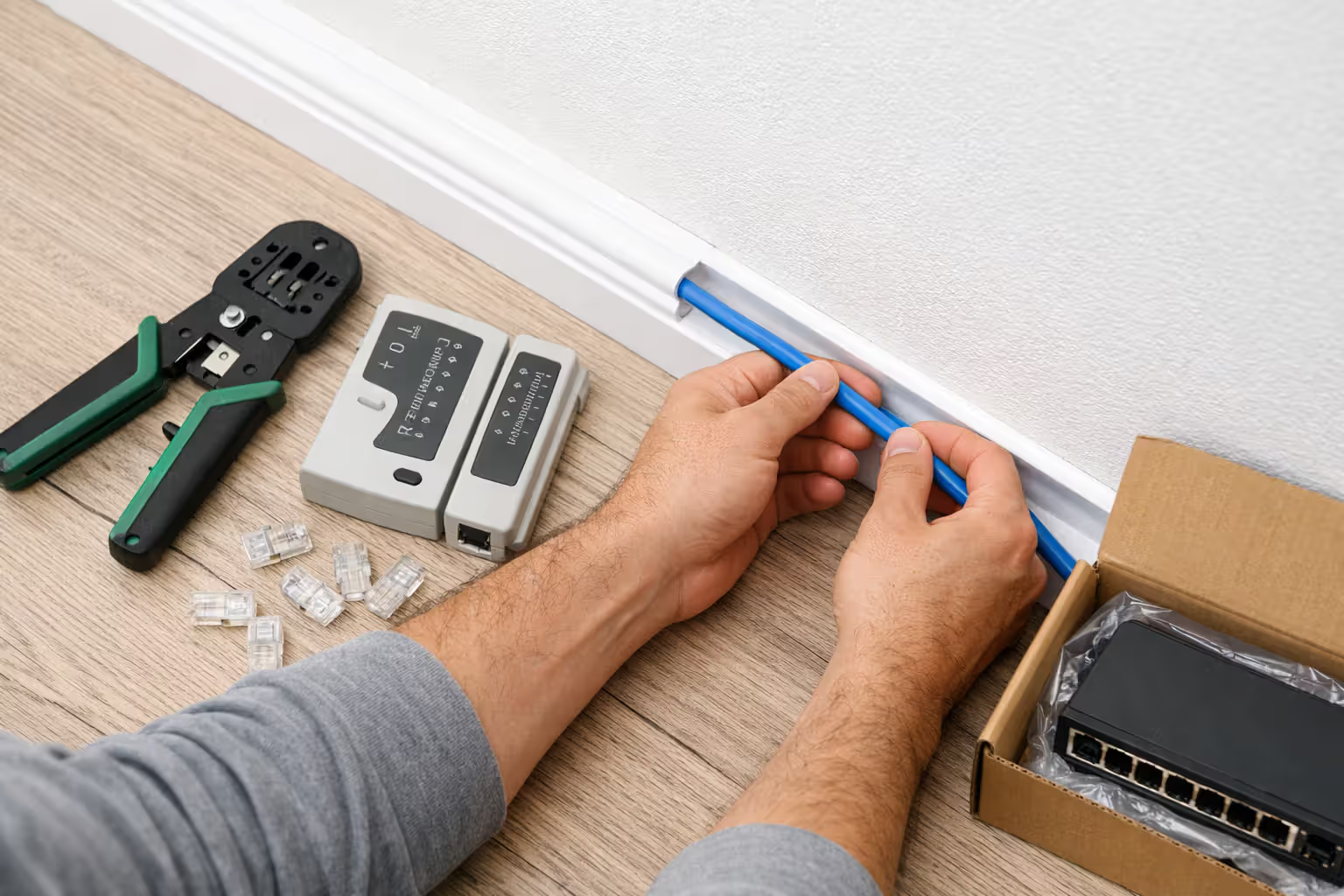
Surface mounting clips cables along baseboards and up door frames using adhesive cable channels or small staples. Takes 30 minutes per room, requires zero wall damage, and allows easy changes. The downside: visible cables. The upside: paintable channels blend surprisingly well, and you're not fishing wires through walls.
Attic/basement routing hides cables inside walls by threading them through spaces above or below living areas. Buy fish tape ($20–$35), long drill bits, and patience. This takes 2–4 hours per cable run but looks professional when finished. Works best in homes with accessible attics or unfinished basements.
Exterior running sends cables outside in weatherproof conduit. Easier than interior walls but requires outdoor-rated cable and careful sealing where cables penetrate your house's exterior. Check local building codes—some areas restrict exterior cable runs.
Grab these tools before starting:
- Ethernet cable (buy 25% more than measured—seriously)
- Cable tester ($15–$30—finds problems immediately)
- RJ45 connectors and crimping tool if making custom lengths (or buy pre-made cables and save yourself the hassle)
- Wall plates and keystone jacks for clean terminations
- Cable clips or adhesive channels
- Drill with long bits for wall penetrations
Ethernet switch basics: your router has four ports, but you need seven wired devices. A switch is basically a splitter with brains—plug it into your router, and it expands one connection into many. Every device plugged into the switch can talk to your router and access the internet.
An 8-port gigabit switch costs $18–$30, needs zero configuration, and just works when you plug it in. Place switches near device clusters (entertainment center, home office) instead of homerunning every cable back to your router in the basement.
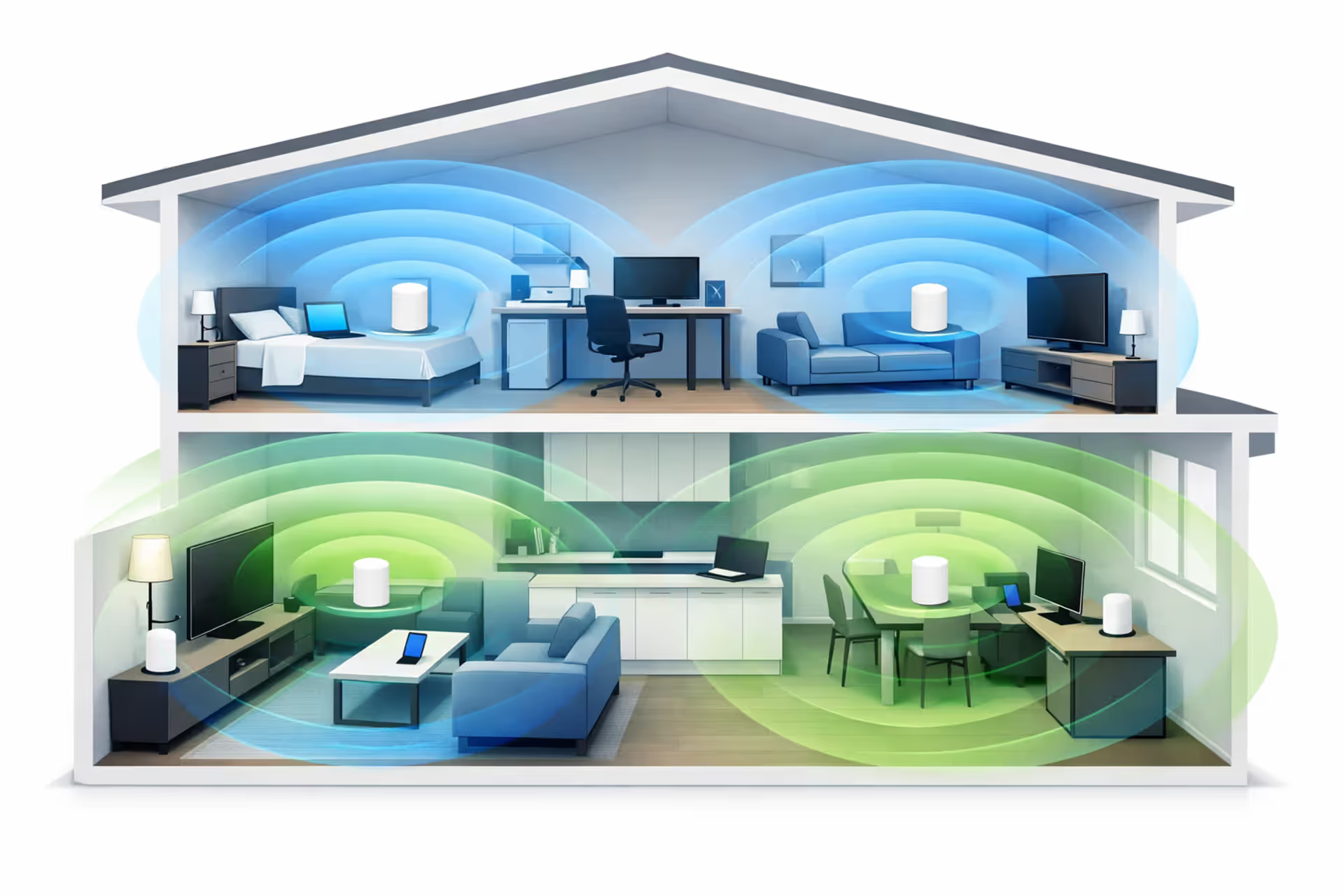
How to run Ethernet in home environments gets easier with wired backhaul for mesh systems. Wired backhaul explained simply: mesh WiFi nodes communicate with each other—either wirelessly (losing half your speed with each hop) or through Ethernet cables (keeping full speed throughout). If you're already installing cables, connect your mesh nodes together. Your whole-home WiFi improves dramatically because the wireless bandwidth isn't fighting itself.
Author: Caroline Prescott;
Source: flexstarsolutions.com
Common Mistakes When Choosing Between Wired and Wireless
Marketing departments work overtime convincing everyone WiFi 6E eliminates all wired advantages. It doesn't. These new standards do improve things—better multi-device handling, lower latency, faster theoretical speeds. But theoretical speeds happen in laboratories, not homes with concrete walls, metal appliances, and neighbors blasting their own WiFi.
Physics doesn't care about marketing. Radio waves still weaken traveling through obstacles. Wireless channels still get crowded. Interference still exists. WiFi 6 in perfect conditions might match Ethernet. But "perfect conditions" means one device, clear line of sight, no walls, no neighbors, and no interference—also known as "not your house."
Using outdated cables wastes money. Found Cat5 cables in your walls? They max out at 100 Mbps—fine for 2005. Any new installation should use Cat6 minimum. The price difference versus Cat5e runs maybe $15 per 100 feet, and Cat6 handles multi-gigabit speeds you'll probably want within five years.
Cable management failures create actual hazards. Stretching Ethernet across walkways trips people. Slamming cables in doors causes intermittent connection failures. Bending cables into 90-degree turns damages internal wires. Use proper routing, secure cables to walls, and leave service loops (coiled extras) near devices so cables aren't under constant tension.
The biggest mistake? Thinking you must choose one technology for everything. You don't pick wired or wireless for your entire house—you pick the best option per device. Wire your gaming PC, work computer, and smart TV. Keep your phone, tablet, and laptop on WiFi. Stationary gear gets cables, mobile gear gets wireless. This hybrid approach gives you Ethernet's performance where it matters while keeping WiFi's convenience for devices that move.
WiFi means convenience, Ethernet means performance. Anything making you money—remote work, streaming income, competitive gaming—deserves cables. Casual browsing on the couch? Wireless is plenty. The mistake is forcing yourself to pick one solution for everything
— Michael Rodriguez
FAQ: Hardwired Internet Questions Answered
The math changes based on your situation. Light users—streaming occasionally, browsing social media, checking email—won't notice enough improvement to justify drilling holes. Heavy users—multiple work-from-home jobs, competitive gaming, simultaneous 4K streams—see immediate differences worth the installation hassle.
Budget $100–$200 for DIY Ethernet reaching 2–3 rooms. Professional installation runs $250–$600 depending on home size and cable drop quantity. Compare that to the $10–$15 monthly router rental fees many ISPs charge, and wired infrastructure pays for itself within 12–18 months while delivering superior performance forever.
Ask yourself honest questions. Do you compete in ranked matches or play mobile puzzle games? Host daily video conferences or occasionally Zoom with family? Does one person work from home or do four people simultaneously stream, game, and video chat?
Most households benefit from wiring 2–4 critical devices while leaving everything else wireless. That gaming rig gets Ethernet. Your work-from-home desk gets Ethernet. The living room TV streaming 4K nightly gets Ethernet. Phones, tablets, smart speakers, and laptops remain wireless where convenience matters more than maximum performance.
The decision process breaks down simply: does the device stay put and matter for time-sensitive activities? Wire it. Does it move around or handle casual tasks? Wireless works great. Uncertain? Run the cable anyway—unplugging takes two seconds, but installing cables later requires the same work you're avoiding today.
Wired connections won't replace WiFi for most people, and they shouldn't. But understanding what is hardwired internet and recognizing when cables make the difference gives you control over network performance instead of accepting whatever your wireless connection feels like delivering each day.