White WiFi router sticking out of a cardboard moving box with ethernet cable in an empty new house room
Can You Move Your WiFi Router to a Different House

Content
You've packed everything else, so why not just unplug your router and take it with you? Most people assume their internet equipment works like any other appliance—plug it in anywhere and it should function. The reality is more complicated, and thousands of people discover this the hard way when they arrive at their new home expecting instant connectivity.
Whether your equipment will work at a new address depends on what you're moving, who your provider is, and where you're going. A router might be fine, but your modem could become an expensive paperweight. Understanding the difference before moving day saves you from sitting in an empty house with no internet while you wait days for a technician.
Why Your Router Might Not Work at Your New Address
ISP Service Area Boundaries and Geolocation Locks
Internet service providers don't operate everywhere. Comcast might dominate your current neighborhood but have zero infrastructure three miles away. Even if the same company services both addresses, you could be crossing into a different service region with separate systems.
Cable companies divide their networks into nodes—physical segments of infrastructure serving specific geographic areas. Your account is tied to the node serving your registered address. When you connect equipment at an unauthorized location, the system recognizes the mismatch. Some ISPs will simply refuse to authenticate. Others might allow a temporary connection but flag your account for review.
Fiber networks are even more restrictive. The optical network terminal (ONT) installed at your home is literally wired to a specific port on equipment miles away. You can't just move it to another house and expect it to work—there's no physical connection to the network at the new location.
Cable modems are provisioned to specific nodes in the network architecture. When a modem tries to connect, it sends its MAC address and location data upstream. The CMTS—the equipment managing that network segment—checks if that modem is authorized for that node. If the addresses don't match our records, the connection gets rejected at the authentication stage
— Marcus Chen
Modem Provisioning and MAC Address Registration
Every modem has a unique MAC address, essentially a serial number burned into its hardware. When you activate service, your ISP registers that MAC address to your account and your service address. This creates a binding between the device, your subscription, and the physical location.
The provisioning process downloads a configuration file to your modem telling it what speeds you're paying for, which channels to use, and what services you can access. This configuration is location-specific. A modem provisioned for a downtown apartment can't use that same configuration file at a suburban house—the network infrastructure is different, the available channels might not match, and the system won't authorize it.
ISP service address restrictions exist for legitimate business and technical reasons. They prevent service theft, ensure network stability, and help companies manage infrastructure investments. If customers could freely move equipment between addresses without updating accounts, it would create chaos for network management and billing systems.

Author: Lindsey Hartwell;
Source: flexstarsolutions.com
The Difference Between Moving Your Router vs. Your Modem (And Why It Matters)
Most people use "router" and "modem" interchangeably, but they're completely different devices with different rules about portability. Confusing them leads to wrong assumptions about what you can move.
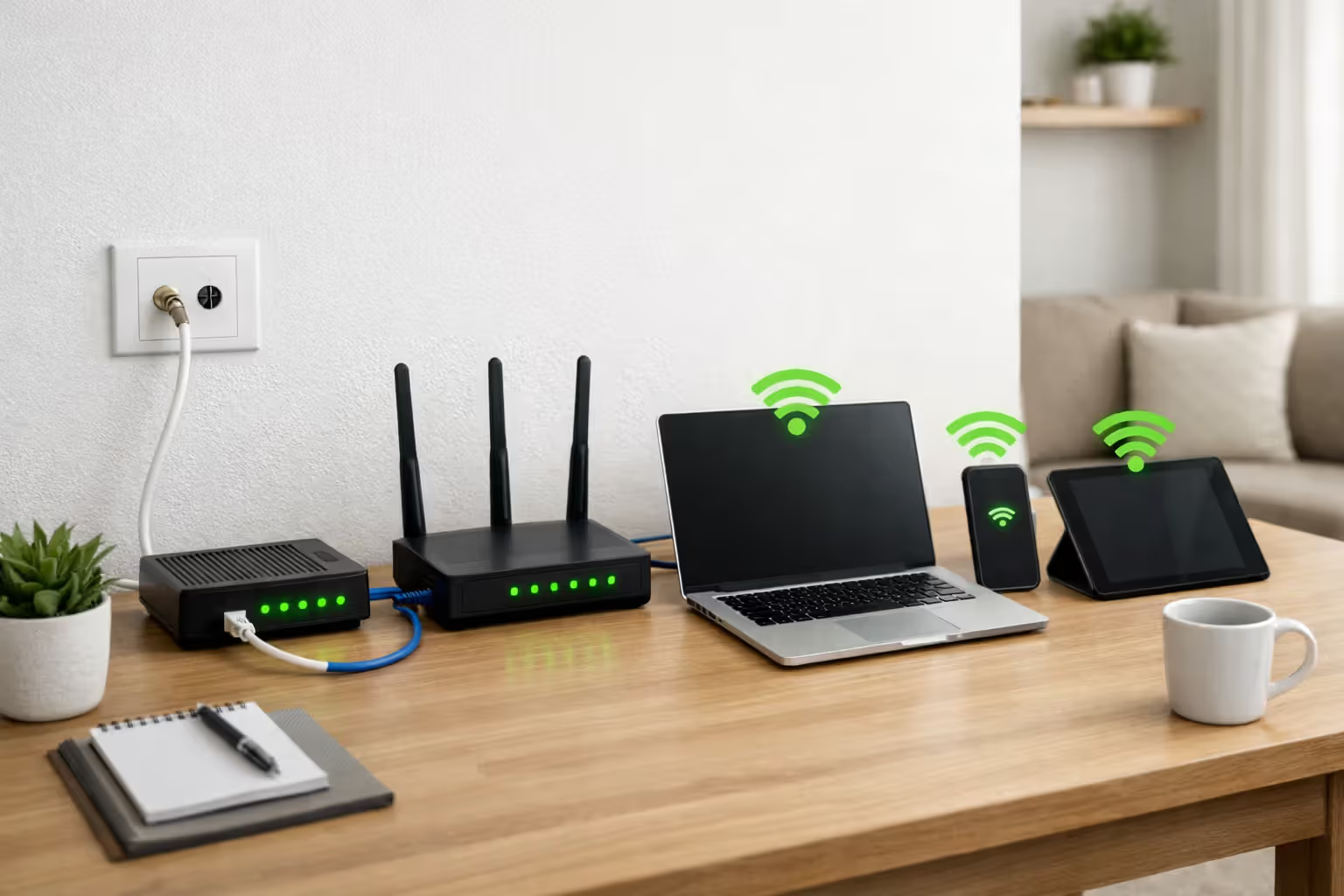
A modem translates signals between your ISP's network and your home devices. It speaks the language of cable coax, fiber optic, or DSL phone lines. A router takes the internet connection from your modem and shares it wirelessly or through ethernet ports to multiple devices. The router creates your WiFi network.
Here's what you can actually move:
| Equipment Type | Can You Move It? | What Determines Compatibility | Action Required |
| WiFi Router (owned) | Yes, always | Universal—works with any internet connection | Just plug into modem at new address |
| WiFi Router (ISP-provided) | Usually yes | May have ISP-specific settings | Might need reconfiguration |
| Cable Modem | Only with ISP approval | Must be provisioned for new address/node | Contact ISP to update service address |
| Fiber ONT | No | Physically connected to specific fiber line | ISP must install new ONT |
| Router/Modem Combo | Only with ISP approval | Same restrictions as standalone modem | Must update service address with ISP |
If you own your router outright, it's yours to take anywhere. Routers don't care about your address—they just need an internet connection to share. You could use the same router with five different ISPs at five different houses throughout a year.
Modems are the problem. They're tied to your ISP's infrastructure and your service address. Even if you own the modem, you can't just move it without involving your provider. The hardware might be yours, but the authorization to use it on the network is not.
Step-by-Step: How to Transfer Your Internet Equipment to Another House
What to Do Before Moving Day
Call your ISP at least two weeks before your move. Ask these specific questions: Does the company service your new address? Can you transfer your existing plan or do you need a different package? Can you move your current equipment or do you need new hardware?
Document your current equipment. Write down model numbers, MAC addresses (usually printed on a sticker), and whether you own or rent each piece. Take photos of how everything is connected. You'll want this reference when setting up at the new place.
Check if your new home has existing cable outlets, phone jacks, or fiber connections. If you're moving into new construction or switching connection types (cable to fiber, for example), you'll definitely need professional installation. Some ISPs require technician visits even for simple transfers—factor this into your moving timeline.
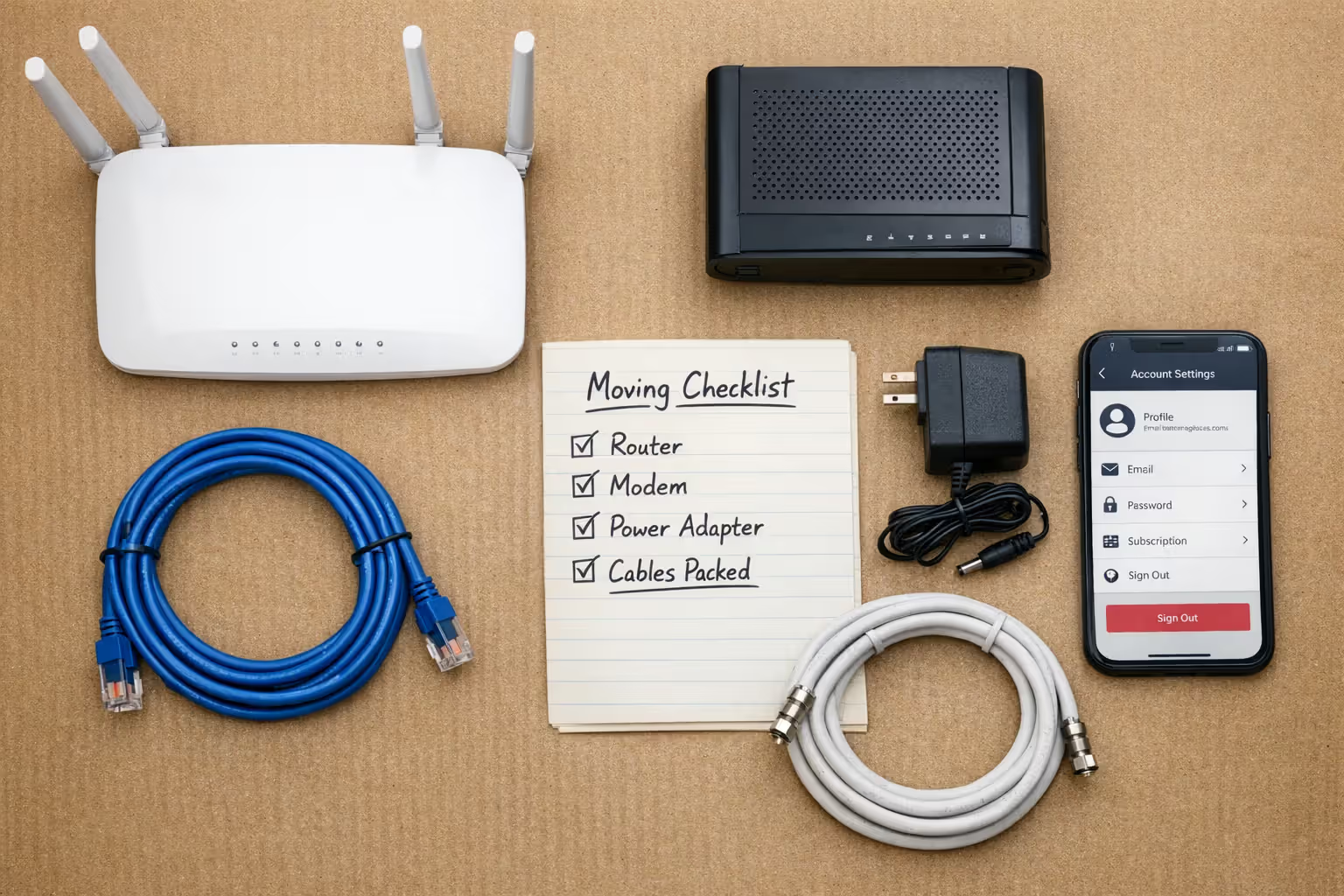
Create a moving internet equipment checklist: router power adapter, ethernet cables, coax cables if needed, any mesh network satellites or extenders, and your account login credentials. People frequently pack these items in random boxes and waste hours searching on moving day.
Schedule your service transfer or installation appointment for moving day or the day after. Don't wait until you're already at the new house with no connectivity. Installation appointments can be weeks out during busy seasons.
Author: Lindsey Hartwell;
Source: flexstarsolutions.com
Setting Up at Your New Home
If your ISP approved equipment transfer, the modem needs to be re-provisioned for the new address. Sometimes this happens automatically when you plug it in. Other times you need to call customer service or use an activation website. Don't assume it will "just work."
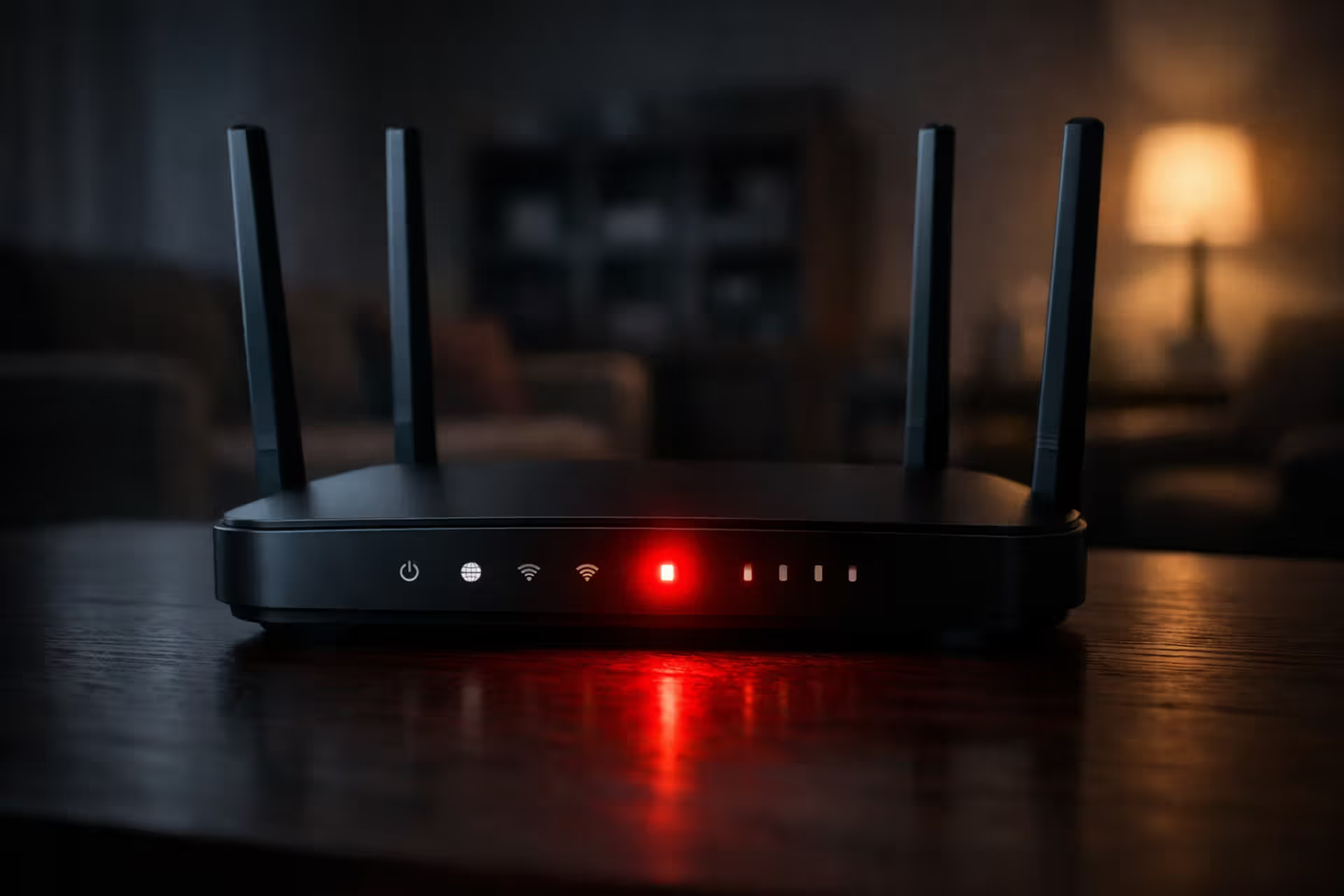
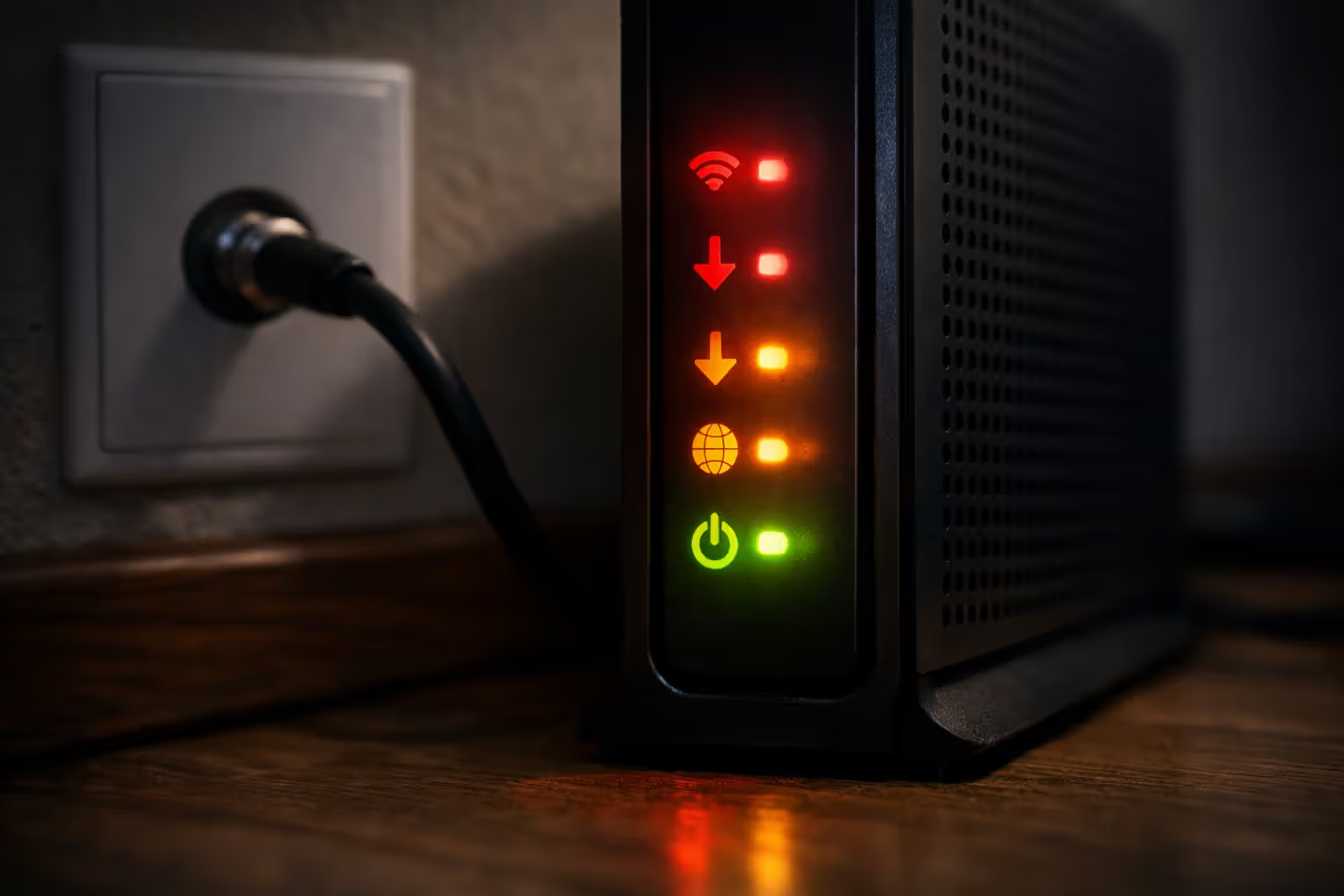
Connect your modem first, then your router. The modem needs to establish an internet connection before the router has anything to share. Wait for all the lights on your modem to stabilize—this can take 5-10 minutes. Flashing or red lights usually mean it's still negotiating with the network or there's a problem.
When you connect your router, you can use your existing WiFi network name and password. Your devices will reconnect automatically as if nothing changed. If you're starting fresh with new equipment, you'll need to set up your network from scratch using the router's setup app or web interface.
When You Need to Contact Your ISP
Call immediately if your modem won't connect after 15 minutes. The provisioning might have failed, or there could be an infrastructure issue at your new address. Customer service can see exactly what's happening from their end and push a new configuration if needed.
You must contact your ISP if you're moving to a different service area, even if it's the same company. Your account needs to be transferred to the new region's billing and technical systems. Skipping this step can result in service interruption or billing errors.
If you're keeping your old address active (maintaining service at a rental property, for example), you cannot use the same modem at both locations. Each address needs its own modem. Some people try to swap a single modem back and forth—this triggers fraud detection systems and can get your account suspended.
Common Problems When Moving Internet Equipment (And How to Fix Them)
The modem powers on but won't sync with the network. All lights flash or stay red. This usually means the modem isn't provisioned for your new address. Call your ISP—they need to update their systems to authorize your modem on the new node. This takes minutes once you reach a competent technician, but you can't fix it yourself.
The modem connects but speeds are drastically slower than before. Your new address might have older infrastructure or more network congestion. It could also indicate you're on the wrong service tier—sometimes accounts don't transfer correctly and you get downgraded to a basic plan. Run speed tests and compare them to what you're paying for.
Authentication failures happen when your ISP's system doesn't recognize your equipment at the new location. You might get internet for a few minutes before getting kicked off repeatedly. This is the system detecting something wrong. Update your service address officially—using equipment at an unauthorized location violates most service agreements.
Your router works but devices won't connect to WiFi. If you changed your network name or password during setup, your devices are looking for the old network. Either reconfigure the router with your previous credentials or forget the old network on each device and reconnect to the new one.
Everything connects but certain websites or services don't work. Your ISP might use different DNS servers or have different content filtering at the new location. Try changing your DNS settings to public servers like Google (8.8.8.8) or Cloudflare (1.1.1.1) to see if that resolves it.
Author: Lindsey Hartwell;
Source: flexstarsolutions.com
Can You Use the Same Router with a Different ISP?
Routers are generally universal. If you're switching from Comcast to AT&T fiber, your router doesn't care—it just needs an ethernet connection from whatever modem the new ISP provides. You'll lose any ISP-specific features (some providers offer security services or parental controls through their routers), but basic functionality remains.
The exception is router/modem combination units. These integrated devices contain both functions in one box, so they inherit all the modem restrictions. A Comcast gateway won't work with AT&T's network. You'd need AT&T's equipment or a separate compatible modem plus your own router.
Router compatibility with ISP networks matters more for advanced features than basic operation. If you have a WiFi 6 router but your new ISP only provisions gigabit speeds, you won't hit the router's full potential. Conversely, an old WiFi 5 router might bottleneck a new fiber connection even though it technically works.
Owned equipment gives you flexibility. Buying your own router and modem (separately) means you control the hardware regardless of ISP changes. Rental equipment locks you into whatever the provider supplies and adds $10-15 monthly to your bill indefinitely. Over two years, you've paid $240-360 in rental fees—enough to buy quality equipment outright.
Check compatibility lists before buying. Most ISPs publish lists of approved modems for their network. Using an incompatible modem means either it won't work at all or the ISP will refuse to support it. Routers rarely have compatibility issues, but modems absolutely do.
Author: Lindsey Hartwell;
Source: flexstarsolutions.com
FAQ: Moving Your WiFi Router and Internet Service
Moving your internet service doesn't have to mean days without connectivity. The key is understanding what you actually have—separate router and modem, or a combined unit—and planning accordingly.
Start the process weeks in advance, not the day before your move. ISP transfers require coordination, and installation schedules fill up quickly. Know whether you own or rent your equipment, because this determines what you can take and what must be returned.
Your router is portable and will work anywhere. Your modem is not, and attempting to use it at an unauthorized address creates problems rather than saving time. Work with your ISP to properly transfer service, and you'll have internet running at your new home without the frustration of troubleshooting authentication failures and provisioning errors.
The small effort of doing this correctly pays off when you arrive at your new house and everything works immediately. Your devices reconnect automatically, your smart home equipment comes back online, and you can focus on unpacking instead of sitting on hold with technical support.