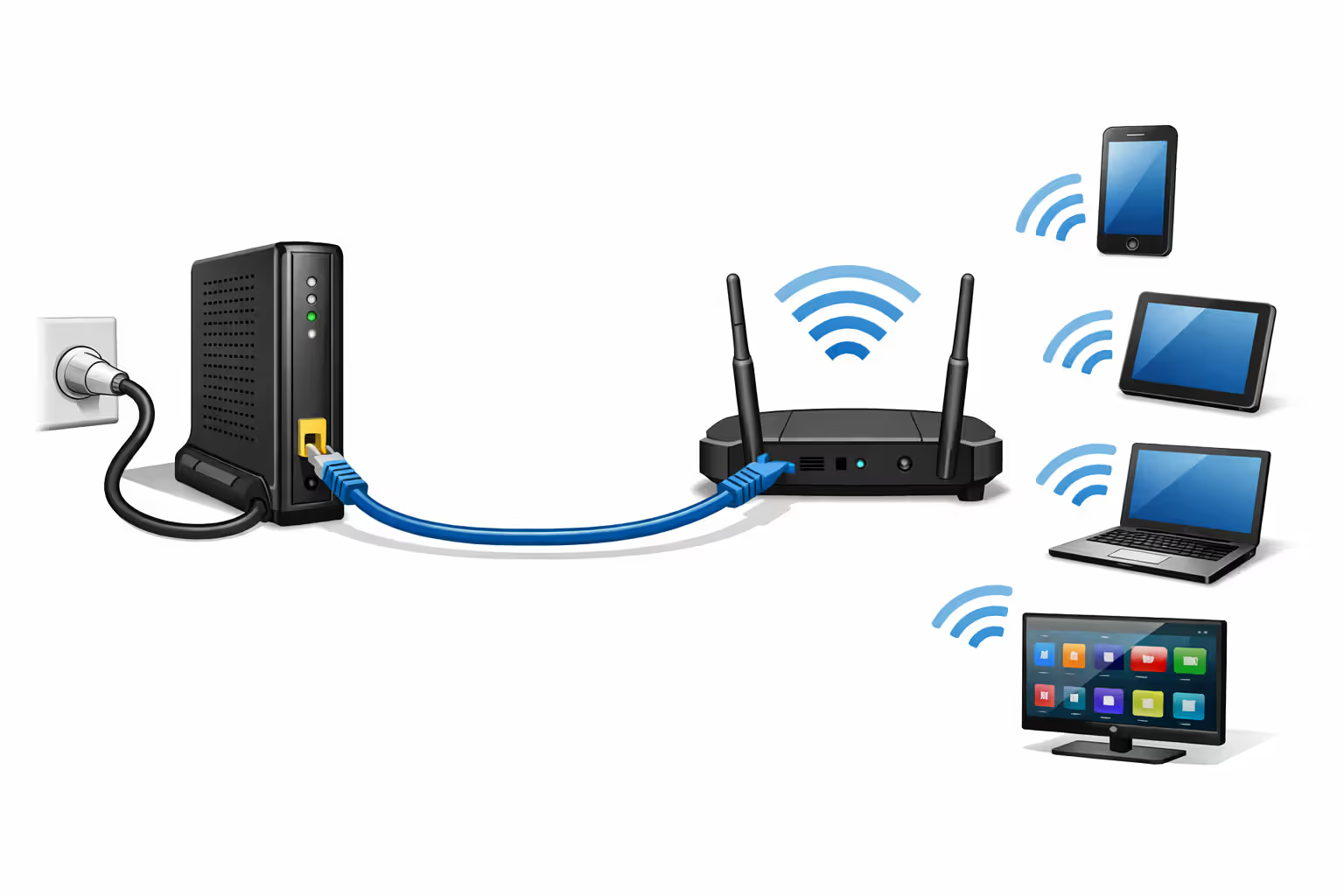
A white cable modem and a black WiFi router with antennas connected by an Ethernet cable on a clean desk in a modern living room with device icons around them
Do You Need a Modem and Router for WiFi?

Content
Getting WiFi in your home requires the right equipment, but confusion about what you actually need is common. Many people use the terms "modem" and "router" interchangeably, then wonder why their internet setup isn't working as expected.
The short answer: most cable and DSL internet connections require both a modem and a router to create a WiFi network. The modem connects you to your internet service provider, while the router broadcasts the WiFi signal your devices use. However, fiber internet works differently, and all-in-one gateway devices can combine both functions into a single unit.
Understanding which devices you need depends on your internet type, home size, and whether you want maximum flexibility or simplicity. Getting this wrong means either buying equipment you don't need or ending up with a setup that can't deliver the speeds you're paying for.
How Modems and Routers Work Together (But Aren't the Same Thing)
These devices serve completely different purposes in your network, even though they often sit next to each other.
What a modem actually does
A modem translates the signal from your internet service provider into data your home devices can understand. The word "modem" comes from "modulator-demodulator"—it converts between the format your ISP uses (coaxial cable signals, DSL phone line signals, etc.) and standard Ethernet that computers recognize.
Your modem connects directly to the cable outlet, phone jack, or fiber terminal in your wall. It has one job: establish and maintain the connection to your ISP's network. Without a modem (or equivalent device), you have no internet connection at all—your router would just be broadcasting an empty WiFi signal.
Most modems have a single Ethernet port on the back. This port outputs your internet connection, which then connects to your router. The modem doesn't create WiFi, doesn't assign IP addresses to your devices, and can't connect multiple devices simultaneously without additional equipment.
What a router actually does
Author: Caroline Prescott;
Source: flexstarsolutions.com
A router takes that single internet connection from your modem and shares it among all your devices. It creates a local network in your home, assigns IP addresses, manages traffic between devices, and broadcasts the WiFi signal your phones and laptops connect to.
Think of it this way: the modem is your home's front door to the internet, while the router is the hallway system that directs traffic to different rooms. Your router handles dozens of devices simultaneously—phones, tablets, smart TVs, thermostats—and makes sure data packets reach the correct destination.
Modern routers also include security features like firewalls, parental controls, and guest networks. They determine your WiFi coverage area, connection speeds within your home, and how many devices can connect reliably at once.
Modem vs. Router Comparison
| Feature | Modem | Router |
| Primary function | Connects your home to ISP network | Creates local network and WiFi |
| Connects to | Cable/phone outlet in wall | Modem (via Ethernet) |
| Provides WiFi | No (rare exceptions) | Yes |
| Typical ports | 1 Ethernet, 1 coax/phone | 4+ Ethernet, WiFi antennas |
| ISP-specific | Yes, must be compatible | No, works with any internet |
| Typical lifespan | 5-7 years | 3-5 years |
| Approximate cost | $80-$200 | $70-$300+ |
When You Need Both Devices vs. When You Don't
Your internet connection type determines whether you need a traditional modem.
Cable and DSL internet: modem required
Cable internet (Xfinity, Spectrum, Cox) and DSL (AT&T, CenturyLink) absolutely require a modem. These services deliver internet through coaxial cables or phone lines that carry signals in formats computers can't directly process.
For cable internet, you need a DOCSIS modem—the current standard is DOCSIS 3.1 for gigabit speeds. Older DOCSIS 3.0 modems max out around 300-600 Mbps, which creates a bottleneck if you're paying for faster service. Check your ISP's compatibility list before buying; not all modems work with all providers.
DSL modems are less common to purchase separately since DSL speeds are slower and fewer people choose this service. Most DSL providers supply a gateway device that includes both modem and router functions.
Fiber internet: ONT replaces the modem
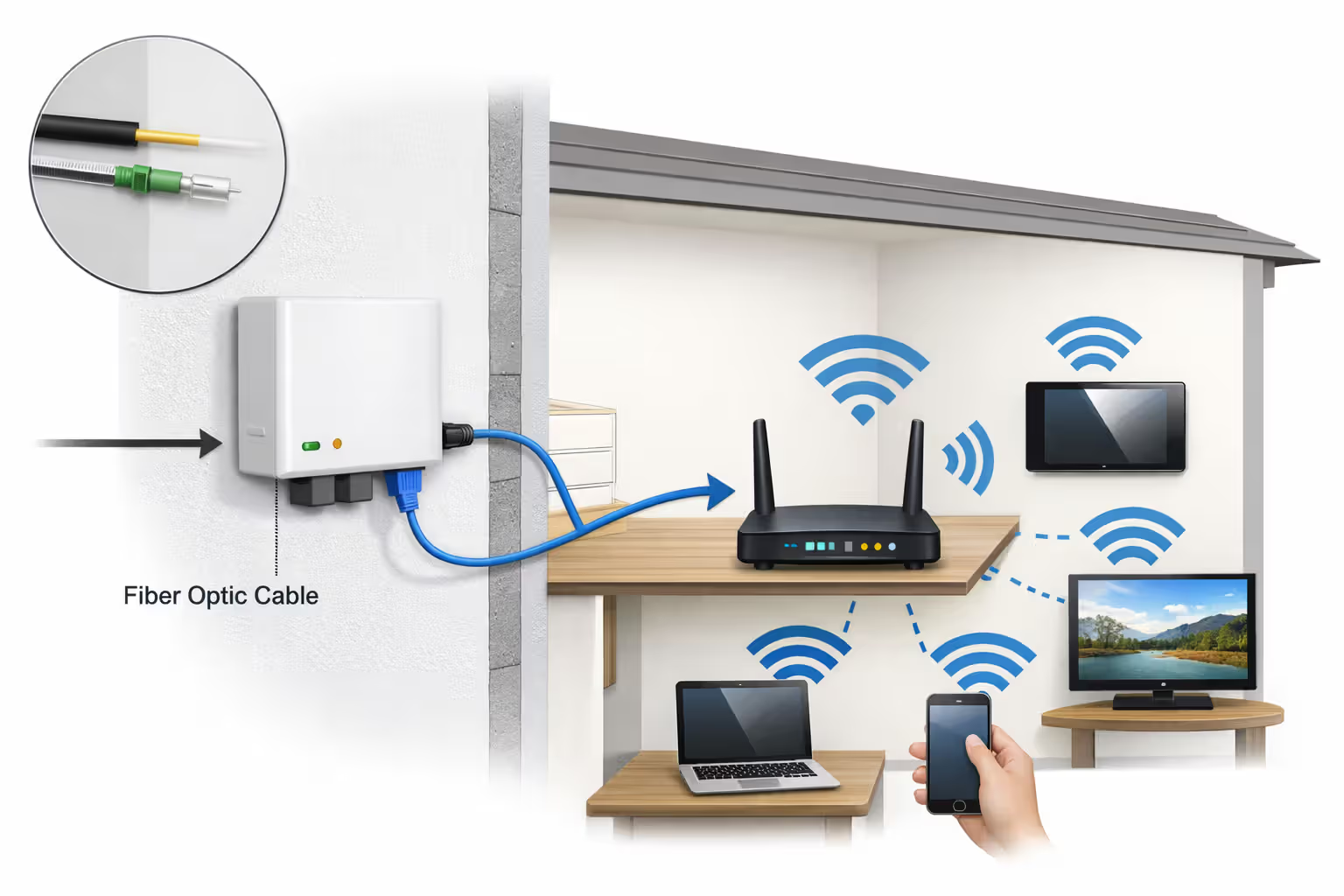
Fiber internet (Verizon Fios, AT&T Fiber, Google Fiber) uses an Optical Network Terminal (ONT) instead of a modem. The ONT converts fiber optic light signals into electrical Ethernet signals. Your ISP installs this device—you can't buy your own.
The ONT typically mounts on an exterior wall or in your garage. From there, an Ethernet cable runs to your router location. You still need a router to create WiFi and connect multiple devices, but there's no modem in a fiber setup.
Some fiber ISPs provide a gateway that combines the ONT and router, but many allow you to use your own router connected to their ONT. This gives you better control over WiFi performance and features.
Author: Caroline Prescott;
Source: flexstarsolutions.com
Fixed wireless and 5G home internet exceptions
Services like T-Mobile Home Internet or Verizon 5G Home use a single device that receives cellular signals and creates your home network. These all-in-one units handle everything—no separate modem or router needed.
The trade-off is less flexibility. You can't upgrade individual components or add your preferred router without creating a "double NAT" situation that complicates network management.
Gateway Devices: The All-in-One Alternative to Separate Equipment
Gateway devices combine modem and router functions in one box. Your ISP probably offers to rent you one, and you can also buy combination units.
Pros and cons of combination modem-router units
Gateways simplify setup—one device to plug in, one power cord, one set of lights to troubleshoot. They take up less space and cost less upfront than buying a modem and router separately.
The disadvantages become apparent over time. When WiFi standards improve or your router starts struggling with coverage, you can't upgrade just one component. If the modem portion fails, you lose everything. If the router portion becomes outdated, you're stuck replacing a modem that still works fine.
Performance is another consideration. Gateway devices often use lower-quality router components than standalone routers at similar price points. A $200 gateway typically has weaker WiFi performance than a $200 dedicated router paired with a $100 modem.
ISP-provided gateways sometimes lock features behind their apps or disable advanced settings power users want. Some charge monthly rental fees that exceed the device's purchase price within two years.
Who should choose a gateway vs. separate devices
Gateways make sense for apartments, small homes under 1,500 square feet, or users who want minimal complexity. If you have fewer than 15 connected devices and don't need advanced network features, a quality gateway works fine.
Separate devices suit larger homes, tech-savvy users, or anyone planning to stay in their home long-term. The flexibility to upgrade your router without replacing your modem saves money over five-plus years. You can also choose a router optimized for your specific needs—gaming, streaming, smart home devices, etc.
For most households planning to stay in their home beyond three years, separate devices offer better long-term value and flexibility. The ability to upgrade your router as WiFi standards evolve without replacing a perfectly functional modem is significant
— Michael Torres
Making Sure Your Modem and Router Actually Work Together
Compatibility issues can prevent your internet from working or limit your speeds.
ISP compatibility requirements for modems
Internet providers maintain approved modem lists for good reason. Modems must be provisioned in your ISP's system with your account details and service tier. Unapproved modems won't authenticate, leaving you without service.
Cable ISPs are particularly strict about this. A DOCSIS 3.1 modem that works perfectly on Xfinity might not be approved for Cox. Before buying, visit your ISP's website and search for "approved modem list" or "compatible equipment."
Pay attention to speed ratings. A modem approved for 300 Mbps plans won't deliver gigabit speeds even if your router supports them. The modem becomes the bottleneck. Match your modem's maximum speed rating to your internet plan with some headroom for future upgrades.
Router compatibility considerations
Routers are more universal—any router works with any modem via Ethernet. However, you need to match capabilities to your internet speed.
A router with a 100 Mbps WAN port can't deliver gigabit internet no matter how fast your modem is. Check that your router's WAN/Internet port supports your connection speed. Most modern routers have gigabit Ethernet ports, but budget models sometimes cut corners here.
WiFi standards matter too. WiFi 5 (802.11ac) routers max out around 500-700 Mbps in real-world conditions. For gigabit internet, you want WiFi 6 (802.11ax) to actually reach those speeds wirelessly. WiFi 6E adds 6 GHz band support for even better performance in congested areas.
Speed matching between devices
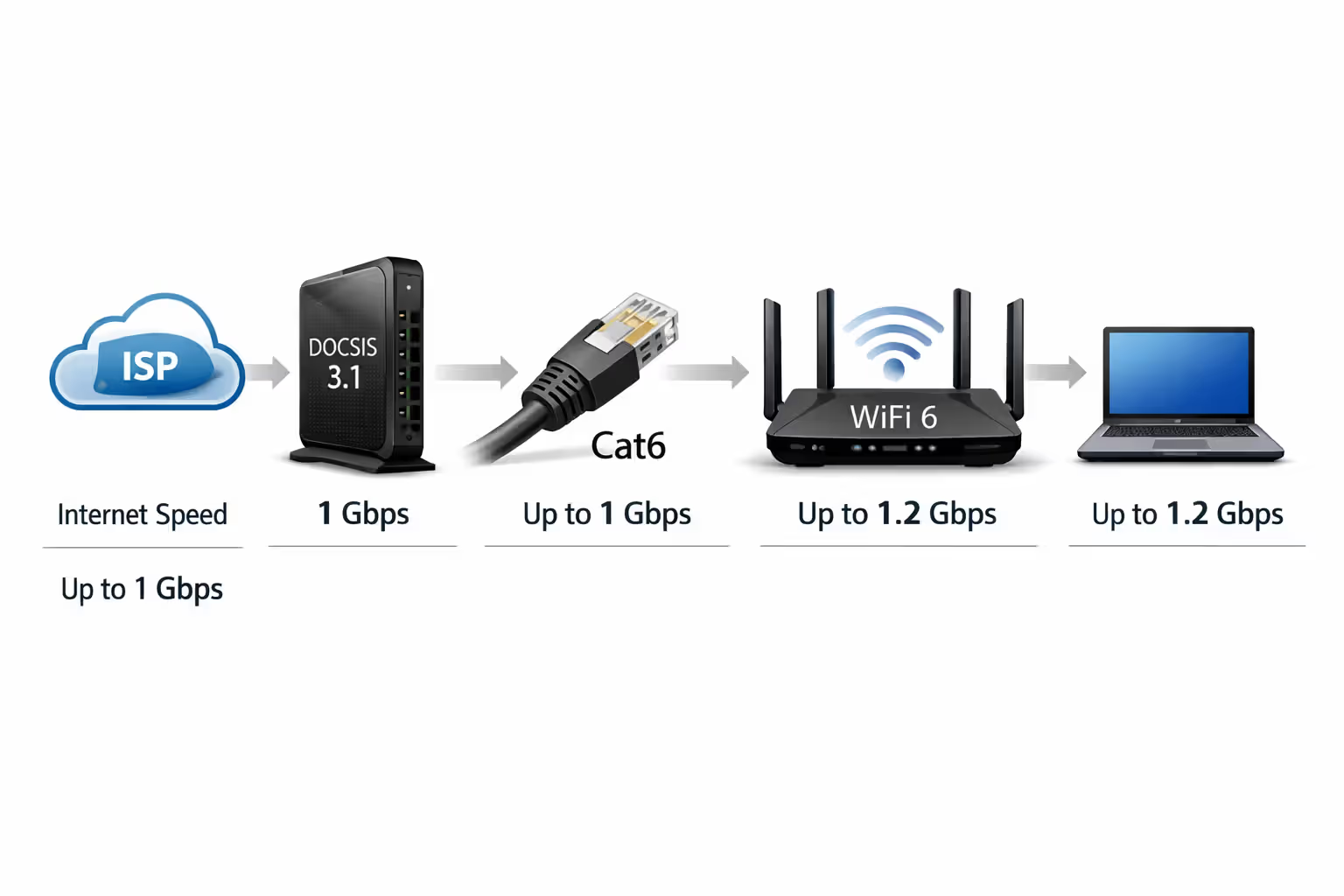
Your network is only as fast as its slowest component. A gigabit modem paired with a WiFi 4 router delivers WiFi 4 speeds. A WiFi 6 router paired with a DOCSIS 3.0 modem can't exceed the modem's limitations.
Think through the full path: ISP connection → modem → router → WiFi → device. Each step must support your target speeds. This includes the Ethernet cable between modem and router—Cat5e or better for gigabit, Cat6 for multi-gig.
Author: Caroline Prescott;
Source: flexstarsolutions.com
Renting Equipment From Your ISP vs. Buying Your Own
The monthly rental fee seems small, but the math strongly favors buying your own equipment.
Cost breakdown over 1, 2, and 5 years
Most ISPs charge $10-$15 monthly to rent a gateway device. That's $120-$180 annually for equipment you never own.
| Timeframe | Rental Cost | Purchase Cost | Savings by Buying |
| 1 year | $120-$180 | $150-$300 | $-30 to $30 |
| 2 years | $240-$360 | $150-$300 | $90-$210 |
| 3 years | $360-$540 | $150-$300 | $210-$390 |
| 5 years | $600-$900 | $150-$300 | $450-$750 |
You break even within 10-18 months. After that, it's pure savings. Over five years, you save enough to buy another complete setup.
These numbers assume a mid-range modem ($100-$150) and router ($100-$200). You can spend less for basic needs or more for premium features, but the rental math remains unfavorable.
Performance and upgrade control differences
Owned equipment gives you upgrade flexibility. When WiFi 6E routers became available, owners could upgrade immediately. Renters waited months or years for their ISP to update rental equipment—if they ever did.
You also control features. ISP gateways often limit advanced settings like custom DNS, port forwarding, or VPN configuration. Some inject their own ads or collect usage data. Your own equipment eliminates these concerns.
The counterargument for renting is support and replacement. If your rented gateway fails, your ISP replaces it free. With owned equipment, you buy a replacement. However, quality modems and routers rarely fail within their useful lifespan, and when they do, you've already saved more than the replacement cost.
Setting Up the Right Home Network for Your Situation
One-size-fits-all recommendations miss the point—your ideal setup depends on specific circumstances.
Best setup for apartments and small homes
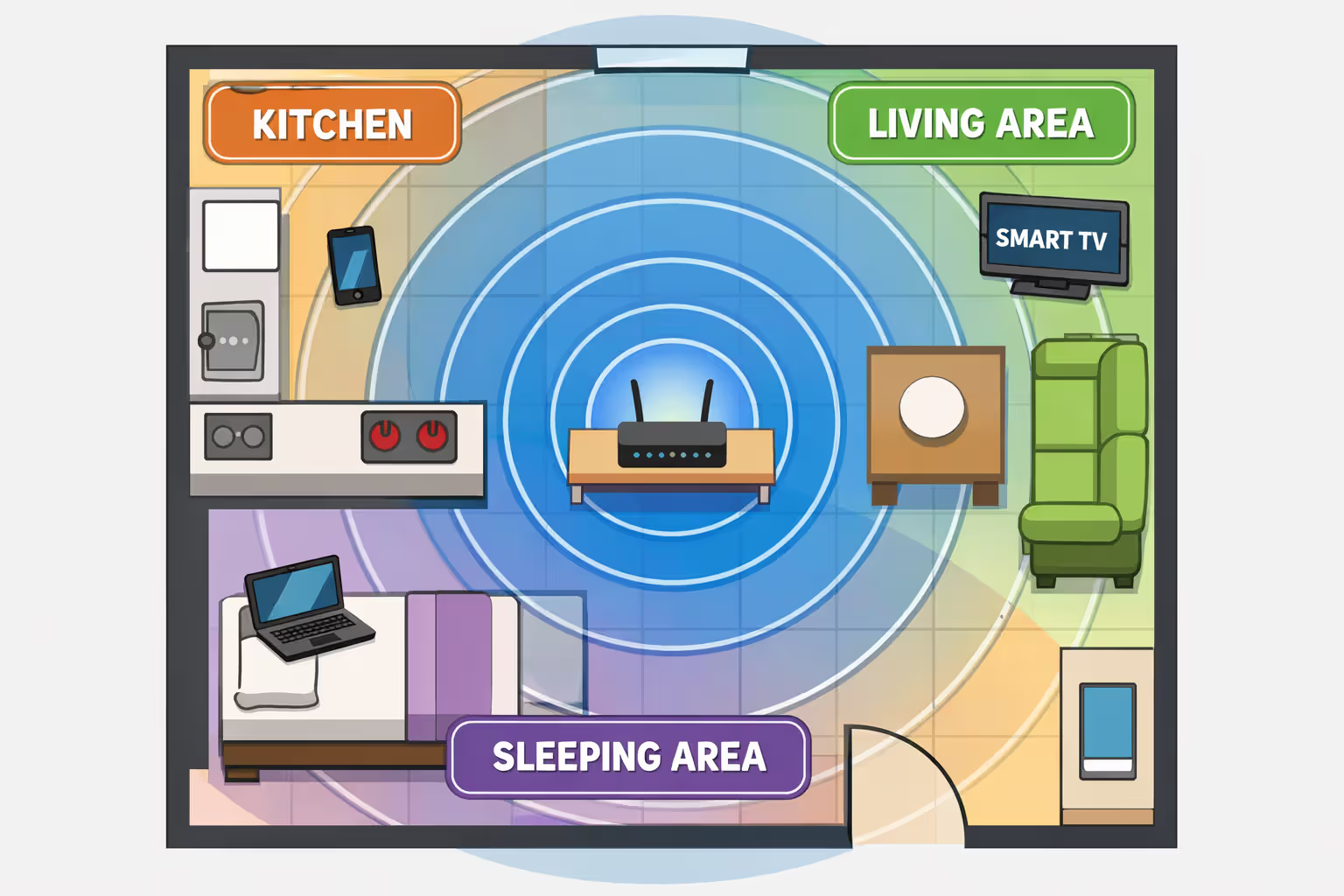
Apartments and homes under 1,200 square feet usually do fine with a single quality router placed centrally. A mid-range WiFi 6 router ($120-$180) covers this space without dead zones in most layouts.
Wall placement matters more than router price in small spaces. Position your router in an open area, elevated if possible, away from thick walls and metal objects. Avoid closets, behind TVs, or inside entertainment centers.
For apartments, interference from neighbors' networks is the bigger challenge than coverage. A dual-band router that automatically selects less congested channels helps. The 5 GHz band typically has less interference than 2.4 GHz in apartment buildings.
Author: Caroline Prescott;
Source: flexstarsolutions.com
Best setup for larger homes and multiple floors
Homes over 2,000 square feet or with multiple floors often need more than a single router. You have three options: a high-power router with external antennas, a mesh WiFi system, or a router with wired access points.
Mesh systems (Eero, Google Nest WiFi, Netgear Orbi) place multiple nodes throughout your home that create a seamless network. They're easier to set up than traditional access points but typically cost more and offer less performance per dollar.
Wired access points connected to your main router via Ethernet provide the best performance but require running cables through walls or attics. This works well during construction or renovation but is impractical for existing homes.
A powerful WiFi 6 router with external antennas is the middle ground. Models like the ASUS RT-AX86U or Netgear Nighthawk can cover 2,500+ square feet in open layouts. Add a single mesh node or extender for problem areas if needed.
When to add mesh systems or WiFi extenders
Mesh systems shine in challenging layouts—homes with thick plaster walls, multiple floors with limited vertical signal penetration, or long ranch-style layouts. The multiple nodes ensure coverage without creating separate networks to manually switch between.
Traditional WiFi extenders are cheaper but create separate networks (NetworkName and NetworkName-EXT) that don't hand off smoothly. You'll notice disconnections when moving between coverage areas. They also cut your bandwidth roughly in half since they use the same channel to receive and rebroadcast.
Skip extenders unless budget is the primary constraint. The $50-$80 saved isn't worth the frustration. Entry-level mesh systems now cost only slightly more and work significantly better.
FAQ: Common Questions About Modems, Routers, and WiFi
The equipment you need depends on your internet type and home situation, not on generic advice. Cable and DSL require both a modem and router (or a gateway combining both). Fiber needs only a router since the ISP-provided ONT replaces the modem. Fixed wireless services include everything in one device.
For most people, buying separate devices instead of renting from your ISP saves $450-$750 over five years while providing better performance and flexibility. The upfront cost pays for itself within two years, after which you're simply avoiding an unnecessary monthly fee.
Match your equipment to your actual needs. Small apartments don't need $400 gaming routers with eight antennas. Large homes can't rely on budget equipment and expect full coverage. Research your ISP's approved modem list, choose a router that matches your home size and device count, and verify that both support your internet plan's speeds.
The right setup gives you reliable internet without dead zones, supports all your devices simultaneously, and doesn't include monthly fees for equipment you could own. Taking time to understand what you actually need—rather than accepting whatever your ISP offers—results in better performance and lower costs for years to come.