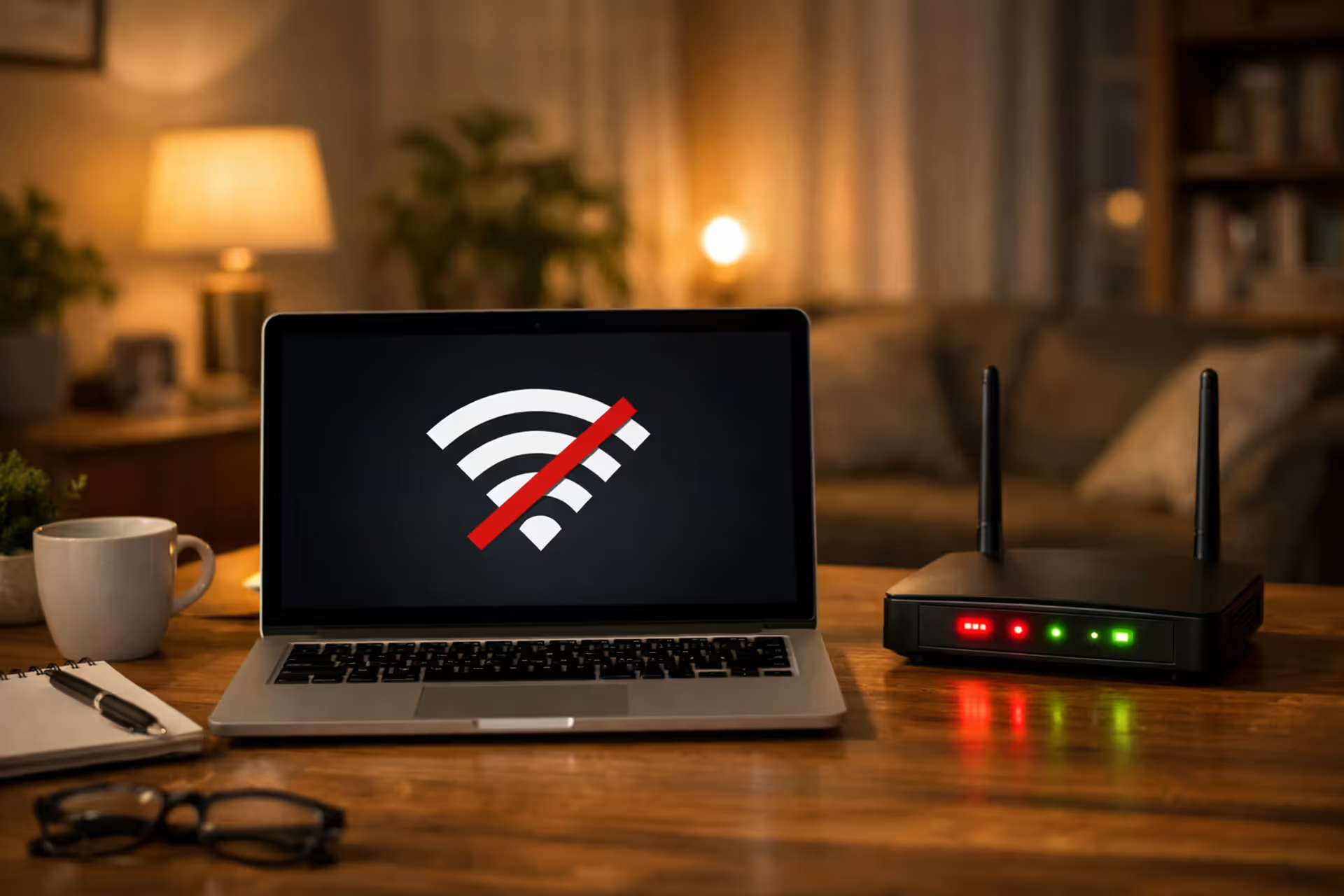
Laptop screen showing no internet connection icon next to a router with blinking red and green LED lights on a home desk
Is My Internet Down or Is It My Router or ISP

Content
Nothing disrupts your workday, streaming, or gaming session quite like suddenly losing your internet connection. Your first instinct might be to restart your router, but before you start unplugging cables, you need to figure out what's actually causing the problem. Is it your equipment acting up, or has your internet service provider's network gone offline?
Understanding the difference saves you time and frustration. You won't waste an hour troubleshooting your router when the problem is a fiber cut three miles away. You also won't sit around waiting for your ISP to fix an "outage" that's actually just a loose cable behind your desk.
This guide walks you through the exact steps to diagnose your connectivity issue, interpret what your equipment is telling you, and determine whether you're dealing with a local problem or a widespread outage.
Quick Tests to Confirm Your Internet Is Actually Down
Before you do anything else, verify that you're truly offline. Sometimes what feels like a total outage is actually a single device having issues or a specific website being unreachable.
Start by checking multiple devices. If your laptop shows no connection, grab your phone (make sure Wi-Fi is on, not cellular data). Try a tablet, smart TV, or any other connected device. When everything fails to connect, you've confirmed a network-wide problem in your home. If only one device struggles while others work fine, the issue lies with that specific device—not your internet service.
Next, test the connection type. Disconnect your phone from Wi-Fi and use cellular data to visit a few websites. If sites load normally on cellular but not on your home Wi-Fi, you've narrowed the problem to your home network or ISP. This simple test takes thirty seconds and immediately tells you whether the broader internet is functioning.
Pay attention to error messages. "DNS server not responding" points to a different issue than "No internet connection detected." A DNS error often means your connection exists but can't translate website names into addresses—usually fixable by switching to Google's DNS (8.8.8.8) or Cloudflare's (1.1.1.1). A complete "no connection" message suggests either equipment failure or an ISP outage.

Author: Marcus Leland;
Source: flexstarsolutions.com
Try accessing your router's admin page by typing 192.168.1.1 or 192.168.0.1 into your browser. If the login screen appears, your router is working and the problem likely sits between your modem and your ISP. If you can't reach the admin page, your router might have crashed or lost power.
What Your Modem and Router Lights Are Telling You
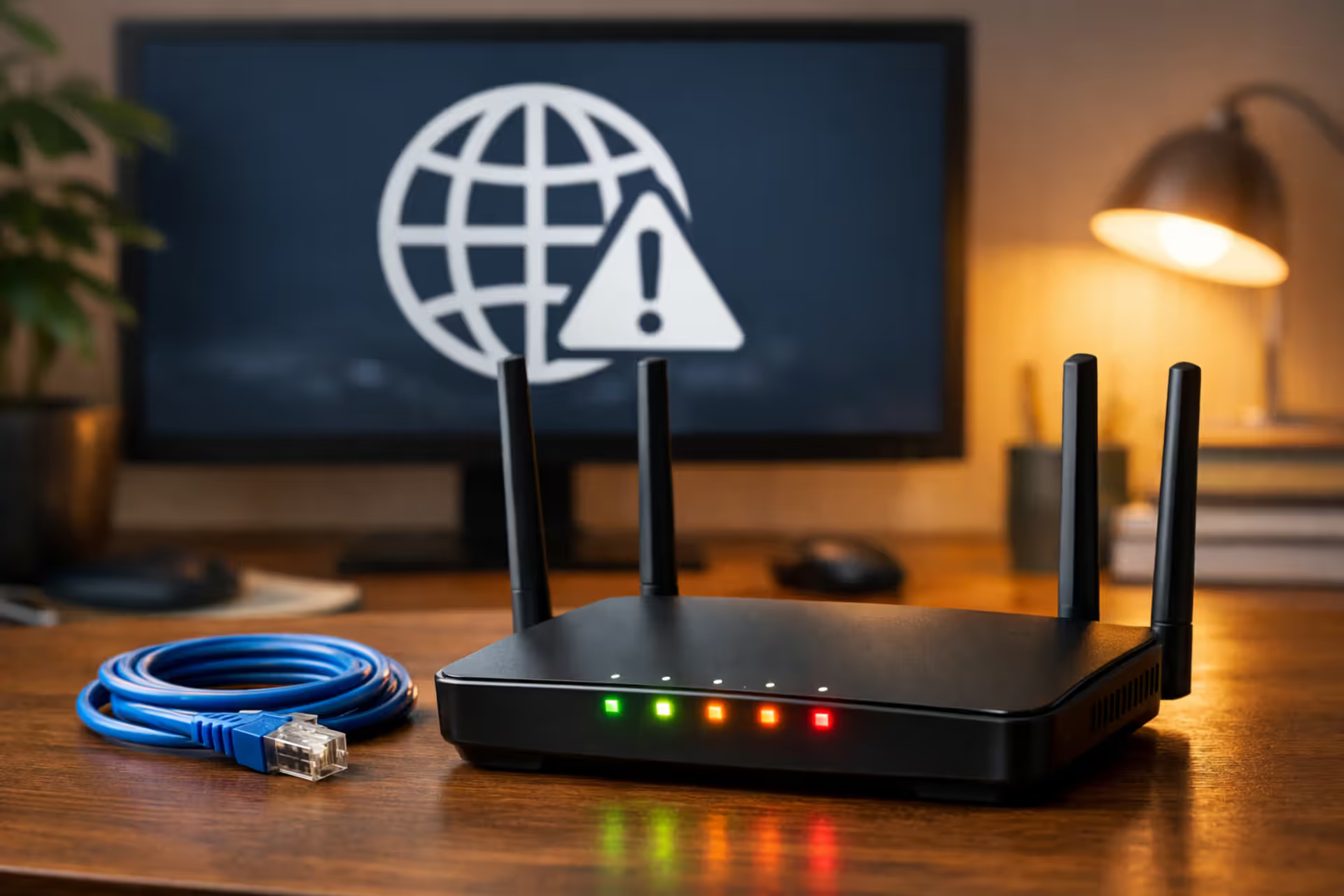
Those little LEDs on your modem and router aren't just decoration—they're diagnostic tools that communicate your equipment's status in real time. Learning to read them turns a mysterious outage into a specific problem you can address.
Most modems have three critical indicators: power, downstream/internet, and upstream. Routers typically show power, internet connection, and Wi-Fi status. The exact labels vary by manufacturer (Arris, Netgear, TP-Link, Motorola), but the patterns remain consistent.
Normal vs. Problem Light Patterns by Equipment Type
| Light Color | Status | What It Means | Action Needed |
| Solid Green | Normal | Connection established and working | None—everything is functioning |
| Blinking Green | Normal | Data actively transmitting | None—this indicates normal traffic |
| Solid Amber/Orange | Warning | Limited connectivity or startup mode | Wait 2–3 minutes; if persistent, reboot modem |
| Blinking Amber/Orange | Problem | Attempting to establish connection | Check cable connections; may indicate ISP issue |
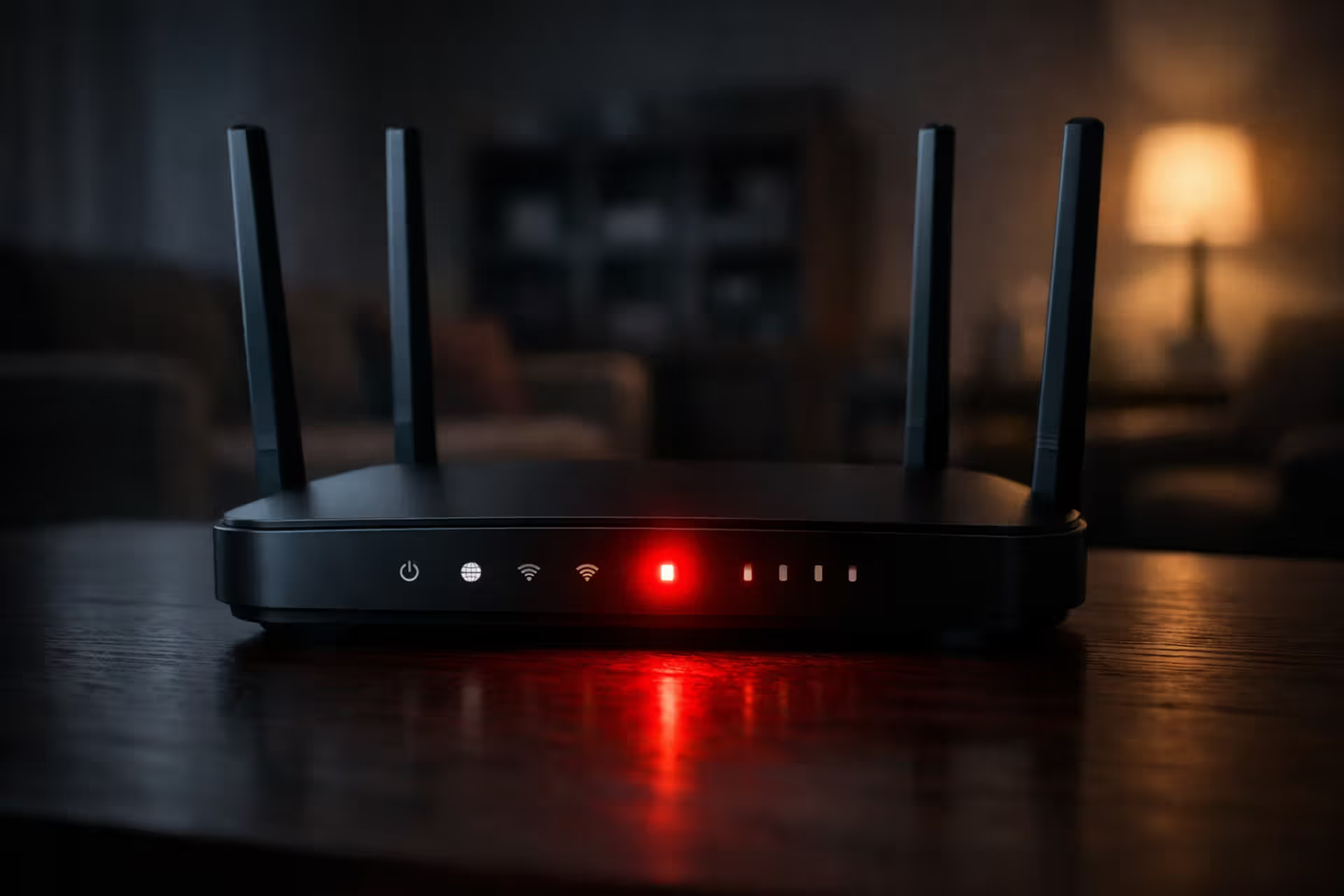
| Solid Red | Problem | No signal detected from ISP | Contact ISP—likely an outage or service issue |
| Blinking Red | Critical | Authentication failure or hardware fault | Unplug for 30 seconds; if unchanged, call ISP |
| No Light | Critical | No power or hardware failure | Check power cable and outlet; try different outlet |
| Blue (some models) | Normal | High-speed connection active (DOCSIS 3.1) | None—indicates optimal performance |
When your modem's downstream light stays amber or red while the power light shows solid green, your modem has power but isn't receiving signal from your ISP. This almost always indicates an external problem—either damaged lines, a neighborhood outage, or an issue at your ISP's distribution point.
If all lights appear normal but you still can't connect, the problem might be authentication. Your ISP assigns your modem an IP address during startup. Sometimes this process fails even though the physical connection works. A full power cycle (unplug for 30 seconds, not just hitting a reset button) forces a fresh authentication attempt.
Separate modem and router? Check both. Your modem might show perfect status while your router has crashed. If the modem looks good but the router's internet light is dark or red, disconnect the router and plug a computer directly into the modem with an Ethernet cable. If that works, your router is the culprit.
How to Check for an Internet Outage in Your Area
Once you've ruled out equipment problems, it's time to check whether your ISP is experiencing a broader outage. Modern providers offer several ways to check service status before you spend twenty minutes on hold.
Using Your ISP's Official Outage Map
Every major ISP maintains an outage reporting system. The quality varies wildly, but it's always your first stop because it gives you official information and estimated restoration times.
Xfinity/Comcast: Log into your account at xfinity.com/support/status or use the Xfinity app. The status center shows outages by address and sends notifications when crews are working in your area. You can also text "OUT" to 266278 from your registered mobile number.
Spectrum: Visit spectrum.net/support and enter your address. The outage checker runs automatically and displays any known issues. The Spectrum app includes a similar feature under "Services" → "Internet."
AT&T: Go to att.com/support/outage and sign in. Their system checks your specific service address and shows current outages plus estimated fix times. AT&T usually updates these estimates every hour during active outages.
Verizon Fios: Check verizon.com/support/residential/account/manage-account/outage-information. Verizon's system is particularly good at distinguishing between neighborhood-wide outages and individual service problems.
Most ISP outage maps update every 15–30 minutes, but they rely on automated detection systems. A newly developing outage might not appear immediately. If your connection just dropped five minutes ago and the map shows "no issues," give it another ten minutes and check again.
Third-Party Outage Detection Tools
ISP-provided maps sometimes lag behind reality or downplay the scope of problems. Third-party services aggregate user reports to give you a real-time picture of what other customers are experiencing.
Downdetector (downdetector.com) crowdsources outage reports. Search for your ISP and you'll see a spike graph showing report volume over time. A sharp spike in the last 20 minutes strongly suggests an active outage. The site also displays a heat map showing which regions are affected and includes user comments describing specific symptoms.
Outage.Report works similarly but breaks down reports by service type (internet, TV, phone). This helps you determine if the problem affects all services or just internet connectivity.
IsTheServiceDown focuses specifically on major ISPs and includes a timeline of past outages, which helps you spot patterns. If your internet drops every Tuesday afternoon, that's valuable information when talking to support.
Check your ISP's Twitter/X account and search for recent mentions. During major outages, you'll find dozens of customers posting complaints and the ISP's social media team acknowledging the problem. This confirmation often appears before the official outage map updates.
Your neighbors are another resource. If you're in a suburban area where houses share the same service node, ring a doorbell or send a text. When three houses on your street are all offline, you've confirmed a local outage without needing any apps.

Author: Marcus Leland;
Source: flexstarsolutions.com
Router Problems vs. ISP Network Outages: Spotting the Difference
Determining whether your equipment or your ISP is at fault requires systematic testing. The symptoms overlap enough that even experienced users sometimes guess wrong.
If your modem shows all normal lights but you still can't connect: Bypass your router completely. Connect a laptop directly to the modem with an Ethernet cable, power cycle the modem, and test. If you get internet, your router is the problem—either its configuration, firmware, or hardware. If you still can't connect with a direct connection, the issue is authentication or a problem on your ISP's end.
If your modem's internet light is off or red: This is almost always an ISP issue. Your modem can't establish a connection to the network. Check that all coax or fiber cables are finger-tight. If connections are solid and the light stays red, you're experiencing either an outage or a service interruption specific to your account (like a billing issue that triggered a suspension).
If your connection drops randomly but comes back: This pattern suggests either a loose cable connection (causing intermittent signal loss), an overheating router, or congestion on your ISP's network during peak hours. Check cable connections first. Move your router to a cooler location away from heat sources. If the problem persists during the same time window each day (typically 7–10 PM), it's likely network congestion—a capacity issue on your ISP's side.
If speeds are extremely slow but technically connected: Run a speed test at fast.com or speedtest.net. Compare results to what you're paying for. Getting 5 Mbps when you pay for 500 Mbps indicates a problem. Test with a wired connection to eliminate Wi-Fi as the variable. Slow speeds across multiple devices on wired connections point to ISP issues—either network problems or throttling.
If some websites work but others don't: This isn't typically an outage. It's more likely a DNS issue or a problem with specific content delivery networks. Switch your DNS servers to 8.8.8.8 and 8.8.4.4 (Google) or 1.1.1.1 (Cloudflare) and retest.
The single most reliable diagnostic is the direct modem connection test. If a device plugged straight into the modem can't get online and the modem's downstream light is solid, you're looking at an ISP issue 95% of the time. The other 5% is usually a billing problem or a misconfigured modem that needs reprovisioning
— Marcus Chen
One mistake people make: assuming a "weak signal" warning on their phone means an ISP problem. Wi-Fi signal strength relates to your router's coverage, not your internet connection's health. You can have full-speed internet but weak Wi-Fi in a distant room.
How and When to Report an Internet Outage to Your Provider
Once you've confirmed the problem isn't your equipment, it's time to contact your ISP. How you report the issue affects how quickly you get help and whether you'll receive any service credits.
Gather information first. Before calling, note: when the outage started, what troubleshooting you've already done, your modem's light status, and whether neighbors are affected. This saves time and prevents support from making you repeat basic steps you've already completed.
Choose the right contact method. Phone support reaches a human fastest during emergencies, but expect 10–30 minute hold times during widespread outages. The ISP's app or website chat often connects you faster and creates a written record of your interaction. Social media (Twitter/X) sometimes gets surprisingly quick responses because those interactions are public.
Report even if the outage map shows the problem. Many ISPs use automated detection that only triggers when a certain percentage of customers in an area go offline. Your report adds data that helps them understand the scope and prioritize repairs. You'll also receive specific updates about your service address.
Ask about service credits immediately. Most ISPs will credit your bill for outage time, but many don't do it automatically. Mention it during your first call. Document the outage duration. For extended outages (4+ hours), you're typically entitled to a prorated credit for that day's service.
Request a ticket number. Every service call should generate a tracking number. Write it down. If you need to call back or escalate, referencing this number gets you to the right place faster and proves you already reported the issue.
Know when to escalate. If you're told "everything looks fine on our end" but you've tested thoroughly and confirmed an issue, ask to escalate to a supervisor or technical specialist. First-tier support reads from scripts and sometimes misses real problems.
For chronic issues—outages happening multiple times per week—keep a log with dates, times, and duration. After gathering two weeks of data, call and ask to speak with someone about service reliability. This documentation often triggers a technician visit to check line quality and connections, which can identify underlying problems like corroded cables or overtaxed network nodes.
What to Do While Waiting for Service Restoration
Most residential internet outages resolve within 2–4 hours. Knowing your alternatives keeps you productive or entertained while crews work on repairs.
Set up a mobile hotspot. Every major smartphone can share its cellular connection. On iPhone: Settings → Personal Hotspot → Allow Others to Join. On Android: Settings → Network & Internet → Hotspot & Tethering → Wi-Fi Hotspot. Connect your laptop or tablet to this temporary network. Be mindful of data limits—video streaming burns through gigabytes quickly. Use your hotspot for essential work tasks and messaging, not Netflix marathons.
Optimize hotspot performance. Position your phone near a window for better cellular reception. Connect via USB cable instead of Wi-Fi when possible—it's faster and charges your phone simultaneously. Disable automatic updates and cloud backups on connected devices to preserve data.
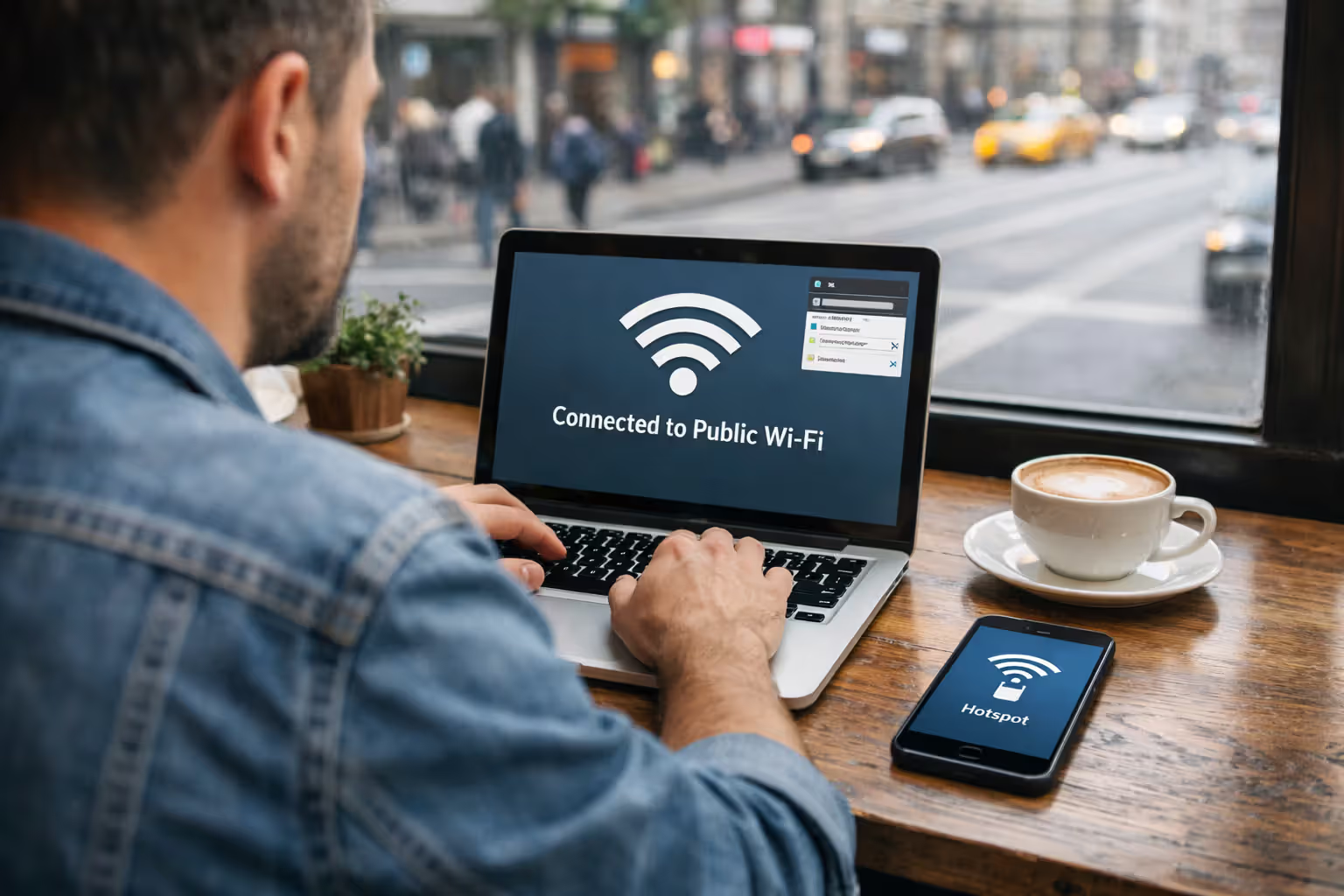
Find public Wi-Fi. Coffee shops, libraries, and coworking spaces offer free internet. Many fast-food chains provide decent Wi-Fi if you need to join a video call. For sensitive work, use a VPN—public networks aren't secure.
Understand typical repair timelines. Simple issues like a tripped breaker at a neighborhood node: 1–2 hours. Cut cable requiring splicing: 3–6 hours. Damaged equipment needing replacement: 4–12 hours. Major infrastructure damage (storms, construction accidents): 12–48 hours. ISPs usually provide estimated restoration times, but these are educated guesses that can shift as crews assess damage.
Prepare for future outages. If you work from home regularly, consider a backup internet solution. A dedicated mobile hotspot device with its own data plan ensures you're never completely offline. Some people maintain a second ISP connection (like DSL or fixed wireless) as redundancy, though this doubles your monthly cost.
Check your router's firmware. While you're offline anyway, verify your router is running current firmware. Outdated firmware causes stability issues that feel like intermittent outages. Most modern routers update automatically, but budget models require manual updates through the admin interface.
Author: Marcus Leland;
Source: flexstarsolutions.com
Frequently Asked Questions About Internet Outages
Losing your internet connection doesn't have to mean losing hours to frustration and guesswork. By systematically testing your devices, reading your equipment's diagnostic lights, and checking both official and third-party outage resources, you can pinpoint the problem in minutes rather than hours.
The key is understanding where responsibility shifts from your equipment to your ISP's network. When your modem shows normal status but can't connect, when multiple devices fail simultaneously, or when neighbors report identical issues, you're almost certainly dealing with a provider-side problem. In those cases, reporting the outage and documenting it for potential service credits becomes your best course of action.
For the times when your router is actually the culprit, knowing how to test with a direct modem connection or interpret amber warning lights helps you fix the issue yourself without waiting on hold for support.
Keep this diagnostic process handy for the next time your connection drops. The few minutes you spend methodically checking symptoms saves you from the two most common mistakes: troubleshooting equipment that's working fine, or waiting for your ISP to fix a problem that's actually sitting on your desk.