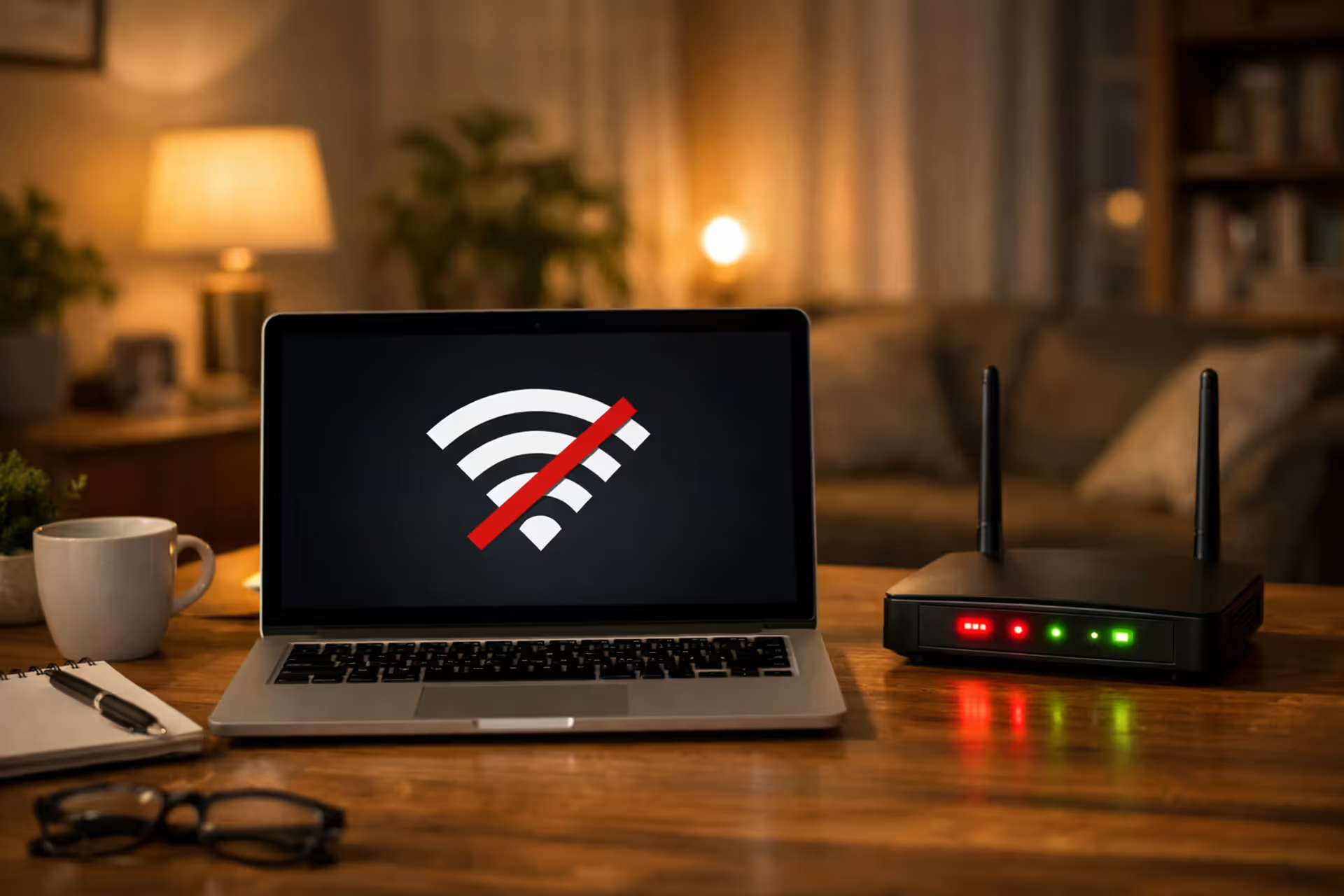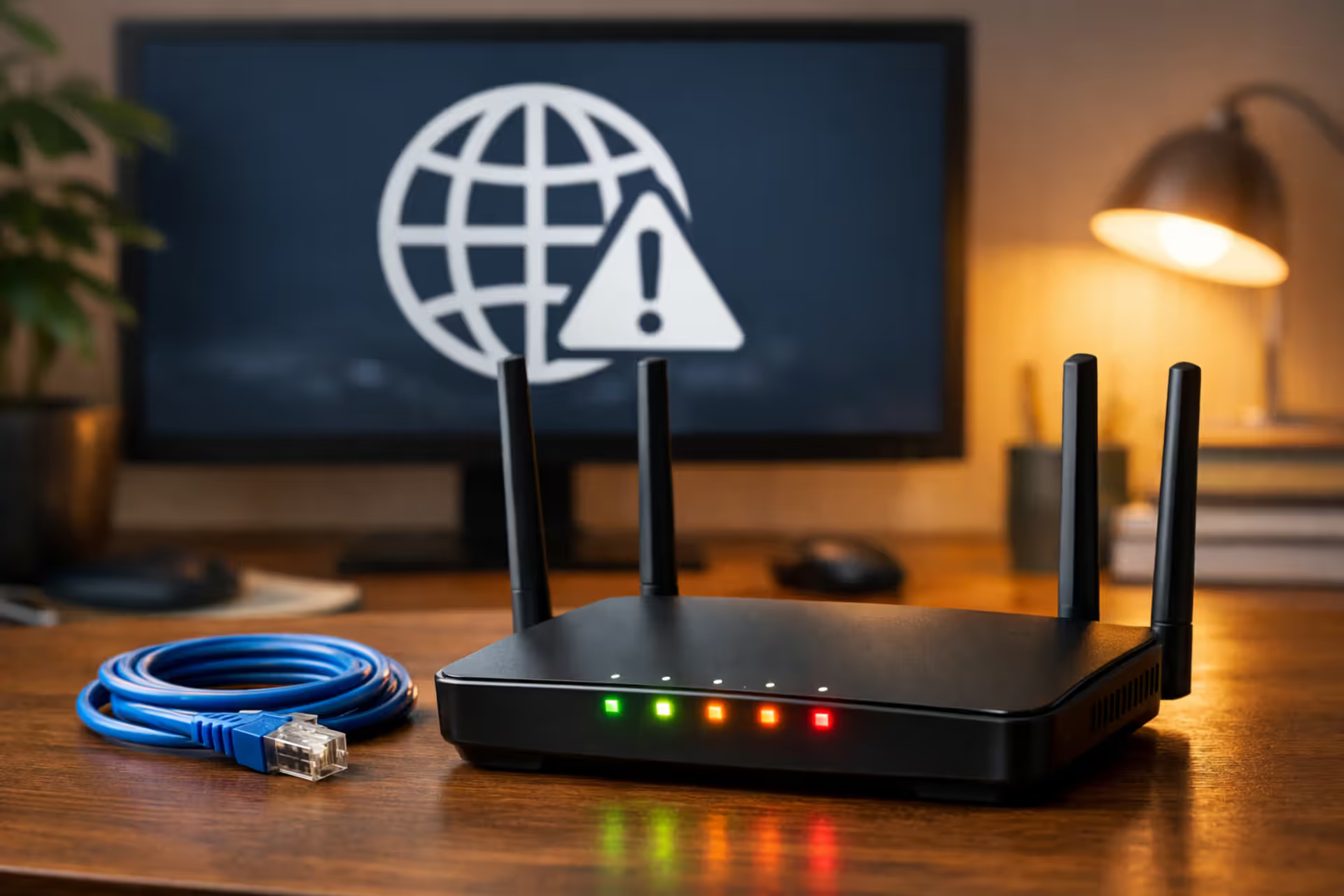
Home office desk with a modern Wi-Fi router showing blinking LED status lights and a computer monitor displaying a no internet connection icon
How to Fix a Router That Won't Connect to the Internet

Content
You've plugged everything in correctly. The lights are blinking. Your router's admin panel loads just fine. Yet somehow, you're staring at a "No Internet" icon while your work deadline looms or your streaming queue sits frozen.
Router connectivity failures rarely announce themselves with helpful error messages. Instead, you get cryptic status lights, vague "WAN disconnected" warnings, or the maddening scenario where your router claims everything's perfect while your browser insists otherwise.
This guide walks through the actual causes behind router connection failures—the authentication misconfigurations, hardware quirks, and ISP-specific requirements that standard troubleshooting guides skip over.
How to Identify Whether Your Router or Modem Is the Problem
Before diving into router settings, you need to isolate where the failure actually occurs. Your internet connection involves at least two devices: the modem (which communicates with your ISP) and the router (which manages your home network). When the connection fails, either device could be responsible.
The 30-Second Bypass Test
Pull the ethernet cable from your router's WAN port and connect it straight to a computer instead. Give your computer about 60 seconds to request an IP address from your ISP.
Internet working now? Your modem's fine—the router's causing your headache. Computer also showing no connection? You're looking at either modem failure or something wrong on your ISP's end.
There's a gotcha here: plenty of ISPs bind connections to specific MAC addresses. Your computer might not connect right away even though nothing's broken. Power down your modem completely (yank the power cord for 30 seconds) before testing again. This forces the modem to accept a new device.
Reading Your Router's Status Lights
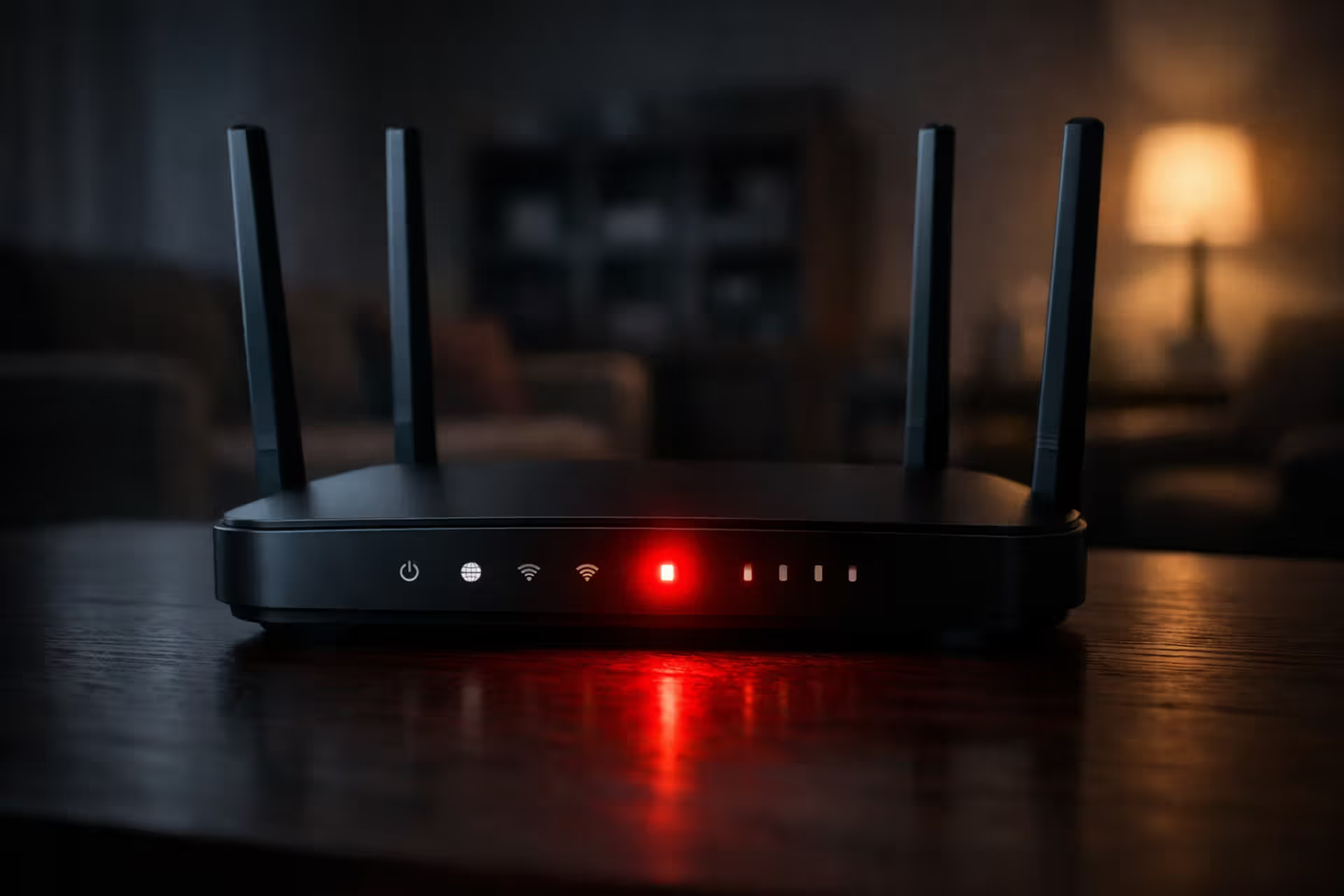
Most routers include a WAN or Internet LED that indicates connection status. The color and pattern matter more than you'd think:
Solid green/white means your WAN port has both physical connection and an assigned IP address. Still can't browse websites? You're probably dealing with DNS settings or firewall rules instead of fundamental connectivity problems.
Amber/orange signals that physical connection works but IP assignment failed. Usually this points to authentication problems, wrong connection type settings, or provisioning issues on your ISP's side.
Blinking/flashing tells you the router's actively trying to establish connection. Stays like this for more than five minutes? Your credentials or connection type configuration is probably wrong.
Off/red indicates no physical connection detected at all. Check your ethernet cable, make sure it's actually plugged into the WAN port (easy to accidentally use a LAN port), and verify your modem has power.
Author: Caroline Prescott;
Source: flexstarsolutions.com
ISP Authentication Failures: PPPoE and Login Credential Issues
Many ISPs—DSL and fiber providers especially—require your router to authenticate using PPPoE (Point-to-Point Protocol over Ethernet). This adds a login step between your router and the internet, which means more potential failure points.
Where to Find Your PPPoE Username and Password
ISPs usually provide these credentials during initial setup. Look for a sticker on your modem or dig through your account welcome email. Don't expect the username to resemble your account login—you might see something like "abc123@dsl.provider.com" or "fiber-12345678" instead.
Log into your ISP's customer portal and poke around. Most providers bury PPPoE credentials under sections called "Internet Settings," "Connection Details," or "Technical Information." Never set up PPPoE before? You'll probably need to call support and have them generate credentials for you.
Here's where people constantly screw up: they use their account login credentials (what you type in to pay bills) instead of PPPoE credentials. Your billing login and PPPoE authentication? Completely different things.
Common PPPoE Configuration Mistakes
Wrong connection type selected: Your router's WAN settings offer options like "Dynamic IP," "Static IP," "PPPoE," and "PPTP." Set your router to Dynamic IP when your ISP requires PPPoE? Authentication never even starts. The router sits there assuming it should receive an IP automatically, while your ISP waits forever for login credentials.
Extra characters in credentials: Copy-pasting credentials from PDFs or emails sometimes grabs invisible characters. Type them manually if auto-paste keeps failing.
Case sensitivity: Plenty of ISPs enforce case-sensitive passwords. "Password123" and "password123" will be treated as two different credentials.
VPI/VCI values on DSL connections: DSL users occasionally need Virtual Path Identifier and Virtual Circuit Identifier numbers alongside PPPoE credentials. These numbers vary by region and ISP—dig through your provider's support documentation for the right values.
Roughly 60% of the 'router won't connect' support calls we receive trace back to PPPoE credential errors. Customers either use the wrong username format or accidentally reset their credentials through our portal without updating their router configuration
— Marcus Chen
WAN Port and IP Assignment Problems
Even with perfect credentials, your router still needs to successfully negotiate an IP address from your ISP. Fail here and you'll see errors like "WAN IP not assigned," "0.0.0.0" in your IP field, or "obtaining IP address" messages that loop forever.
When Your Router Shows "WAN IP Not Assigned"
This error tells you the router completed authentication (if needed) but never received a usable IP address from your ISP's DHCP server.
MAC address filtering: Plenty of ISPs lock service to the MAC address of your original modem or router. Connect a new router and the ISP's system simply rejects the DHCP request. Your options: clone your old router's MAC address (most routers offer this under WAN settings) or call your ISP to register your new device.
DHCP timeout issues: Your router might give up before your ISP responds. Try bumping the DHCP timeout value in your router settings from 30 seconds up to 60 or 120 seconds. This particularly matters on congested cable networks.
Modem needs power cycle: Your modem remembers the MAC address of whatever device connected last. Plug in a new router without power-cycling the modem? The modem ignores DHCP requests. Always unplug your modem for a full 30 seconds when swapping routers.
Physical WAN Port Failures vs. Configuration Errors
A dead WAN port looks exactly like configuration problems but requires hardware replacement. Test by connecting any device to the WAN port and checking for link lights on both the router and the connected device. No lights appear on either end after trying multiple cables? Port's probably dead.
Some routers let you reassign a LAN port as the WAN port through firmware settings—handy if your WAN port dies but you want to delay buying a replacement.
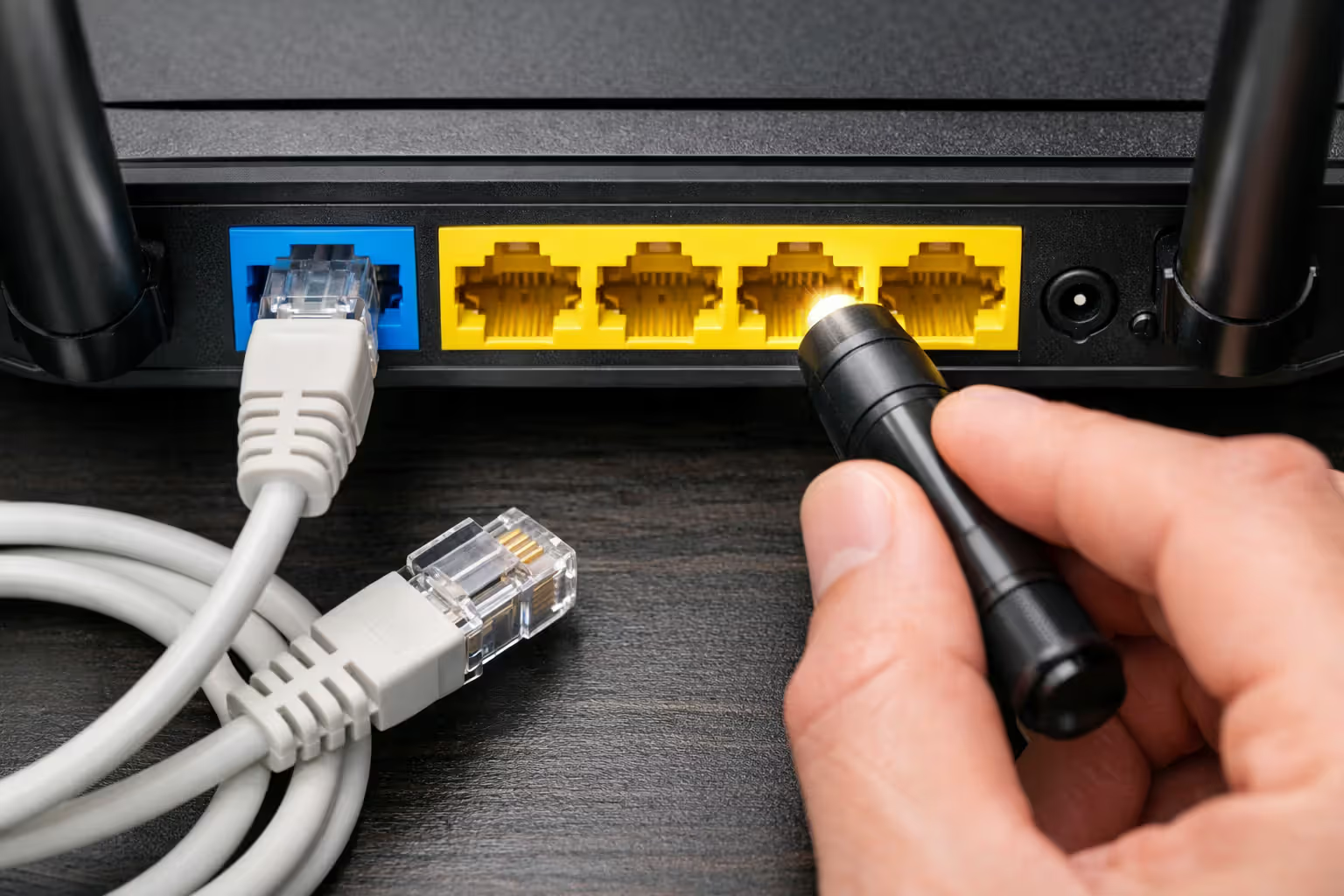
Bent pins inside the ethernet jack cause intermittent connections that drive you insane. Shine a flashlight into the port and verify all eight metal contacts are straight and evenly spaced.

Author: Caroline Prescott;
Source: flexstarsolutions.com
Advanced ISP Requirements: VLAN Tagging and Bridge Mode Setup
Some ISPs throw in technical requirements that basic router setup wizards completely ignore. Consumer documentation rarely mentions these configurations, yet they'll completely block connectivity when missing.
Does Your ISP Require VLAN Tagging?
VLAN tagging separates internet traffic from other services (like IPTV or VoIP) at the network level. Certain fiber ISPs require your router to tag internet traffic with a specific VLAN ID, usually somewhere between 10 and 100.
AT&T Fiber requires VLAN ID 0 for residential connections. Verizon FiOS uses VLAN ID 35 in some regions. Without the correct tag, your authentication goes through fine but data packets never reach the internet.
Look in your router's WAN settings for fields labeled "VLAN ID," "802.1Q," or "Priority tagging." Found these options and your connection keeps failing despite correct credentials? Contact your ISP and ask directly whether VLAN tagging is required and what ID to use.
Not all consumer routers support VLAN tagging. If yours doesn't and your ISP demands it, you'll need to either stick with your ISP's provided router or upgrade to a model supporting 802.1Q tagging.
Configuring Your Modem in Bridge Mode
Running a separate modem and router both in routing mode creates "double NAT" situations. This doesn't always kill connectivity, but it murders gaming performance, VoIP quality, and port forwarding functionality.
Bridge mode turns off your modem's routing functions, converting it into a simple translator between your ISP's network and your router. Your router then handles all IP assignment, firewall duties, and network management.
Access your modem's admin panel (typically at 192.168.100.1 or 192.168.0.1) and hunt for "Bridge Mode," "Modem Mode," or "Disable Routing" under connection settings. Enable it, save, and reboot both devices.
Fair warning: enabling bridge mode usually disables your modem's Wi-Fi and admin panel. You'll connect directly to your router for all network management afterward. Some ISP-provided gateways hide or completely remove bridge mode options—you might need to call support to enable it.
Router Firmware Issues Preventing Internet Connection
Outdated or corrupted firmware can break WAN connectivity even when all settings are correct. Router manufacturers occasionally push updates that introduce bugs, or updates fail mid-installation and brick certain features.
Visit your router manufacturer's website, find your model's latest firmware version, and compare it against what's currently installed (usually found in your router's System or Administration section). Several versions behind? An update might resolve compatibility issues with your ISP's infrastructure.
Write down your current settings before updating firmware—especially WAN configuration, PPPoE credentials, and any custom DNS or VLAN settings. Plenty of firmware updates wipe all settings back to factory defaults.
Router recently auto-updated and immediately lost connectivity? Look for a firmware rollback option. Not all routers support this, but business-class models often let you revert to the previous version.
Corrupted firmware creates symptoms beyond simple connection failure: constant reboots, inaccessible admin panels, or settings that refuse to save. These cases usually demand a full factory reset or TFTP firmware recovery—consult your router's support documentation for model-specific instructions.

Author: Caroline Prescott;
Source: flexstarsolutions.com
Step-by-Step Troubleshooting Checklist (From Simplest to Most Complex)
Work through these steps sequentially, testing your connection after each one:
- Full device restart: Disconnect power from both modem and router for a full 30 seconds. Connect the modem's power first, let all its lights stabilize (usually takes 2-3 minutes), then power up your router.
- Confirm physical connections: The cable from your modem should connect to your router's WAN port—often colored blue or yellow and marked "Internet" or "WAN." Make sure cables click firmly and aren't visibly damaged.
- Verify connection type: Log into your router and double-check WAN settings match your ISP's requirements (PPPoE vs. Dynamic IP vs. Static IP). Not sure? Call your ISP and ask.
- Re-enter credentials fresh: Using PPPoE? Delete your existing username and password completely, then manually type them again instead of pasting. Watch for extra spaces or invisible characters.
- Clone MAC address: Grab your old router's MAC address (printed on its label or visible in its settings) and enter it in your new router's MAC clone field.
- Swap ethernet cables: Replace your WAN ethernet cable even if it looks perfect. Cables fail internally without showing visible damage.
- Factory reset router: Press and hold the reset button for 10-15 seconds, then reconfigure everything from scratch. Corrupted settings sometimes survive normal reboots.
- Contact ISP: Verified all settings and tested with known-good hardware? The problem probably exists on your ISP's end—provisioning errors, line issues, or account status problems.
| What You're Seeing | Probable Cause | Jump To Section |
| WAN light completely off, no link activity | Cable or port failure | WAN Port and IP Assignment Problems |
| WAN light shows amber/orange | Wrong credentials or connection type mismatch | ISP Authentication Failures |
| WAN light green but displays IP 0.0.0.0 | DHCP negotiation failed or MAC address rejected | WAN Port and IP Assignment Problems |
| WAN light green with valid IP, still no internet | DNS misconfigured, VLAN tags missing, or ISP-side block | Advanced ISP Requirements |
| Random disconnections throughout the day | Firmware bugs or overheating hardware | Router Firmware Issues |
| Everything looks normal, admin panel says "connected" | DNS servers unreachable or bridge mode needed | Advanced ISP Requirements |
When to Contact Your ISP vs. Replace Your Router
Call your ISP when:
- Router worked perfectly yesterday and you changed nothing
- The bypass test (connecting computer directly) also fails
- Your router displays a valid WAN IP but websites still won't load
- You've triple-checked all settings match your ISP's requirements but connection still fails
- Your ISP recently performed maintenance or upgrades in your area
Consider replacing your router when:
- WAN port shows zero link activity with multiple cables and devices tested
- Firmware updates fail repeatedly or admin panel becomes inaccessible
- Your router's more than 5-6 years old and your ISP upgraded to newer technology (like fiber)
- Your ISP requires VLAN tagging or IPv6 and your current router lacks these features
- You've factory reset multiple times and problems persist across different ISP accounts
Sometimes responsibility splits between both parties. Your ISP might require VLAN tagging (their infrastructure requirement) but your router doesn't support it (your hardware limitation). Neither party is technically "wrong," but you'll need to upgrade equipment to match your ISP's infrastructure.
FAQ
Router connection failures frustrate because they hide behind vague error messages and blinking lights. The actual problem might involve mistyped credentials, a MAC address your ISP doesn't recognize, missing VLAN tags, or simply a cable that looks fine but fails electrically.
Start with the bypass test to isolate whether your router or modem causes the problem. Verify your connection type matches what your ISP requires—Dynamic IP, PPPoE, or Static IP. Double-check authentication credentials character by character. Power cycle your modem whenever you connect a new router.
For persistent issues, check if your ISP requires advanced configuration like VLAN tagging or bridge mode. These requirements rarely appear in consumer documentation but completely block connectivity when missing.
When you've verified cables, settings, and credentials but still can't connect, the problem likely exists on your ISP's end. Provisioning errors, line issues, and account status problems all present identically to router configuration errors but require ISP intervention to resolve.