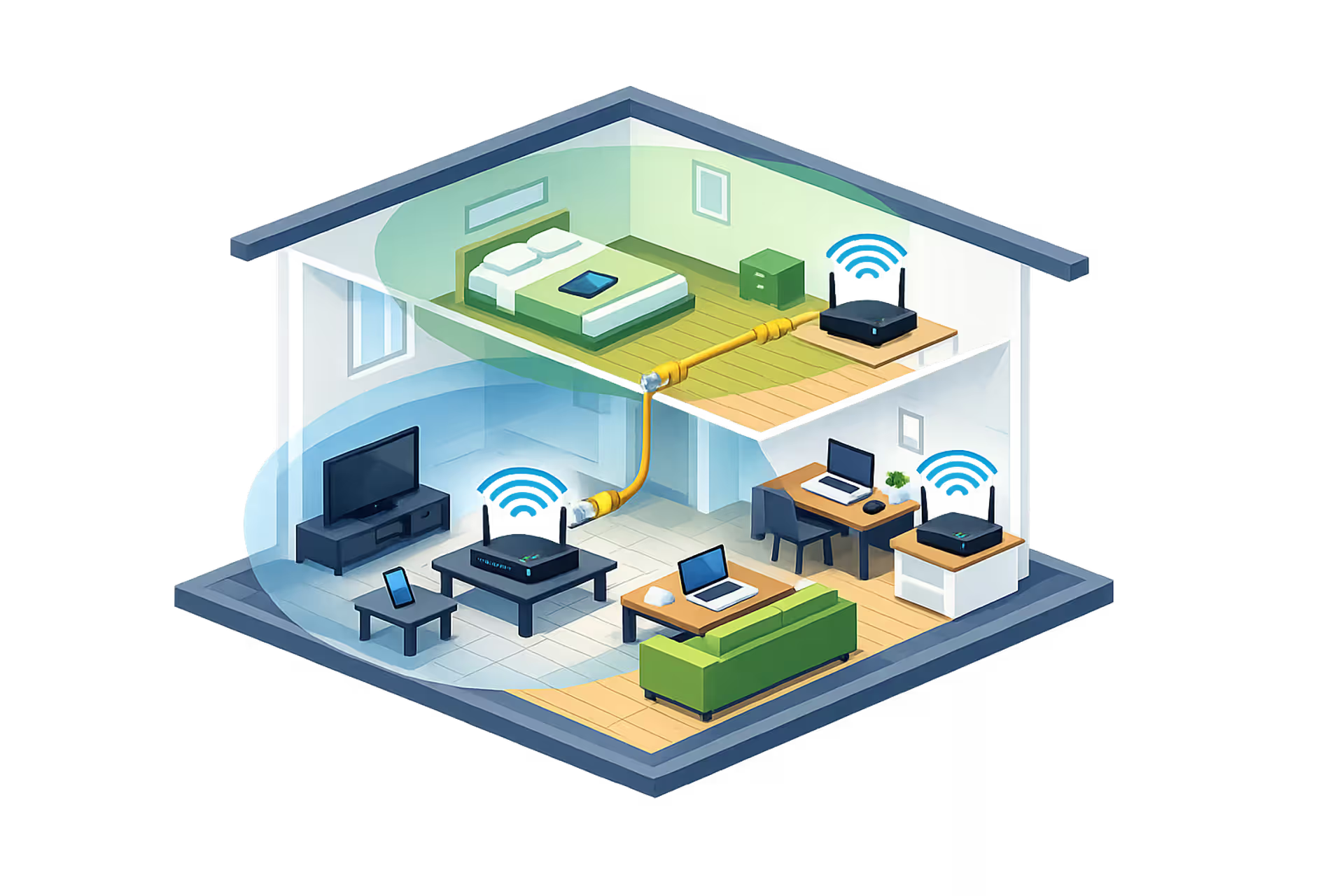
Cutaway isometric view of a two-story house with two WiFi routers connected by Ethernet cable, overlapping coverage zones, and various connected devices in different rooms
How to Set Up Multiple WiFi Routers Without Double NAT

Content
Yes, you can absolutely have more than one WiFi router in your home, and in many cases, it's the smartest way to eliminate dead zones and improve coverage. The catch? You need to configure the second router correctly, or you'll create network conflicts that slow everything down.
Most people assume adding a second router means just plugging it in and turning it on. That approach creates a frustrating situation called double NAT, which wreaks havoc on gaming, video calls, and smart home devices. But when you set up multiple routers properly—whether as an access point, in bridge mode, or as a separate network—you can extend coverage throughout a large house, across multiple floors, or even to detached structures like garages and workshops.
This guide walks through exactly how to add a second router without creating headaches, which configuration method works best for different situations, and when you should consider mesh WiFi instead.
Why You Might Need Two Routers in One House
A single router works fine for apartments and smaller homes, but certain situations demand better coverage than one device can provide.
Homes over 2,500 square feet often have rooms where the WiFi signal barely reaches. The router might sit in a front office while bedrooms at the back of the house struggle with one or two bars of signal. Adding a second router in a central hallway or at the opposite end of the house solves this immediately.
Multi-story buildings present vertical challenges. WiFi signals travel horizontally much better than they penetrate floors and ceilings. A router on the main floor might leave the basement with unusable speeds and the upstairs master bedroom constantly buffering. Placing a second router on the upper floor creates dedicated coverage for that level.
The biggest mistake homeowners make with multi-router setups is treating the second router like an independent device. Your goal should be seamless integration into the existing network, which means disabling specific features on the secondary unit to prevent IP conflicts and routing problems
— James Mitchell
Thick walls and older construction materials block wireless signals effectively. Homes built with plaster and lath, brick, or concrete walls between rooms can turn a three-bedroom house into a coverage nightmare. A second router positioned on the other side of these barriers extends the network where the primary router can't reach.
Detached structures need their own coverage. If you've converted a garage into a home office or have a workshop in a separate building, running an Ethernet cable to a second router provides reliable connectivity without relying on a weak signal from the main house.
Bandwidth distribution across different areas matters for busy households. When teenagers are streaming in the basement while parents work from home upstairs, a second router can handle the basement traffic independently, reducing congestion on the primary router.

Author: Tyler Beaumont;
Source: flexstarsolutions.com
The Double NAT Problem: What It Is and Why It Matters
Double NAT happens when two routers on the same network both perform Network Address Translation, creating two separate private IP address spaces that don't communicate efficiently.
Here's what that means in practice: your modem connects to the internet and assigns your first router a public IP address. That router creates a private network (usually 192.168.1.x) for your devices. When you connect a second router without proper configuration, it creates another private network (maybe 192.168.0.x) behind the first one. Devices on the second router now sit two translation layers away from the internet.
The symptoms show up in specific scenarios. Online gaming suffers because game servers can't establish direct connections through two NAT layers. You'll see "strict NAT" or "moderate NAT" warnings, and voice chat might cut out. Port forwarding becomes nearly impossible—you'd need to forward ports on both routers, and even then, many applications won't work correctly.
VPN connections frequently fail or drop with double NAT. Remote desktop software struggles to maintain stable connections. Smart home hubs that need to communicate with external servers might work intermittently or not at all.
But double NAT isn't always problematic. If you're just browsing websites, streaming video, or checking email, you probably won't notice any difference. Web traffic and streaming services work fine through double NAT because they use outbound connections that don't require port forwarding.
How to Detect If You Have Double NAT
Run a traceroute to any internet address. On Windows, open Command Prompt and type tracert 8.8.8.8. On Mac, open Terminal and type traceroute 8.8.8.8.
Look at the first two hops. If both show private IP addresses (anything starting with 192.168, 10.0, or 172.16-172.31), you have double NAT. The first hop should be your router, and the second should be either your modem or your ISP's network with a public IP address.
Another quick check: log into your primary router's admin panel and look at the WAN or internet IP address. Then log into your second router and check its WAN IP. If the second router's WAN IP matches the private IP range of your first router, you've got double NAT.
Four Ways to Configure a Second Router (and Which to Choose)
You have four main options for adding a second router, each with different complexity levels and use cases.
| Configuration Method | Difficulty Level | Keeps Single Network | Best For | Avoids Double NAT |
| Access Point Mode | Easy | Yes | Most home users extending coverage | Yes |
| Bridge Mode | Easy-Medium | Yes | Connecting two wired networks wirelessly | Yes |
| Separate Router/Network | Medium | No | Guest networks, IoT device isolation | No |
| Wired AP with Different SSID | Easy | No (logically separated) | Managing bandwidth per area | Yes |
Setting Your Second Router as an Access Point
Access point mode turns your second router into a WiFi broadcaster that extends your existing network. This is the best option for most people because it's straightforward and eliminates double NAT entirely.
The process requires connecting the second router to your primary router via Ethernet cable, then disabling the DHCP server on the second router. DHCP assigns IP addresses to devices, and you only want one device doing this job—your primary router.
Log into the second router's admin panel (usually 192.168.1.1 or 192.168.0.1, depending on the brand). Find the DHCP settings and turn the DHCP server off. Then assign the second router a static IP address within your primary router's subnet but outside the DHCP range. If your primary router uses 192.168.1.1 and assigns addresses from 192.168.1.100-192.168.1.200, give your second router something like 192.168.1.2.
Connect an Ethernet cable from any LAN port on your primary router to any LAN port (not the WAN port) on your second router. Use the same WiFi network name and password on both routers so devices can roam between them automatically.
Some modern routers have a dedicated "Access Point Mode" option in the settings that handles these changes automatically. TP-Link, ASUS, and Netgear routers commonly include this feature.

Author: Tyler Beaumont;
Source: flexstarsolutions.com
Configuring Bridge Mode on Your Second Router
Bridge mode creates a wireless connection between two routers, effectively using the second router to extend your network without running Ethernet cables. The second router connects to the first router's WiFi signal and rebroadcasts it.
This sounds convenient, but it cuts your bandwidth roughly in half because the second router uses the same radio to receive and transmit data simultaneously. If your internet speed is 100 Mbps at the primary router, devices connected to the bridged router might see 40-50 Mbps.
Bridge mode works well when running Ethernet cables isn't feasible and you need coverage in a specific area where the signal is weak but not completely dead. The second router needs to sit in a location where it still receives a decent signal from the primary router—at least three bars.
Configuration varies significantly by router brand. Some routers call it "bridge mode," others call it "repeater mode" or "wireless bridge." You'll typically need to enter the primary router's SSID and password, then disable DHCP on the second router just like in access point mode.
Using the Second Router as a Wired Range Extender
This approach combines access point mode with a different SSID, giving you manual control over which devices connect to which router. You might name your primary network "Home_Main" and your second router "Home_Upstairs."
The advantage is bandwidth management. If you want to ensure work-from-home video calls always have priority, you can connect only work devices to the second router and leave streaming devices on the primary network.
The downside is that devices won't automatically switch between routers as you move through the house. Your phone will stick to "Home_Main" even when you're standing next to the second router, resulting in a weaker connection than necessary.
Set this up exactly like access point mode, but use different WiFi names. This is the simplest configuration for people who want to experiment with two routers without worrying about advanced settings.
Running Two Separate Networks (When This Makes Sense)
Leaving the second router in default router mode creates a completely separate network behind your primary router. This intentionally creates double NAT, which is useful in specific situations.
You might want a separate network for IoT devices like security cameras, smart thermostats, and voice assistants. Isolating these devices on their own network improves security—if a smart bulb gets compromised, it can't access your computers and phones on the primary network.
Another use case is a dedicated guest network with more control than the basic guest network feature most routers offer. You can set bandwidth limits, time restrictions, and content filters on the second router without affecting your main network.
Connect the second router's WAN port to a LAN port on your primary router, and configure it normally. Devices on the second router can access the internet but can't see devices on the primary network. Devices on the primary network can access devices on the secondary network if you know their IP addresses, but not vice versa.
Access Point vs Bridge Mode: Understanding the Difference
These terms get used interchangeably, but they describe different configurations with different performance characteristics.
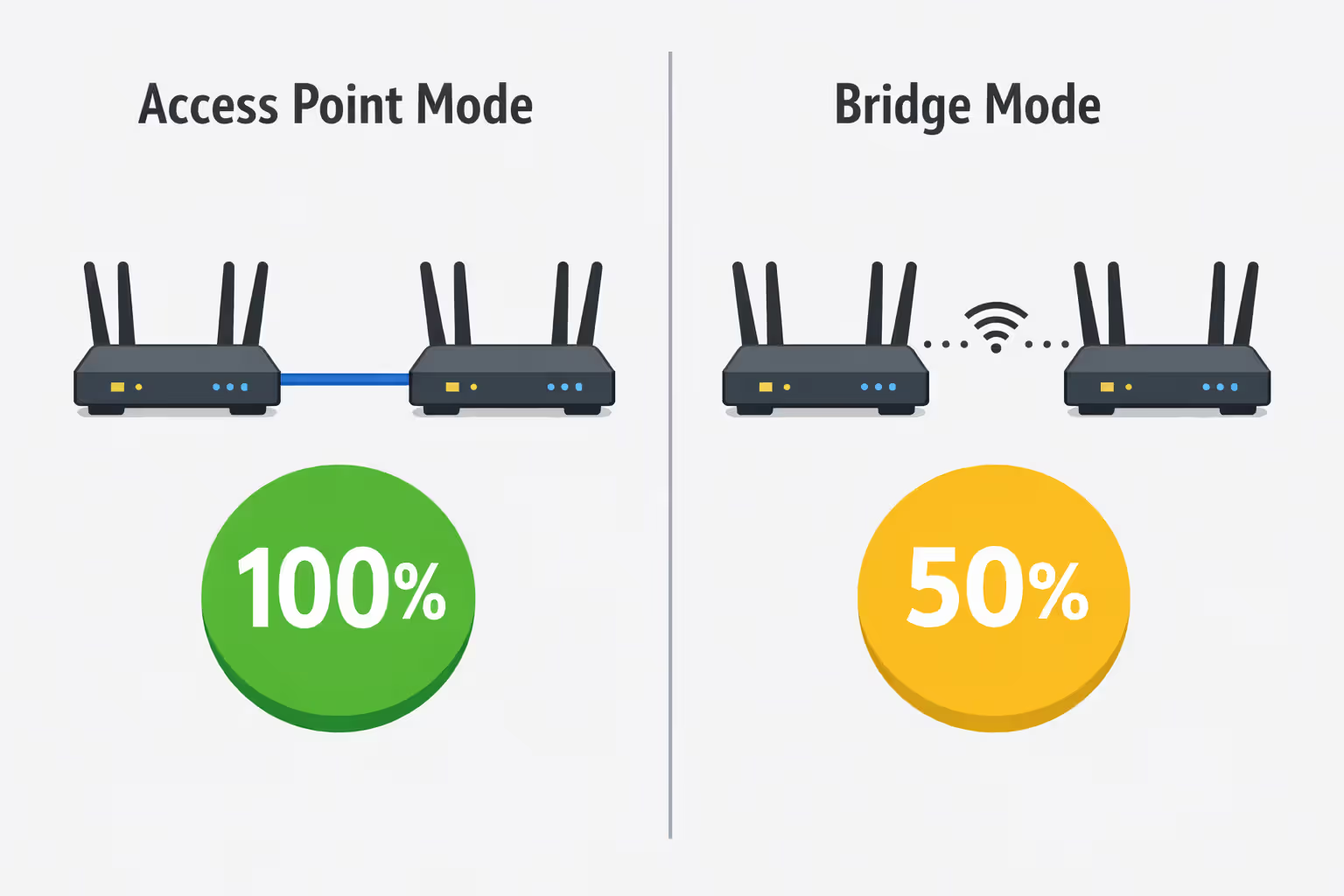
Access point mode requires a wired Ethernet connection between the two routers. The second router broadcasts WiFi but relies on the cable for its connection to the primary router. This maintains full network speed because the wired connection handles all the backhaul traffic.
Bridge mode uses a wireless connection between the routers. The second router connects to the first router's WiFi, then rebroadcasts that signal. This creates a wireless backhaul, which is convenient but costs you speed because the second router's radio is doing double duty.
Think of access point mode as adding a WiFi speaker in another room with a direct cable to your amplifier. Bridge mode is like placing a wireless speaker that receives the audio signal over the air, then plays it—there's more opportunity for interference and quality loss.
Most routers support access point mode because it's just a matter of disabling DHCP and connecting via LAN ports. Bridge mode requires specific hardware support, and not all routers can do it. Check your router's specifications or manual before assuming it has this capability.
Use access point mode whenever you can run an Ethernet cable. The performance improvement is worth the installation effort. Reserve bridge mode for situations where cabling is genuinely impossible, like connecting a detached garage with a concrete foundation where trenching would be prohibitively expensive.
Author: Tyler Beaumont;
Source: flexstarsolutions.com
Wired Backhaul vs Wireless: How Connection Method Affects Performance
The connection between your primary and secondary router—called the backhaul—determines the maximum speed your second router can deliver to devices.
Ethernet backhaul provides the most reliable and fastest connection. A Cat5e cable supports gigabit speeds up to 100 meters, which covers most residential installations. Cat6 cable offers even more headroom for future upgrades. When devices connect to your second router, they get nearly the same speeds as if they were connected directly to the primary router (minus a small overhead for switching).
Running Ethernet through walls and ceilings intimidates many homeowners, but it's often easier than expected. Existing cable TV or phone line conduits sometimes have room for an additional cable. Basement and attic runs avoid drilling through finished walls. External cable runs work for single-story homes or detached structures.
Powerline adapters offer a middle-ground solution. These devices use your home's electrical wiring to transmit network data. You plug one adapter near your primary router and connect it via Ethernet, then plug a second adapter near your second router and connect it via Ethernet. The electrical wiring becomes your network cable.
Powerline performance varies wildly depending on your home's electrical system. Houses with newer wiring and circuits that share the same electrical panel see speeds of 200-500 Mbps. Older homes with multiple panels or noisy electrical systems might get only 50-100 Mbps. Powerline adapters on different electrical phases won't connect at all without a phase coupler.
MoCA adapters use coaxial cable (the same cable that carries cable TV signals) to create a high-speed network backbone. If your home has coax running to multiple rooms, MoCA adapters can deliver 1-2.5 Gbps depending on the version. This is the fastest alternative to Ethernet, but it requires existing coax infrastructure and costs more than powerline adapters.
Wireless backhaul is the least reliable option but the easiest to set up. Performance depends on the distance between routers, the number of walls in between, and interference from neighboring WiFi networks. Expect to lose 50% or more of your bandwidth compared to a wired connection. A wireless backhaul makes sense only when you need coverage in a low-demand area like a garage or basement storage room where speeds of 30-50 Mbps are acceptable.
Should You Use Mesh WiFi Instead of a Second Router?
Mesh systems and second routers solve the same problem—extending WiFi coverage—but they take different approaches with different cost and performance trade-offs.
| Feature | Second Router as AP | Mesh System (2-pack) | Mesh System (3-pack) |
| Cost | $30-80 (if you have spare router) | $150-300 | $250-500 |
| Setup Time | 15-30 minutes | 5-10 minutes | 10-15 minutes |
| Performance | Excellent (wired), Good (wireless) | Good-Excellent (depends on backhaul) | Good-Excellent (depends on backhaul) |
| Expandability | Limited | Easy (add more nodes) | Easy (add more nodes) |
| Advanced Features | Full router features | App-based management, parental controls | App-based management, parental controls, IoT security |
Mesh WiFi wins on convenience. Setup happens through a smartphone app with guided instructions. The system automatically manages which devices connect to which node, handles roaming between nodes seamlessly, and updates firmware across all units simultaneously. For people who want coverage without learning networking concepts, mesh is worth the premium.
Second routers offer better value if you already own an old router that's collecting dust. A router you bought three years ago might not be fast enough as your primary router anymore, but it's perfectly capable of serving as an access point. You're spending zero dollars versus $200-400 for a mesh system.
Performance favors second routers when you can run Ethernet backhaul. A wired access point delivers consistent speeds because it's not sharing wireless bandwidth for backhaul traffic. Mesh systems with wireless backhaul (which is how most people use them) sacrifice some performance for convenience.
Advanced features lean toward second routers. When you use a full router in access point mode, you still have access to features like VPN servers, detailed traffic monitoring, custom firewall rules, and advanced QoS settings. Mesh systems prioritize simplicity, so they often hide or omit advanced features that power users want.
The hybrid approach makes sense for some homes: use a mesh system for the main living areas where you want seamless roaming and easy management, then add a wired access point to a detached structure or distant room where you need maximum performance.
Choose mesh if you value simplicity, plan to expand coverage to more than two locations, or have a household where multiple people need to manage the network. Choose a second router if you have an extra router available, can run Ethernet backhaul, or need advanced networking features.
Avoiding Common Mistakes When Running Two Routers
Even with correct configuration, several common mistakes can degrade performance or create connectivity issues.
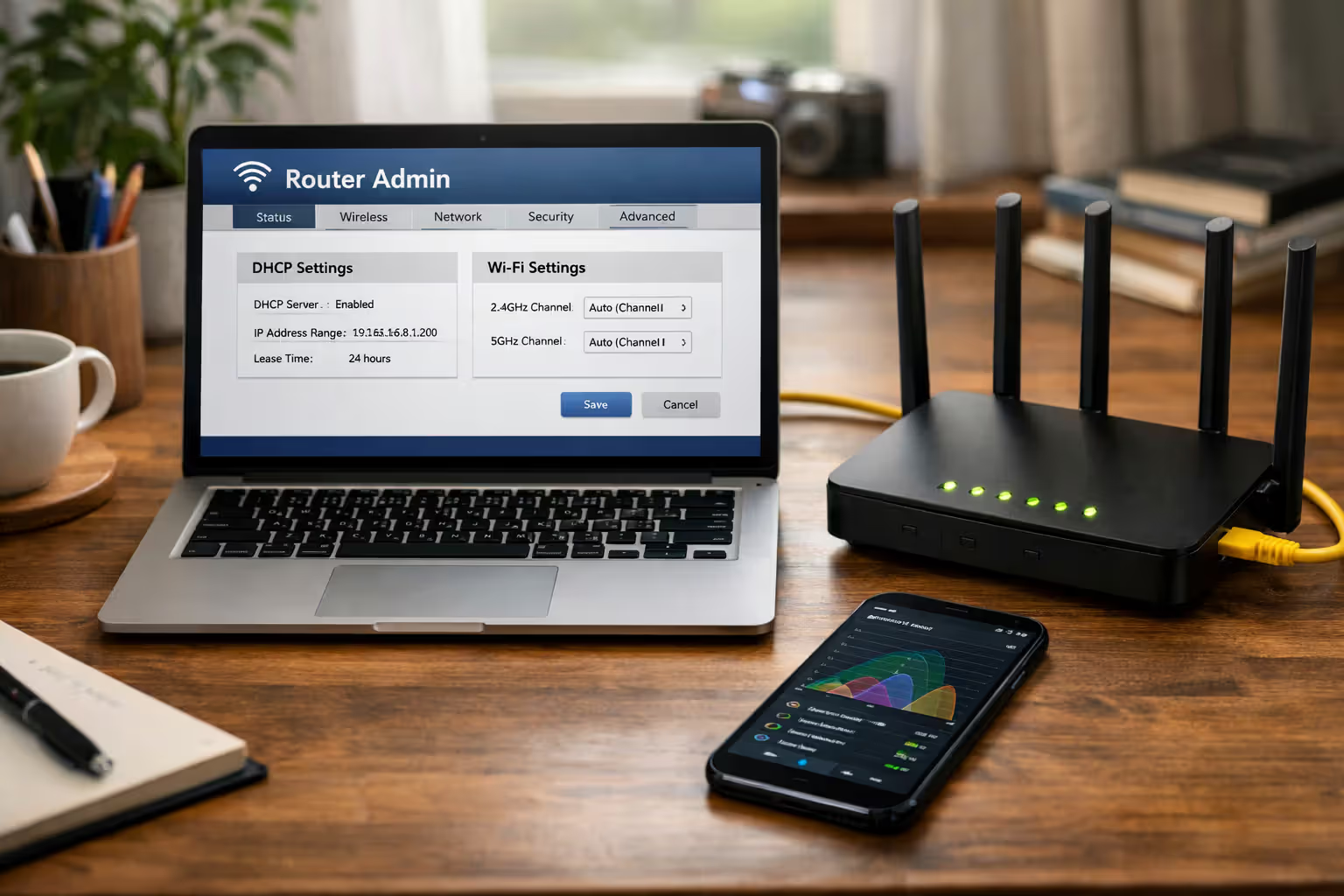
Channel overlap causes WiFi interference when both routers broadcast on the same or adjacent channels. WiFi uses specific channels within the 2.4 GHz and 5 GHz bands. If your primary router uses channel 6 on 2.4 GHz and your second router also uses channel 6, they'll interfere with each other when their coverage areas overlap.
Use a WiFi analyzer app on your phone to see which channels neighboring networks use. Set your routers to channels that have the least congestion. For 2.4 GHz, stick to channels 1, 6, or 11—these don't overlap with each other. For 5 GHz, you have more options, but channels 36, 40, 44, 48 in the lower band and 149, 153, 157, 161 in the upper band are typically good choices.
SSID naming strategy matters when you use the same network name on both routers. While using identical SSIDs allows devices to roam between routers, some devices stick to the first router they connect to even when moving closer to the second router. This "sticky client" problem means your phone might stay connected to the distant router with a weak signal instead of switching to the nearby router with a strong signal.
You can't fix sticky clients at the router level—it's a device behavior. But you can reduce the problem by lowering the transmit power on both routers so devices are forced to disconnect and reconnect to the closer router when they move. Most routers let you adjust transmit power from 100% down to 25% or so.
DHCP conflicts happen when you forget to disable DHCP on the second router in access point mode. With two DHCP servers running, devices might get IP addresses from either router randomly. This creates intermittent connectivity problems where devices work fine for a while, then suddenly lose connection when their DHCP lease expires and they get an address from the wrong router.
Always verify DHCP is disabled on the second router. Check the DHCP client list on your primary router—you should see all devices getting addresses from that router only.
IP address range issues occur when you set the second router's static IP outside your primary router's subnet. If your primary router uses 192.168.1.x and you assign your second router 192.168.0.2, they can't communicate. The second router must have an IP address in the same subnet as the primary router (same first three numbers).
Firmware compatibility rarely causes problems, but it's worth mentioning. Using two routers from different manufacturers works fine, but using two routers from the same manufacturer with vastly different firmware versions can sometimes create odd behavior. Update both routers to their latest firmware before setting up the second router.
Author: Tyler Beaumont;
Source: flexstarsolutions.com
Frequently Asked Questions About Multiple Router Setups
Adding a second router to your home network solves real coverage problems without requiring expensive upgrades or professional installation. The key is choosing the right configuration for your situation and avoiding the double NAT trap that causes more problems than it solves.
For most people, access point mode with wired Ethernet backhaul delivers the best combination of performance, reliability, and simplicity. You get full network speeds throughout your home, devices roam automatically between routers, and you avoid the networking headaches that come with double NAT.
When running cables isn't possible, bridge mode or powerline adapters provide workable alternatives, though with some performance compromise. And for specific situations like isolating IoT devices or creating a separate guest network, intentionally running two separate networks makes sense despite the double NAT.
The choice between adding a second router and investing in a mesh system comes down to your priorities. If you have an extra router and can run Ethernet, you'll save money and get better performance. If you value simplicity and plan to expand coverage to multiple locations, mesh systems justify their higher cost with easier setup and management.
Start by mapping out where you need coverage, identify whether you can run Ethernet to those locations, and choose your configuration method based on that assessment. With the right setup, two routers work together seamlessly to eliminate dead zones and deliver reliable WiFi throughout your entire home.