Dark server room with monitor showing Remote Desktop connection window surrounded by translucent digital shields and lock icons symbolizing layered cybersecurity protection
How to Secure RDP Over Internet for Safe Remote Desktop Access

Content
Remote Desktop Protocol remains one of the most targeted services on the internet. Every day, automated scanners probe millions of IP addresses looking for port 3389, testing default credentials, and attempting to breach networks through poorly configured RDP endpoints. The convenience of remote access comes with substantial risk, but abandoning RDP isn't always practical for businesses that depend on it.
The question isn't whether you should secure your RDP connection—it's how to do it effectively without creating administrative nightmares or blocking legitimate access. This guide covers seven proven methods that address real attack vectors, not just theoretical vulnerabilities.
Why Exposing RDP Directly to the Internet Is a Security Risk
Opening port 3389 to the public internet creates an attack surface visible to every scanner, botnet, and threat actor online. Within minutes of exposure, you'll see login attempts from IP addresses across dozens of countries.
The attack vectors are well-documented and disturbingly effective. Brute force attacks cycle through common username-password combinations at rates limited only by your account lockout policies. Credential stuffing leverages passwords leaked from unrelated breaches, betting that users recycle credentials across systems. More sophisticated attackers exploit unpatched RDP vulnerabilities like BlueKeep (CVE-2019-0708) or DejaBlue, which allow remote code execution without authentication.
Ransomware operators particularly favor RDP as an initial access vector. According to incident response data, compromised remote desktop accounts consistently rank among the top three entry points for ransomware deployment. Once inside through RDP, attackers move laterally, escalate privileges, disable backups, and encrypt entire networks.
RDP is one of the most common attack vectors for ransomware. Organizations should audit their network for systems using RDP, close unused RDP ports, apply multi-factor authentication, and place any system with RDP behind a VPN or firewall
— CISA
Even with strong passwords, direct RDP exposure invites constant attack attempts that fill logs, trigger account lockouts, and occasionally succeed when an employee chooses a weak password or when a service account gets overlooked during security reviews.
The baseline risk is clear: default RDP configurations weren't designed for hostile internet environments. Every security layer you add reduces the attack surface and increases the cost for attackers.
Should You Use a VPN Instead of Direct RDP Exposure?
Virtual Private Networks create an encrypted tunnel between the remote user and your network, hiding RDP entirely from public scanning. Instead of exposing port 3389, you expose only the VPN endpoint, which authenticates users before granting network access.
This approach offers genuine security advantages. Attackers can't reach your RDP service without first authenticating to the VPN, effectively eliminating opportunistic attacks. Your RDP server becomes invisible to port scans, removing it from the target lists that automated tools compile.
The trade-offs center on complexity and user experience. Client VPN solutions require software installation on every device that needs access. Users must connect to the VPN before initiating RDP sessions, adding steps to their workflow. Site-to-site VPNs work well for connecting offices but don't help individual remote workers without additional configuration.
Performance depends on VPN server capacity and geographic proximity. A properly sized VPN server adds minimal latency, but underpowered hardware or distant endpoints can degrade the remote desktop experience. Video and audio redirection through RDP already consume bandwidth; routing everything through VPN encryption adds overhead.
Cost varies widely. Open-source solutions like OpenVPN and WireGuard eliminate licensing fees but require time to deploy and maintain. Commercial VPN appliances offer easier management at the expense of upfront hardware costs and potential per-user licensing.
The VPN approach makes sense when you need to secure multiple services beyond RDP, when you have IT staff capable of managing VPN infrastructure, or when your users can tolerate the two-step connection process. It's less suitable for organizations seeking the absolute simplest remote access solution or those with non-technical users who struggle with multi-step procedures.
VPN + RDP: The Defense-in-Depth Approach
Combining VPN with additional RDP hardening creates overlapping security layers. Even if an attacker compromises VPN credentials, they still face account lockout policies, multi-factor authentication prompts, and network segmentation on the internal network.
This layered strategy acknowledges that no single control is perfect. VPN protects the network perimeter; strong RDP authentication protects the endpoint; monitoring detects anomalous behavior that slips through both. The redundancy matters because sophisticated attackers will probe for weaknesses across your entire security stack.
| Access Method | Security Level | Setup Complexity | Cost | Best For |
| Direct RDP (port forward) | Low | Very Low | Free | Never recommended for production |
| VPN + RDP | High | Medium | Low to Medium | Organizations with IT staff, multiple services to secure |
| RD Gateway | High | Medium to High | Included with Windows Server | Windows-centric environments, certificate infrastructure |
| Cloud-based PAM solution | Very High | Low to Medium | High (subscription) | Enterprises, compliance requirements, zero-trust initiatives |
Implementing Multi-Factor Authentication for Remote Desktop Access
Multi-factor authentication blocks the most common RDP attack: credential compromise. Even when attackers obtain valid usernames and passwords through phishing, breaches, or brute force, they can't complete authentication without the second factor.
For Azure AD-joined machines, Microsoft's native MFA integration offers the smoothest experience. Users authenticate with their Azure AD credentials, receive a push notification or enter a code from the Authenticator app, and gain access. The setup requires Azure AD Premium licenses and proper network connectivity to Azure services, but the user experience is seamless once configured.

Author: Tyler Beaumont;
Source: flexstarsolutions.com
On-premises environments have several options. Duo Security integrates with RDP through their Windows Logon application, intercepting authentication requests and requiring mobile app approval. RSA SecurID, Okta, and other enterprise identity providers offer similar capabilities through their Windows authentication plugins.
Network Level Authentication (NLA) must be enabled for most MFA solutions to work properly. NLA requires authentication before establishing a full RDP session, preventing unauthenticated users from even seeing the login screen. This configuration change alone reduces exposure to certain exploits that target the RDP protocol itself.
The implementation process typically involves installing authentication provider software on your RDP servers, configuring policies to require second-factor verification, and enrolling users with their MFA devices. Testing should cover various failure scenarios: what happens when a user loses their phone, when the authentication service is temporarily unreachable, or when users need emergency access?
Free MFA options exist but come with limitations. Microsoft Authenticator works with Azure AD at no additional cost beyond the required Azure AD Premium license. Google Authenticator provides TOTP codes but requires third-party software to integrate with Windows authentication. Open-source solutions like privacyIDEA offer complete control but demand significant technical expertise to deploy.
The security improvement is dramatic. According to Microsoft's own statistics, MFA blocks 99.9% of automated account compromise attacks. That single number explains why MFA appears in every serious security framework and compliance standard.
Remote Desktop Gateway: Microsoft's Built-In Secure Access Layer
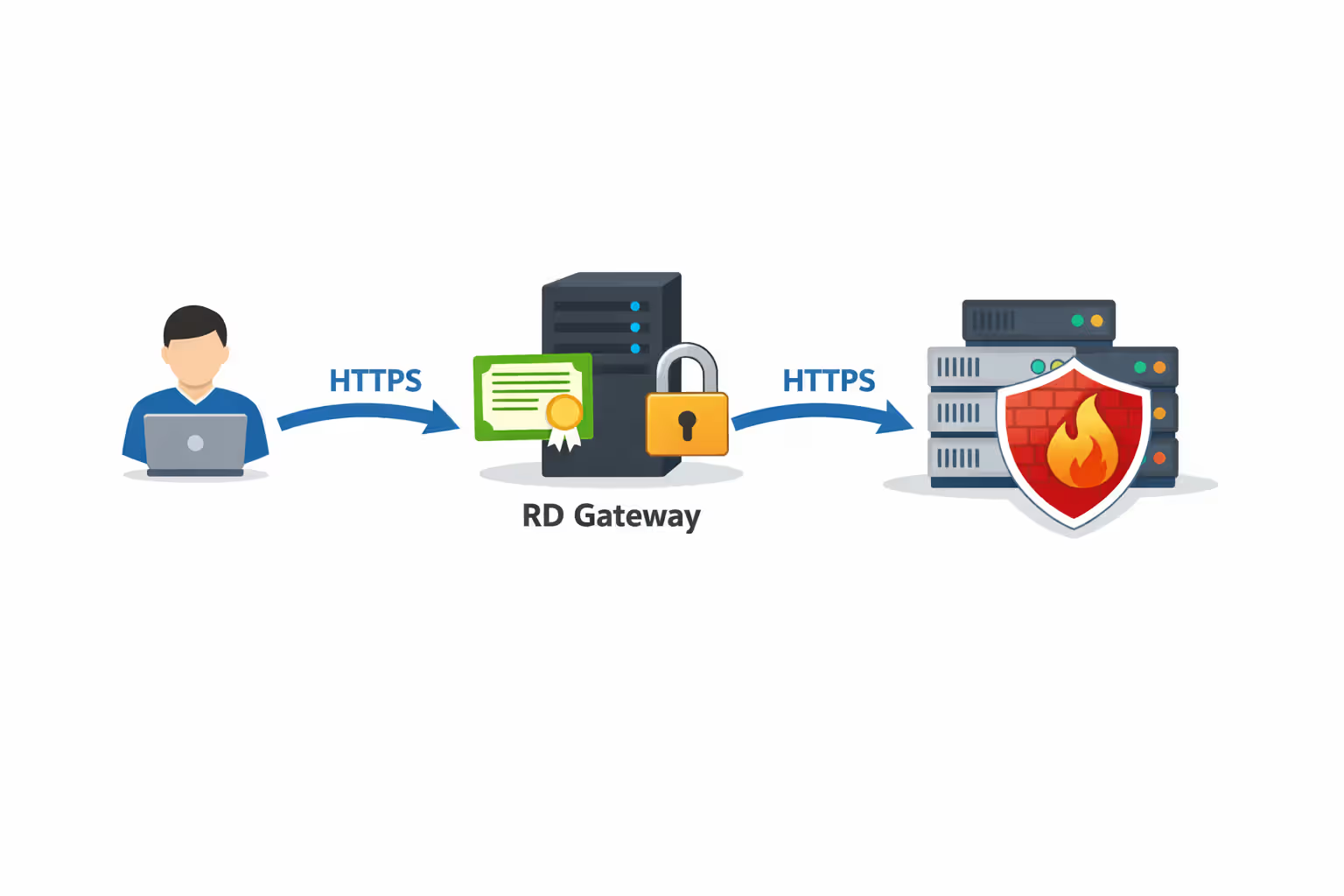
Remote Desktop Gateway functions as a reverse proxy specifically designed for RDP traffic. Instead of exposing your RDP servers directly, you expose the RD Gateway server, which authenticates users and brokers connections to internal RDP hosts.
The architecture creates a secure HTTPS tunnel (port 443) for RDP traffic. Users connect to the gateway using standard RDP clients, but the traffic flows over SSL/TLS, encrypted and authenticated through certificates. The gateway enforces access policies, determining which users can reach which internal servers based on Active Directory group membership.
Author: Tyler Beaumont;
Source: flexstarsolutions.com
Deployment requires Windows Server with the Remote Desktop Gateway role installed, a valid SSL certificate (ideally from a public certificate authority to avoid client trust warnings), and proper firewall rules allowing inbound HTTPS. The gateway itself needs network access to your internal RDP servers but those servers no longer require public IP addresses or port forwarding.
Certificate requirements deserve attention. Self-signed certificates work technically but generate security warnings that train users to ignore certificate errors—exactly the wrong behavior from a security perspective. Certificates from public CAs like Let's Encrypt, DigiCert, or Sectigo eliminate warnings and cost little or nothing for basic SSL certificates.
The advantages over simple port forwarding are substantial. RD Gateway provides centralized access control, detailed connection logging, and the ability to enforce device health checks before granting access. You can require that connecting devices run antivirus software, have current patches, or meet other security baselines.
Configuration complexity is moderate. The initial setup requires understanding Windows Server roles, certificate management, and RDP client configuration. Once deployed, ongoing maintenance involves certificate renewals, reviewing access policies, and monitoring connection logs.
RD Gateway makes particular sense for organizations already invested in Windows Server infrastructure, those needing granular access controls, or environments where VPN deployment faces political or technical obstacles.
Firewall Configuration and IP Allowlisting for RDP
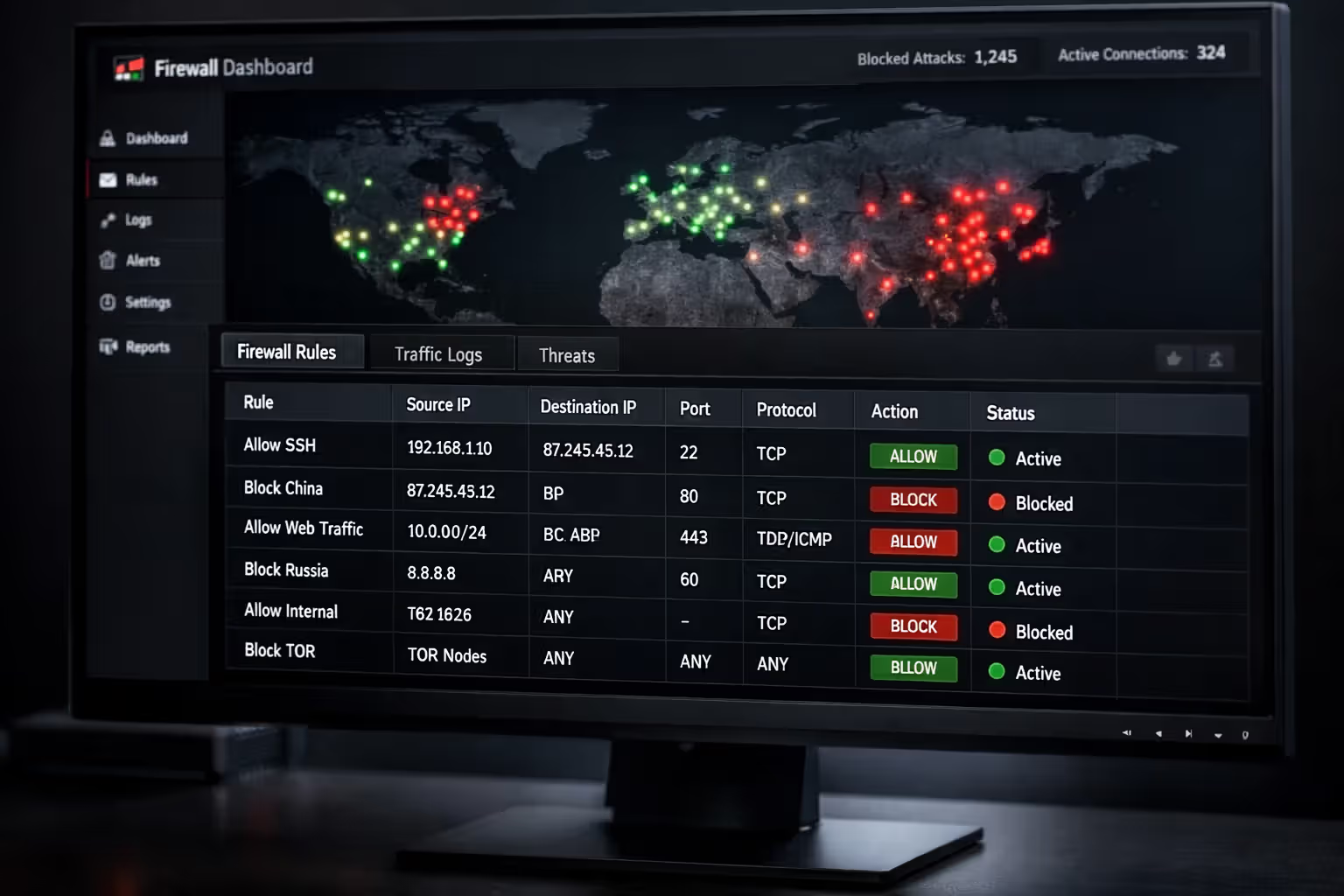
Restricting RDP access to specific IP addresses dramatically reduces your attack surface. If you know that remote access only comes from certain offices, home ISPs, or cloud environments, firewall rules can block everything else.
Windows Firewall rules provide the first layer. Instead of allowing RDP from "Any" source, create rules permitting only your approved IP ranges. This configuration happens in Windows Firewall with Advanced Security, where you can specify source IP addresses or ranges in the rule properties. The changes take effect immediately and apply even if network-level firewalls fail open.
Author: Tyler Beaumont;
Source: flexstarsolutions.com
Network-level firewalls—whether hardware appliances, cloud security groups, or router ACLs—offer defense before traffic reaches your servers. Configuring these requires understanding your network topology and how traffic flows to your RDP servers. Cloud environments like AWS and Azure make this straightforward through security group rules that specify allowed source IPs and destination ports.
The challenge lies in IP address management. Static IP addresses from business ISPs work perfectly for allowlisting, but residential connections typically use dynamic IPs that change periodically. Some organizations solve this with dynamic DNS services that update firewall rules automatically, though this adds complexity and potential failure points.
Geo-blocking provides a coarser filter. If your organization operates entirely within the United States and has no legitimate need for international access, blocking entire countries reduces attack traffic significantly. Geolocation databases aren't perfect—VPNs and proxies can bypass them—but they eliminate noise from regions where you have zero business presence.
Allowlist maintenance becomes crucial as your organization grows. New employees need access; contractors require temporary permissions; acquired companies must integrate. Without documented processes, allowlists become outdated, leading to either security gaps (overly permissive rules) or support tickets (legitimate users blocked).
The security improvement is proportional to how well you can define legitimate source IPs. Organizations with predictable access patterns see dramatic reductions in attack attempts. Those with highly mobile users or constantly changing requirements may find allowlisting more frustrating than valuable.
Common RDP Security Mistakes That Don't Actually Help
Security theater creates false confidence while providing minimal protection. Several commonly recommended RDP hardening steps fall into this category, consuming time without meaningfully improving security.
Disabling RDP when not actively using it sounds prudent but rarely works in practice. The administrative overhead of enabling and disabling the service defeats the convenience that makes RDP valuable. Users forget to disable it, or they leave it enabled "just for this one session" that extends indefinitely.
Renaming the Administrator account provides trivial protection. Attackers enumerate accounts through various techniques that reveal the actual administrator SID regardless of the account name. The renamed account still has administrative privileges and still accepts password authentication—the name change just inconveniences legitimate administrators.
Reducing session timeouts to very short durations frustrates users without blocking attacks. Automated brute force tools don't maintain sessions; they attempt authentication and move on. Short timeouts affect only legitimate users who step away briefly and return to find their sessions disconnected.
Why Changing the Default RDP Port Isn't Enough
Port changes represent the quintessential security-through-obscurity measure. Moving RDP from port 3389 to some random high port reduces automated scanning noise, but it doesn't stop determined attackers.
Port scanning the entire TCP range takes minutes with modern tools. Attackers who specifically target your organization will find your RDP service regardless of port number. The obscurity provides no protection against credential stuffing, brute force attacks, or exploitation once the service is discovered.

Author: Tyler Beaumont;
Source: flexstarsolutions.com
The operational cost is real. Every RDP client must now specify the custom port. Documentation must be updated. Users forget the port and create support tickets. Remote access instructions become more complicated, increasing the chance of misconfiguration.
Port changes do reduce log noise from opportunistic scans, which can make legitimate failed login attempts easier to spot. That's a monitoring benefit, not a security improvement. The core vulnerabilities—weak authentication, unpatched systems, overly permissive access—remain unchanged.
Security resources invested in port changes would be better spent on MFA implementation, VPN deployment, or security monitoring. Those measures address actual attack vectors rather than just making attackers work slightly harder.
Checklist: Layered Security Configuration for Internet-Facing RDP
Implementing multiple security layers transforms RDP from a critical vulnerability into a manageable risk. This checklist combines the methods discussed into a practical hardening guide.
Authentication and Access Control: - Enable Network Level Authentication on all RDP servers - Implement multi-factor authentication using Azure AD, Duo, or equivalent - Disable the Guest account completely - Create dedicated accounts for RDP access rather than using domain admin accounts - Configure account lockout policies: 5 failed attempts, 30-minute lockout duration - Require complex passwords: minimum 14 characters, mixing character types - Review and remove unnecessary accounts with RDP access monthly
Network Security: - Deploy RDP behind a VPN or RD Gateway rather than direct exposure - Configure firewall rules limiting RDP access to specific source IPs - Change firewall rules to deny by default, permit by exception - Implement geo-blocking if business operations are geographically limited - Segment RDP servers from critical infrastructure using VLANs or subnets - Disable RDP access from the internet entirely for servers that don't require it
System Hardening: - Apply security updates within 72 hours of release, prioritizing RDP-related patches - Enable TLS 1.2 or higher; disable older SSL/TLS versions - Configure RDP to use high encryption level (128-bit minimum) - Install and maintain endpoint detection and response (EDR) software - Enable Windows Defender Credential Guard on supported systems - Disable unnecessary services and features on RDP servers
Monitoring and Response: - Enable detailed RDP connection logging in Event Viewer - Forward security logs to a centralized SIEM or log management system - Create alerts for failed authentication attempts exceeding thresholds - Monitor for successful logins from unexpected geographic locations - Review RDP access logs weekly for anomalous patterns - Establish an incident response plan specifically for compromised RDP access
Certificates and Encryption: - Install valid SSL certificates from trusted CAs on RD Gateway servers - Renew certificates before expiration; automate renewal where possible - Configure RDP clients to verify certificate validity - Use certificate-based authentication where technically feasible
The order of implementation matters. Start with authentication improvements (MFA, strong passwords) since these block the most common attacks. Add network controls (VPN, firewall rules) to reduce attack surface. Implement monitoring to detect attacks that bypass other controls. Treat this as an ongoing process rather than a one-time project.
FAQ: Secure Remote Desktop Access
Securing RDP for internet access requires acknowledging that convenience and security exist in tension. The methods that provide the strongest protection—VPNs, RD Gateway, strict IP allowlisting—add complexity that users and administrators must manage. The challenge is finding the balance appropriate for your organization's risk tolerance, technical capabilities, and operational requirements.
No single technique eliminates all risk. Attackers adapt, new vulnerabilities emerge, and human error creates gaps in even well-designed security architectures. The defense-in-depth approach—layering multiple controls so that failure of one doesn't compromise the entire system—remains the most reliable strategy.
Start with the controls that block the highest-volume attacks: multi-factor authentication and VPN or RD Gateway deployment. These two measures eliminate the vast majority of opportunistic attacks that target default RDP configurations. Add firewall restrictions, monitoring, and regular patching to address more sophisticated threats.
The investment in proper RDP security pays dividends beyond preventing breaches. Compliance frameworks require these controls; cyber insurance policies increasingly mandate them; and customers expect vendors to protect remote access appropriately. The cost of implementation is measured in hours and modest licensing fees; the cost of a breach is measured in incident response expenses, regulatory fines, reputational damage, and potential business closure.
Remote access isn't going away. The question is whether your security architecture treats it as the critical attack surface it represents or as an afterthought that becomes your organization's weakest link.