Laptop, smartphone and tablet on a desk displaying security software interface with shield and lock icons in a modern home office
What Is an Internet Security Suite and What Does It Include

Content
Shopping for digital protection can feel like walking through a maze of confusing product names and overlapping features. You've probably seen "antivirus," "internet security," and "total protection" plastered across software boxes and download pages, each promising to keep your PC safe. But what exactly separates a basic antivirus program from a full internet security suite, and does the price difference actually buy you meaningful protection?
The short answer: an internet security suite bundles multiple security tools under one subscription, while standalone antivirus focuses primarily on detecting and removing malware. Whether that bundle makes sense for your household depends on how you use your devices, what you're trying to protect, and whether you'd otherwise buy those tools separately.
Internet Security Suite Explained: More Than Just Antivirus
An internet security suite is a comprehensive software package that combines multiple cybersecurity tools into a single application. Think of it as the difference between buying individual kitchen appliances versus getting a multi-function appliance that handles several tasks. The internet security suite meaning extends beyond simple virus detection—it aims to address the full spectrum of digital threats you might encounter while browsing, shopping, banking, and communicating online.
Traditional antivirus software scans files and monitors your system for known malware signatures and suspicious behavior. That's its primary job, and it does it well. Security suites build on that foundation by adding layers of protection: network monitoring through firewalls, encrypted browsing via VPNs, password vaults, webcam protection, anti-phishing filters, and tools that watch for signs your personal information has been compromised.
This bundled approach emerged because cyber threats evolved. Fifteen years ago, most malicious software arrived through infected email attachments or sketchy downloads. Today, attackers exploit weak passwords, intercept data on public Wi-Fi networks, trick users with convincing phishing sites, and steal identities using information leaked from corporate data breaches. A single-purpose antivirus program can't address all those attack vectors—hence the rise of comprehensive suites.
The trade-off? More features mean more complexity, higher system resource usage, and steeper subscription costs. A basic antivirus might run $30-40 annually for one PC, while security suites typically start around $50-80 and can reach $100+ for premium tiers covering multiple devices.
Author: Lindsey Hartwell;
Source: flexstarsolutions.com
Breaking Down the Core Components of Security Suites
Antivirus and Anti-Malware Protection
This remains the foundation of any security suite. The antivirus engine continuously scans files as you open them, monitors running processes for suspicious activity, and maintains a database of known malware signatures that gets updated multiple times daily. Modern engines also employ heuristic analysis—watching for behavior patterns that suggest malicious intent even when the specific threat hasn't been cataloged yet.
Real-world scenario: You download what appears to be a legitimate PDF invoice from an email. The antivirus component intercepts the file before it opens, recognizes it contains embedded malicious code designed to download ransomware, and quarantines it. Without that real-time scanning, the infection would have started the moment you double-clicked.
Most suites now include ransomware-specific protections that monitor unauthorized attempts to encrypt your files and can roll back changes if an attack is detected. Some create protected folders that only approved applications can modify—useful for safeguarding family photos or financial documents.
Firewall: Your First Line of Network Defense
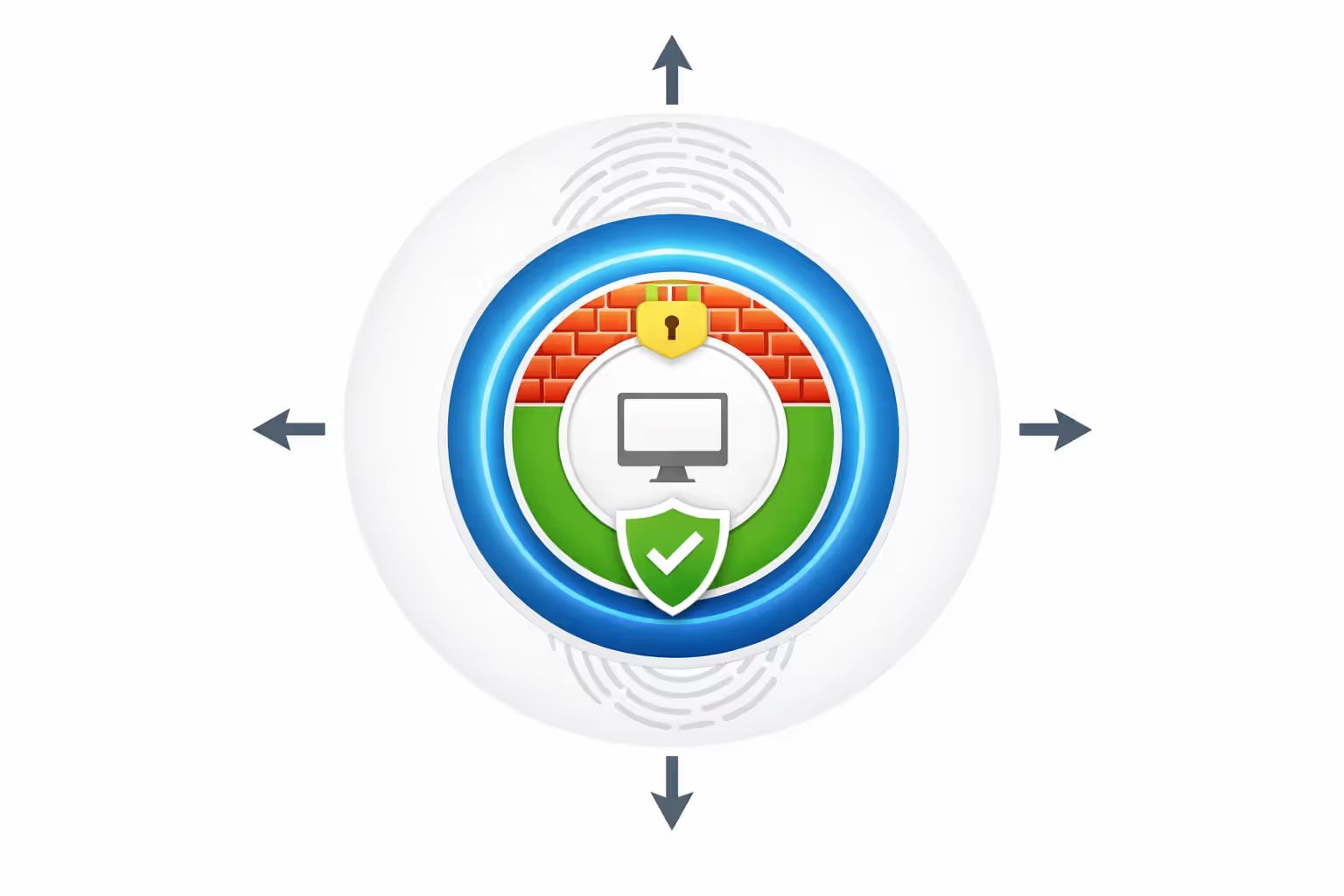
Windows includes a built-in firewall, but the firewall in security suites typically offers more granular control and easier management. A firewall acts as a gatekeeper between your computer and the internet, deciding which incoming and outgoing connections to allow based on rules you set.
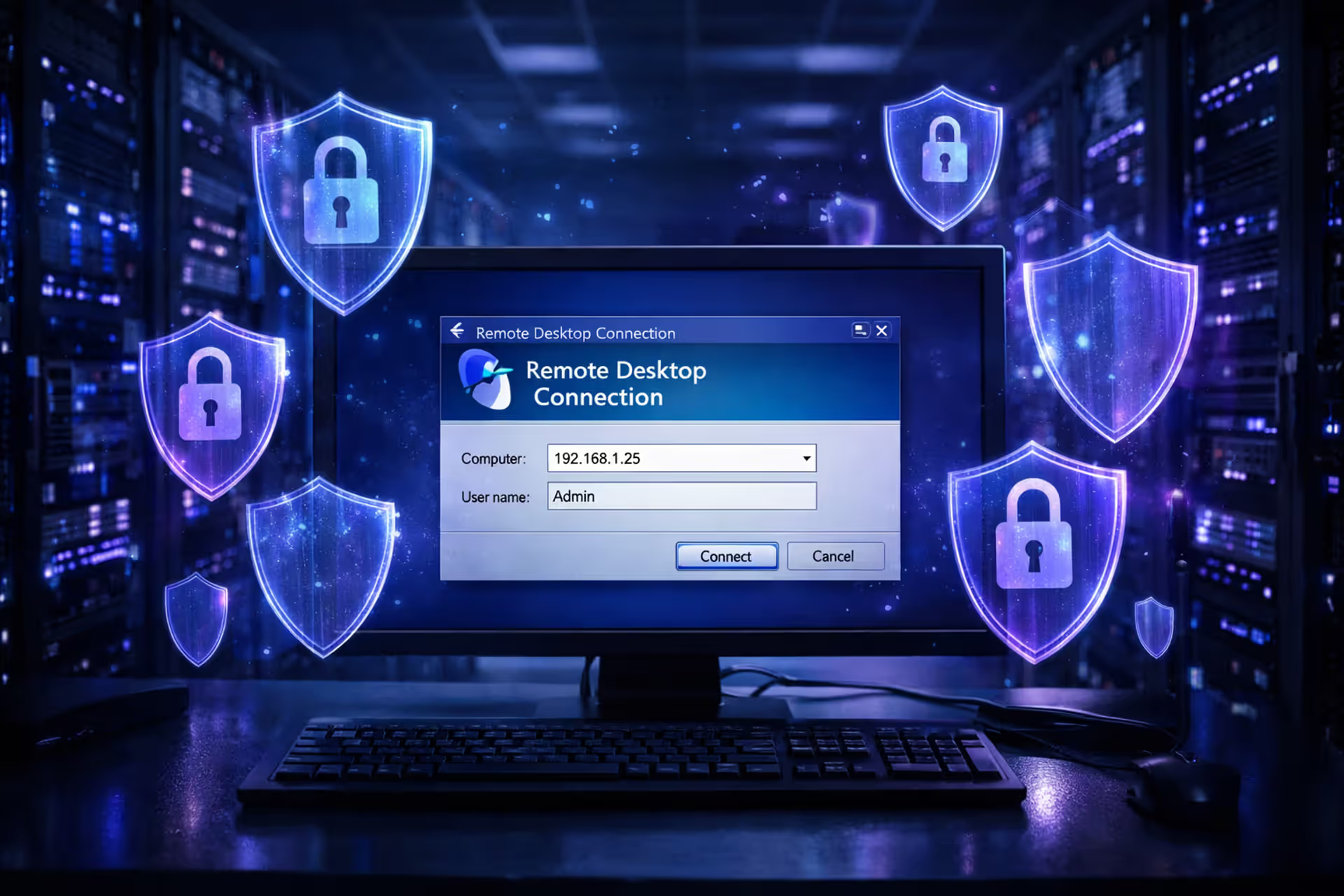
The practical benefit: when malware does slip through other defenses, the firewall can prevent it from "calling home" to download additional payloads or exfiltrate your data. It also blocks unauthorized remote access attempts—important if you occasionally work from coffee shops or airports where attackers might probe devices on the same network.
Advanced suite firewalls include application control features that alert you when programs try to access the internet for the first time. This helps you catch potentially unwanted software that bundled itself with a legitimate installer and now wants to display ads or collect usage data.
VPN Services and Privacy Tools
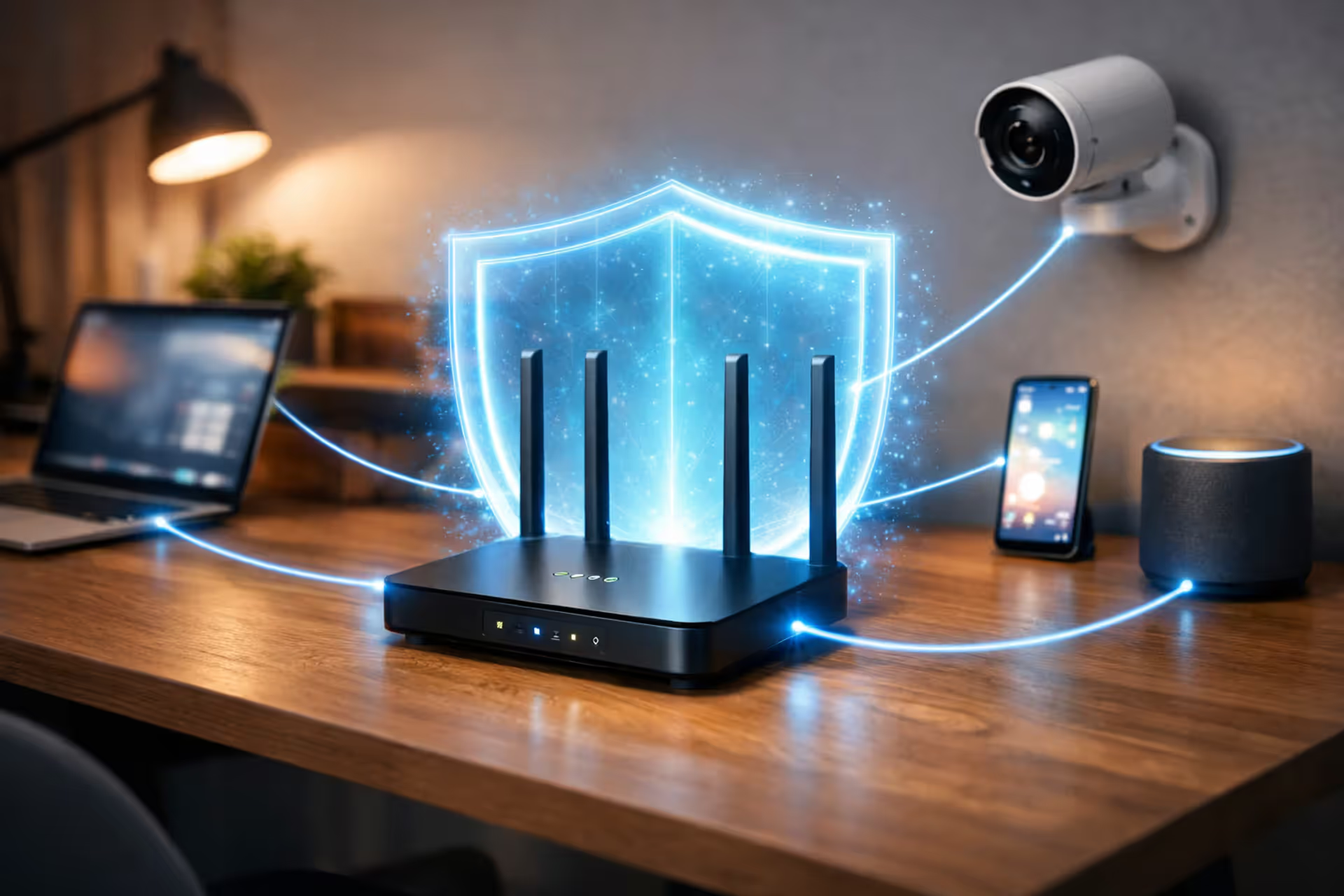
VPN included in security suites has become increasingly common, though the implementation varies significantly between vendors. A VPN (Virtual Private Network) encrypts your internet traffic and routes it through remote servers, masking your IP address and making it much harder for third parties to monitor your online activity.
The catch: many suite-bundled VPNs impose data caps (often 200MB-500MB daily) or limit you to a handful of server locations. These restrictions make them suitable for occasional use on public Wi-Fi but inadequate for streaming video or as an everyday privacy solution. Some premium suite tiers include unlimited VPN access, effectively bundling what would otherwise be a separate $5-10 monthly subscription.
Privacy tools in suites might also include tracker blockers that prevent websites from following you across the internet, secure deletion utilities that overwrite sensitive files so they can't be recovered, and anti-tracking features for browsers.

Author: Lindsey Hartwell;
Source: flexstarsolutions.com
Identity Theft and Financial Protection Features
Identity protection features have expanded dramatically as data breaches have become routine. Most security suites now monitor dark web marketplaces and paste sites where stolen credentials get traded, alerting you if your email address or other personal information appears in dumps from compromised databases.
Financial protection typically includes specialized browser modes that activate automatically when you visit banking sites. These secure browsers run in isolated environments, disable extensions that might capture keystrokes, and verify you're connecting to legitimate financial sites rather than convincing fakes. Some suites add virtual keyboards that prevent keylogger malware from recording your passwords as you type.
Credit monitoring and identity restoration services—where companies help you recover from identity theft—usually appear only in top-tier suite packages and often require separate enrollment. Read the fine print carefully; the monitoring might cover only one credit bureau rather than all three, or exclude family members unless you pay for additional licenses.
Parental Controls and Family Safety Options
Parental controls in suites let you filter web content, set time limits for device usage, monitor social media activity, and track your children's physical location through mobile apps. The sophistication varies wildly between products. Basic implementations simply block adult content categories and cap screen time. Comprehensive systems provide detailed activity reports, allow you to approve or deny app installation requests remotely, and send alerts when kids attempt to visit blocked sites or use restricted search terms.

Author: Lindsey Hartwell;
Source: flexstarsolutions.com
Common frustration: overly aggressive filters that block legitimate educational content while missing problematic material that uses euphemisms or appears on newer sites not yet categorized. Most suites let you whitelist specific domains and adjust sensitivity levels, but expect to spend time fine-tuning settings rather than achieving perfect filtering out of the box.
Family safety features work best when you frame them as safety tools rather than surveillance. Teenagers especially resent monitoring that feels invasive, which can damage trust and motivate them to find workarounds. Consider which features genuinely protect versus which simply satisfy parental curiosity.
Standalone Antivirus vs. Full Security Suite: What's the Real Difference?
| Feature | Standalone Antivirus | Internet Security Suite |
| Malware scanning | ✓ Full protection | ✓ Full protection |
| Real-time protection | ✓ Included | ✓ Included |
| Firewall | Sometimes basic | ✓ Advanced controls |
| VPN | Rarely included | Often included (may be limited) |
| Password manager | Rarely included | Usually included |
| Parental controls | Not included | ✓ Included in most |
| Identity monitoring | Not included | ✓ Often included |
| Cloud backup | Not included | Sometimes included (limited storage) |
| Price range | $20-50/year | $50-150/year |
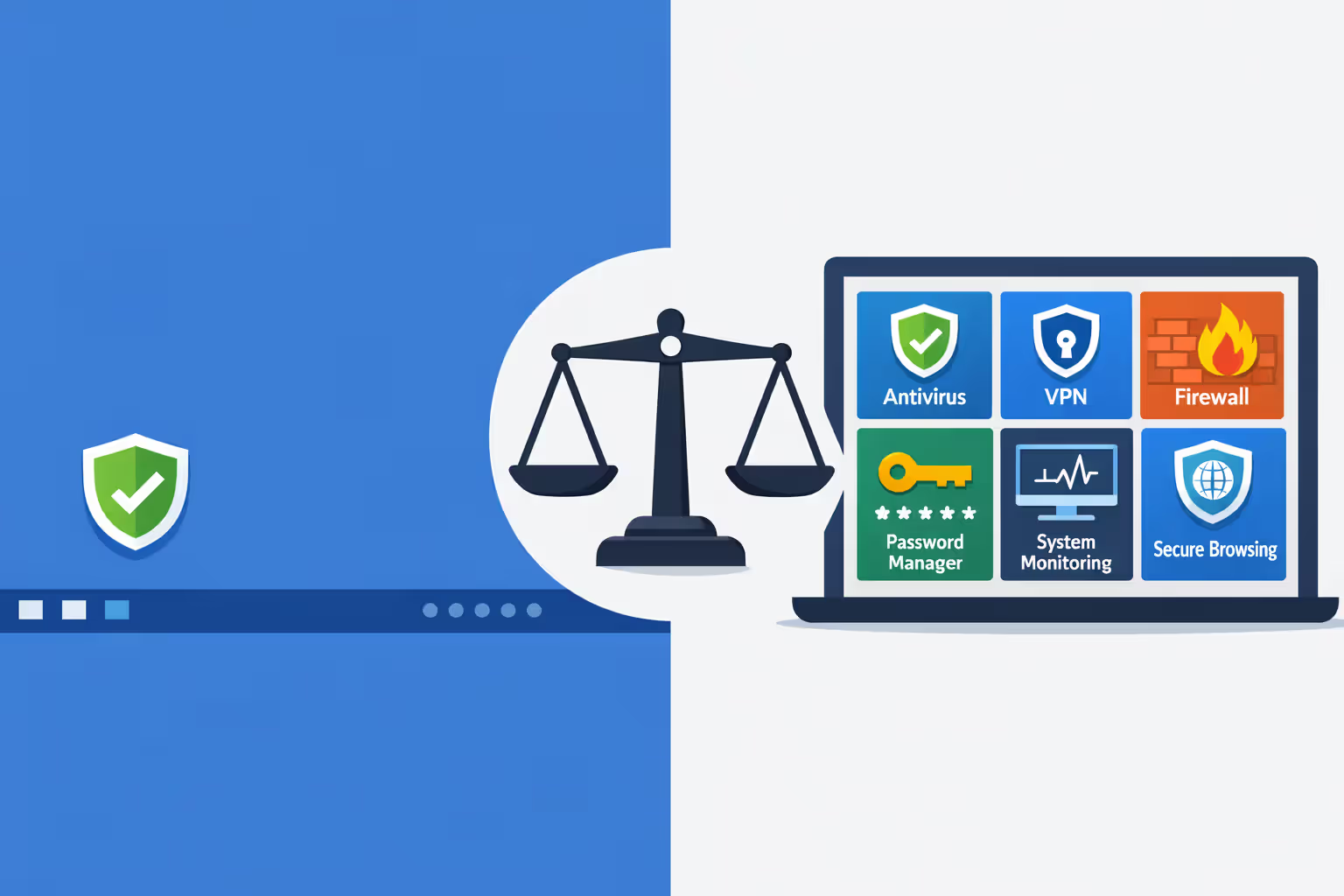
The antivirus vs internet security suite debate boils down to whether you need (or will actually use) the additional tools. Standalone antivirus excels at its core mission: detecting and removing malicious software. It typically runs lighter on system resources, costs less, and presents a simpler interface with fewer settings to configure.
Full security suites bet that you face multiple threat vectors and would benefit from integrated protection. The integration matters—when all your security tools come from one vendor, they're designed to work together without conflicts, share threat intelligence, and present a unified dashboard rather than forcing you to juggle separate applications.
Cost comparison reveals interesting math. If you'd otherwise purchase antivirus ($40), a VPN service ($60 annually), and a password manager ($36), you're looking at $136 yearly. A comprehensive security suite covering the same ground might cost $80-100, delivering genuine savings if you'll actually use all three components. But if you only need antivirus and already use your browser's built-in password manager, paying extra for features you'll ignore makes no sense.
Performance impact deserves consideration. Antivirus software necessarily consumes system resources—it's constantly scanning files and monitoring processes. Security suites multiply that overhead by running additional background services for firewalls, VPNs, and monitoring tools. On modern PCs with SSDs and 8GB+ RAM, the difference is usually negligible during normal use. On older machines with mechanical hard drives and 4GB RAM, a full suite might cause noticeable slowdowns during scans or when multiple components activate simultaneously.
The threat landscape has fundamentally shifted from isolated malware attacks to coordinated campaigns that exploit multiple vulnerabilities simultaneously. Comprehensive security suites address this reality by assuming attackers will probe every available weakness—your network, your passwords, your browsing habits, and your personal information. No single tool can defend against that spectrum of threats
— Sarah Chen
How to Choose the Right Security Suite for Your Windows PC
Choosing a security suite for Windows starts with honest assessment of your actual needs rather than worst-case scenarios. Consider these factors:
Device count and platform mix: Most suites license by device count—3, 5, or 10 devices being common tiers. If you need to protect two Windows PCs, three Android phones, and a Mac, verify the suite supports all those platforms and that features work consistently across them. Some vendors offer full functionality on Windows but stripped-down protection on mobile devices or Mac.
Essential versus nice-to-have features: Make a list of must-haves before comparing products. If you frequently use public Wi-Fi for work, unlimited VPN access becomes essential. If you have young children, robust parental controls move up the priority list. If you're protecting a single desktop that never leaves home, VPN and mobile features matter less.
System requirements and compatibility: Check whether the suite supports your Windows version. Some newer security products have dropped Windows 10 support or require specific builds. Look up independent performance benchmarks—AV-TEST and AV-Comparatives publish regular reports measuring system impact. A suite that scores poorly on performance tests will frustrate you daily regardless of how good its protection is.
Trial periods and money-back guarantees: Reputable vendors offer 30-day trials or money-back guarantees. Use them. Install the suite, run it for a week during normal computer use, and see whether it causes conflicts with your other software or slows down tasks you do frequently. Check whether the interface makes sense to you—some suites bury important settings in submenus while others put everything on a single dashboard.
Renewal pricing and subscription traps: Introductory pricing often discounts the first year heavily, then jumps to full price at renewal. A $40 first-year price might become $90 in year two. Factor the renewal cost into your decision, and set a calendar reminder to shop around before auto-renewal hits your credit card.
Vendor reputation and support quality: Research how the vendor handles zero-day threats (brand-new vulnerabilities with no patches available yet) and whether they maintain their software actively. Check recent user reviews for patterns—repeated complaints about buggy updates, poor customer service, or difficulty canceling subscriptions are red flags.
Rule of thumb: if you only browse mainstream sites, check email, and use your PC for basic productivity, a mid-tier suite from an established vendor probably suffices. If you handle sensitive work data, engage in online banking frequently, or have kids who use the internet extensively, lean toward premium tiers with stronger identity protection and parental controls.
Author: Lindsey Hartwell;
Source: flexstarsolutions.com
The Trade-offs: Advantages and Limitations of Security Suites
Advantages that actually matter:
Convenience stands out as the primary benefit. One installation, one subscription renewal, one interface to learn, and one vendor to contact when something goes wrong beats managing three or four separate security tools. The integrated dashboard lets you check your overall security status at a glance rather than opening multiple programs.
Cost efficiency works when you'd otherwise purchase several components separately. Bundling typically saves 30-50% compared to buying equivalent standalone tools. For families protecting multiple devices, the per-device cost drops significantly with 5- or 10-device licenses.
Coordinated protection means suite components share threat intelligence. When the antivirus engine detects a new malware variant, that information can immediately inform the firewall to block associated command-and-control servers or alert the identity monitoring system to watch for credential theft attempts related to that malware family.
Limitations that cause real problems:
System performance impact compounds when multiple suite components run simultaneously. Scanning a large folder while the VPN is active and parental controls are monitoring web traffic can temporarily slow your PC to a crawl. This matters most during startup—security suites with numerous components can add 30-60 seconds to boot time on systems with mechanical hard drives.
Feature overlap with built-in Windows protections creates redundancy. Windows Defender has improved dramatically and now provides solid baseline protection. Windows Firewall handles basic network security competently. Adding a security suite means paying for features that duplicate what you already have, though suite implementations generally offer more control and better interfaces.
Learning curve and alert fatigue frustrate users who just want protection to work silently in the background. Security suites generate notifications: scan complete, definitions updated, suspicious activity blocked, VPN disconnected, password strength weak. Initially helpful, these alerts become noise after a few weeks, training users to dismiss notifications without reading them—which means they might ignore the one genuinely important warning.
Subscription costs accumulate across years. A $70 annual suite subscription costs $350 over five years. That's real money that could go toward other security measures like a hardware security key for two-factor authentication or a dedicated backup drive. Evaluate whether the ongoing cost matches the value you're actually receiving.
Vendor lock-in makes switching painful. After a year of storing passwords in the suite's password manager and customizing firewall rules, migrating to a different product means exporting data, reconfiguring settings, and relearning a new interface. This friction keeps many users renewing subscriptions even when better options emerge.
Frequently Asked Questions About Internet Security Suites
Security suites solve real problems for users who face multiple digital threats and would otherwise subscribe to several separate security services. The bundled approach delivers convenience and cost savings when you actually use the included features. For basic users who primarily need malware protection and already practice good security habits, standalone antivirus or Windows Defender provides adequate protection without the extra complexity and cost.
The decision ultimately hinges on honest assessment of your computing habits, the sensitivity of data you handle, and whether you'll engage with the additional features or simply pay for tools that sit unused. Take advantage of trial periods to test whether a suite's interface makes sense to you and whether the performance impact is acceptable on your specific hardware. Remember that the best security tool is the one you'll actually use consistently rather than the one with the longest feature list.