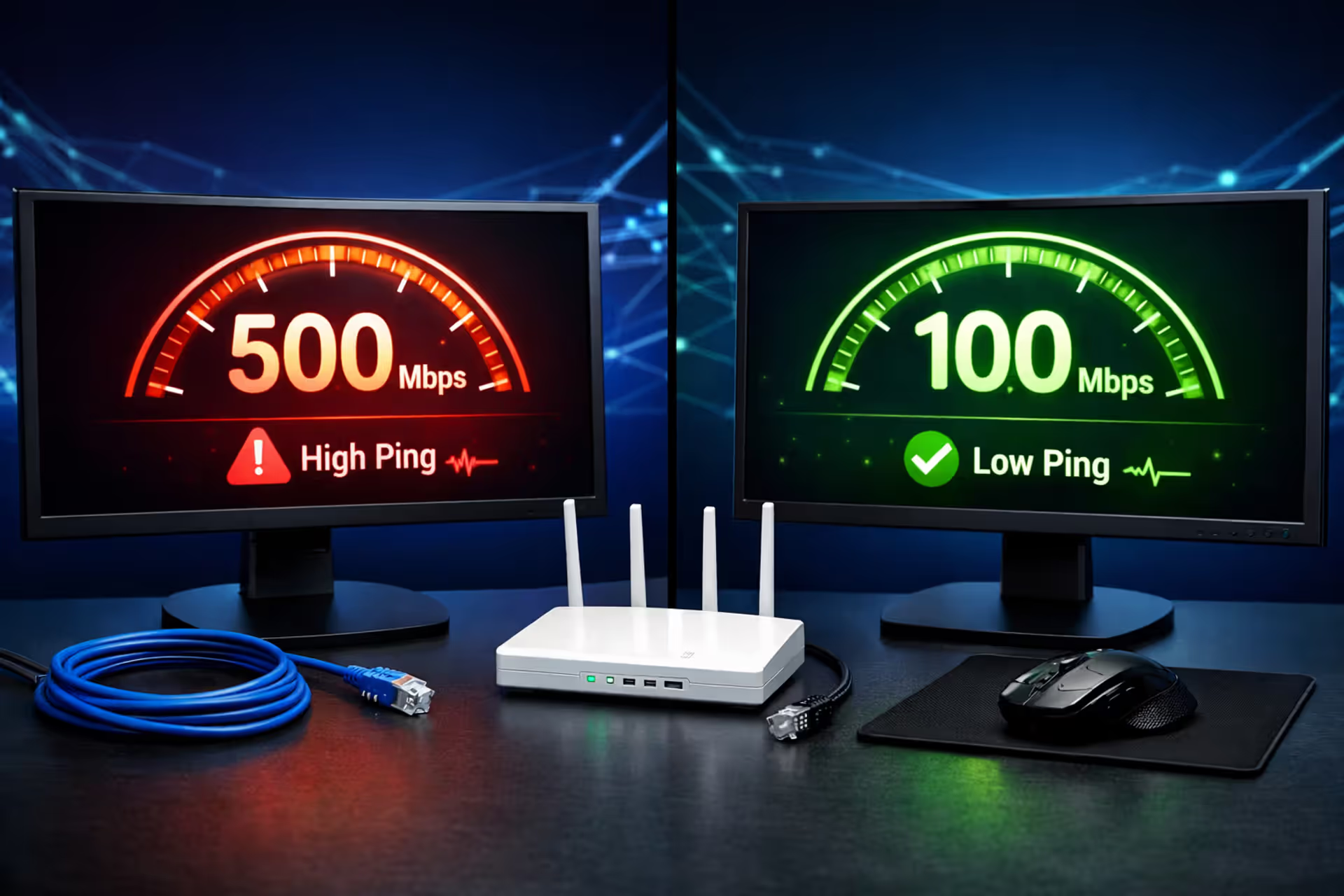
Split screen comparison: monitor showing 500 Mbps with high ping icon versus monitor showing 100 Mbps with low ping icon, router and ethernet cable on desk, dark blue network background
Does Internet Speed Affect Ping and What Causes High Latency

Content
Your new 500 Mbps plan should've fixed everything. Yet here you are, watching your Valorant character teleport backward mid-gunfight. Your Zoom calls still freeze when you're about to make that crucial point. Meanwhile, your neighbor brags about lag-free gaming on their basic 100 Mbps connection.
Internet providers love selling speed as the cure-all solution, but here's what they won't tell you: once you're above 25-30 Mbps, adding more bandwidth does virtually nothing for your ping. Someone running 50 Mbps can have lower latency than your gigabit fiber—if their connection takes a better route and manages traffic more efficiently.
What Ping Actually Measures (And Why Mbps Doesn't Tell the Whole Story)
Think of ping as a stopwatch measuring how long a messenger takes to run to the post office and back. That messenger carries a tiny note—the actual size of the message doesn't matter. What matters? The distance, the route they take, and how many traffic lights they hit.
When you ping a server, you're timing that round trip in milliseconds. A 30ms ping means your data packet took 0.03 seconds to make the journey both ways.
Now here's where people get confused about bandwidth. Your Mbps rating tells you how many delivery trucks can fit through your internet "highway" at once—not how fast those trucks drive. That garden hose spraying water across your yard? The water moves at the same speed whether you're using a half-inch hose or a three-inch hose. One just delivers more volume.
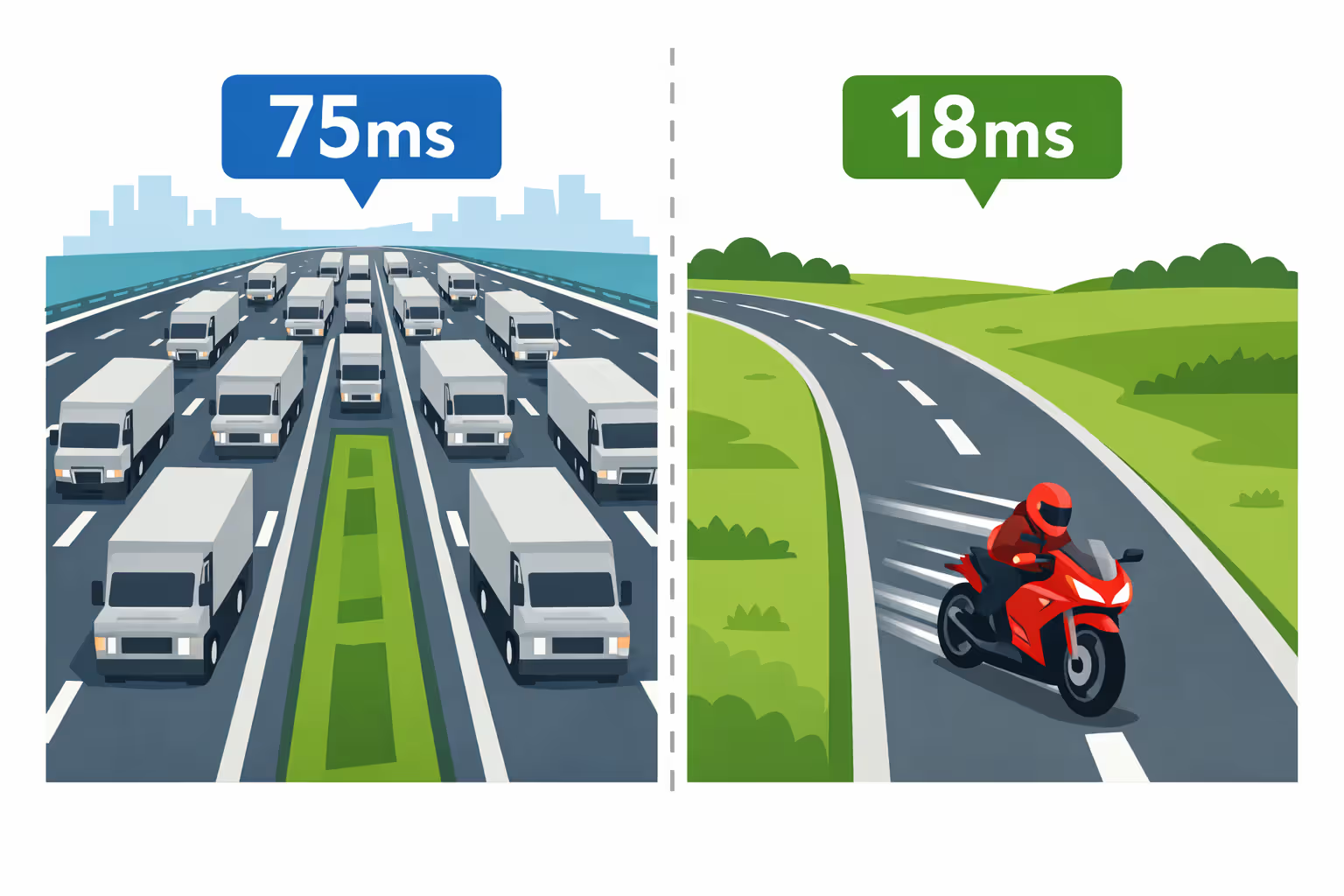
I've seen this play out countless times: someone with symmetrical gigabit fiber gets 75ms ping to a Fortnite server, while their friend on 30 Mbps cable sits at 18ms. The fiber user's data takes a scenic route through four different network providers. The cable user? Direct shot to a server two cities over.
Author: Lindsey Hartwell;
Source: flexstarsolutions.com
Bandwidth matters in exactly one scenario: saturation. Picture trying to drive through a tunnel that's already packed with cars. You'll wait in line even if the speed limit is 70mph. When you're torrenting, streaming 4K, and gaming simultaneously on a 100 Mbps connection, those game packets get stuck behind massive download chunks. But here's the thing—most games barely sip bandwidth. Call of Duty uses around 80KB per second. That's less than 1 Mbps. Even streaming on Twitch while playing typically stays under 10 Mbps total.
The sweet spot for households? Roughly 15-20 Mbps per person for general use. Beyond that, you're paying for capacity you'll rarely tap into.
The Real Culprits Behind High Ping and Latency Issues
Network Congestion and Routing Problems
Your packets don't zip straight to their destination like an arrow. They bounce through anywhere from 8 to 20 different routers, each owned by companies with their own priorities and equipment quality. Every single jump adds a few milliseconds, and overloaded equipment adds a lot more.
Cable internet shares infrastructure at the neighborhood level, which creates predictable patterns. I can almost guarantee your ping shoots up between 6 PM and 10 PM on weekdays. Everyone's home streaming Netflix, downloading game updates, and video calling. Your packets sit in a queue at your ISP's local node, waiting their turn like customers at a busy deli counter.
Then there's the routing nonsense. Your ISP in Miami might send traffic to Atlanta through Charlotte—200 miles out of the way—because they have a cheaper peering agreement with that particular network provider. You're paying for the business decisions made in conference rooms, not the optimal path physics would suggest. Some nights your connection routes through 12 hops. Other nights it takes 18 hops through completely different cities. You can't fix this with settings or hardware. It's baked into how these companies do business with each other.
Physical Distance to Game Servers
Physics doesn't negotiate. Light through fiber optic cable travels at about 124,000 miles per second (slower than vacuum because of the glass density). Every thousand miles adds at least 8ms of latency just from photons physically traversing the distance. That's before counting processing delays at each router.
Playing Apex Legends from Seattle on a Virginia server? That's roughly 2,300 miles each way. You're starting with a 35-40ms floor that no amount of optimization can eliminate. The server could be in the next room and you'd still see 1-2ms from the electrical conversion processes in your modem and router.
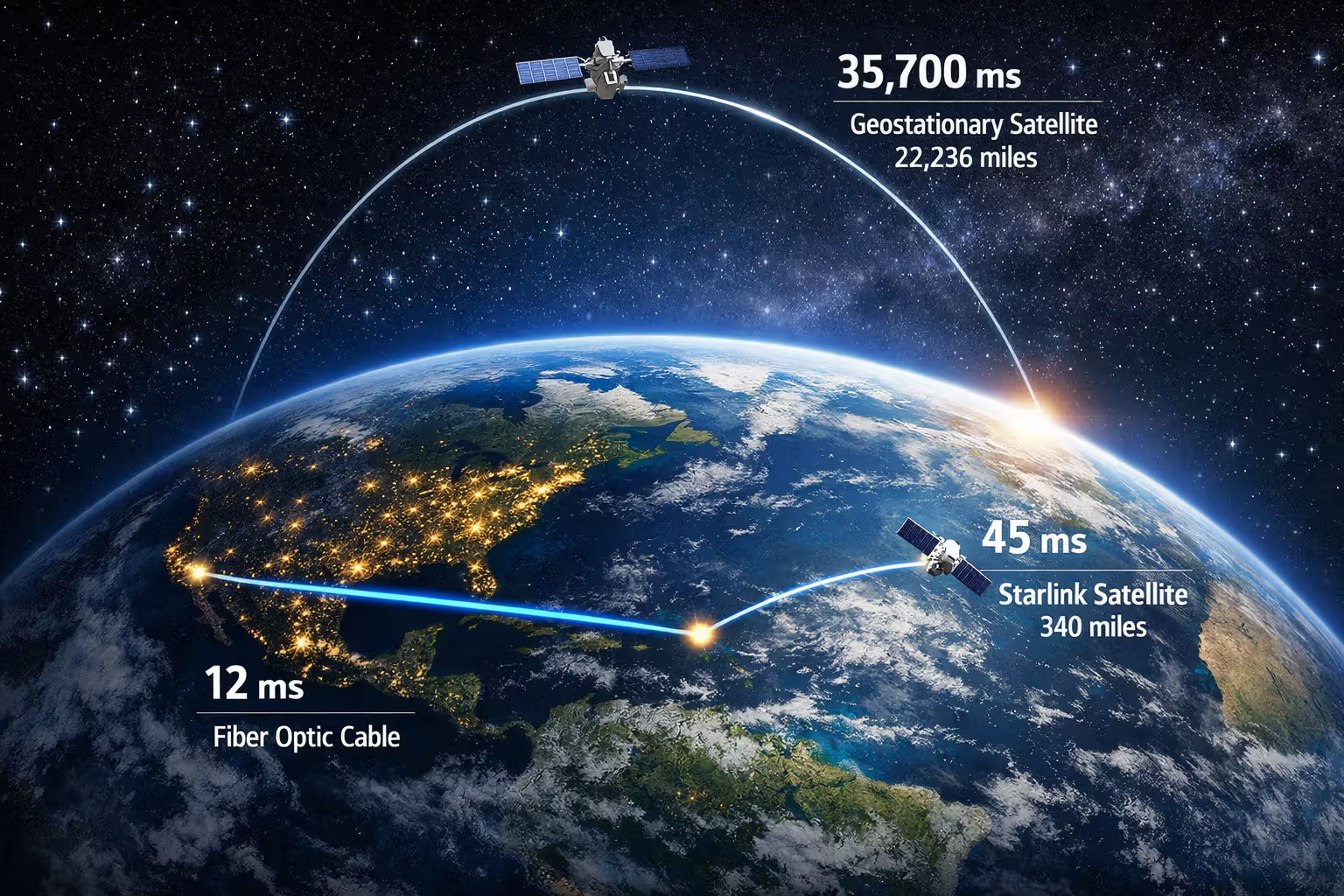
Satellite internet faces absurd physics penalties. Those dishes connect to satellites parked 22,236 miles above the equator. Your request goes up, bounces down to a ground station, the response goes back up to the satellite, then down to you. That's 89,000 miles of travel for a single round trip. Even at light speed, you're looking at 480ms minimum. I've tested Starlink connections that managed 45ms, which is impressive—but only because their satellites orbit just 340 miles up instead of 22,000.
Author: Lindsey Hartwell;
Source: flexstarsolutions.com
Connection Type: Fiber vs Cable vs DSL vs Satellite
Fiber wins on latency not just because of light-speed signals, but because fiber buildouts typically include better routing infrastructure. Fiber networks were designed recently with modern traffic patterns in mind. You'll usually see 8-25ms to regional servers.
Cable can match fiber when your neighborhood isn't overloaded. I've tested Xfinity connections that delivered consistent 12ms ping at 3 AM but degraded to 55ms by 8 PM. Same account, same server, same hardware—just peak usage crushing the shared lines.
DSL runs your data through copper phone lines installed in the 1960s. Signal degradation increases exponentially with distance from the DSLAM (the central hub). Live within a mile of that hub? You might see respectable 25ms latency. Three miles out? Prepare for 50-70ms plus jitter. Beyond five miles, DSL becomes a last resort option where ping spikes above 100ms become routine.
Fixed wireless from T-Mobile and Verizon can surprise you. I tested a 5G home connection that pulled 30ms consistently—better than the local cable option. But drive that test unit two blocks away where signal drops to 4G? Suddenly you're at 65ms with wild fluctuations. Tower distance and obstacles matter enormously.
Satellite (the traditional geostationary kind) remains unusable for anything real-time. That 500-700ms means half a second between clicking your mouse and seeing the result. You could brew coffee in that time.
Bufferbloat, Jitter, and Packet Loss: The Hidden Lag Monsters
These three issues feel worse than high ping because they're unpredictable. You can adapt to consistent 80ms delay—your brain adjusts the timing. What you can't adapt to? Latency that swings from 25ms to 280ms every few seconds.
Bufferbloat happens when router manufacturers install massive buffers to make speedtest results look good. Those buffers hold packets in a waiting room instead of making quick decisions about what to prioritize or drop. The moment your connection gets busy—someone uploads a photo album, Windows Update kicks in, your phone backs up to iCloud—those buffers fill up. Packets that need immediate delivery (your game data) wait behind huge file chunks that don't care about timing. Your ping doesn't gradually rise; it spikes suddenly from 22ms to 320ms, stays there for 8 seconds, then drops back down. Happens exclusively when other traffic hits your connection, not during idle periods.
Jitter measures inconsistency. Let's say you run a ping test that averages 45ms, but individual pings range from 15ms to 110ms. That 95ms spread is your jitter value. Games and video calls depend on predictable timing to interpolate motion between updates. When packets arrive erratically—some fast, some slow, some really slow—your system can't predict where things should be. Characters stutter across the screen. Audio drops entire words. The average latency might look acceptable on paper, but the experience is terrible.
Packet loss means some data never shows up at all. Just 0.8% loss makes Rocket League unplayable—you'll miss critical positional updates and see opponents teleport around the field. Video calls handle it slightly better through error correction, but you'll hear audio cut out mid-word and see frozen frames. Unlike latency that delays everything equally, packet loss creates holes that either get retransmitted (adding massive delays) or simply leave gaps in what you see and hear.
I see this all the time—people calling us to complain about lag, convinced they need to upgrade from 200 to 600 Mbps. Then I check their connection quality and find their $40 ISP modem has 180ms of bufferbloat under load. Their neighbor on a 'slower' plan with a good router gets 18ms. The pipeline width barely matters compared to how that pipeline is managed
— Alex Turner
| Issue | What It Measures | Symptoms You'll Notice | Acceptable Threshold | Primary Causes |
| High Ping | How long the round trip takes for your data | Everything feels delayed—you shoot first but die first, steering input lags behind | Under 20ms is fantastic, 20-50ms works great, 50-100ms is playable, above 150ms hurts | Server distance, poor routing between networks, connection technology limits |
| Jitter | How much your ping fluctuates over time | Stuttering movement, choppy video, timing feels inconsistent and unpredictable | Below 10ms is smooth, 10-30ms is tolerable, above 50ms creates noticeable stutter | Congestion that comes and goes, Wi-Fi interference patterns, unstable routing |
| Packet Loss | What percentage of your data never arrives | Rubber-banding, teleporting characters, sounds cutting out, shots not registering despite good aim | 0% is ideal, under 0.5% usually works, above 1% creates serious problems | Damaged cables, overworked hardware, Wi-Fi dead spots, ISP network problems |
| Bufferbloat | Extra delay added when your connection is busy | Fine when you're alone, spikes badly when anyone else uses internet | Adding less than 20ms under load is excellent, over 100ms makes gaming impossible during household activity | Oversized buffers in cheap equipment, no traffic prioritization, ancient firmware |
How to Diagnose What's Actually Causing Your Lag
Start clean—pause all downloads, stop streams, disconnect other devices. You need a baseline without interference.
Step 1: Basic ping test. Open Command Prompt on Windows (or Terminal on Mac) and run ping 8.8.8.8 -n 50. You're sending 50 pings to Google's DNS server. Watch for two things: the average time, and whether any individual results jump way higher than the rest. Seeing mostly 18ms, 19ms, 20ms, then suddenly 156ms? That's a red flag.
Step 2: Stress test your connection. Run that same ping command again while someone downloads a large file or streams in 4K. Ping jumps from 18ms to 230ms? Congratulations, you've found bufferbloat. Stays around 22-28ms even under load? Your router handles traffic priorities well.
Step 3: Check jitter and loss properly. Head to Waveform's bufferbloat test or the DSLReports Speed Test—both free, both excellent. They'll measure consistency and packet loss while deliberately loading your connection. Getting an A or B grade means you're in good shape. C or worse? Problems exist that speed upgrades won't solve.
Step 4: Compare wired versus wireless. Plug an Ethernet cable straight into your router and run everything again. Wi-Fi showing 48ms while wired shows 14ms? Your wireless environment is killing your performance, and no internet plan upgrade will change that.
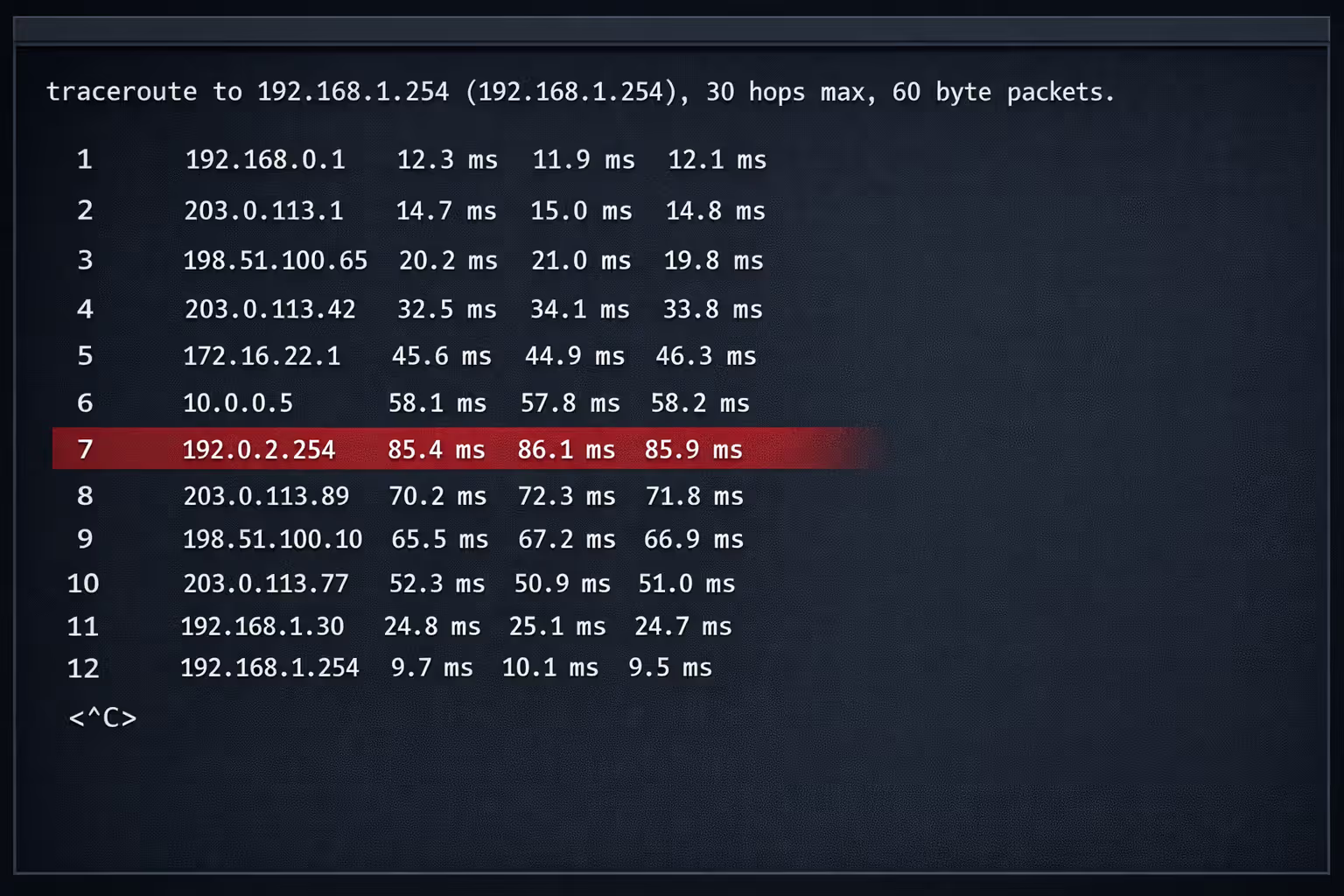
Step 5: Map your route. Type on Windows or on Mac/Linux. You'll see every single stop your packets make. Each line shows a router and how long that hop took. Look for dramatic increases—if hop 2 suddenly takes 60ms while hop 1 took 12ms, that's your problem location. Issues at hops 1-3 point to your local setup or ISP. Problems at hop 12? That's backbone routing you can't control.
Step 6: Time of day testing. Test at 3 AM, noon, and 8 PM for three days. Wildly different results during evening hours? Network congestion, either neighborhood-level or at your ISP's backbone connections.
Author: Lindsey Hartwell;
Source: flexstarsolutions.com
When the problem shows up at your ISP's first hop specifically during prime time, you're seeing infrastructure limitations—settings can't help. If delays happen at hop 8 through some third-party carrier, switching game servers or trying a gaming VPN might route around it. If wired is perfect but wireless is terrible regardless of time? Your Wi-Fi needs work, not your internet plan.
7 Proven Methods to Lower Your Ping Without Upgrading Your Internet
- Use Ethernet cables—period. Wireless adds anywhere from 8ms to 35ms of latency plus unpredictable jitter from interference. A $6 Cat5e cable eliminates that overhead entirely. You don't need expensive Cat8 cables marketed to gamers—Cat5e handles everything up to gigabit speeds perfectly fine.
- Configure QoS settings in your router. Most routers made after 2019 include Quality of Service features. Access your router settings (usually at 192.168.1.1), find QoS or "Traffic Prioritization" or "Gaming Mode," and set your gaming device as high priority. This forces the router to send game packets immediately rather than queuing them behind large downloads. Some routers call this "WMM" in wireless settings—enable it.
- Replace routers older than 2019. Ancient routers lack modern queue management algorithms like fq_codel or CAKE that prevent bufferbloat. A $90 router with proper SQM (Smart Queue Management) will outperform a $280 router from 2017 for latency-sensitive applications. Look for models explicitly advertising bufferbloat mitigation.
- Switch DNS providers. Your ISP's DNS servers can add 15-40ms to connection establishment times. Change to Cloudflare (1.1.1.1 and 1.0.0.1) or Google (8.8.8.8 and 8.8.4.4). Won't reduce your in-game ping directly, but it speeds up initial server connections and matchmaking queues noticeably.
- Hunt down bandwidth-hogging background apps. OneDrive, Google Drive backup, Windows Update, Steam auto-updates, and game launcher background downloads wreck your latency. Open Task Manager on Windows (Ctrl+Shift+Esc) or Activity Monitor on Mac and sort by network usage. I've found Adobe Creative Cloud sync services using 8 Mbps in the background countless times. Pause them while gaming.
- Manually select nearby servers instead of auto-matchmaking. Automatic matchmaking prioritizes filling lobbies quickly over optimal ping. Manually picking servers in your region typically saves 25-50ms compared to letting the game decide. Apex Legends, Valorant, and most competitive games offer server selection—use it.
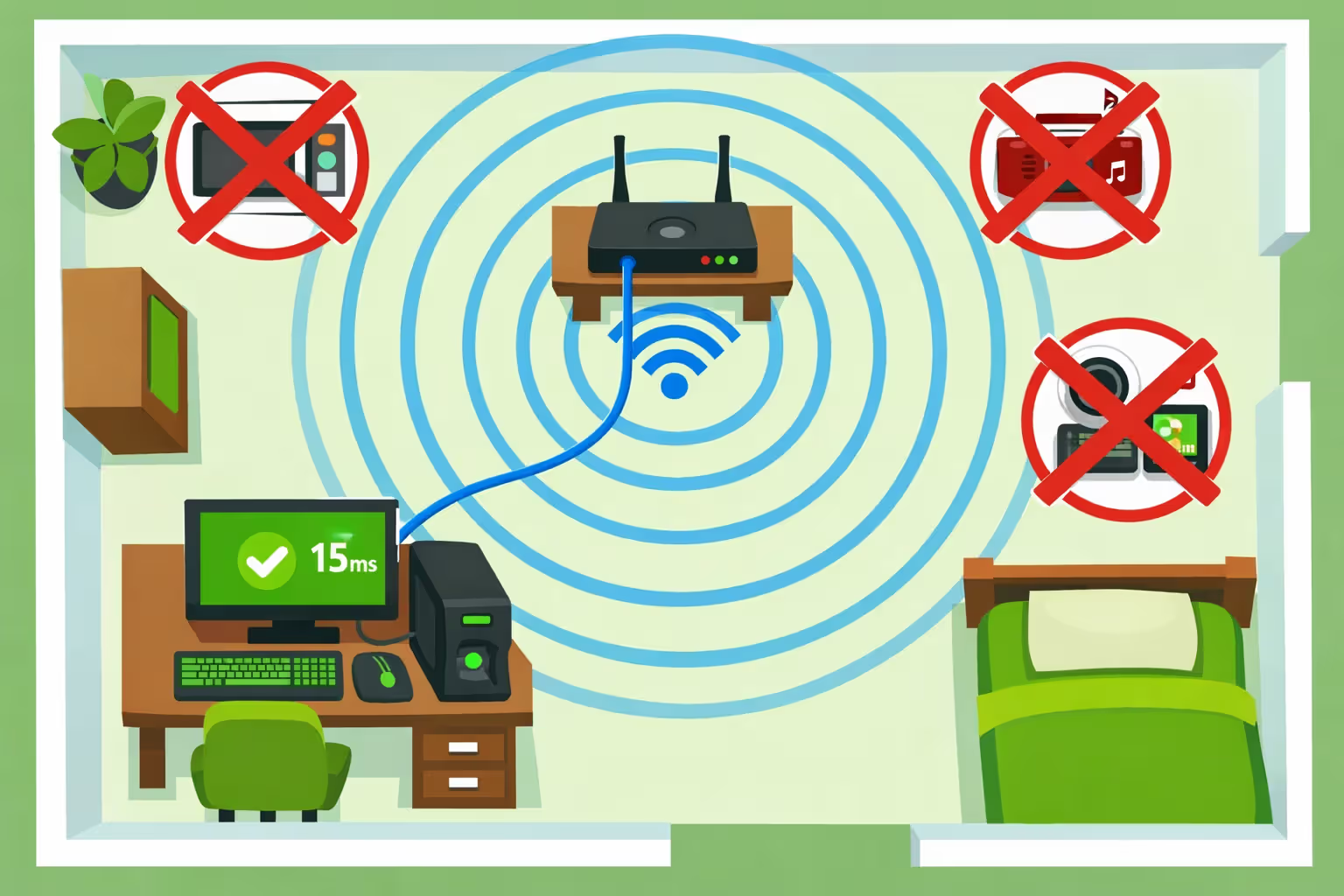
- Optimize Wi-Fi if Ethernet genuinely isn't possible. Switch to 5GHz band (far less congested than 2.4GHz), position your router high up and centrally located, download a Wi-Fi analyzer app to see which channels neighbors aren't using, then manually set your router to that channel. Close doors between you and the router—I've seen a single closed door add 12ms and 0.4% packet loss.
Author: Lindsey Hartwell;
Source: flexstarsolutions.com
FAQ: Common Questions About Ping, Latency, and Internet Speed
That jump from 100 Mbps to 500 Mbps your ISP keeps pushing? It won't fix lag unless you're literally maxing out your current connection during use. Take that $40 monthly difference and buy a quality router with bufferbloat mitigation instead—you'll see bigger improvements.
Test methodically before spending money on solutions. Most latency problems trace back to fixable local issues: Wi-Fi interference, bufferbloat from cheap equipment, background applications hogging bandwidth. I've set up 50 Mbps connections that crush 1000 Mbps connections for gaming simply through proper configuration and equipment.
When shopping for internet service, ask questions ISPs hate: "What's your typical ping to
servers during evening hours?" "How many hops does traffic take to reach AWS us-east-1?" "Can I see ping test results from current customers in my neighborhood?" Download speed marketing means nothing if your packets route through four extra states to reach the servers you actually use.Physics determines your baseline ping. Routing determines whether you get that baseline or double it. Network management determines whether that ping stays consistent or spikes randomly. Not one of these factors relates to how much bandwidth your plan advertises. Understanding this distinction saves you money monthly while actually solving the lag problems that throwing bandwidth at the issue never will.