
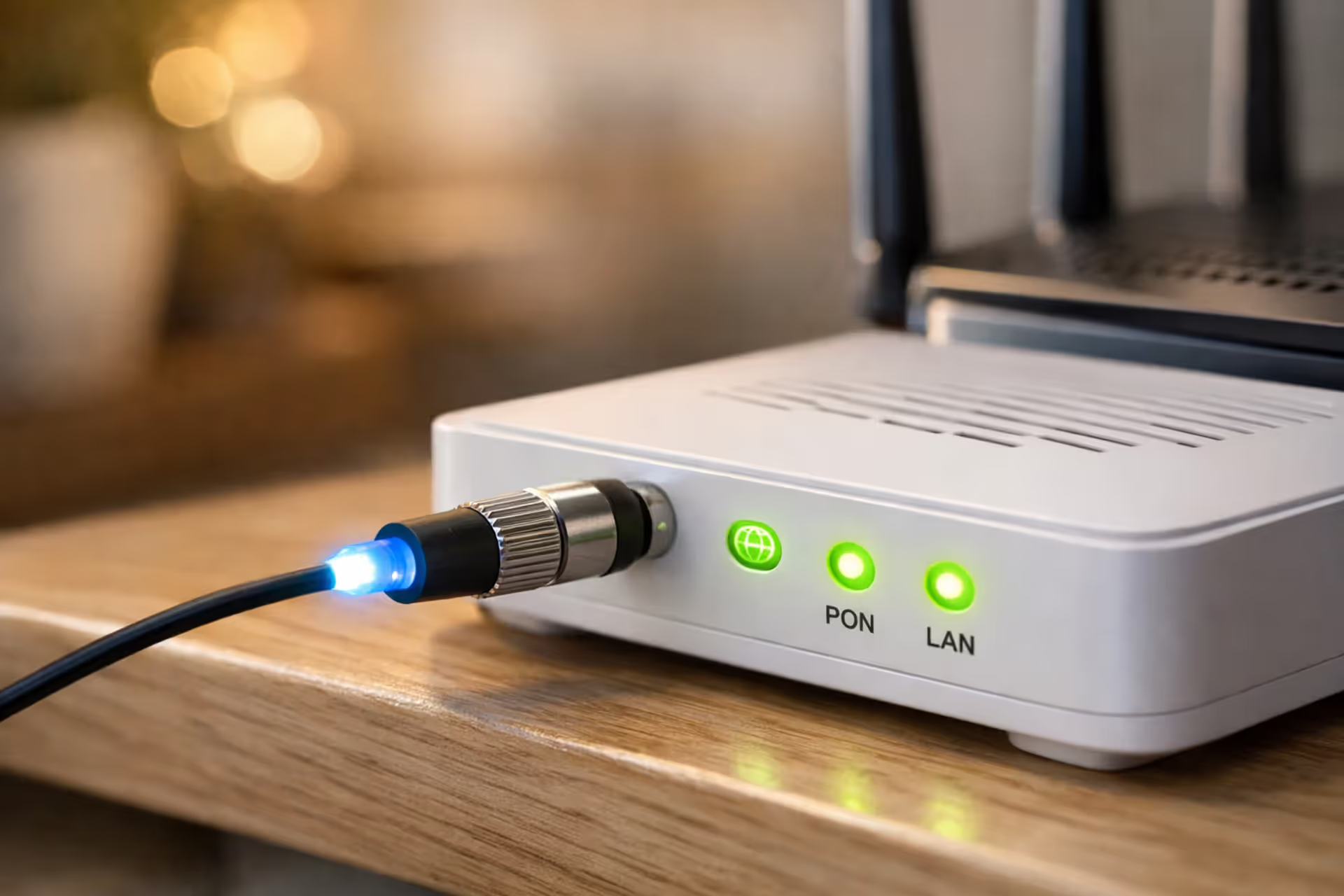
Fiber optic cable with glowing blue tip connected to a white ONT device next to a modern Wi-Fi router on a shelf in a home setting with green LED indicators
Does Fiber Internet Need a Modem? What You Actually Need Instead

Making the switch to fiber internet? You've probably noticed something confusing: some installation guides mention modems, others don't, and your neighbor who just got fiber installed swears they don't have one. Here's what's actually happening—fiber connections skip the traditional modem entirely. Your service runs through something called an Optical Network Terminal, or ONT for short.
Why does this matter? Because buying the wrong equipment wastes money, and connecting things incorrectly creates speed bottlenecks that make your expensive fiber plan perform like basic broadband. I've seen people spend $200 on cable modems that literally cannot work with fiber, or connect their router to the wrong port and wonder why they're getting 100 Mbps instead of the gigabit speeds they're paying for.
Why Fiber Internet Doesn't Use Traditional Modems
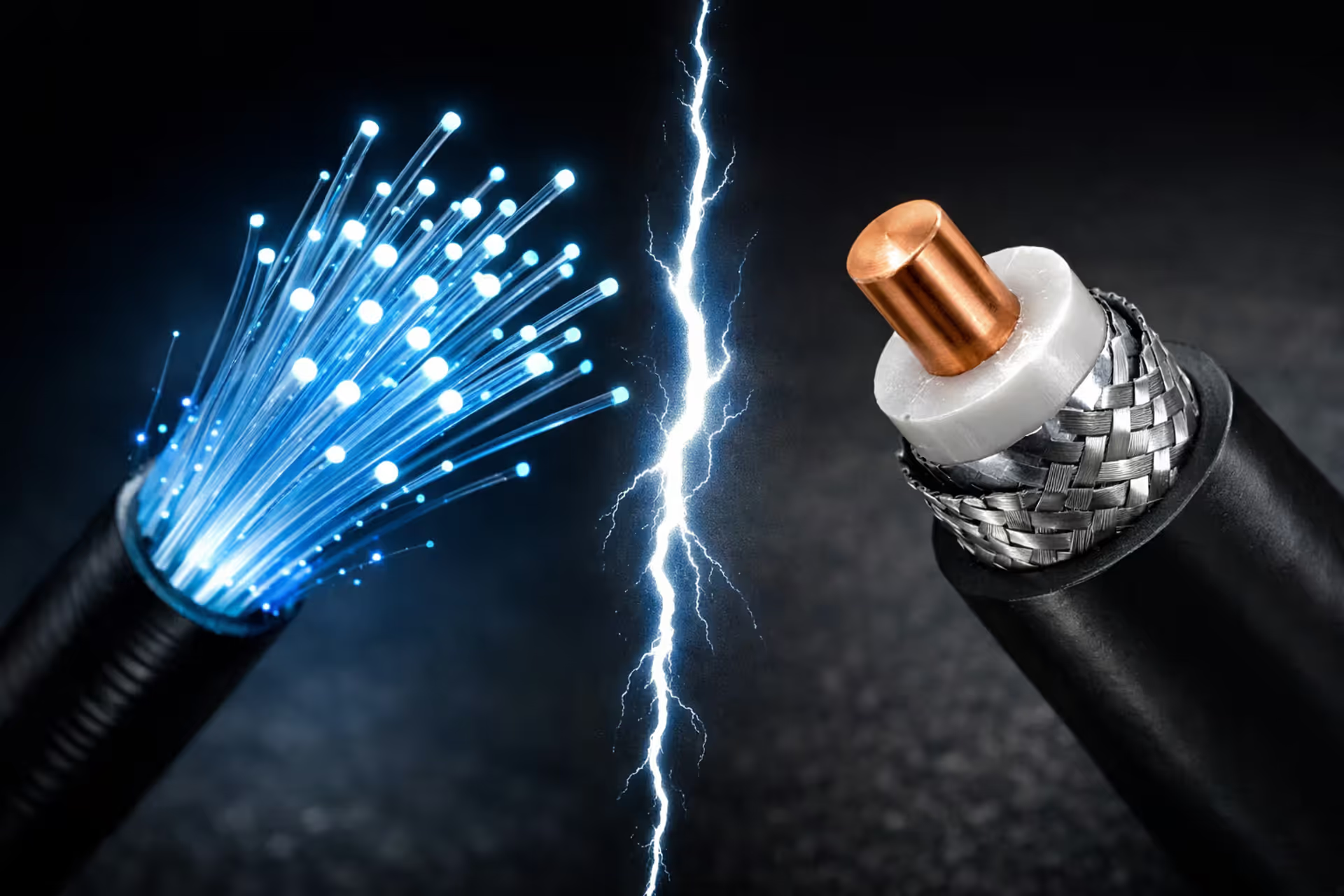
Here's the fundamental issue: cable and DSL modems exist to handle electrical signals moving through copper infrastructure. Your cable modem interprets radio frequency waves coming through that chunky coaxial line. DSL modems decode frequency patterns transmitted over telephone wiring. The "modem" name comes from their job—modulating and demodulating these electrical signals.
Fiber works completely differently. Data shoots through those incredibly thin glass strands as light pulses—literally flashes of laser light traveling at nearly the speed of light. No electrical current. No radio frequencies. Just photons bouncing through glass.
Author: Tyler Beaumont;
Source: flexstarsolutions.com
You can't modulate light signals the way you modulate electrical ones. What you need instead is translation—converting those optical pulses into standard Ethernet signals that your laptop, phone, and router understand. That's the ONT's entire purpose.
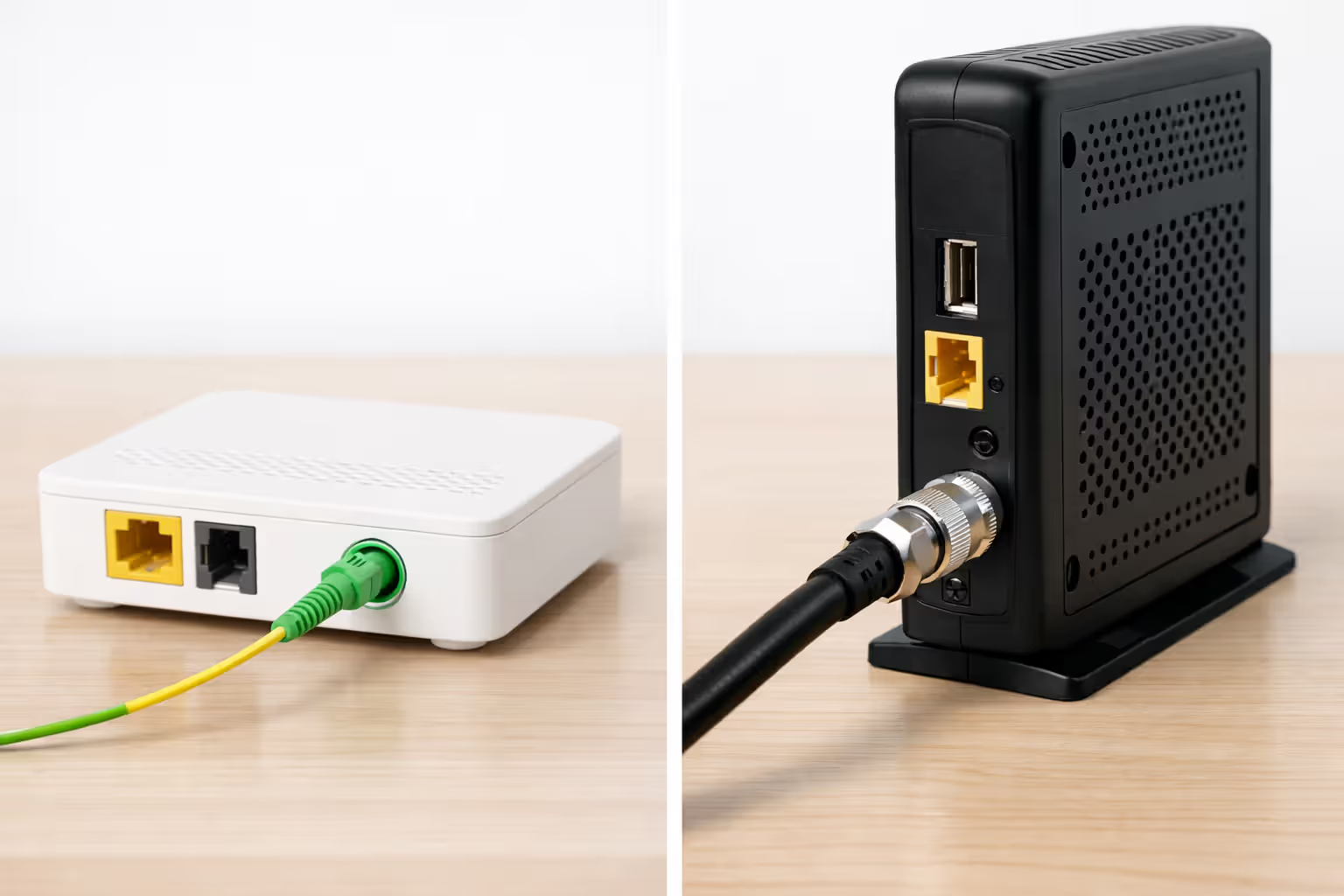
Your ISP sends a technician to mount this ONT box during installation (you can't do it yourself—fiber termination requires specialized tools and training). The tech runs the fiber line to this device, which then outputs regular Ethernet from its RJ45 jacks. Most ONTs look like small white or black boxes, roughly the size of a hardcover book, with a handful of LED indicators showing power status and connection activity.
ONT vs Modem: What's the Actual Difference?
People mix up these devices because both connect your home network to your ISP's infrastructure. But scratch the surface and they're completely different animals.
| Feature | ONT (Fiber Networks) | Traditional Cable/DSL Modem |
| What It Converts | Light signals → electrical Ethernet | Radio/frequency signals → digital data |
| Installation Process | Technician required for fiber termination | Usually self-install from box |
| Who Owns It | ISP retains ownership | You can buy your own |
| Core Technology | Optical-to-electrical translation | Signal modulation/demodulation |
| Available Ports | Ethernet jacks, possibly phone/video | Ethernet and coax outputs |
| Works With | Exclusively fiber optic lines | Only cable or DSL networks |
The ONT synchronizes with sophisticated optical equipment at your provider's central office. This involves precise wavelength coordination, nanosecond-level timing adjustments, and authentication through protocols like GPON or XGS-PON (standards that define how passive optical networks operate).
Cable modems? They communicate through DOCSIS specifications across shared coaxial segments. Your modem literally shares bandwidth with everyone else on your street's cable loop—a constraint fiber architecture eliminates entirely.
Look at the physical connectors and you'll spot the difference immediately. ONTs have a tiny fiber optic input port (about the diameter of a pencil eraser). Modems have that familiar threaded coaxial screw connector or an RJ11 phone jack. You cannot swap these devices. Your cable modem won't magically work with fiber, and plugging coax into an ONT accomplishes nothing.
Essential Equipment for Your Fiber Internet Connection
The Optical Network Terminal (ONT) Explained
Your ISP decides where the ONT goes—typically wherever the fiber line enters your house. Garages, basements, and utility closets are common spots. The device draws power from a standard wall outlet, so the installer needs access to electricity. Some ONTs include backup batteries that keep phone service running during power outages (internet goes down without power regardless).
You'll see multiple ports on most ONTs. Usually there's at least one Ethernet jack for internet, sometimes multiple. Phone jacks support VoIP calling. Occasionally you'll find coaxial outputs for TV service bundled into some fiber packages. For internet purposes, you only care about that Ethernet port.
Where they put this thing really matters. Garage installations mean snaking Ethernet cables through walls to reach your living space. Basement ONTs require running lines upstairs. Ethernet technically works across 328-foot distances before signal degradation kicks in, but shorter runs mean fewer headaches when troubleshooting problems six months from now.
Router Requirements: Wired vs Mesh vs ISP-Provided
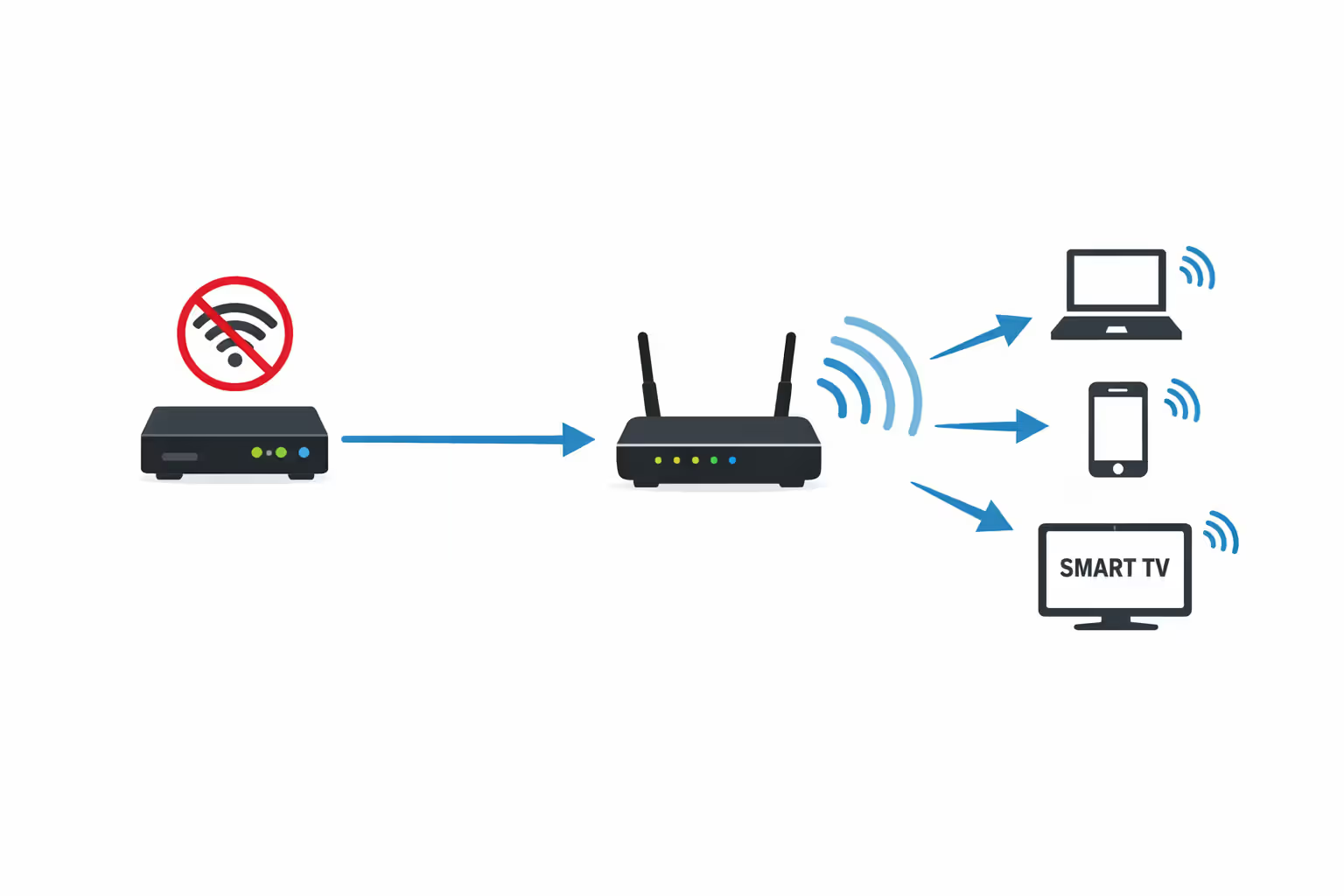
You definitely need a router—the ONT doesn't replace this. Think of it this way: the ONT is like a translator, converting fiber signals to Ethernet. Your router is the traffic manager, creating your Wi-Fi network and juggling connections from your phone, laptop, TV, and everything else.
I constantly see people assuming the ONT broadcasts Wi-Fi or manages their network. It does neither. The ONT is purely a media converter. Without a proper router—especially one rated for gigabit speeds—you're kneecapping your fiber connection before it even reaches your devices
— Marcus Chen
Router selection depends on your home's size, how many devices connect simultaneously, and what speed tier you're paying for. Gigabit fiber requires gigabit-capable ports on your router (both the WAN input and LAN outputs). Dust off that old router from 2012 with 10/100 ports and you've just capped yourself at 100 Mbps, regardless of your shiny new fiber line.
ISP-provided gateway units (they combine routing and sometimes Wi-Fi in one box) handle basic needs adequately. But they typically lack features enthusiasts want—custom DNS configuration, granular parental controls, detailed bandwidth monitoring. Plus many ISPs charge $10-15 monthly rental fees that add up to $180 per year. Buy your own router for $150-200 and you break even within 12 months while gaining better performance.
Mesh networking makes sense for larger homes—anything over 2,500 square feet or multiple stories where a single router creates Wi-Fi dead zones. You'd connect the main mesh node to your ONT through Ethernet, then position satellite nodes throughout your house for seamless coverage as you move around.
When You Need Additional Equipment (switches, extenders)
ONT installed in a distant garage while your office sits two floors up? A network switch lets you split one Ethernet connection to feed multiple wired devices. Connect ONT to router first (always this order), then attach the switch to one of your router's LAN ports to expand your wired network capacity.
Wi-Fi extenders or additional access points cover rooms your main router misses. Fair warning though—wireless extenders cut your bandwidth roughly in half because they're simultaneously receiving and retransmitting signals. Running Ethernet cable to place a second access point delivers dramatically better performance.
Typical fiber wiring follows this path: Street fiber line → ONT (wherever they installed it) → Ethernet cable → Router (ideally centrally located) → Your wireless devices, plus Ethernet running to desktops, switches, or additional access points.
Some houses have structured wiring—Ethernet jacks in each room converging at a central distribution panel. Perfect setup. Install your router at this panel, connect it to the ONT, and you've got Ethernet available in every room through existing in-wall cabling.
How to Connect Your Router to Fiber Internet
The physical hookup is simple, but small mistakes cause big headaches.
Start by checking your ONT's indicator lights. You should see solid illumination for power and the fiber/PON connection. That confirms your ISP activated service and the fiber line is transmitting properly. Blinking or red lights? Call your ISP—that's a problem on their end.
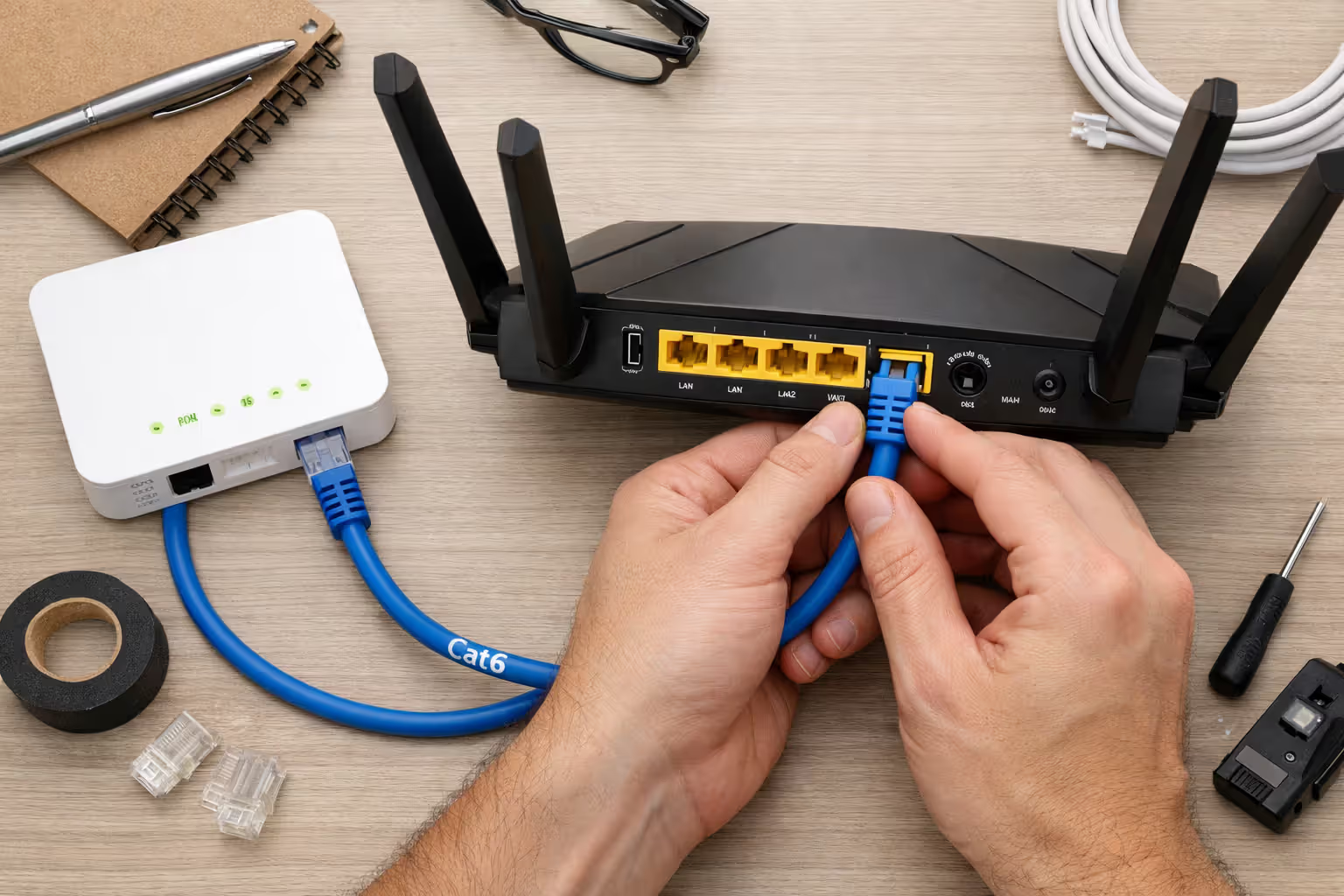
Grab a Cat5e or Cat6 Ethernet cable. Connect one end to the ONT's Ethernet port (usually labeled "LAN" or "Ethernet 1"). Plug the other end into your router's WAN port (sometimes labeled "Internet" and often a different color from the LAN ports). Cat5e handles gigabit speeds without issue. Cat6 costs a few dollars more but future-proofs your setup for multi-gigabit plans and provides better shielding against interference.
Power up your router and give it a minute to negotiate the connection. Most modern routers auto-detect connection types. If yours doesn't establish a link automatically, open a web browser and type in your router's admin address (usually printed on the bottom—something like 192.168.1.1 or 192.168.0.1). Set the WAN connection type to "DHCP" or "Automatic Configuration."
Your router should pull an IP address from your ISP within about 90 seconds. Check the router's status dashboard to confirm internet connectivity. No connection? Try the classic power cycle: unplug both the ONT and router, wait 30 seconds, plug in the ONT and let it fully boot (usually 1-2 minutes), then power on your router.
Author: Tyler Beaumont;
Source: flexstarsolutions.com
Fiber Setup Checklist:
- ONT shows solid green lights for power and fiber connection
- Using Cat5e or Cat6 cable (not Cat5 or older)
- ONT's Ethernet port connected to router's WAN/Internet port
- Router WAN settings configured for DHCP/Automatic
- Router status page shows active internet connection
- Speed test from wired computer confirms full bandwidth
- Wi-Fi network configured with strong password
- Router firmware updated to current version
- ONT location and router credentials documented somewhere safe
Wiring layouts vary wildly by property type. Newer construction often includes a utility closet with structured wiring that makes router placement flexible. Older homes frequently have the ONT stuck in the garage with a single Ethernet run to a more convenient location. Apartment buildings typically install ONTs in hallway closets or near the breaker panel.
Hate where they put your ONT? You've got options. Some ISPs relocate them for $50-150. Or you can run Ethernet yourself through your attic, crawlspace, or along baseboards to reach a better router spot. Just avoid running Ethernet parallel to electrical wiring for extended distances—electrical interference can cause intermittent connection problems.
Bridge Mode and ISP Gateway Configurations
Many fiber providers hand you a gateway device that combines ONT and router functionality in one unit. Convenient, sure. But this setup restricts your control and often delivers weaker performance than dedicated equipment.
Bridge mode essentially neuters the gateway's routing capabilities, transforming it into a dumb pass-through. Your personal router then takes over all routing, Wi-Fi management, and network control. Why bother? Better router performance, access to advanced features your gateway lacks, elimination of double-NAT problems that wreck online gaming and VPN connections, plus you ditch monthly rental fees if you substitute your own gear.
Activating bridge mode requires accessing your gateway's admin interface (check the sticker for IP address and login credentials). Hunt for settings called "Bridge Mode," "Passthrough Mode," or "IP Passthrough." Location varies by manufacturer—AT&T gateways bury it under Settings > Broadband > Configure, while Verizon FiOS routers list it under Network Settings > Connection Type.
Once you enable bridge mode, the gateway stops broadcasting Wi-Fi entirely and passes its public IP address straight through to your connected router. You'll lose access to the gateway's admin panel through its normal IP address, though most models let you reach it through a backup address (check the manual).
Certain ISPs authenticate connections through the gateway's MAC address or proprietary protocols. You might need to clone your gateway's MAC address to your router or contact tech support to register your router's MAC address in their system.
Performance gaps between ISP gateways and quality consumer routers become obvious with demanding applications. Gaming latency drops. Streaming 4K to three TVs simultaneously stays smooth. Smart home devices maintain stable connections instead of dropping randomly. You also gain features like bandwidth-limited guest networks, detailed per-device monitoring, and customizable firewall rules.
Author: Tyler Beaumont;
Source: flexstarsolutions.com
Common Fiber Installation Mistakes to Avoid
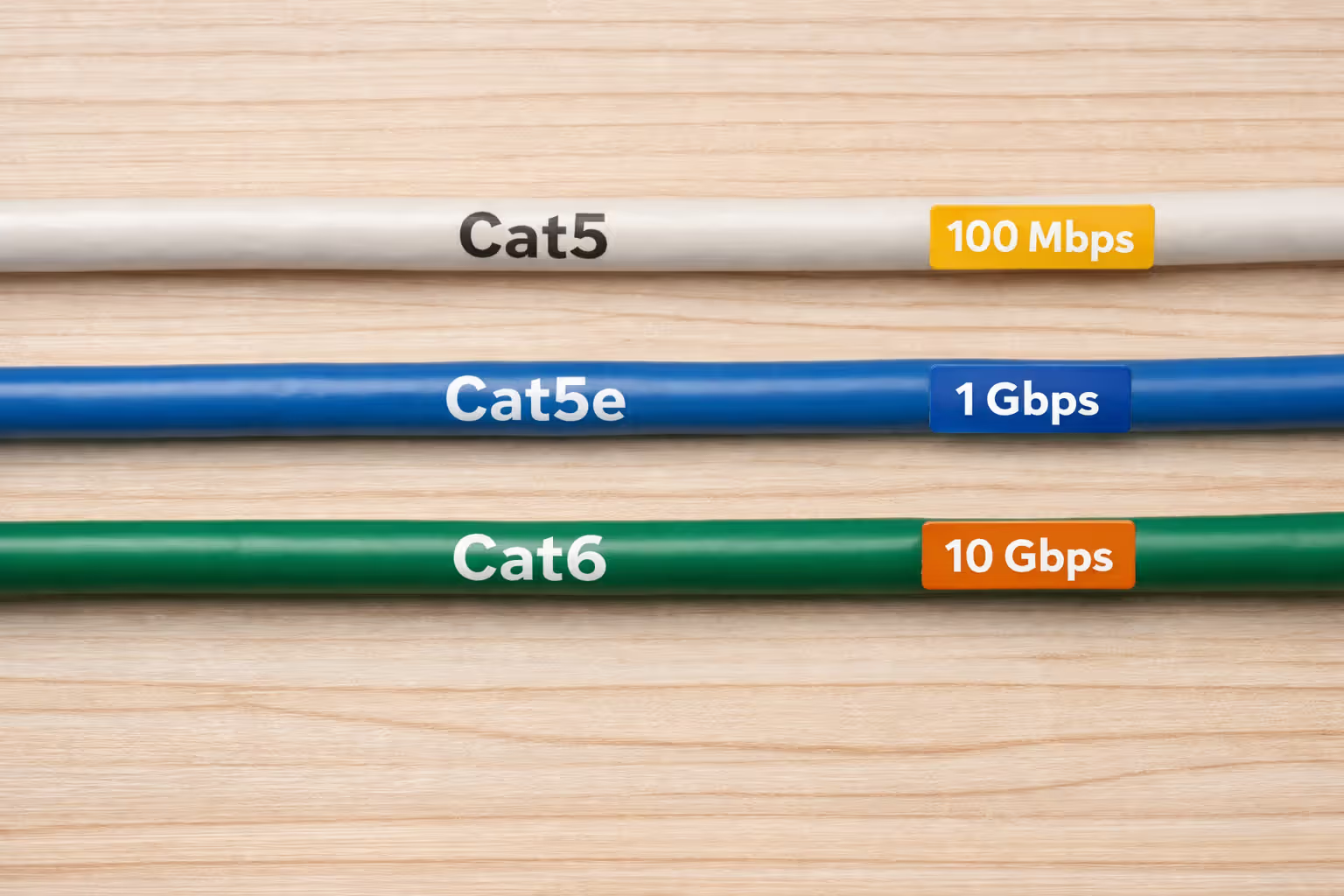
Cat5 Ethernet cable tops the mistake list. This older standard maxes out at 100 Mbps—you've just throttled your gigabit fiber connection. Always verify you're using Cat5e minimum, preferably Cat6. The cables look identical, so check the text printed on the cable jacket to confirm the category.
Accepting the installer's first ONT placement suggestion can haunt you for years. Installers optimize for the shortest fiber run from your property's entry point—often your garage or basement mechanical room. If you want your router in the living room for better Wi-Fi coverage, mention this before installation starts. Some providers accommodate custom ONT placement requests, though they might charge extra for longer fiber runs.
Router compatibility problems pop up when people assume any old router works with fiber. Technically true—fiber uses standard Ethernet output. But a router with only Fast Ethernet ports or an underpowered processor creates a massive bottleneck. Gigabit fiber demands gigabit ports and sufficient CPU horsepower to push line-rate speeds. Carefully check router specs—"AC1900" Wi-Fi ratings don't guarantee the wired ports support gigabit throughput.
Ignoring future speed upgrades costs money later. Fiber providers regularly bump speeds, sometimes automatically. Running Cat6 instead of Cat5e today means you're ready when they offer 2 Gbps or 10 Gbps service without rewiring your entire house. Similarly, buying a router that handles speeds beyond your current tier means you won't replace it when you upgrade next year.
Overlooking the ONT's power dependency causes problems during outages. When power dies, your internet dies too, even though the fiber network itself often stays operational. Work from home or need reliable connectivity? Invest in an uninterruptible power supply (UPS) for both the ONT and router—basic models cost $60-80 and provide 30-60 minutes of runtime.
Author: Tyler Beaumont;
Source: flexstarsolutions.com
Frequently Asked Questions About Fiber Modems and Equipment
Making the Most of Your Fiber Connection
Fiber internet represents a massive upgrade from cable or DSL—but only when you configure it properly. The ONT replaces your traditional modem by handling the unique challenge of translating optical signals into electrical data. You still need a capable router distributing that connection throughout your home.
Taking ownership of your equipment choices—selecting your own router instead of renting ISP gateways, running quality Ethernet cables, placing devices strategically—guarantees you actually get the speeds you're paying for. The upfront investment in understanding your fiber setup delivers returns in performance, reliability, and long-term savings.
Whether you're troubleshooting a fresh installation or planning an upgrade, remember that fiber's physical infrastructure differs fundamentally from cable internet. The ONT isn't a modem. Bridge mode unlocks better control. Your router choice impacts performance more than with slower connections. Get these elements right, and you'll enjoy fiber optic internet's full benefits for years without frustration.
Related Stories
Read more
Read more

The content on this website is provided for general informational and educational purposes only. It is intended to offer guidance on internet technology topics, including internet providers, connection types (fiber, cable, and 5G home internet), WiFi setup, router configuration, internet speed requirements, and online security practices. The information presented should not be considered technical, legal, or professional networking advice.
All information, articles, comparisons, and technical explanations on this website are for general informational purposes only. Internet service availability, performance, speeds, equipment requirements, and security features may vary by provider, location, infrastructure, and individual network configuration. Actual internet performance and reliability depend on many factors, including hardware, service plans, local network conditions, and user behavior.
This website is not responsible for any errors or omissions in the content or for actions taken based on the information provided. Reading this website does not create a professional or service relationship. Users are encouraged to consult with their internet service provider, network specialist, or qualified technical professional for advice specific to their internet setup, equipment, or connectivity needs.