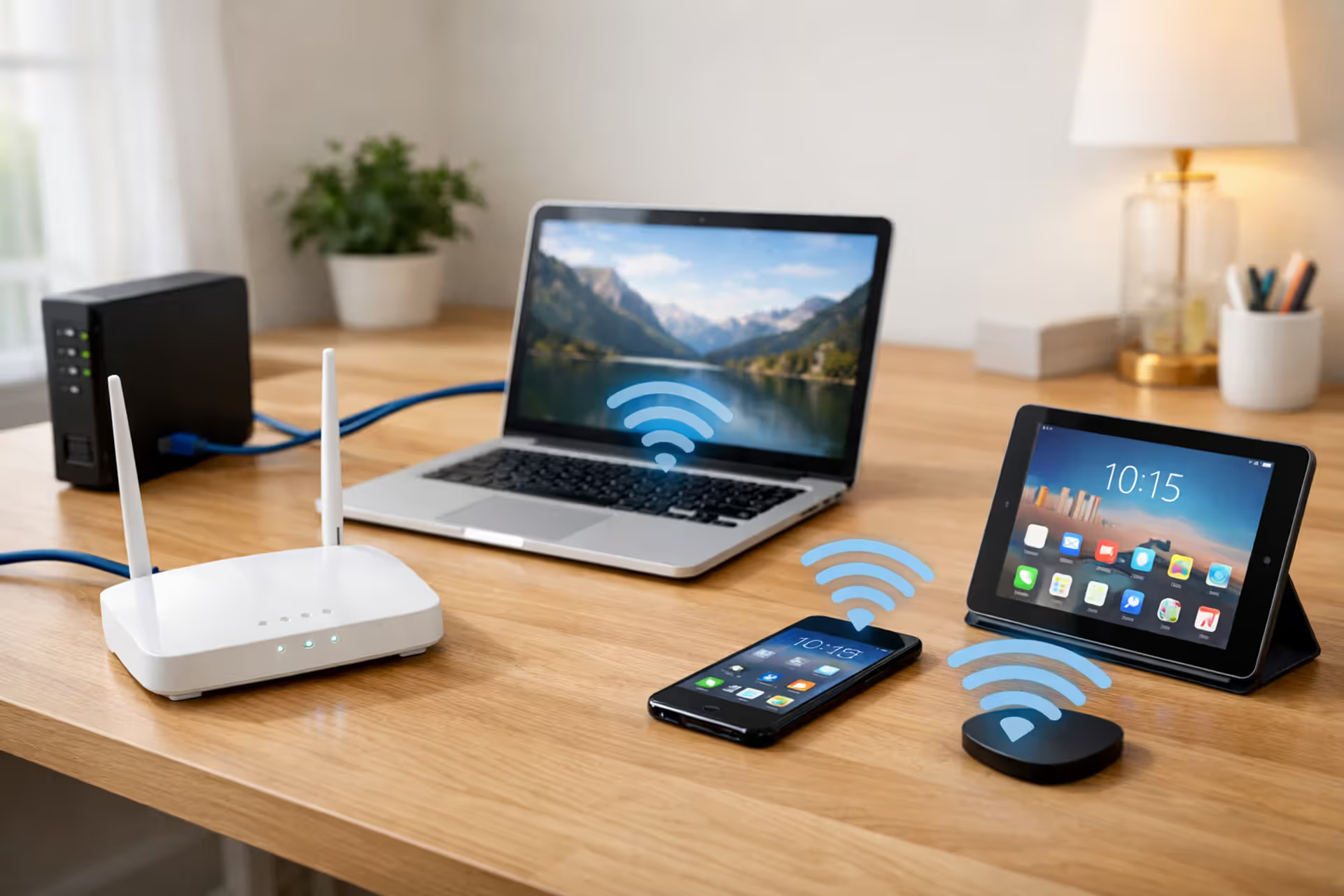
Modern home desk with a WiFi router connected to a modem via Ethernet cable, laptop, smartphone, and tablet nearby with WiFi signal waves, clean minimalist interior
Do You Need an Ethernet Cable for WiFi?

Content
WiFi feels completely wireless—your phone, laptop, and smart TV connect to the internet without any visible cables. But behind that wireless convenience, most home networks rely on at least one critical wired connection. Whether you're setting up a new router, troubleshooting slow speeds, or planning a mesh network, understanding which cables you actually need saves time and prevents frustration.
The short answer: your WiFi router almost always needs an Ethernet cable connecting it to your modem or fiber terminal. Once that connection exists, your devices can connect wirelessly. However, several scenarios benefit from additional Ethernet cables, even though they're not strictly required.
How WiFi Routers Actually Connect to the Internet
Your router doesn't magically pull internet access from the air. It needs a physical connection to your internet service provider's equipment. That's where Ethernet cables enter the picture, even in a "wireless" home network.
The Modem-to-Router Connection Explained
Cable and DSL internet services deliver connectivity through a modem—a device that translates your ISP's signal into data your home network can use. This modem has at least one Ethernet port, and your router plugs into it with a standard Ethernet cable (usually Cat5e or Cat6).
Without this cable, your router has nothing to broadcast. The WiFi signal it creates is just a local network; the router to modem Ethernet cable provides the actual internet connection. Think of it like a water fountain: the WiFi is the spray you see, but the Ethernet cable is the pipe bringing water to the fountain.
Many people rent combination modem-router units from their ISP, which eliminates this cable since both functions live in one box. But if you've purchased your own router for better performance or features, you'll need that modem-to-router connection.
A common mistake: assuming a standalone router can replace a modem. It can't. Even the most expensive WiFi 6E router needs upstream connectivity from a modem or similar device. The router's job is distributing internet access, not establishing it.
Fiber ONT and Cable Modem Requirements
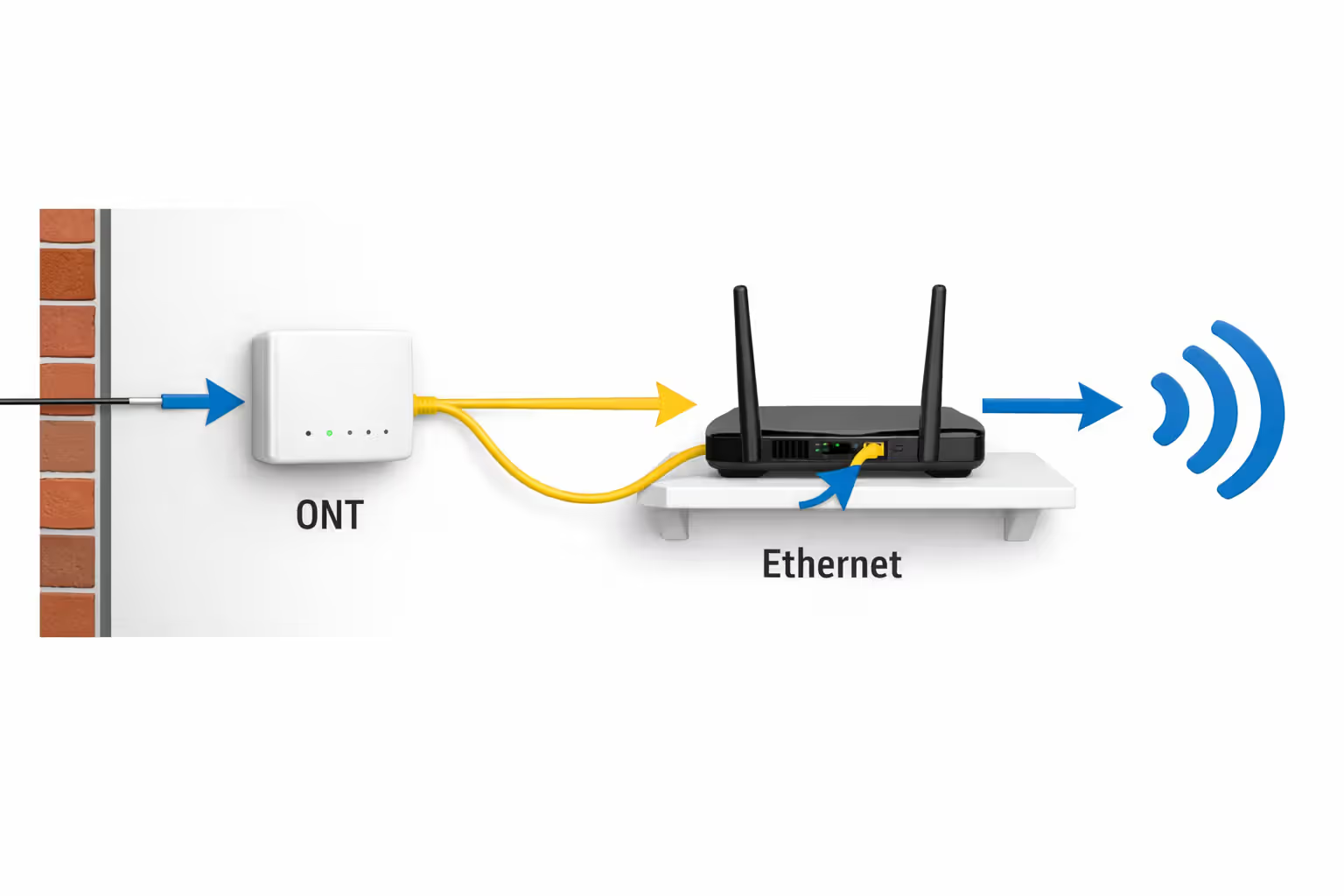
Fiber internet works differently but still requires Ethernet. Your ISP installs an Optical Network Terminal (ONT)—usually a small box mounted on an exterior wall or in a utility closet. This ONT converts fiber-optic light signals into standard Ethernet.
The fiber ONT Ethernet requirement is non-negotiable. One Ethernet cable runs from the ONT to your router's WAN (wide area network) port. Some ONTs have built-in WiFi, but most don't, and even those that do typically offer mediocre wireless performance compared to a dedicated router.
Fixed wireless internet (like certain 5G home services) is the rare exception. These systems use a cellular gateway that connects to tower signals wirelessly, then broadcasts WiFi. No Ethernet cable connects to outside infrastructure, though the gateway itself may have Ethernet ports for wired device connections.
Author: Caroline Prescott;
Source: flexstarsolutions.com
Scenarios Where Ethernet Cables Are Required for WiFi Setup
Certain networking tasks simply won't work without physical cables, regardless of how advanced your wireless equipment is.
Initial router configuration: Many routers require a wired connection to a computer for first-time setup. While some newer models support app-based wireless setup, connecting via Ethernet during configuration prevents complications and ensures stable access to the router's admin interface.
ISP equipment connections: As covered earlier, the modem-to-router or ONT-to-router link is mandatory. You can't establish internet connectivity without it. ISPs typically include one Ethernet cable with their equipment, but it's often short (3-6 feet). If your modem and router need to sit farther apart, you'll need a longer cable.
Wired backhaul between mesh nodes: While mesh systems can communicate wirelessly between nodes, some installations require or strongly benefit from Ethernet backhaul. If you're connecting a basement node to a main-floor router through concrete and metal ductwork, wireless backhaul may fail entirely. Running an Ethernet cable solves the problem.
Business or multi-access-point networks: Offices and larger homes often use multiple access points connected to a central switch. Each access point needs an Ethernet cable for both data and power (if using PoE—Power over Ethernet). These aren't consumer mesh systems; they're discrete devices that create a unified wireless network through wired infrastructure.
Smart home hubs and NAS devices: While not directly related to WiFi setup, network-attached storage drives and some smart home controllers perform better with wired connections. If these devices are part of your network plan, factor in additional Ethernet cables.
The question "do you need Ethernet for WiFi" has a clear answer for these scenarios: yes, at least one cable is required, and more cables often solve problems that wireless solutions can't.
When Ethernet Improves WiFi Performance (But Isn't Required)
Beyond mandatory connections, strategic Ethernet use can dramatically improve your wireless network's performance. These applications are optional but worth considering.
Wired Backhaul for Mesh Networks
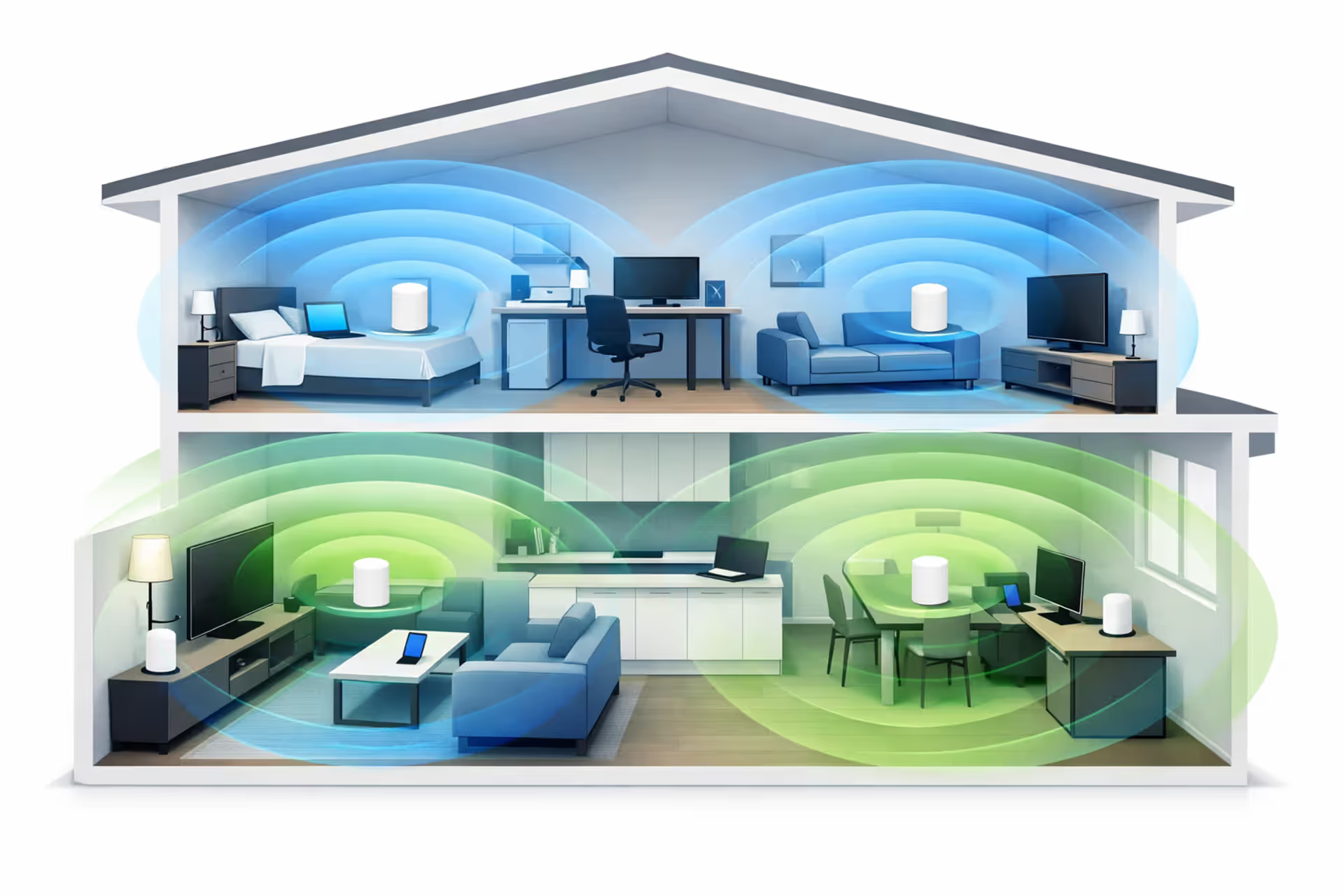
Mesh WiFi systems consist of multiple nodes that communicate with each other. In a wireless backhaul setup, one node connects to your modem, and the others relay signals wirelessly. This works, but each wireless hop consumes bandwidth.
A wired backhaul for mesh changes the equation. You run Ethernet cables from your main router to satellite nodes, giving each node a direct connection to the internet source. The nodes still broadcast WiFi, but they're not wasting wireless capacity talking to each other.
The performance difference is substantial. A three-node wireless mesh system might deliver 300 Mbps to a distant bedroom because the satellite node uses half its bandwidth communicating with the main router. The same system with Ethernet backhaul can deliver 700+ Mbps because the satellite node dedicates its full wireless capacity to your devices.
In homes with existing Ethernet runs or unfinished basements where cables can be added, wired backhaul transforms mesh systems from adequate to excellent. The difference in latency and throughput is measurable—typically 40-60% better performance on the farthest nodes
— Marcus Chen
When Ethernet improves WiFi most noticeably:
- Multi-story homes where nodes are vertically separated
- Homes with dense construction materials (brick, concrete, metal studs)
- Households with heavy simultaneous usage (gaming, 4K streaming, video calls)
- Situations where the satellite node serves many devices
Access Point Configurations
If you're building a network from scratch or renovating, consider running Ethernet to central locations on each floor. You can then install wireless access points instead of relying on mesh nodes. Access points are simpler devices—they just broadcast WiFi from a wired connection—but they're often faster and more reliable than mesh nodes communicating wirelessly.
This approach is common in new construction or businesses but works equally well in homes. The upfront effort of running cables pays off in long-term performance and eliminates the wireless backhaul bottleneck entirely.
Ethernet vs WiFi: Performance Differences That Matter
Understanding when wired connections outperform wireless ones helps you decide where to invest effort in cable runs.
| Metric | Ethernet (Wired) | WiFi 6 | WiFi 5 |
| Typical Speed | 1,000 Mbps (Gigabit) | 300-900 Mbps (real-world) | 200-600 Mbps (real-world) |
| Latency | 1-2 ms | 5-15 ms | 10-25 ms |
| Reliability/Interference | Unaffected by walls, devices, neighbors | Moderate interference from obstacles, other networks | Higher interference susceptibility |
| Range | 100 meters (328 ft) per cable segment | 30-50 feet (optimal), degrades with distance | 25-40 feet (optimal), degrades with distance |
| Best Use Cases | Gaming PCs, NAS, stationary workstations, backhaul | Modern mobile devices, laptops, tablets | Older devices, general browsing |
The table shows theoretical and real-world performance, but context matters. A WiFi 6 connection in the same room as the router often matches Gigabit Ethernet for everyday tasks. But that same WiFi connection through two walls and a floor drops significantly.
Latency differences matter most for gaming and video calls. A wired connection's 1-2 millisecond delay is imperceptible. WiFi's 10-20 millisecond delay is usually fine, but it adds up when combined with internet latency. Competitive gamers and day traders notice the difference; casual users don't.
Reliability is Ethernet's biggest advantage. Wired connections don't care about your neighbor's new router, microwave oven interference, or concrete walls. The connection works at full speed, consistently. WiFi performance varies based on dozens of environmental factors.
For stationary devices—desktop computers, gaming consoles, smart TVs—Ethernet makes sense if running a cable is feasible. For mobile devices, WiFi is obviously necessary. The gray area is semi-stationary devices like work-from-home laptops that sit on a desk all day. A $15 USB-to-Ethernet adapter can eliminate video call dropouts and speed up large file transfers.
Common Home Networking Cable Types and What They Do
Not all cables are interchangeable, and using the right type prevents bottlenecks.
Author: Caroline Prescott;
Source: flexstarsolutions.com
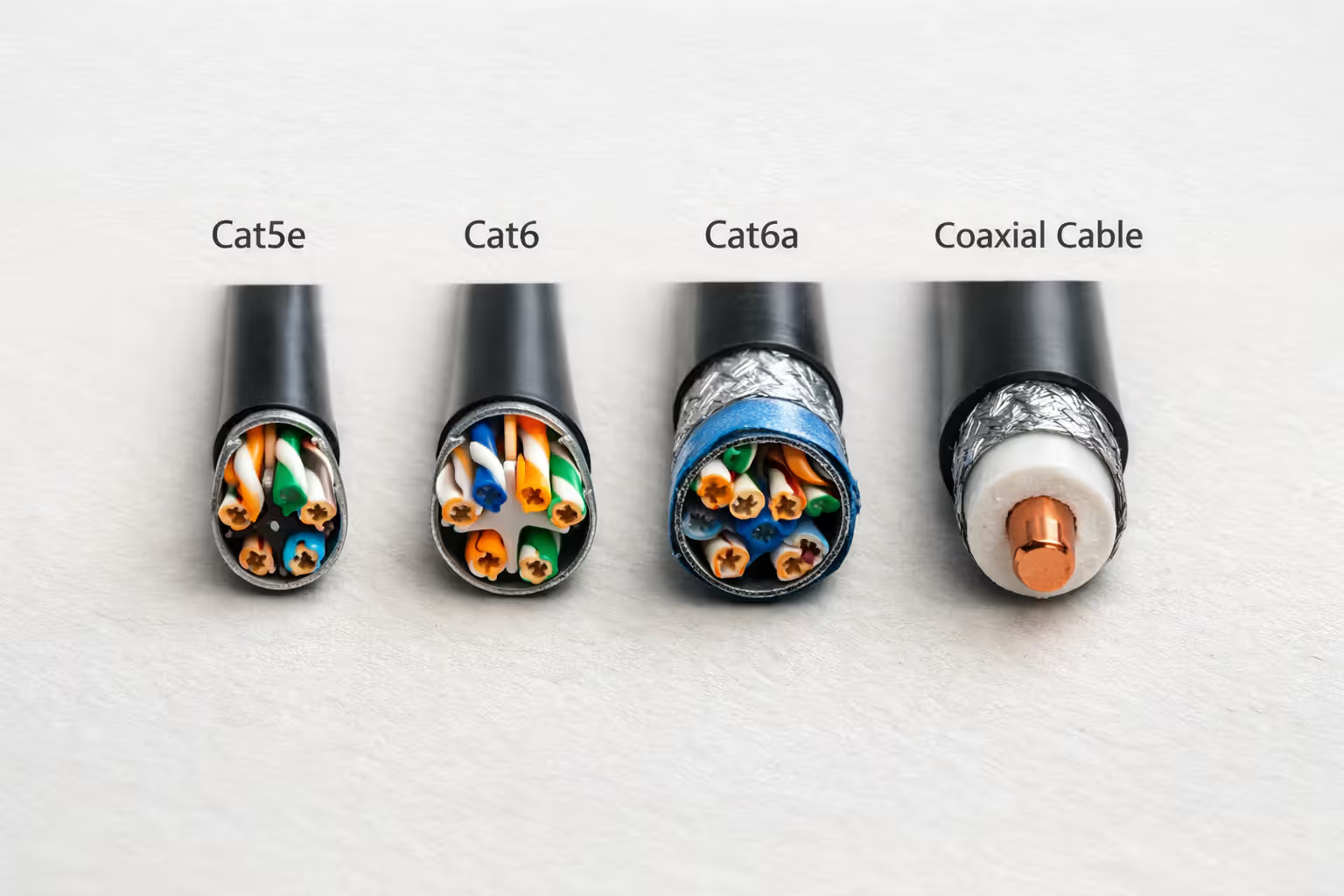
Cat5e (Category 5 enhanced): Supports Gigabit speeds up to 100 meters. This is the minimum standard you should use today. Older Cat5 cables technically support Gigabit but are more prone to interference. If you're buying new cables, skip Cat5 entirely.
Cat6: Supports Gigabit reliably and can handle 10 Gigabit speeds up to 55 meters. Slightly thicker and less flexible than Cat5e, but the extra shielding reduces interference. This is the sweet spot for most home installations—affordable and future-proof for typical residential internet speeds.
Cat6a and Cat7: Support 10 Gigabit speeds over longer distances with heavy shielding. Unless you have multi-gigabit internet service (2.5 Gbps or higher) and equipment to match, these are overkill for homes. They're also stiffer and harder to route through walls.
Coaxial cable: Used for cable internet and TV services. Your modem connects to this cable, which runs to the outside service connection. You can't substitute Ethernet for coax or vice versa—they serve different purposes. MoCA adapters can send network data over existing coax, but that's a specialized use case.
Rule of thumb: for the router to modem Ethernet cable and any other home networking needs, Cat6 offers the best balance of performance, cost, and flexibility. Buy cables slightly longer than you think you need; excess cable can be coiled and hidden, but short cables force awkward equipment placement.
Avoid flat Ethernet cables for permanent installations. They're convenient for running under carpets but more susceptible to interference and damage. Use them temporarily if needed, but invest in proper round cables for anything permanent.
Setting Up WiFi Without Running Ethernet Cables Throughout Your Home
Most people want WiFi coverage everywhere without drilling holes and fishing cables through walls. Several solutions exist, each with trade-offs.
Author: Caroline Prescott;
Source: flexstarsolutions.com
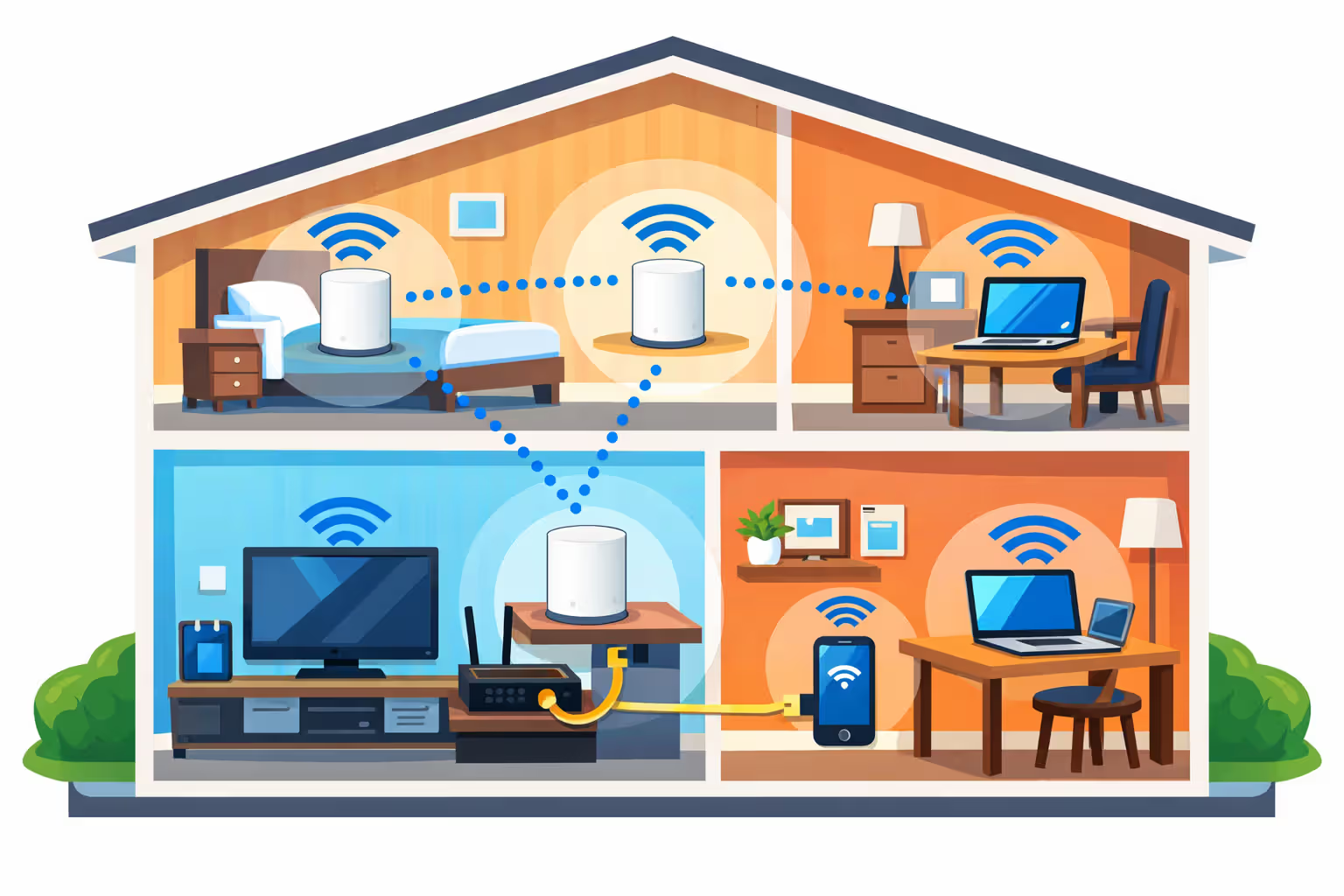
Wireless mesh systems: The most popular approach. Place nodes in different areas, and they communicate wirelessly to extend coverage. Setup is simple, and performance is adequate for most households. The limitation is that each wireless hop reduces available bandwidth, so a three-node system with wireless backhaul won't deliver full speeds to the farthest node.
Can WiFi work without Ethernet beyond the initial modem connection? Absolutely. Millions of homes use wireless-only mesh systems successfully. Just understand that you're trading some performance for convenience.
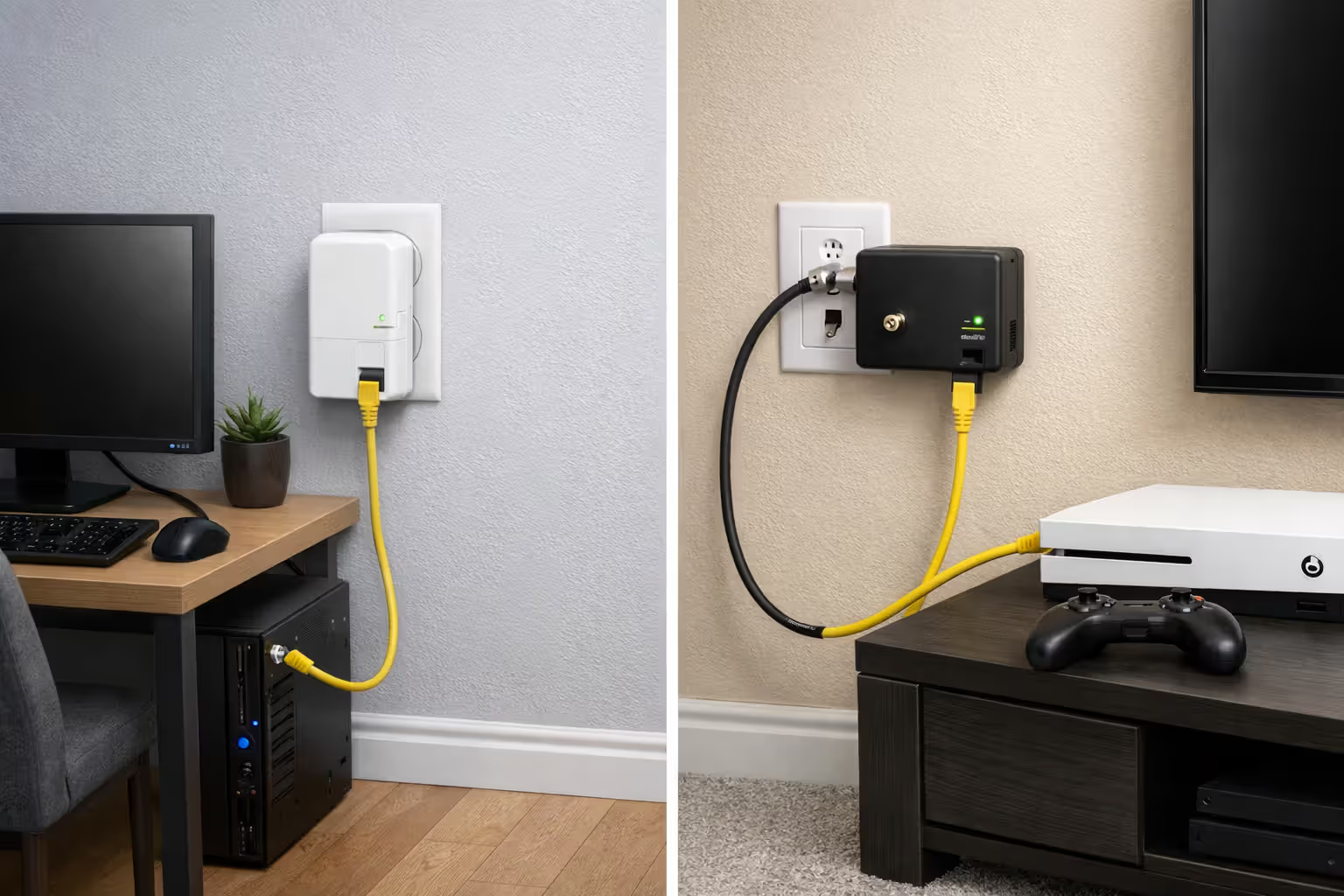
Powerline adapters: These devices send network data through your home's electrical wiring. Plug one adapter near your router, connect it via Ethernet, then plug additional adapters elsewhere in your home. They create wired network ports in distant rooms without running new cables.
Powerline performance varies wildly based on your electrical system. Homes with modern wiring on a single circuit breaker panel see speeds of 200-500 Mbps. Older homes with multiple panels or aluminum wiring may see 50-100 Mbps or experience frequent disconnections. They're worth trying if you need a wired connection in a specific room, but don't assume they'll match direct Ethernet performance.
MoCA (Multimedia over Coax Alliance): If your home has coaxial cable runs (common in houses built in the cable TV era), MoCA adapters can repurpose that wiring for networking. Performance is excellent—often 800+ Mbps—because coax is designed for high-frequency signals. This is an underutilized solution that works brilliantly when the infrastructure exists.
WiFi extenders: The budget option, but the least effective. Extenders rebroadcast your router's signal, but they create a separate network name (or force devices to disconnect and reconnect as you move). Modern mesh systems have largely replaced extenders for good reason—they're more reliable and easier to manage.
For most homes, a quality mesh system provides the best balance of performance and convenience without running cables. Add wired backhaul to one or two nodes if possible, and you'll have coverage that handles multiple 4K streams and video calls simultaneously.
Author: Caroline Prescott;
Source: flexstarsolutions.com
Frequently Asked Questions About Ethernet and WiFi
The relationship between Ethernet and WiFi is simpler than it first appears: you need at least one cable connecting your router to the internet source, and additional cables can dramatically improve performance in specific situations. That initial modem-to-router connection is mandatory, but everything beyond it involves trade-offs between convenience and performance.
For most households, a quality router or mesh system with one Ethernet cable to the modem provides excellent WiFi coverage. Adding wired backhaul to mesh nodes or running cables to stationary devices like gaming consoles and desktop computers improves reliability and speed, but these enhancements are optional.
Before drilling holes and running cables, assess your actual needs. If your current WiFi handles your usage patterns without issues, additional Ethernet infrastructure probably won't make a noticeable difference. But if you're experiencing dead zones, unreliable video calls, or gaming lag, strategic cable placement often solves problems that no amount of wireless equipment can fix.
The best approach combines both technologies: Ethernet where it's required and where it provides clear benefits, WiFi everywhere else. That combination delivers the reliability of wired networking with the convenience of wireless connectivity, giving you the best of both worlds.