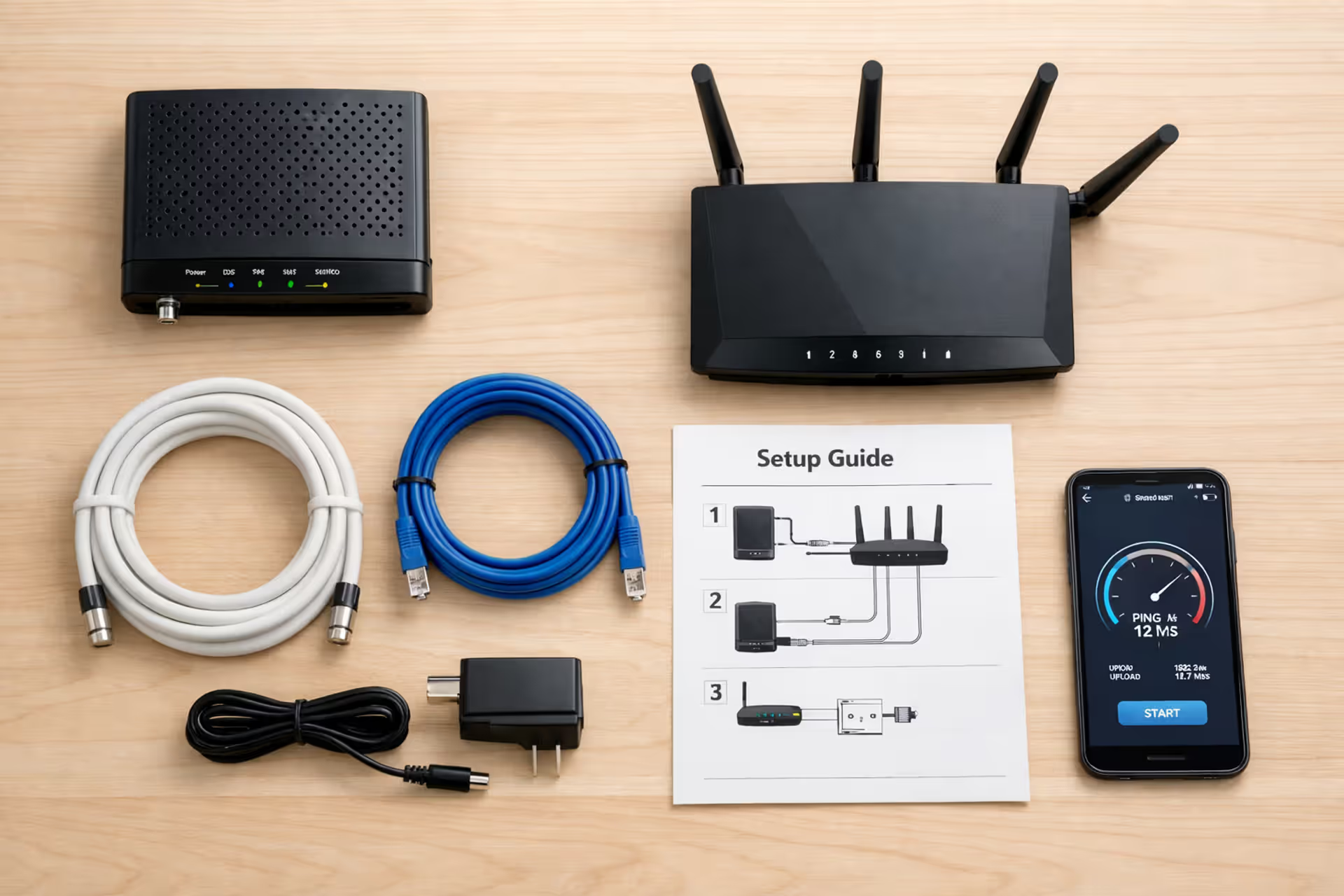
Flat lay of home internet self-installation kit on a desk including cable modem, router, coaxial cable, Ethernet cable, power adapter, and smartphone showing speed test
How to Set Up Internet in a New Home?

Content
Moving into a new place? You'll want internet working fast. Here's the thing—self-installation isn't rocket science, but it punishes carelessness. Skip one cable connection or ignore a blinking light pattern, and you're stuck on hold with tech support for 45 minutes. I'm walking you through the actual sequence that works, including the waiting periods nobody mentions in quick-start guides.
What You Need Before Starting Your Internet Setup
Grab everything first. Seriously—running around looking for your account number while your modem times out gets old fast.
Most ISPs mail you a box containing a modem (often combined with a router), power brick, and a single Ethernet cable. Cable companies toss in coax cable. Fiber installations usually involve a technician pre-installing an ONT (Optical Network Terminal) on your exterior wall before you touch anything. DSL packages include phone line filters—small plastic adapters that prevent static interference.
Bought your own modem instead of renting? Smart move financially, but verify your exact model appears on your provider's approved list. I mean the specific model number, not just the brand. Comcast approves the ARRIS SB8200 but rejects the SB6190. Same manufacturer, different chipset. Using unapproved equipment means activation fails every time, and support won't help.
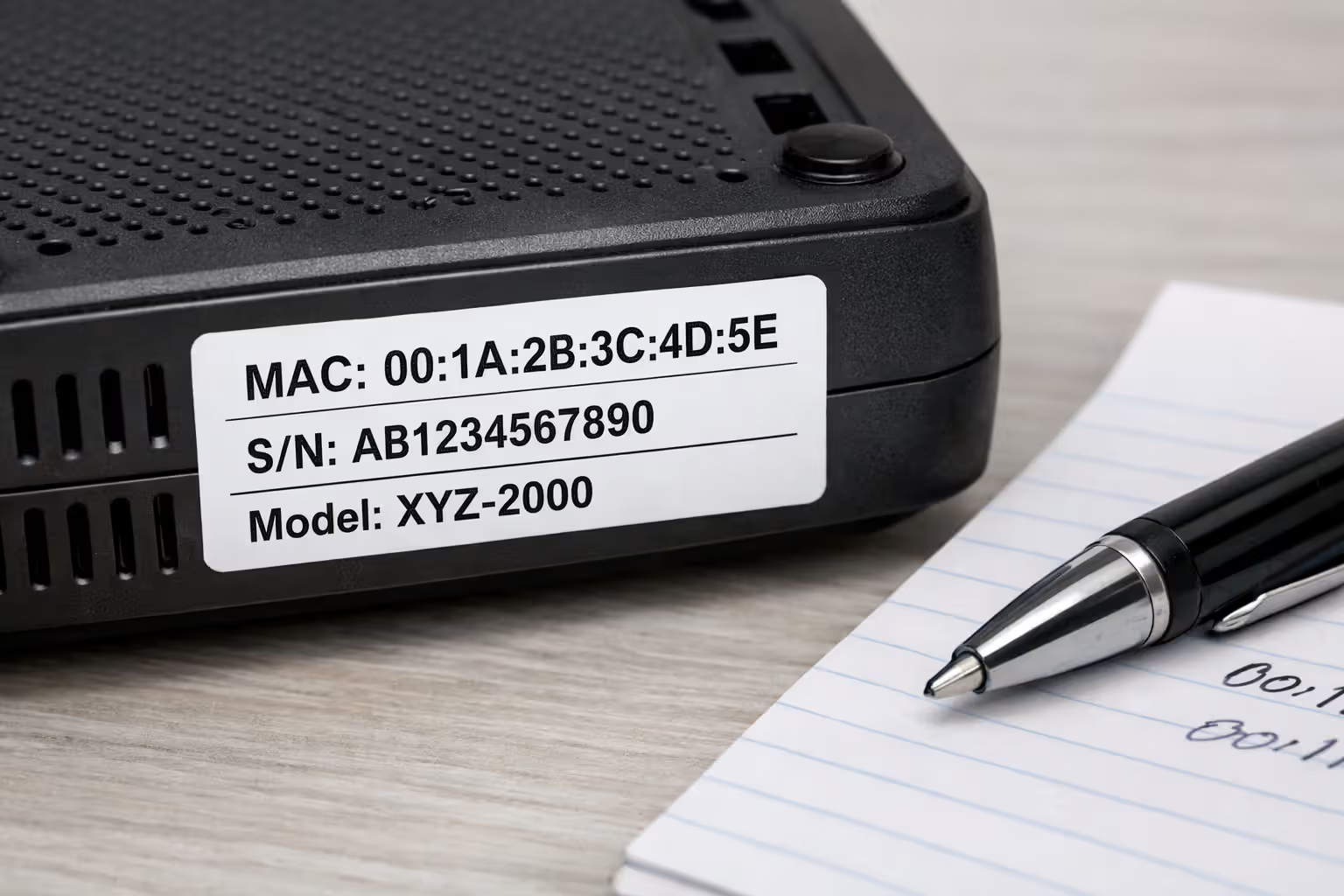
Dig up your account paperwork now. You'll need your account number (10-13 digits typically), the PIN or security password you created during signup, and your modem's MAC address. That MAC address lives on a white sticker somewhere on the modem—usually the bottom or side. It looks like this: 00:1A:2B:3C:4D:5E.
Some providers (Xfinity, Spectrum, Cox) email activation links 24 hours before your service date. Others (CenturyLink, Frontier) make you call in. Figure out which camp your ISP falls into before you start connecting cables.
Author: Tyler Beaumont;
Source: flexstarsolutions.com
Tool-wise, keep a flashlight within reach for checking wall outlets hidden behind furniture. Your smartphone handles speed testing and accessing activation portals. A laptop with an Ethernet port simplifies troubleshooting, though Wi-Fi-only devices work fine for straightforward setups.
One timing tip that'll save you grief: Set up on a Tuesday or Wednesday afternoon, not midnight Saturday. Call centers staff up during weekday business hours. If activation fails and you need phone support, you won't spend your weekend trapped in queue position 47.
Wiring Your Modem and Router: Physical Connection Steps
Cables go in a specific sequence. Randomly plugging things in creates mysterious problems that look like broken equipment but actually stem from connection order mistakes.
Where to Place Your Equipment for Best Performance
Your modem goes wherever the service enters your home—that's non-negotiable. Cable modems need the coax wall outlet. DSL modems need the phone jack. Fiber setups need proximity to the ONT. You can't relocate these entry points, so furniture arrangements bend around them.
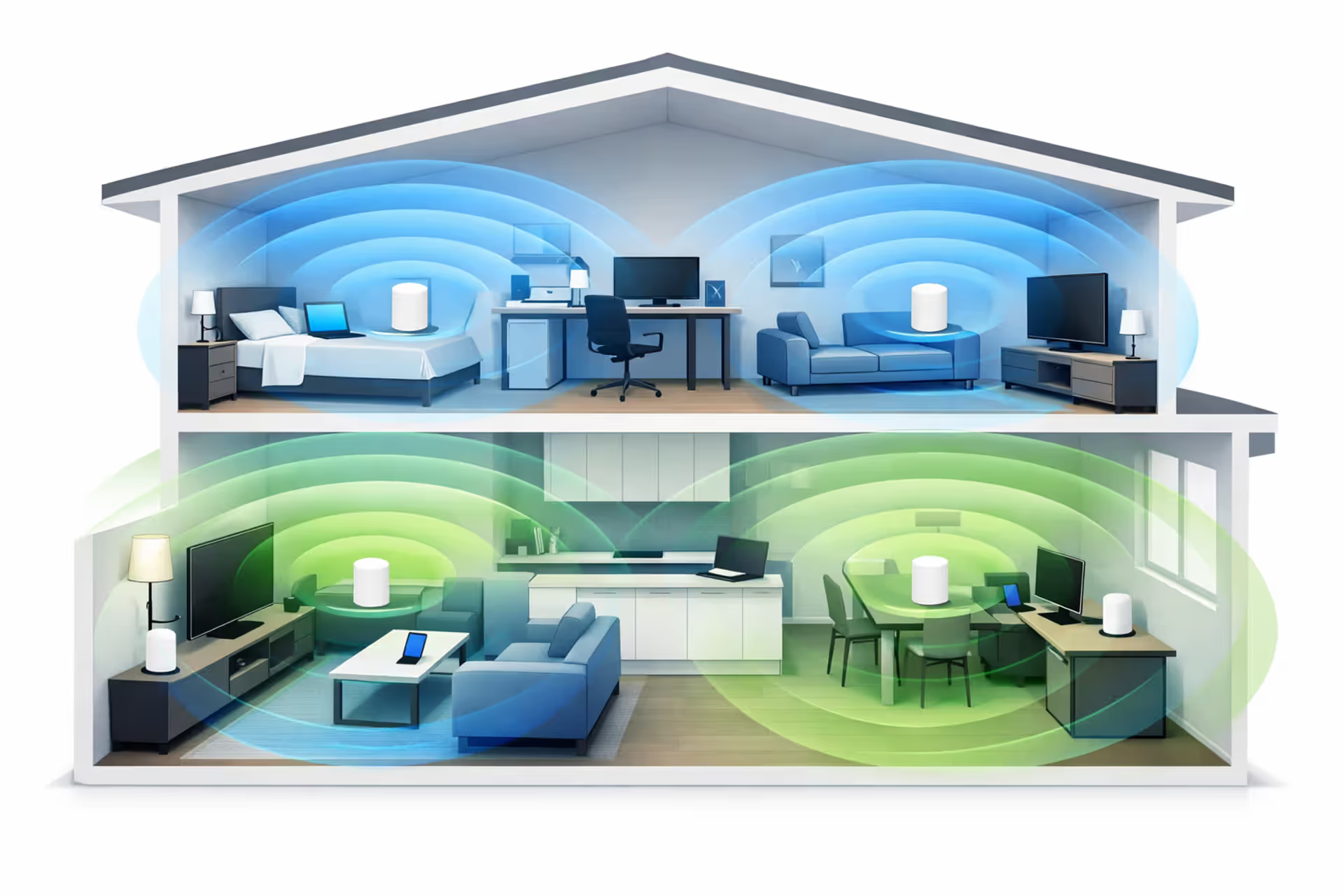
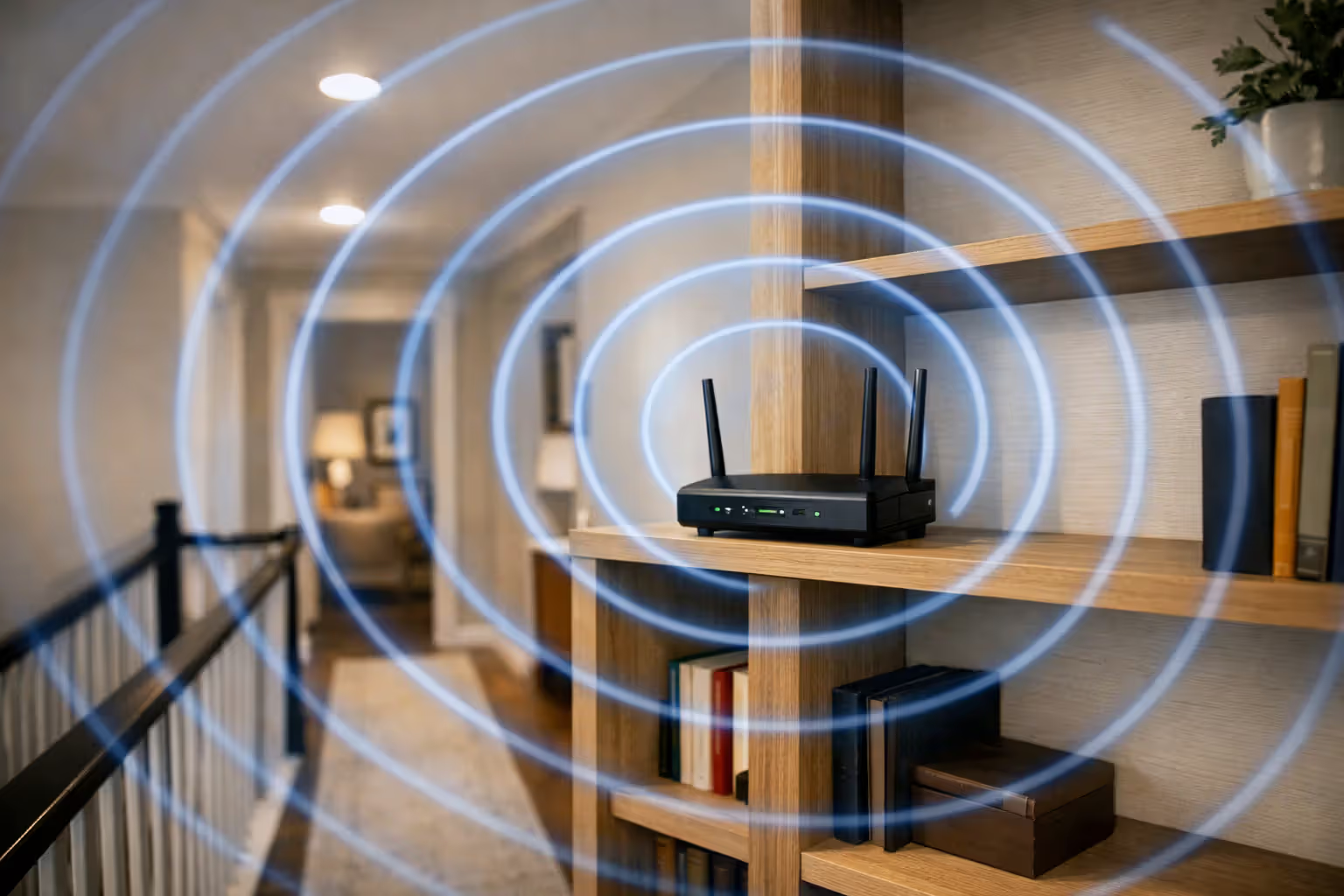
Routers have more flexibility. Think central and elevated. My router sits on a second-floor hallway bookshelf in my two-story house, which blankets both floors adequately. Basements create dead zones upstairs. Corners create dead zones everywhere else.
Physical obstacles degrade signals more than distance does. A router in a metal cabinet loses 60% of its range. A router behind an aquarium? Water absorbs 2.4GHz signals like crazy. Keep three inches of clearance on all sides for ventilation—overheating causes random disconnections that take forever to diagnose because they're intermittent.
Microwaves, cordless phone bases, and baby monitors all operate on 2.4GHz frequencies. Park your router away from them or suffer interference during use.
Author: Tyler Beaumont;
Source: flexstarsolutions.com
Connecting Cables in the Correct Order
Leave everything unplugged initially. Start with your modem's incoming service line. Cable users screw the coax cable into the modem's coax port—hand-tight works fine, don't grab pliers. DSL users plug the phone line into the DSL port. Fiber users verify the Ethernet cable from the outdoor ONT connects to the modem's WAN or Internet port. Some fiber ISPs use the ONT as the modem, eliminating this device completely.
Got separate modem and router devices? Connect them now via Ethernet cable. Find the port labeled LAN or Ethernet on your modem's back panel. Find the port labeled WAN or Internet on your router (often colored yellow or blue). Cable between these two specific ports. Plugging into any other router port fails silently—everything looks connected but nothing works.
Now—and only now—plug in the modem's power adapter. Leave the router unplugged still. Watch the modem's lights. They'll cycle through colors and blinking patterns for three to five minutes. This isn't optional waiting time. The modem negotiates with upstream ISP equipment, scanning channels and establishing baseline communication. Powering on the router prematurely interrupts this handshake.
When you see stable lights on the modem (usually solid green or blue for power, downstream, upstream), plug in the router. Give it two full minutes to complete its boot sequence.
Cable users: Check coax connections are finger-tight. Loose fittings cause packet loss that manifests as websites timing out randomly. DSL users: Install those line filters on every phone jack that has anything plugged in—cordless phones, fax machines, answering machines. Unfiltered devices inject noise that tanks your internet speed by 50% or more.
Author: Tyler Beaumont;
Source: flexstarsolutions.com
ISP Activation: Getting Your Modem Recognized on the Network
Your modem won't do anything useful until your ISP authorizes its MAC address and pushes configuration settings to it. This provisioning process varies wildly by company.
Hit your welcome email first. Companies like Xfinity and Spectrum provide activation portal links. You log into your account, enter the modem's MAC address from that sticker I mentioned earlier, and click activate. The system takes 5-10 minutes to provision everything automatically. Watch your modem's online indicator light—it'll shift from blinking to solid when provisioning completes.
No online option? Time to call. Have your account number and modem MAC address ready before dialing. The rep will ask about specific light patterns: "Is the upstream light solid green or blinking amber?" Know these details. They'll transmit activation signals from their end while you watch your modem respond.
Here's what actually happens during those 10-15 minutes: Your modem downloads configuration files specific to your service tier. Cable modems using DOCSIS 3.1 technology scan dozens of downstream channels individually, lock onto upstream channels, establish IP connectivity, and pull firmware updates if needed. Each stage triggers different light behaviors. The modem might reboot itself once or twice. That's normal. Don't panic and unplug everything.
Some ISPs activate automatically at 12:01 AM on your service start date. Set up your equipment on day one at 2 PM? Nothing happens until midnight, regardless of how perfectly you connected everything. Call and confirm your exact start date if activation mysteriously fails on properly wired equipment.
Successful activation shows solid lights (not blinking) for power, downstream/online, upstream, and internet. Blinking patterns after 10 minutes signal incomplete activation. Write down which specific lights are doing what before calling support. "The second light from the left is blinking orange" helps techs way more than "some lights are blinking."
Customers pull the plug after 30 seconds when they don't see instant results. Modern DOCSIS 3.1 cable modems take up to five minutes just scanning downstream channels. Patience solves most 'broken' equipment. Impatience creates service calls that waste everyone's time
— Marcus Chen
Connecting Your Devices and Running Your First Speed Test
Modem activated, router powered, lights looking good? Time to actually use this thing and confirm it works properly.
Your router broadcasts a default Wi-Fi network name printed on its label—usually something like "NETGEAR47" or "TP-Link_5G_A4B2." Connect a computer via Ethernet cable if possible, or join that default Wi-Fi from your phone. Launch a web browser. In the address bar, enter your router's gateway IP address. Most use 192.168.1.1, but some (particularly TP-Link and D-Link models) use 192.168.0.1. The router label tells you which.
You'll hit a login screen. Default credentials? Also on that label—usually "admin" for username and "password" or "admin" for password. Change these immediately after logging in. Leaving defaults lets neighbors access your network settings.
Create a network name that doesn't broadcast personal information. "Smith Family WiFi" tells burglars whose house they're robbing. "FBI Surveillance Van 4" is funny until your neighbors actually call the cops. Make a strong password (16+ characters mixing letters, numbers, symbols). Select WPA3 encryption if your router offers it; WPA2 if it doesn't. WEP belongs in 2004 and offers zero security.
Connect one device first as a test case. Join your newly named network from your phone. Open a browser and load three different websites—Google, YouTube, and something random like Wikipedia. All load normally? Good.
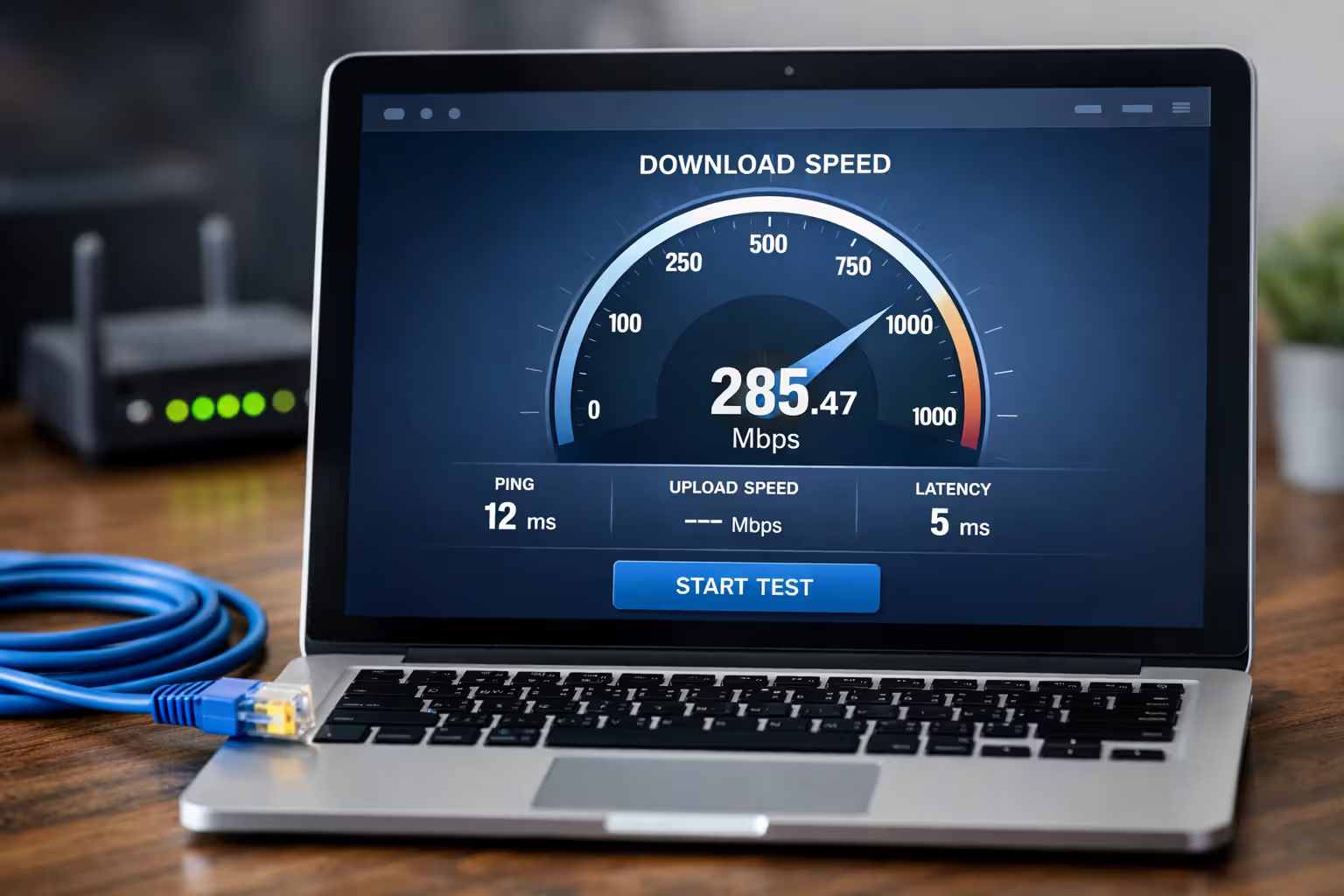
Now establish baseline performance with speed testing. Visit Fast.com, Speedtest.net, or your ISP's speed test tool (Comcast runs one, Spectrum runs one). Run three separate tests spaced five minutes apart, then average those numbers. Test during off-peak hours—between 10 AM and 3 PM—for results that reflect your actual connection rather than neighborhood congestion.
Compare results against your plan's advertised speeds. Wired connections should hit 85-95% of advertised download speeds. Wi-Fi delivers 60-80% depending on your distance from the router and interference levels. Upload speeds run lower than downloads unless you're on fiber with symmetrical service.
Speeds falling significantly short? Connect a laptop directly to the modem via Ethernet, bypassing the router completely. Run tests again. This isolates whether your router is the bottleneck or the ISP connection has problems. Write down these numbers before calling support—they'll ask.
Check your ping (latency) too. Cable and fiber should show under 30ms. Anything between 30-50ms works fine. DSL typically runs 40-80ms, which is acceptable for that technology. Satellite internet shows 500-700ms—totally normal given the signal travels to space and back, but video calls and gaming suffer badly.
| Technology | Hardware Required | Activation Duration | Physical Setup Complexity | DIY Install Feasibility |
| Cable | Standalone modem, separate router, coax line | 10–20 minutes | Simple — one coax connection | Easy for most users |
| Fiber | ONT (professionally installed), router, Ethernet patch cable | 5–15 minutes | Simple — single Ethernet run from ONT | Easy after ONT installation |
| DSL | Combined modem-router unit, line filters, phone cord | 15–30 minutes | Moderate — filters required on every phone jack | Moderate difficulty |
| Fixed Wireless | Exterior antenna (pro-installed), indoor router | 5–10 minutes post-installation | Simple — Ethernet from antenna box | Easy after professional antenna mounting |
| Satellite | Satellite dish (professionally installed), indoor modem/router unit | 5–10 minutes post-installation | Simple — single coax or Ethernet run from dish receiver | Easy after professional dish mounting and alignment |
| 5G Home Internet | 5G indoor gateway (single all-in-one device) | 5–15 minutes | Very simple — plug in power, activate via app | Very easy — no wiring, no technician needed |
| Mobile Hotspot (dedicated device) | Portable hotspot device with SIM card, charging cable | 2–5 minutes | Minimal — power on and connect | Very easy — fully portable, no installation |
| Municipal / Community Fiber | ONT or media converter (pre-installed by provider), router | 10–20 minutes | Simple — single Ethernet connection from ONT | Easy after ONT installation by provider |
Common Internet Setup Problems and How to Fix Them
Even perfect execution hits snags sometimes. These issues crop up constantly, and most have simple fixes.
Modem completely dark, no lights whatsoever: Check the obvious first—power cord seated fully in the modem and wall outlet? Power strip switched on? Try a different wall outlet. Still dead? The modem's defective. Contact your ISP for a replacement unit.
Power light and downstream light solid, but upstream/internet lights stay dark: Your modem receives signals from the ISP but can't transmit back. Cable users, verify that coax connection is tight at the wall plate and modem. Loose connections kill upstream communication. DSL users, confirm line filters are installed on every device sharing the phone line. If physical connections look solid, call support—they may need to adjust signal amplification levels from their equipment.
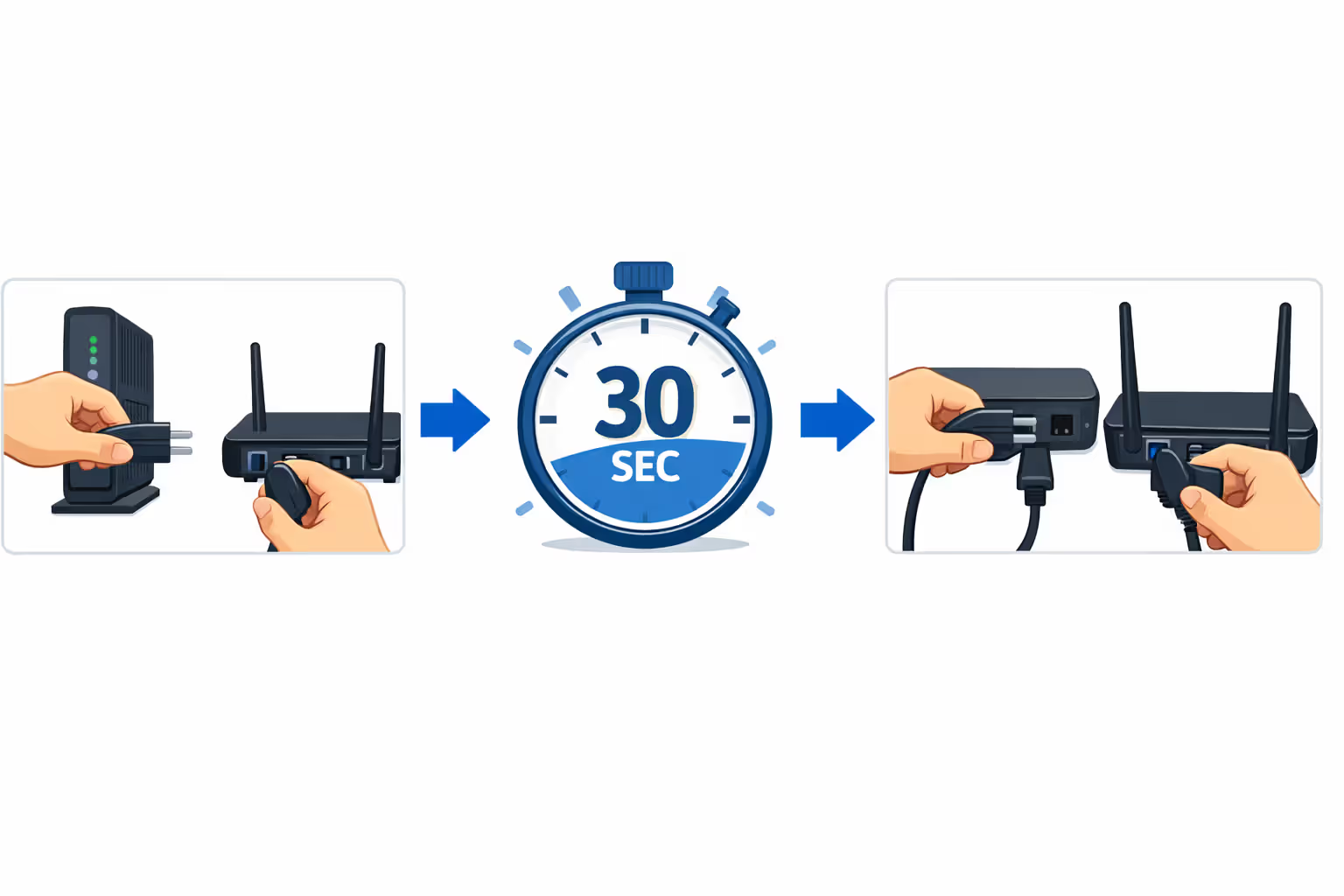
Every light solid, modem looks happy, but websites won't load: The modem's online but traffic isn't routing correctly. Power cycle both devices in sequence: Unplug modem and router simultaneously. Wait 30 seconds. Plug in only the modem. Wait three full minutes. Plug in the router. Wait two minutes. Attempt browsing. This clears temporary configuration glitches. If it still fails, verify you're connecting to the correct Wi-Fi network and entering the password accurately—sounds dumb, but happens constantly.
Activation webpage won't load or keeps erroring out: Clear your browser cache completely, then retry. Try a different browser—Chrome instead of Safari, Firefox instead of Edge. Activation portals conflict with browser extensions, especially ad blockers. Open an incognito/private window or use your smartphone instead of your computer.
Router powered on but Wi-Fi network not appearing anywhere: Confirm the router actually has power and shows lights. Check for a physical Wi-Fi button on the router's case—some models include a switch that disables wireless broadcasting. Access the router's admin panel through a wired connection to verify Wi-Fi is enabled in software settings.
Speed tests show 30% of advertised speeds: Test via Ethernet cable directly to the modem first, isolating Wi-Fi variables. Check what else is consuming bandwidth—Windows updates, iCloud backups, and Ring camera uploads eat capacity silently. Run tests at different times of day; cable internet suffers neighborhood congestion during 7-11 PM when everyone streams Netflix. If wired speeds stay consistently low, call your ISP to check line quality and signal levels.
ISP claims your modem isn't compatible despite your research: Requirements change. ISPs update approved lists quarterly, sometimes removing previously supported models due to firmware limitations. You'll need to buy a currently approved model or rent theirs. Keep purchase receipts to return the incompatible unit.
Author: Tyler Beaumont;
Source: flexstarsolutions.com
Everything looks right but activation fails repeatedly: Double-check your service start date. Some ISPs refuse early activation regardless of when you set up equipment. Confirm your account shows active status with no billing holds—payment problems prevent activation.
Request a technician visit after 90 minutes of unsuccessful troubleshooting. You've verified physical connections, completed power cycling procedures, and still can't get online? Professional help is warranted. Most ISPs waive service call fees when their equipment or outside lines are at fault. Document every troubleshooting step you attempted—saves time when the tech arrives.
Frequently Asked Questions About Home Internet Setup
Self-installation cuts out technician scheduling delays and installation fees while teaching you how your network actually functions. The workflow follows a logical progression: assemble equipment and account information, establish physical connections following the correct sequence, complete ISP activation, and verify performance through systematic testing.
Most failures trace back to rushing. Modems need their full boot cycle. Routers need their full boot cycle. ISP provisioning consumes real minutes, not seconds. When problems surface, methodical troubleshooting—testing wired connections separately from wireless, power cycling in proper sequence, documenting exact light patterns—resolves the majority of issues without requiring professional help.
That initial speed test creates a performance baseline for future reference. Run periodic tests to catch degradation early before it becomes severe. Save your ISP's support phone number in your contacts now. Even flawless setups occasionally need line maintenance or equipment firmware updates that only they can provide.
Investing an hour today builds foundation knowledge that pays dividends for years. You'll understand your network topology, recognize what normal equipment behavior looks like, and know exactly where to start troubleshooting when problems inevitably surface months down the road.