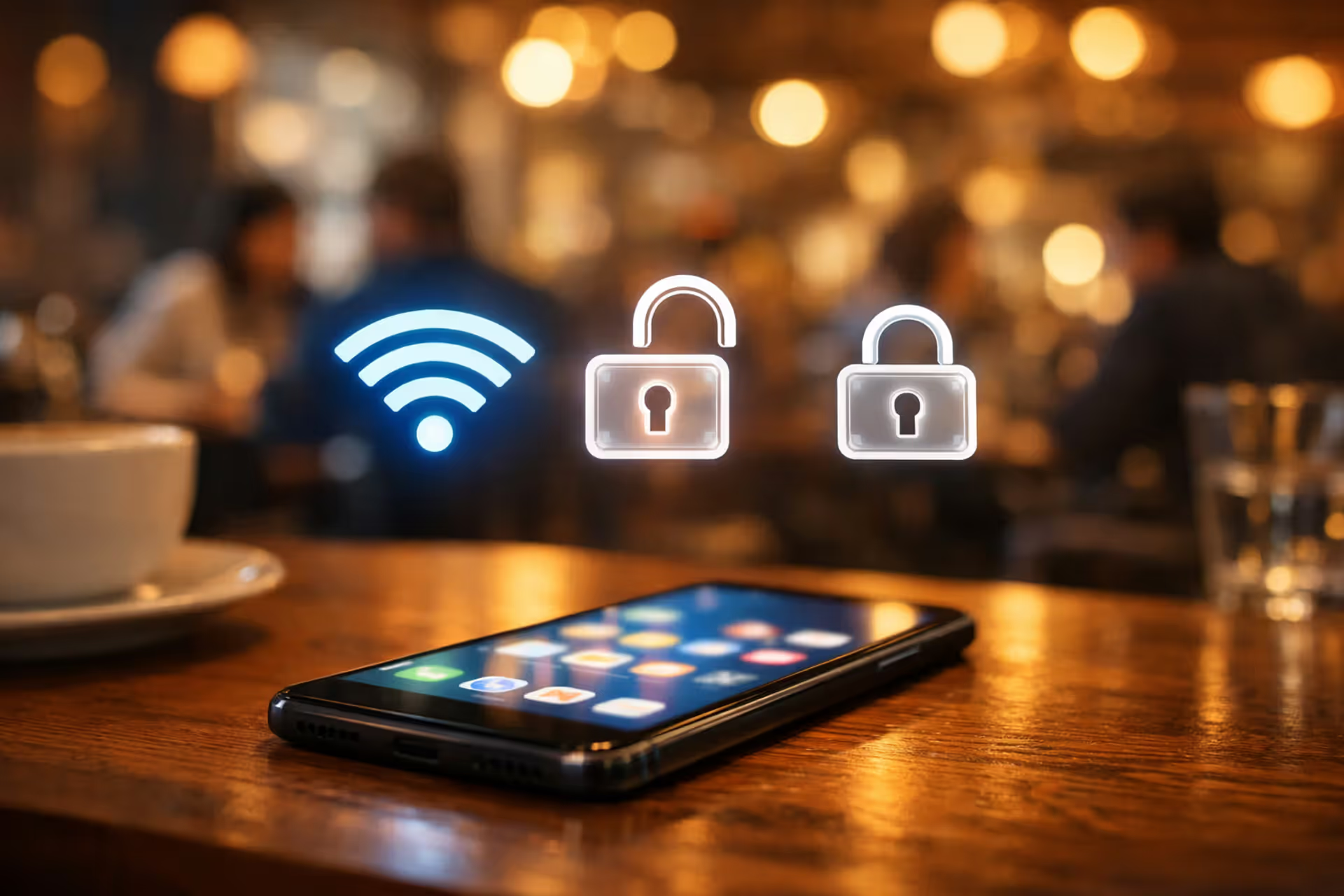
Smartphone on a cafe table with WiFi signal icons and security lock symbols floating above the screen, blurred people in the background
Can Someone Hack Into My Phone Through WiFi?

Content
Your smartphone connects to wireless networks everywhere you go—coffee shops, airports, hotels, and your living room. Every single connection opens a doorway that cybercriminals can potentially exploit to access your device. Here's the reality: attackers can absolutely compromise your phone through WiFi connections, though your actual risk varies based on which networks you use, how you protect yourself, and the skill level of anyone targeting you.
When you understand the specific methods attackers use—and recognize what makes your device an easy target—you can make smarter choices about where and when to connect.
How Hackers Target Phones on WiFi Networks
Cybercriminals don't need to physically touch your device to compromise it. Instead, they target vulnerabilities in how information travels from your phone to the wireless router, capturing sensitive data during transmission.
Man-in-the-Middle Attacks Explained
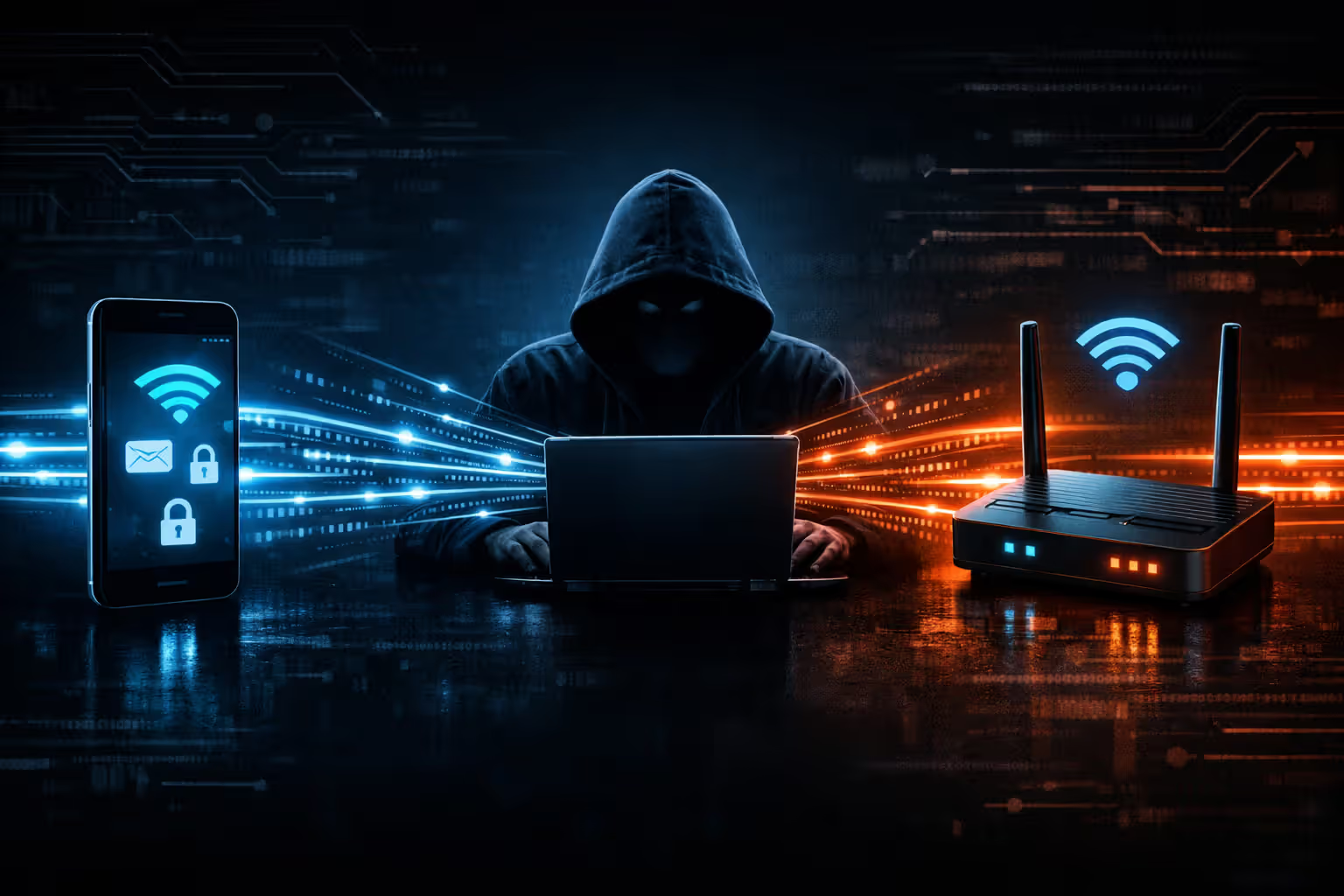
This attack type happens when someone inserts themselves between your device and the wireless access point, secretly intercepting and potentially modifying everything passing through. Your phone believes it's communicating directly with the legitimate router, while in reality, every bit of data flows through the attacker's equipment first.
Picture this real-world scenario: You're waiting at Gate 23 and connect to what appears to be the airport's official wireless network. A cybercriminal sitting three rows away runs specialized software that hijacks connection requests from nearby devices. When you open your email app, they record your username and password. When you scroll through Facebook, they copy session tokens that allow them to impersonate your identity. This entire compromise unfolds invisibly—your phone displays normal signal strength, websites load at typical speeds, and nothing triggers suspicion.
These interception attacks work because the average person cannot tell the difference between a legitimate connection and a compromised one. The network name appears correct, connectivity seems fine, and everything functions normally. Behind the scenes, the attacker quietly catalogs your account credentials, passwords, and online behavior patterns.
Public WiFi networks are essentially open highways for data. Without proper encryption, everything you send can be read by anyone positioned between you and the router
— Kevin Mitnick
Evil Twin and Rogue Hotspot Tactics
An evil twin network is a fraudulent wireless access point using an identical or extremely similar name to a legitimate network. Criminals establish these fake networks in crowded locations where people expect to find free internet access. The counterfeit network frequently broadcasts a stronger signal than the authentic one, causing smartphones to automatically select it.
Consider seeing two available networks labeled "Starbucks Guest" and "Starbucks_Guest"—one genuine, one malicious. Or an attacker might broadcast "ATT-WIFI" to impersonate AT&T's hotspot service. Most people won't catch the subtle naming discrepancy and will connect to whichever option their phone chooses automatically.
Rogue hotspots escalate this tactic by creating entirely fabricated networks with appealing names like "Free_Airport_WiFi" or "Hilton_Guest_Access." These networks exist exclusively to harvest information from unsuspecting users. Advanced versions actually provide working internet connections to avoid raising red flags while silently recording every action you take online.
Packet Sniffing and Data Interception
Packet sniffing involves capturing individual data packets as they move across a wireless network. On networks without encryption, anyone with basic sniffing tools can read these packets in plain text. Attackers monitor which sites you visit, what information you enter into forms, and any content transmitted without HTTPS protection.
The technical skills required for packet sniffing have become surprisingly basic. Free programs like Wireshark enable even novice attackers to capture network traffic after watching a few tutorial videos. On open public networks, your data packets intermingle with traffic from dozens of other users, and sniffing software filters this flood of information for valuable details—login credentials, email messages, or document transfers.
Even networks with encryption aren't necessarily safe. Skilled attackers can crack weak encryption or exploit known weaknesses in outdated WiFi security protocols like WEP or the original WPA standard. WPA3 represents the current gold standard and addresses many historical vulnerabilities, though countless routers still operate on WPA2 or even older protocols.
Author: Tyler Beaumont;
Source: flexstarsolutions.com
Public WiFi vs. Home WiFi: Understanding Your Risk Level
WiFi networks differ dramatically in their security characteristics. The protective measures implemented—or completely absent—determine how easily someone can intercept your information.
| Network Type | Protection Standard | Threat Level | Appropriate Activities | Safeguards Required |
| Open public hotspot | Typically none | Severe | Only non-sensitive browsing | Always use VPN; never access accounts |
| Password-shared public network | Limited (everyone knows password) | Substantial | Casual web surfing, reading news | VPN essential for any logins |
| Personal home network (WPA2/WPA3) | Robust (private password) | Minimal to Moderate | Most normal activities when maintained | Use complex password, update router firmware regularly |
| Cellular data (4G/5G) | High-grade (carrier-managed) | Minimal | Everything including financial transactions | Standard phone security measures adequate |
Public hotspots present the most dangerous scenario because all connected users share the same network infrastructure. When you join that open network at your local coffee shop, you're placing your device on the identical local network as every other patron. Anyone running packet-sniffing software can potentially monitor your traffic.
Password-protected public WiFi provides a false sense of security. While the password does encrypt data traveling between your device and the router, every single person using that network possesses the identical password. Other connected users can still potentially capture your traffic by using that shared encryption key.
Your personal home WiFi delivers substantially stronger protection when configured correctly. Your private password encrypts all transmitted data, and you maintain complete control over network access. However, home networks become vulnerable when you select weak passwords, neglect router firmware updates, or never change default administrator credentials that came with the device.
Cellular data connections implement carrier-level encryption that requires sophisticated equipment to intercept. For sensitive activities like accessing your bank account or entering credit card numbers, cellular data consistently provides superior security compared to public WiFi alternatives.
iPhone vs. Android: Which Is More Vulnerable on Public Networks?
iOS and Android devices both face wireless security threats, though their underlying security designs create different vulnerability profiles.
Apple's iOS incorporates multiple safeguards that reduce exposure on public networks. Beginning with iOS 14, iPhones generate randomized MAC addresses for every WiFi network you join, significantly complicating efforts by attackers to track your specific device across multiple locations. iOS also restricts what apps can do in the background and enforces strict sandboxing between applications, limiting what malicious software can access even after installation.
The closed ecosystem gives Apple control over both hardware components and software code, enabling rapid security updates that reach the vast majority of users within weeks after release. This quick update distribution closes discovered vulnerabilities before widespread exploitation occurs. iOS additionally requires apps to explicitly request permission before accessing sensitive information, providing clear visibility into what data each app can collect.
Android's open ecosystem creates a different security landscape. While Google's Pixel line and select flagship devices receive security patches monthly, numerous Android devices lag months or even years behind current protection standards. Hardware manufacturers must customize updates for their specific devices, introducing delays that leave documented vulnerabilities unpatched for extended periods.
Android does offer more detailed control over network configuration options. Users can set up VPN settings at the operating system level, deploy advanced firewall applications, and monitor network activity more comprehensively than iOS permits. Android also supports separate user profiles, enabling you to isolate work and personal information.
The practical vulnerability difference frequently boils down to device age and manufacturer commitment to updates. A current iPhone or Pixel device running recent software versions offers comparable protection. A three-year-old budget Android phone without security patches faces dramatically elevated risk from known exploits.
Both platforms defend against most WiFi-based attacks when properly maintained, but neither offers absolute protection. Your personal security habits matter significantly more than which operating system you choose. An iPhone owner who dismisses security warnings and installs suspicious configuration profiles faces greater risk than an Android user who follows security best practices consistently.

Author: Tyler Beaumont;
Source: flexstarsolutions.com
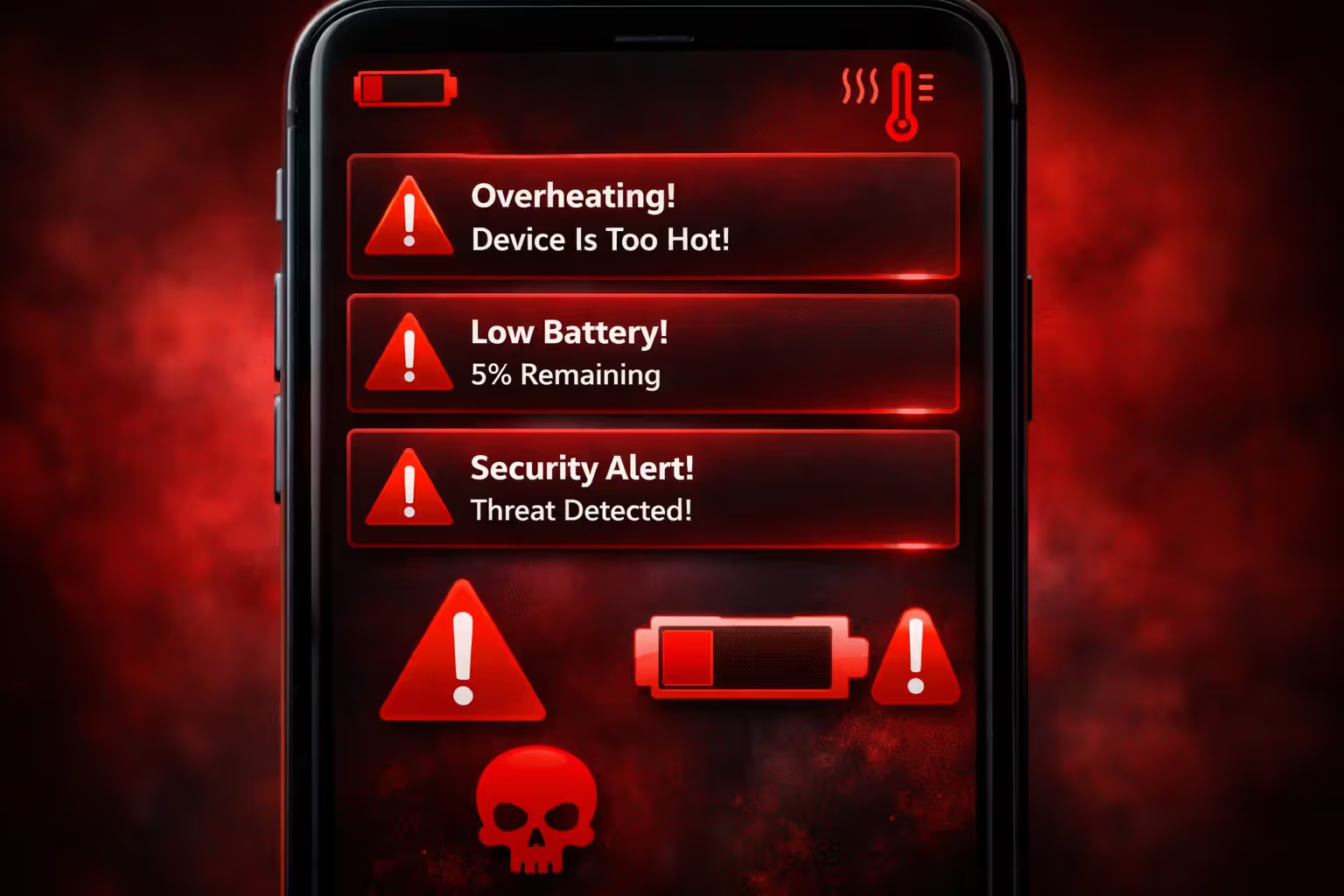
7 Warning Signs Your Phone May Be Compromised on a Network
Identifying an active attack isn't always straightforward, but specific indicators suggest your phone may be compromised while connected to WiFi.
1. Unexplained battery depletion that doesn't match your usage. Malicious software and surveillance tools run continuously in the background, consuming processing power and draining your battery at rates that normal activity can't explain. If your phone reaches 20% battery by 2 PM when it normally lasts until evening, and you haven't changed how you use it, something deserves investigation.
2. WiFi data consumption that dramatically exceeds your actual usage. Navigate to your phone's data usage breakdown by application. If particular apps display massive WiFi data consumption that doesn't correspond to your actual activity with those apps, they might be transmitting information to an attacker's remote server. A gallery app showing gigabytes of data usage when you haven't uploaded any photos indicates a serious problem.
3. Unfamiliar applications appearing on your device that you didn't download. Attackers frequently install remote control tools or monitoring software on compromised devices. These malicious apps often masquerade under generic names like "System Update" or "Android Services." Regularly audit your complete app list and uninstall anything you don't recognize.
4. Dramatic increase in pop-up advertisements and unexpected page redirects. If websites suddenly bounce you to different pages, or you encounter far more advertisements than usual, your connection might be compromised. Man-in-the-middle attacks frequently inject advertising content or redirect traffic to credential-harvesting phishing sites.
Author: Tyler Beaumont;
Source: flexstarsolutions.com
5. Browser security alerts and SSL certificate errors appearing frequently. When your browser displays warnings about SSL certificate problems on websites you regularly visit, someone may be attempting to intercept your encrypted connection. Legitimate, professionally-maintained websites don't suddenly develop certificate issues—these warnings typically indicate an attacker trying to decrypt your traffic.
6. Notifications about account access attempts you never made. If you receive emails reporting login attempts from unfamiliar locations, or discover your accounts were accessed at times you weren't using them, your credentials may have been captured on a compromised network. Immediately activate two-factor authentication on any affected accounts.
7. Device temperature increases during light use or idle periods. Malware operating in the background generates processor heat. If your phone feels noticeably warm when you're only reading articles or checking email, unauthorized software may be executing tasks you can't see. This symptom alone doesn't confirm compromise, but combined with other warning signs, it requires immediate attention.
What You Should Never Do on Public WiFi
Specific activities introduce unacceptable risk levels when performed over public wireless networks, regardless of how legitimate the connection appears.
Banking and financial account access represents the highest-risk activity to avoid. When you log into your bank account over public WiFi, you're transmitting credentials and potentially exposing account numbers, current balances, and recent transaction history. Even with HTTPS encryption providing some protection, known vulnerabilities exist. SSL downgrade attacks can force encrypted connections back to unencrypted protocols without generating obvious warnings.
If you absolutely must verify your bank balance while traveling, switch to cellular data rather than using public WiFi. The small amount of mobile data consumed costs infinitely less than dealing with account fraud and identity theft. Most banking applications implement certificate pinning technology that provides additional security layers, but public WiFi still introduces avoidable risk.
Entering passwords for critical accounts creates comparable exposure risks. Your primary email password unlocks access to password reset functionality for virtually every other account you maintain. Your workplace login credentials might grant access to corporate systems and confidential business information. Reserve password entry for secure networks or switch to mobile data when you need to log in.
Online shopping and payment processing warrant extreme caution. Typing credit card details, even on encrypted checkout pages, risks interception by sophisticated attackers. Criminals can harvest card numbers, security codes, and billing addresses. While credit card fraud protections limit your direct financial liability, resolving fraudulent charges consumes valuable time and creates significant hassle. Delay purchases until you're connected to a secure network or use cellular data.
Accessing workplace systems or proprietary documents demands extra vigilance. If your employer provides VPN credentials, activate that VPN before connecting to any work-related resources. Without VPN protection, you risk exposing proprietary business information, client records, or strategic planning documents. Many organizations explicitly prohibit accessing work systems over public WiFi networks precisely because of interception risks.
Large file transfers and cloud storage synchronization can expose sensitive personal documents. Automatically syncing your photo library might upload private images you'd prefer to keep confidential. Backing up your complete phone could transmit contacts, messages, and app data. Schedule these data-intensive activities for secure network connections where interception risk remains minimal.
Proven Methods to Protect Your Phone on Any WiFi Network
Comprehensive protection demands multiple overlapping security layers rather than depending on any single tool or configuration setting.
How VPNs Block WiFi-Based Attacks
A Virtual Private Network creates an encrypted tunnel between your phone and the VPN provider's server, scrambling all traffic so that interception becomes pointless. Even if an attacker successfully captures your data packets on public WiFi, they'll only see encrypted nonsense they cannot decipher.
VPNs defend against man-in-the-middle attacks by establishing encrypted communication channels before transmitting any actual data. The attacker might successfully intercept your network traffic, but they cannot read its contents or modify it without detection. Your internet service provider, the WiFi network operator, and anyone running packet-sniffing software only sees that you're connected to a VPN server—not which websites you visit or what information you transmit.
Selecting a VPN provider demands careful research. Free VPN services frequently log your online activity and monetize your data by selling it to advertising companies, completely undermining the privacy you're seeking. Prioritize providers with independently verified no-logging policies, military-grade encryption standards (AES-256), and server infrastructure spanning multiple countries. Trustworthy providers worth considering include Mullvad, ProtonVPN, and IVPN for their transparent operations.
VPNs involve certain trade-offs you should understand. They reduce connection speeds because your data must travel through an additional server before reaching its destination. You might experience slower page loading times or video buffering issues. Some websites actively block traffic originating from VPN servers or require additional identity verification steps when you access them. Banking websites occasionally flag VPN connections as potentially suspicious and temporarily lock accounts for security reviews.
For optimal protection, configure your phone to automatically activate your VPN whenever joining any WiFi network. Both iOS and Android support "always-on" VPN modes that completely block internet traffic if the VPN connection unexpectedly drops, preventing data leakage.

Author: Tyler Beaumont;
Source: flexstarsolutions.com
Essential Security Settings to Enable Now
Modern smartphones incorporate built-in security features that many users never discover or activate. Configuring these settings requires just a few minutes but dramatically reduces your vulnerability profile.
Deactivate automatic WiFi network joining. When your phone automatically reconnects to previously-used networks, it might connect to an evil twin impersonating that network without triggering any warnings. Require manual approval before joining networks, even ones you've connected to dozens of times previously.
Disable WiFi completely when you're not actively using internet connectivity. Leaving WiFi enabled causes your phone to continuously broadcast connection requests that reveal your location and network history to anyone monitoring nearby wireless signals. This also prevents unintentional connections to malicious networks that mimic familiar network names.
Activate two-factor authentication across all accounts containing sensitive information. Even if someone successfully captures your password over compromised WiFi, they cannot access your account without also possessing the second authentication factor. Prioritize authenticator applications over SMS-based codes when available—text messages can be intercepted through SIM swapping attacks that hijack your phone number.
Maintain current software versions on both your operating system and all installed applications. Software updates include security patches that close specific vulnerabilities attackers actively exploit. Configure automatic updates when possible or manually check at least weekly for available updates. Outdated software ranks among the most common factors contributing to successful device compromises.
Audit application permissions on a regular schedule. Countless apps request access to your location data, contact list, photos, and other sensitive information they absolutely don't need for their core functionality. Revoke unnecessary permissions, particularly for apps you rarely open. On iOS devices, navigate to Settings > Privacy & Security; on Android, access Settings > Security & Privacy > Permission Manager.
Implement strong, unique passwords for your home WiFi networks. Avoid predictable passwords like "welcome123" or your street address. A robust password contains at least 12-15 characters combining uppercase and lowercase letters, numbers, and special symbols. Consider creating a passphrase—a sequence of random words that's long enough to resist cracking but memorable enough for legitimate users.
Apps and Tools That Add Protection
Beyond native phone settings, specialized applications provide supplementary security layers specifically for WiFi connections.
Mobile firewall applications monitor and regulate network traffic at a granular level. On Android devices, applications like NetGuard and AFWall+ block selected apps from accessing the internet entirely, preventing potential data leakage. iOS offers more restricted options due to Apple's system limitations, though applications like Lockdown Privacy can block tracking scripts and advertising networks from collecting your data.
HTTPS-enforcement browser extensions guarantee encrypted connections whenever technically possible. HTTPS Everywhere automatically upgrades connections to encrypted versions when destination websites support secure protocols. While modern browsers increasingly handle this by default, dedicated extensions provide additional verification and force encryption even on sites that support but don't require HTTPS.
Network analysis tools help you detect suspicious activity on your current connection. Applications like Fing and Network Analyzer display every device currently connected to your WiFi network, helping you spot unexpected devices that might indicate a compromised router or rogue access point. They also reveal whether the network implements modern encryption standards or relies on outdated, vulnerable protocols.
Password manager applications reduce credential theft risk by automatically filling login information exclusively on legitimate websites. If you accidentally land on a phishing site designed to mimic your bank, your password manager won't autofill credentials because the domain name doesn't match the authentic site. This behavior provides an early warning that something isn't right with the page you're viewing.
DNS-level protection services like NextDNS or Cloudflare's 1.1.1.1 block access to known malicious domains and encrypt DNS queries that would otherwise be visible. When you type a website address into your browser, DNS services translate that human-readable address into the numerical IP address servers understand. Unencrypted DNS queries expose your complete browsing activity. Encrypted DNS adds a privacy layer and automatically blocks connections to documented malicious websites.
Frequently Asked Questions About WiFi Phone Security
WiFi-based phone compromises aren't hypothetical threats debated in cybersecurity forums—they occur thousands of times daily in coffee shops, airports, hotels, and other public spaces worldwide. Attackers consistently exploit the tension between convenience and security, targeting users who prioritize quick internet access over taking protective measures.
The encouraging reality: you don't need computer science expertise to defend yourself effectively. Connecting through a trustworthy VPN service on public networks, maintaining current device software, and avoiding sensitive activities on shared connections eliminates the overwhelming majority of risks. These protective practices require minimal time investment but deliver substantial security improvements.
Consider WiFi security analogous to locking your car doors. You wouldn't leave your vehicle unlocked in a crowded parking lot with valuable items visible on the seats. Similarly, you shouldn't leave your phone's wireless connection unprotected on public networks while sensitive personal data remains easily accessible. The brief moment required to activate a VPN or switch to cellular data for banking activities can prevent countless hours of remediation work after experiencing a security breach.
Your phone stores years of accumulated personal messages, private photos, financial records, and credentials providing access to virtually every dimension of your digital existence. Protecting that information on WiFi networks isn't excessive paranoia—it's fundamental digital hygiene in an environment where threats are demonstrably real and continuously evolving in sophistication.