Modern WiFi router on a desk in a dimly lit room with glowing signal waves and a laptop showing a security lock icon
How to Tell if Your WiFi Is Secure by Checking Your Router Settings

Content
Every bank transaction, every work document, every smart doorbell feed—all of it flows through your WiFi router. Most people set it up once when they move in, then forget it exists. That's exactly what hackers count on.
Here's what keeps me up at night: compromised networks don't send alerts. No pop-ups. No warnings. Someone could be siphoning your data right now, and you'd never know until fraudulent charges appear on your credit card—or worse, when police show up asking why illegal activity traces back to your address.
I've spent the last decade securing networks for small businesses, and I'll tell you a secret: checking your WiFi security takes about as long as making a sandwich. The hard part isn't the technical stuff—it's actually remembering to do it.
Let me show you exactly what to look for and how to fix vulnerabilities before they become expensive problems.
How to Check Your WiFi Security Protocol Right Now
The encryption protecting your network is either military-grade or embarrassingly broken. There's not much middle ground. Routers from 2018 onward typically support WPA3, yet I still find networks running protocols that were cracked when flip phones were cool.
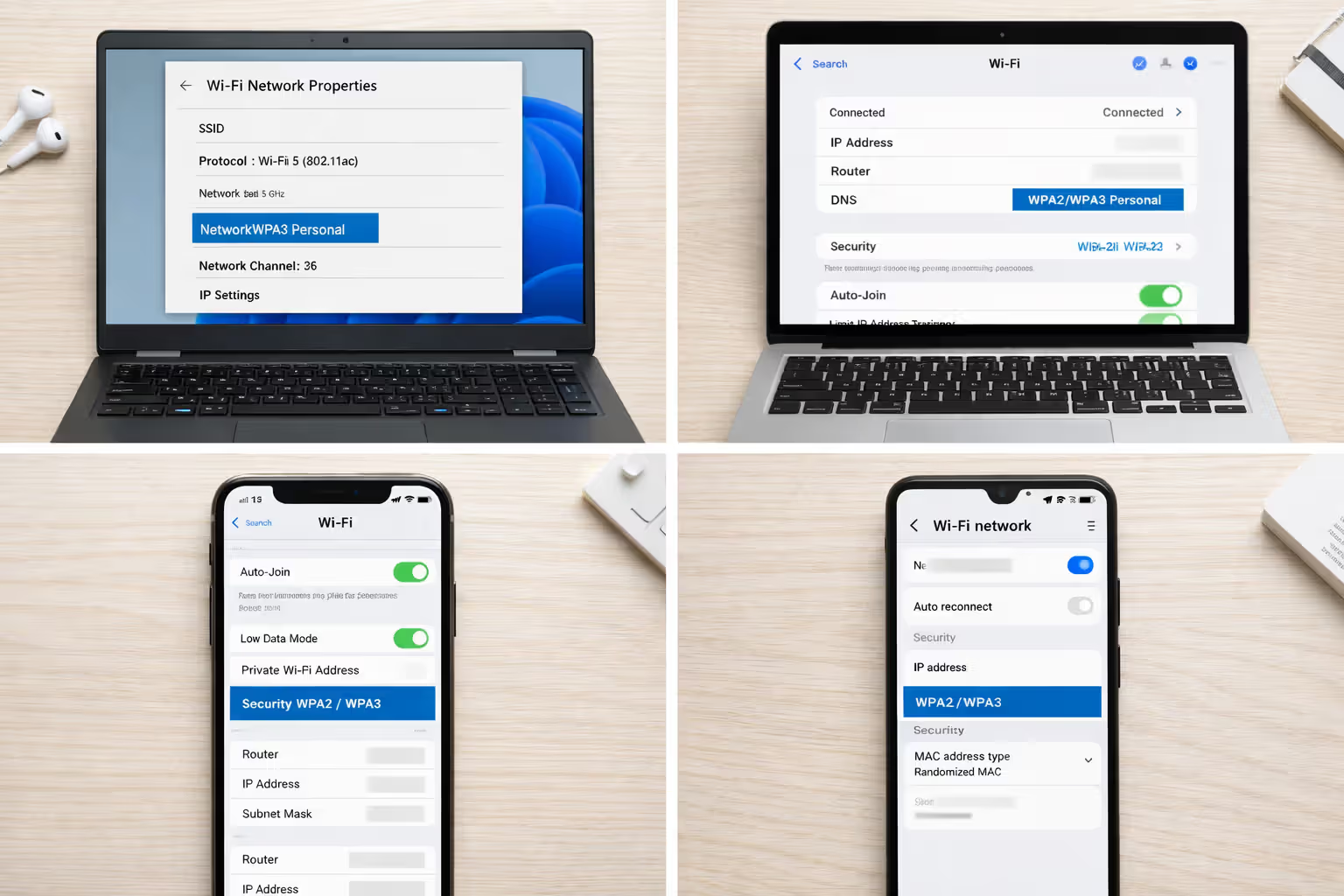
Finding WPA2 vs. WPA3 on Different Devices
Windows 10 or 11 users: See that WiFi icon in your system tray? Click it, then hit "Properties" under whatever network you're connected to. Scroll down until you spot "Security type." Could say "WPA2-Personal," might say "WPA3-Personal," or—and this happens a lot—"WPA2/WPA3 Transitional" (which means your router lets old gadgets connect with weaker protection).
Mac folks: Press and hold the Option key while clicking your WiFi menu bar icon. Network details appear, including a "Security" line. Modern Macs show it plainly: WPA2 Personal with AES, WPA3 Personal, or the ancient "WEP" that should make you immediately nervous.
iPhone and iPad: Apple buried this information several menus deep. Open Settings, tap WiFi, find the blue info circle next to your network's name, look for the "Security" row. Any iPhone from 2019 forward handles WPA3 just fine, though it'll drop down to WPA2 if that's what your router broadcasts.
Android devices: Head to Settings, then Network & Internet, tap WiFi, select your connected network. The security protocol appears somewhere in there—Android 10 and newer show it clearly, but Samsung, OnePlus, and other manufacturers sometimes hide it under "Advanced" sections.
Author: Tyler Beaumont;
Source: flexstarsolutions.com
Why WEP and WPA Are No Longer Safe
WEP died in 2001, yet refuses to stay buried. Security researchers demonstrated you could crack it in under a minute using freely available software. The protocol leaks information with every data packet, like leaving breadcrumbs straight to your front door. RC4 cipher implementation was fundamentally flawed from day one.
Original WPA (not WPA2—there's a difference) improved things slightly but kept too many of WEP's problems. Researchers broke TKIP encryption back in 2008. Anyone within range of your router can inject malicious packets and decrypt your traffic without touching your password.
Running either one? Assume your network is already compromised. Password complexity won't save you when the encryption itself is broken at the foundation.
5 Red Flags That Scream "Weak WiFi Security"
1. Internet Speeds Drop Without Explanation
You're paying Comcast $90 monthly for 500 Mbps downloads. Last week, Netflix streamed flawlessly in 4K. This week, buffering hits every thirty seconds. Before calling customer service and spending an hour on hold, consider this: someone might be streaming torrents on your connection.
Try this test—run a speed check at 3 AM when everyone's asleep. If speeds return to normal, but daytime performance tanks, unauthorized users are the likely culprit. I've seen neighbors freeload for months, even running gaming servers that maxed out upload bandwidth.
2. The Router Admin Panel Shows Unfamiliar Device Names
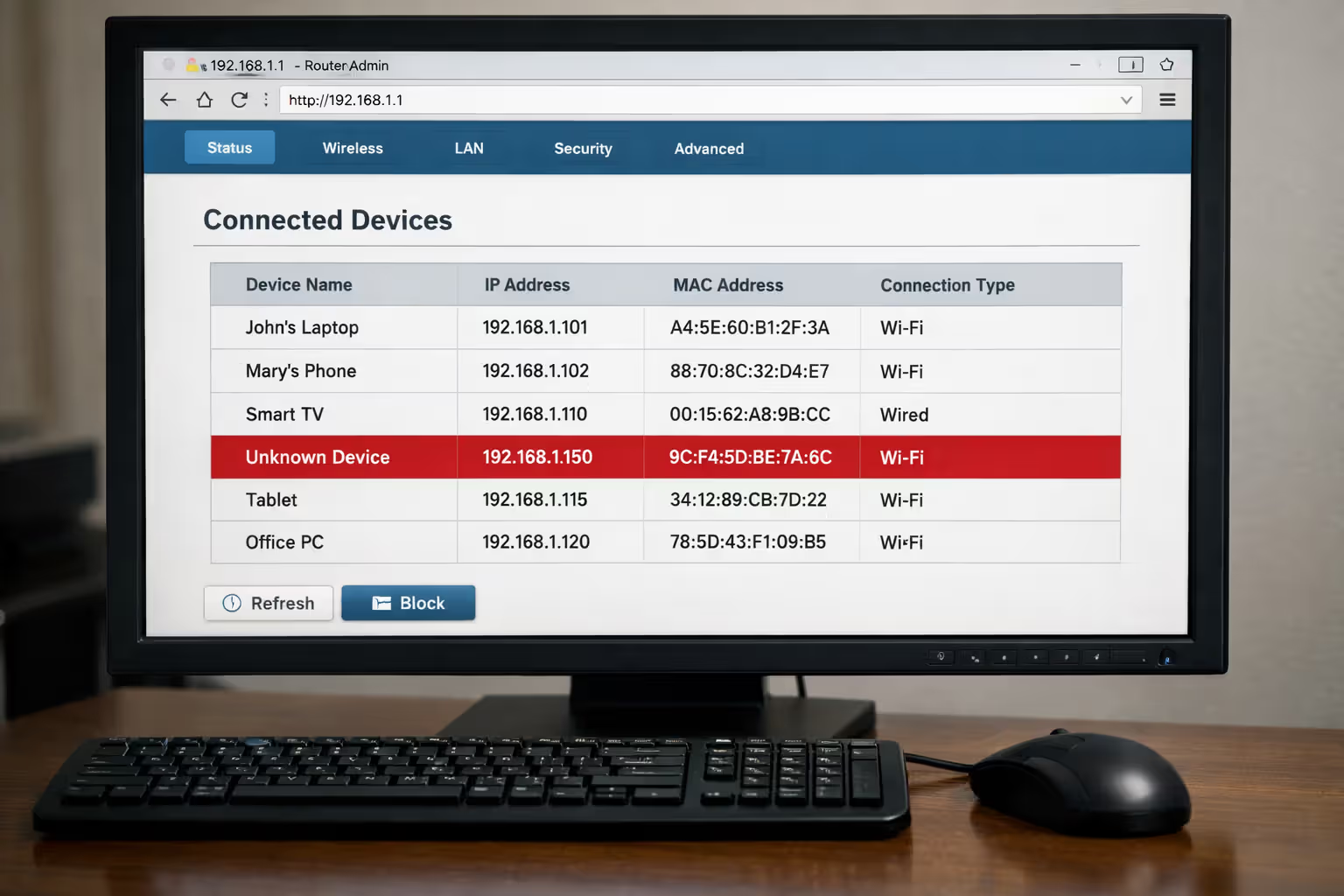
Log into your router's control panel (usually found by entering 192.168.1.1 into Chrome's address bar, though some use 192.168.0.1 or 10.0.0.1). Navigate to the connected devices section. You should recognize absolutely everything there.
Modern routers display manufacturer names—you'll see "Apple iPhone," "Samsung Galaxy," "Google Nest." But if "DESKTOP-7XK2P91" appears and you've never owned a desktop, that's your first warning sign. Device names can be faked, sure, but mystery entries deserve investigation.
3. Router Settings Change Without Your Input
You definitely didn't enable port forwarding. Yet suddenly port 22 sits wide open to the internet. The DNS servers pointed to Cloudflare yesterday; today they're routing through unfamiliar IP addresses in Eastern Europe.
These changes don't spontaneously occur. Someone accessed your admin panel. Attackers love modifying DNS because they can redirect your traffic through malicious servers that capture passwords and credit card numbers without you noticing anything wrong.
Author: Tyler Beaumont;
Source: flexstarsolutions.com
4. Data Usage Spikes on Your ISP Bill
Your household typically burns through 300 GB monthly—streaming, gaming, video calls, the usual stuff. This month's bill shows 850 GB. Nobody changed their habits. The kids didn't suddenly discover 4K YouTube.
Check your router's traffic statistics if it tracks them. Many models show total transmitted and received data. Unexplained jumps often mean someone's treating your connection like their personal download server.
5. You've Never Changed the Default Password
See that sticker on your router's bottom? "Password: admin123" or "Default Key: 12345678"—millions of routers ship with identical credentials. Entire databases of default passwords exist online, organized by manufacturer and model number.
Default passwords on routers and IoT devices represent one of the most common entry points for attackers. Changing these credentials immediately after installation should be non-negotiable for any user concerned about security
— The Cybersecurity and Infrastructure Security Agency
If you've never customized yours, treating it as already compromised isn't paranoia—it's realism.
Scanning for Unknown Devices on Your Network
Identifying intruders requires knowing what's legitimately connected. Two approaches give you this visibility, each with trade-offs worth understanding.
Router Admin Panel Method
Every router maintains a real-time roster of connected devices. Open Chrome, Firefox, or Safari and enter your router's IP address—try 192.168.1.1 first, then 192.168.0.1, maybe 10.0.0.1 if the first two don't work. Check the router's label if you're stuck.
Never logged in before? Default credentials appear on that same label (change them within five minutes of getting in—seriously).
Interface layouts vary wildly by brand:
- Netgear models: Hunt for "Attached Devices" in the main dashboard
- TP-Link routers: Look under the Wireless tab for "Wireless Statistics"
- Asus systems: "Network Map" or "Clients" appears in the left sidebar
- Linksys equipment: Try "Device List" under Status
You'll see MAC addresses (hardware fingerprints), IP assignments, device names, and connection timestamps. Cross-reference everything against your known inventory—phones, laptops, tablets, smart TVs, thermostats, cameras. Anything unaccounted for needs immediate attention.
The weakness? This only shows currently connected devices. An attacker who pops on sporadically might vanish by the time you check.
Third-Party Network Scanner Apps
Network scanning tools probe your local environment and report every device, often with richer detail than router interfaces provide. Three worth trying:
Fing (works on iOS, Android, Windows, Mac): Scans complete in seconds and identifies device types with scary accuracy. It doesn't just say "Apple device"—it pinpoints "iPhone 13 Pro." The app maintains historical records showing devices that connected previously but aren't online currently.
Angry IP Scanner (Windows, Mac, Linux): Open-source software that pings every address in your network range. Faster than router dashboards for large networks, though you'll need basic understanding of IP addressing concepts.
Wireless Network Watcher (Windows only): Lightweight program running in the background, alerting you whenever new devices join. Better for ongoing monitoring than one-time audits.
Run scans from multiple devices when possible. A compromised laptop might hide the attacker's device from its own scan, but your phone won't.
Your Router's Admin Password: The Overlooked Vulnerability
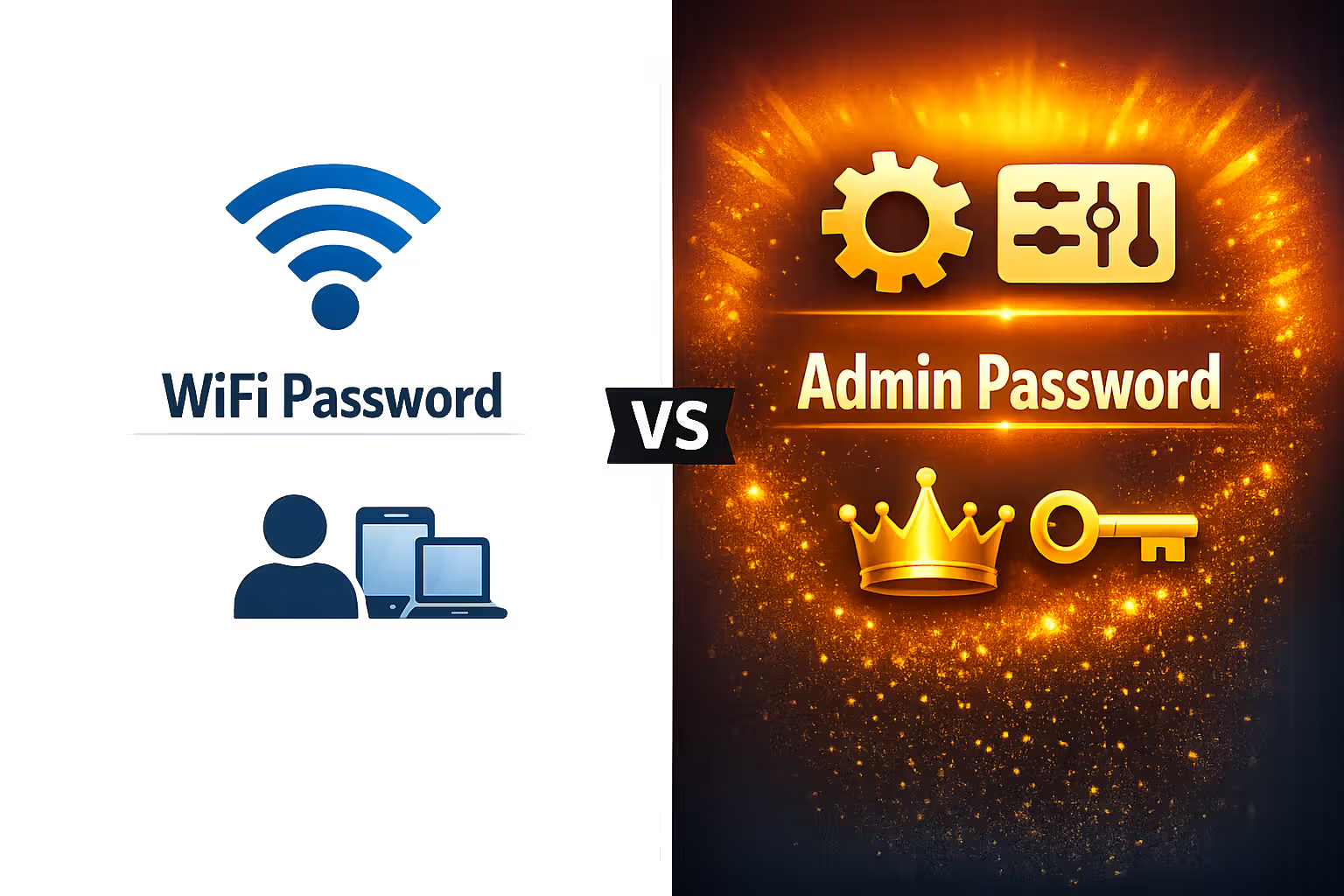
People constantly confuse two separate passwords: the WiFi password (connects devices to your network) versus the admin password (controls router settings). Both matter, but the admin password is arguably more critical.
Compromise the WiFi password? They steal bandwidth and potentially intercept unencrypted traffic. Annoying, but manageable.
Compromise the admin password? They control everything—encryption settings, firewall rules, port forwarding configurations, DNS servers, even the WiFi password itself. An attacker with admin access can:
- Lock you out by changing your WiFi password
- Redirect traffic through malicious proxies
- Turn off encryption completely
- Create hidden networks for persistent backdoor access
- Inject malicious firmware with permanent backdoors
Author: Tyler Beaumont;
Source: flexstarsolutions.com
Test whether yours remains at factory default by attempting common logins. Try "admin/admin," then "admin/password," maybe "admin/1234." Visit RouterPasswords.com and search your model for its defaults. If any combination works, stop reading and change it immediately—minimum 16 characters mixing uppercase, lowercase, numbers, symbols.
Store the new password in Bitwarden, 1Password, or whatever password manager you prefer. Don't write it on a Post-It stuck to the router. That defeats the entire exercise.
Some routers restrict admin access to Ethernet-connected devices only. Enable this "wired-only management" feature if your model supports it—prevents remote attacks entirely.
Critical WiFi Security Settings You Should Change Today
Factory defaults prioritize easy setup over protection. Manufacturers assume you'll customize everything later. Most people don't. These adjustments take fifteen minutes and dramatically shrink your attack surface.
WiFi Security Protocols Compared: Which One Do You Have?
| Protocol | Launch Year | Security Strength | Use It? | Upgrade Path |
| WEP | 1999 | Completely broken—cracks in 60 seconds | Absolutely not. If this is your only option, buy new hardware. | Check wireless settings for WPA2/WPA3 support; if absent, replace the router. |
| WPA | 2003 | Severely compromised—practical exploits exist | Never, unless supporting ancient devices that lack WPA2. | Switch to WPA2 in security settings; retire incompatible hardware. |
| WPA2 | 2004 | Strong with proper configuration | Yes, when WPA3 isn't available. Requires AES, not TKIP. | Any router from 2006 forward supports it; activate in wireless security menu. |
| WPA3 | 2018 | Current strongest standard | Definitely. Offers forward secrecy and brute-force protection. | Needs hardware from roughly 2019 onward; enable WPA3-only or mixed WPA2/WPA3 mode. |
Disabling WPS
WiFi Protected Setup sounded brilliant in theory—press a button on the router, press another on your device, instant pairing. Reality delivered a catastrophic vulnerability instead.
The 8-digit authentication PIN gets brute-forced in hours because routers validate the first half and second half separately. This shrinks possibilities from 100 million down to roughly 11,000. Attacks succeed even if you've never touched WPS, even with strong WiFi passwords. The protocol itself is fundamentally broken.
Hunt for WPS in your router's menus—probably under "Wireless Settings," "Advanced," or "Security." Some call it "Wi-Fi Simple Config" or show a physical button icon. Turn it off. Verify it stays off after firmware updates—I've seen updates re-enable disabled features.
Enabling Network Encryption
Beyond choosing WPA2 or WPA3, verify your router uses AES encryption rather than TKIP. TKIP exists purely for compatibility with devices older than dirt. AES—Advanced Encryption Standard—is what governments use for classified information.
In wireless security settings, select "WPA2-PSK (AES)" or "WPA3-Personal (AES)." Avoid anything mentioning "TKIP" or "TKIP+AES" mixed mode. The latter allows devices to negotiate down to weaker protection.
Own something requiring TKIP? It's at least fifteen years old. Replace it.
Hiding Your SSID (Pros and Cons)
Network names broadcast by default so devices can discover them. Disabling SSID broadcast adds a small speed bump for casual attackers while creating usability headaches.
Benefits: Neighbors casually browsing available networks won't spot yours. Signals you've moved beyond default settings, which deters unsophisticated attackers.
Downsides: Hidden networks still transmit packets revealing their existence to anyone running proper scanning tools. Connecting new devices becomes tedious—manual entry of exact network names required. Older devices sometimes fail with hidden networks entirely.
My take: Hiding your SSID delivers minimal security improvement. Strong encryption and passwords matter infinitely more. If you hide it anyway, understand you're relying on obscurity, not genuine protection.
Setting Up a Guest Network
Guest networks create isolated WiFi connections. Visitors get internet without seeing your computers, NAS storage, or smart home ecosystem.
Most contemporary routers include guest features. Turn it on and configure these:
- Separate password: Never reuse your primary network password
- Client isolation: Stops guest devices from talking to each other
- Bandwidth caps: Optional, but useful if you host frequently
- Scheduled disconnect: Some routers disable guest networks automatically on timers
Use guest networks for your own IoT garbage too. That $20 security camera or sketchy smart plug doesn't need access to your file server. Isolation contains damage when—not if—the device gets compromised.
Complete WiFi Security Checklist: Monthly and Annual Tasks
Security isn't configure-once-and-forget. It demands ongoing maintenance without becoming obsessive.
Monthly (fifteen minutes):
- Review connected devices in admin panel
- Check for available firmware updates
- Verify no unexpected port forwarding exists
- Run Fing or equivalent network scan
- Examine data usage for anomalies
Every Three Months (thirty minutes):
- Generate new WiFi password (20+ random characters via password manager)
- Update guest network password
- Review router logs for failed login attempts
- Confirm WPS remains disabled
- Audit which devices have admin privileges
Annually (one hour):
- Change router admin password
- Audit and update all security configurations
- Check for major firmware releases
- Evaluate hardware replacement needs (consider upgrading after five years)
- Document all network devices and their functions
Immediately After Any Security Scare:
- Change WiFi and admin passwords now
- Install latest firmware version
- Factory reset router and rebuild configuration from scratch
- Scan all computers for malware
- Monitor financial accounts for suspicious activity
Set phone calendar reminders. Security through procrastination fails 100% of the time.
What to Do If You Discover Your WiFi Has Been Compromised
Author: Tyler Beaumont;
Source: flexstarsolutions.com
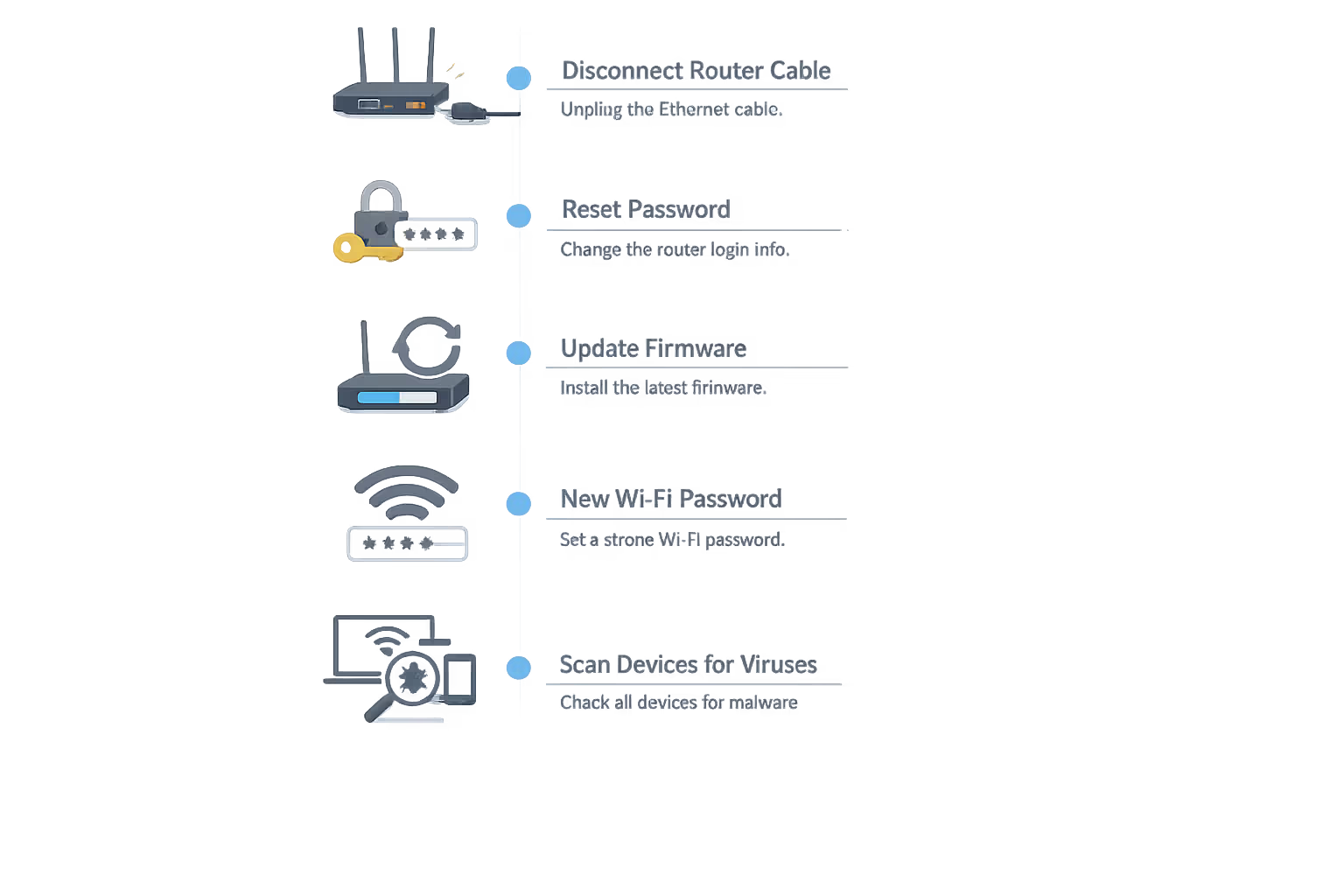
Finding unauthorized devices triggers immediate panic. Channel that adrenaline into systematic recovery, not random flailing.
Step 1 (two minutes): Cut the internet connection. Unplug the Ethernet cable connecting your modem to your router. This boots the attacker immediately while keeping your local network operational for investigation and changes.
Step 2 (three minutes): Reset admin credentials. Log into the router interface and create a new, strong admin password. Can't log in because someone changed it already? Factory reset time—hold the physical reset button for 10-30 seconds until lights flash or blink differently.
Step 3 (ten minutes): Install firmware updates. Visit your router manufacturer's support website, download the latest firmware for your specific model number, and install it. Attackers exploit known vulnerabilities that updates patch.
Step 4 (two minutes): Create new WiFi password. Use your password manager to generate 20+ characters of random chaos. This disconnects all devices currently online, including the attacker.
Step 5 (fifteen minutes): Audit every setting. Verify WPS is disabled, encryption shows WPA2 or WPA3, no suspicious port forwarding rules exist, DNS servers point somewhere legitimate (Cloudflare uses 1.1.1.1 and 1.0.0.1; Google uses 8.8.8.8 and 8.8.4.4).
Step 6 (twenty minutes): Reconnect legitimate devices only. Manually reconnect phones, laptops, tablets, everything else using the fresh password. This forces you to account for each device individually.
Step 7: Monitor for 48 hours. Check connected devices every few hours. If mystery devices reappear, malware on one of your computers might be sharing the new password.
Step 8: Scan everything for malware. Run complete antivirus scans on every computer connected during the compromise. Malwarebytes' free version catches threats traditional antivirus misses.
Step 9: Change sensitive account passwords. If you accessed banking, email, or work systems over the compromised network, change those passwords from a device on a completely different network—use your phone on cellular data.
Step 10: Consider involving police. If you spot fraudulent charges, identity theft indicators, or evidence the attacker used your connection for illegal activity, document everything and contact local law enforcement.
Frequently Asked Questions About WiFi Security
Your WiFi network's security determines whether your digital life stays private or becomes an open book for neighbors, criminals, or surveillance operations. The difference between a secure and vulnerable network isn't technical complexity—it's thirty focused minutes on settings most people completely ignore.
Start by checking your security protocol. If you're not running WPA2 at absolute minimum, everything else becomes academic. Update or replace hardware incapable of supporting modern encryption standards.
Then audit who's actually connected. Unknown devices don't belong—remove them immediately and rotate your passwords. Enable guest networks for visitors and IoT devices to isolate potential breach points.
Finally, transform security maintenance into habit rather than crisis response. Monthly device audits and quarterly password rotations catch problems early, before they escalate into identity theft or worse consequences.
The tools exist. The knowledge sits right here. Time investment is minimal. The only remaining question: will you act before or after discovering someone's been freeloading on your network for months?