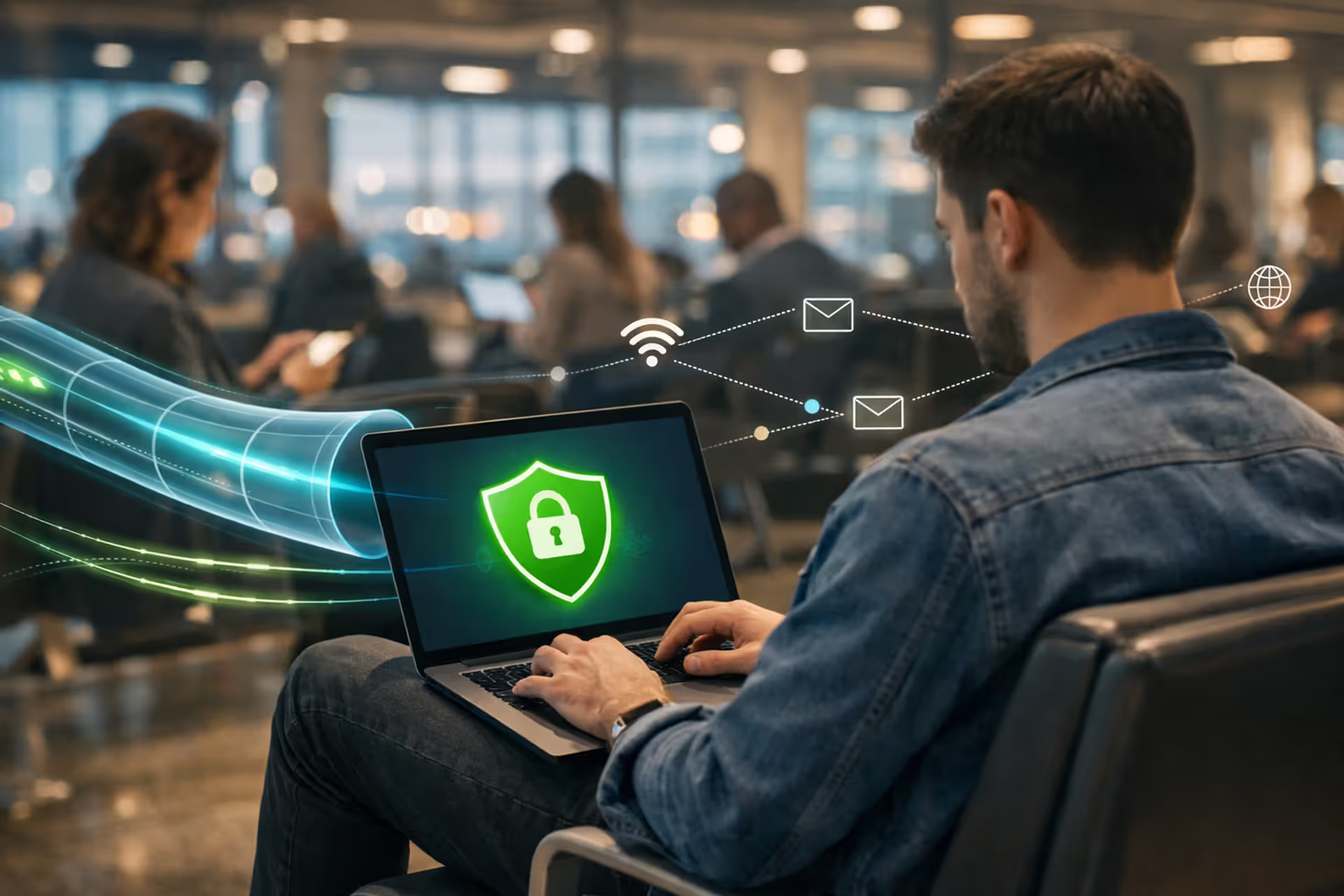
Person using laptop with VPN shield icon in airport lounge surrounded by data streams showing encrypted and unencrypted connections
Is It Safe to Use a VPN on Public WiFi?

Content
You've connected to the airport WiFi, launched your VPN app, and watched the connection icon turn green. Safe now, right? Not exactly. While a VPN dramatically improves your security on public networks, it doesn't create an impenetrable shield around your device. Understanding what protection you actually get—and what gaps remain—determines whether you're truly safe or just feel that way.
How Public WiFi Puts Your Data at Risk
Public WiFi networks operate fundamentally differently than your home network. Most coffee shops, airports, and hotels configure their networks for convenience, not security. There's no password requirement, or if there is one, it's shared with every customer. This creates multiple attack vectors that criminals actively exploit.
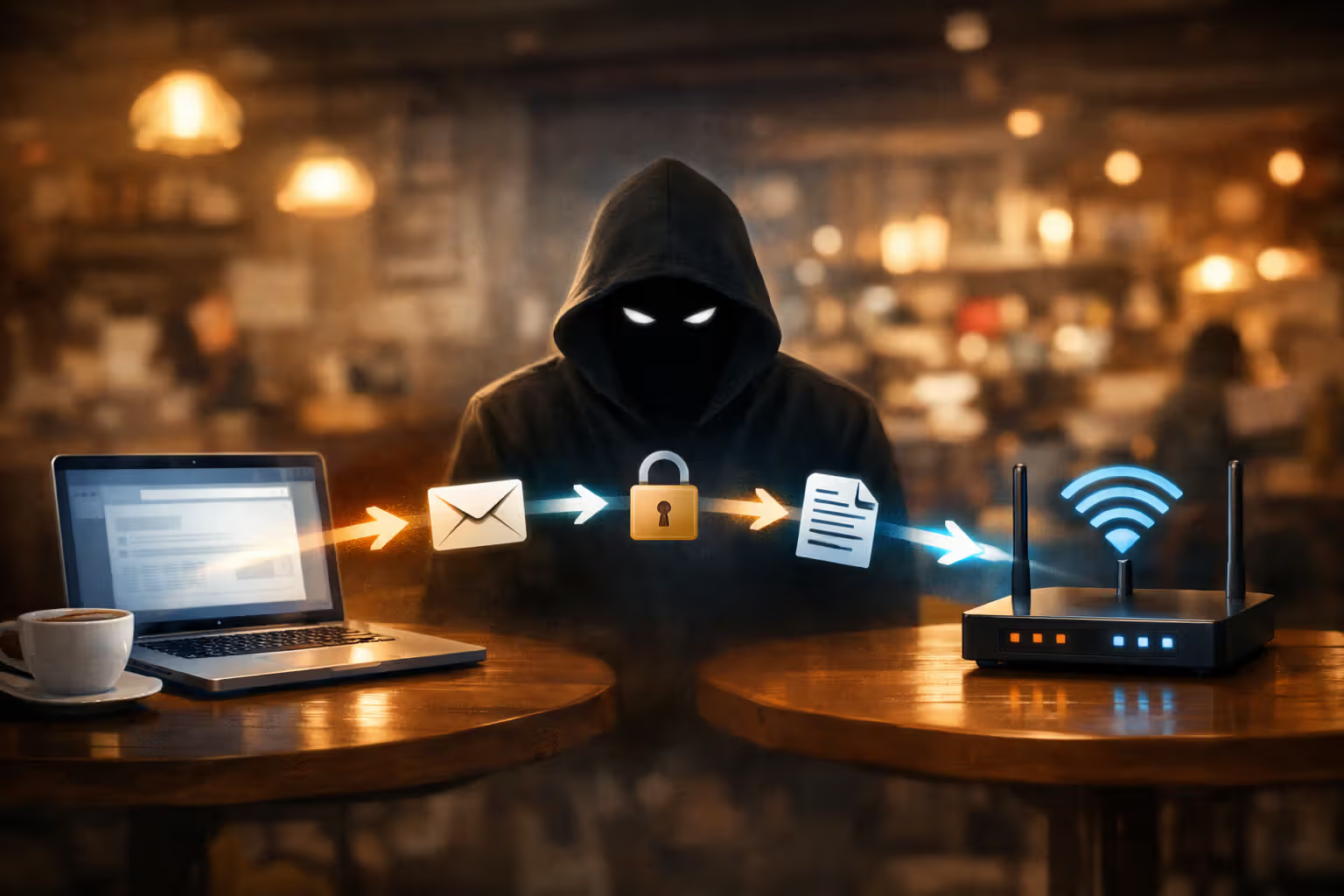
Man-in-the-middle attacks happen when an attacker positions themselves between your device and the router. They intercept every packet of data you send—login credentials, messages, browsing history. On public WiFi, this is shockingly easy. The attacker doesn't need to break into anything; they just need to be on the same network, using readily available software that requires minimal technical knowledge.
Packet sniffing tools let attackers capture data transmitted over the network. Unencrypted traffic appears in plain text. Even if you're only checking sports scores, the attacker sees which sites you visit, building a profile of your interests and habits. If you log into an HTTP site (not HTTPS), they capture your username and password directly.
Evil twin networks are fake hotspots with names similar to legitimate ones. You see "Airport_Free_WiFi" and "Airport-Free-WiFi" in your network list. One is real; one belongs to an attacker who set up a rogue access point. Connect to the fake one, and every bit of data flows through their device first. They see everything, modify anything, and can inject malware into your downloads.
Session hijacking targets your active logins. Many websites use cookies to keep you logged in. If an attacker steals these session cookies over public WiFi, they can impersonate you without needing your password. They access your account as if they were you, potentially for hours until the session expires.
Author: Caroline Prescott;
Source: flexstarsolutions.com
These aren't theoretical risks. Security researchers regularly demonstrate these attacks at conferences. The tools are free, the tutorials are on YouTube, and the success rate on public networks is disturbingly high.
What a VPN Actually Protects on Public WiFi (and What It Doesn't)
A VPN creates an encrypted tunnel between your device and the VPN server. Here's what that means in practice: when you request a website, the data travels encrypted from your device to the VPN server, then from there to the destination website. Anyone monitoring the public WiFi sees encrypted gibberish, not your actual traffic.
What gets protected: - Your browsing activity and the specific pages you visit - Login credentials sent to websites - Messages, emails, and file transfers - Your real IP address (websites see the VPN server's IP instead) - DNS queries (which websites you're looking up), if your VPN includes DNS protection
This encryption defeats packet sniffing and man-in-the-middle attacks targeting your data in transit. The attacker on the public network sees that you're connected to a VPN server but can't decipher what you're doing.
What remains vulnerable: - Malware already on your device - Phishing attacks that trick you into entering credentials on fake websites - Data you intentionally share on websites or apps - Device operating system vulnerabilities - Compromised apps that leak data outside the VPN tunnel
| Threat Type | Without VPN | With VPN | Additional Protection Needed |
| Data interception | Completely exposed | Encrypted and protected | None—VPN solves this |
| IP tracking | Your real IP visible | VPN server IP shown instead | Use privacy-focused browser settings |
| Malware | Vulnerable | Still vulnerable | Antivirus software, OS updates |
| Device vulnerabilities | Exploitable | Still exploitable | Regular security patches, firewall |
| Captive portal exposure | Brief exposure | Brief exposure before connection | Minimize data sync during this window |
| DNS leaks | ISP/network sees all lookups | Protected if VPN includes DNS protection | Verify your VPN has DNS leak protection |
The Captive Portal Problem: Why Your VPN Can't Connect Immediately
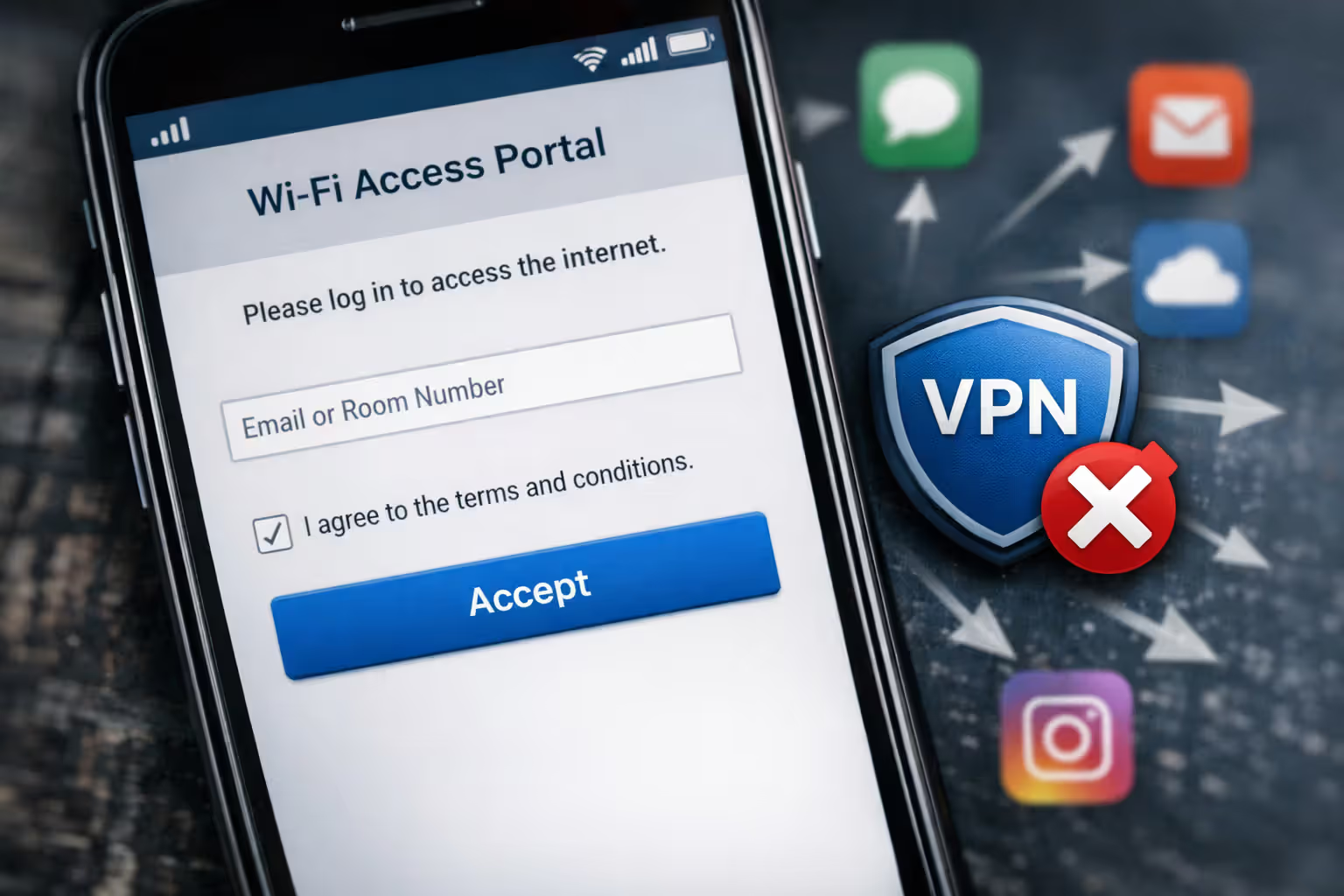
Here's a frustration every VPN user encounters on public WiFi: you connect to the network, launch your VPN, but it won't connect. You need to open a browser first and click "Accept Terms" on the captive portal page—that splash screen asking you to agree to terms of service or enter a room number.
During these 30 to 60 seconds before your VPN activates, your device is exposed. It might automatically check for emails, sync cloud files, or ping app servers. This brief window creates vulnerability. Some devices send identifying information in the clear, and background apps may transmit data unencrypted.
The technical reason: captive portals work by intercepting all your traffic until you authenticate. Your VPN can't establish its encrypted tunnel until the network allows normal internet access. There's no way around this on most public networks.
Author: Caroline Prescott;
Source: flexstarsolutions.com
Device-Level Vulnerabilities a VPN Won't Fix
Your VPN protects data traveling between your device and the internet. It doesn't patch security holes in your operating system, scan for malware, or fix misconfigured settings. If your device has vulnerabilities, attackers on the local network can potentially exploit them directly.
Outdated operating systems contain known security flaws. Attackers scan public networks for devices running vulnerable versions of Windows, macOS, Android, or iOS. They attempt exploitation directly against your device, bypassing your internet connection entirely. Your VPN never sees this traffic because it's not going through the VPN tunnel.
Similarly, if you've installed a compromised app—perhaps a flashlight app that's actually spyware—it may transmit your data outside the VPN's protection. Some malicious apps specifically route their traffic to avoid VPN tunnels.
5 Mistakes That Make Your VPN Protection Worthless on Public Networks
1. Auto-connecting to open networks before launching your VPN
Most phones automatically connect to known networks. You walk into a coffee shop, and your phone joins the WiFi before you even sit down. Apps start syncing immediately. By the time you remember to start your VPN, your email app has already checked for new messages over the unprotected connection.
Solution: Disable auto-join for public networks in your settings. Manually connect only after your VPN is active, or configure your VPN to connect automatically when joining unfamiliar networks.
2. Using free or unreliable VPN services
Free VPNs need revenue somehow. Some inject ads into your browsing. Others log your activity and sell that data to advertisers—defeating the entire purpose. The worst ones contain malware or create security vulnerabilities rather than fixing them.
Even legitimate free VPNs typically limit bandwidth, throttle speeds, and restrict server options. When the free VPN is slow, users disconnect it to load a webpage faster, leaving themselves exposed.
3. Ignoring HTTPS and assuming the VPN handles everything
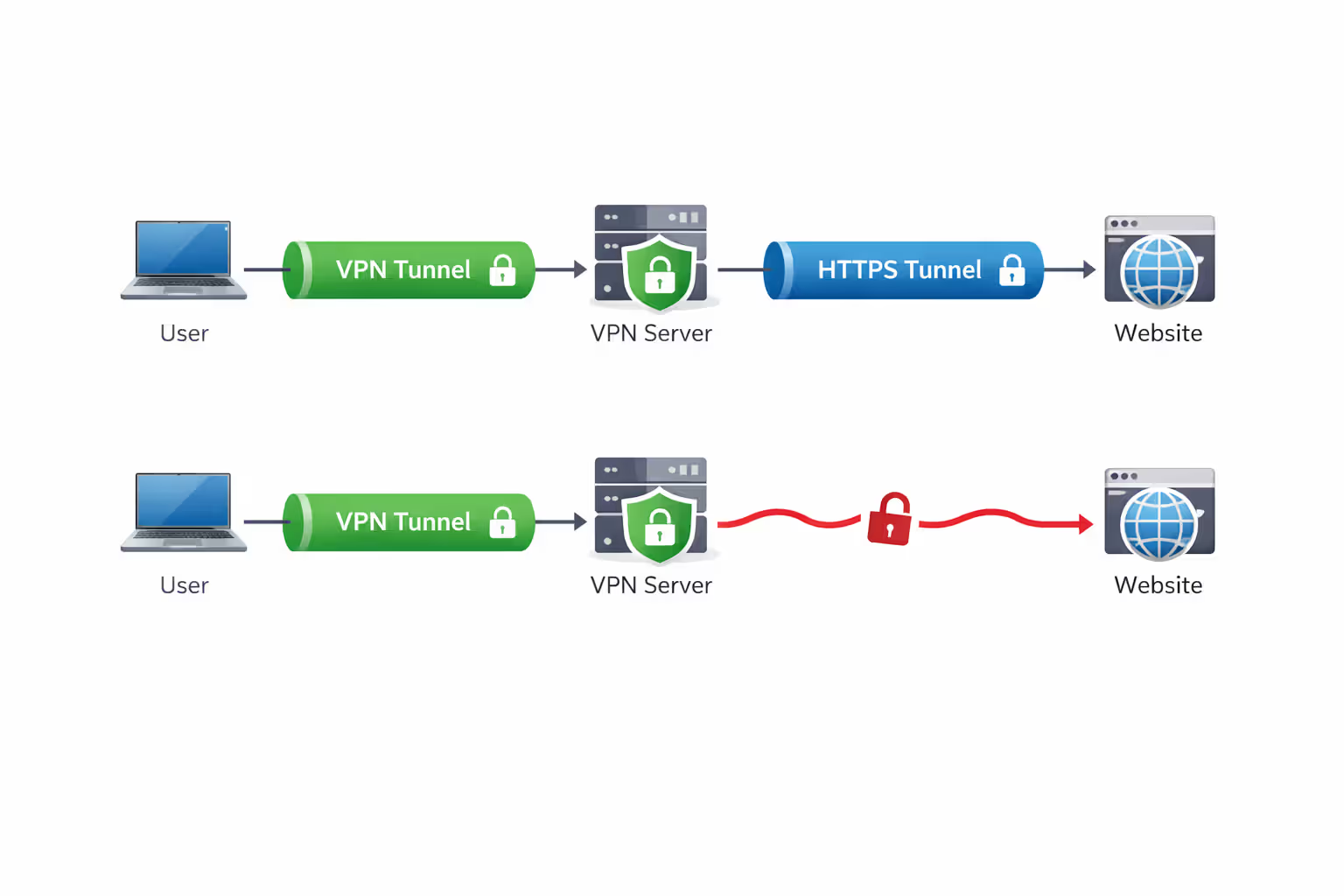
A VPN encrypts your traffic from your device to the VPN server. After that, your traffic travels normally to the destination website. If you're visiting an HTTP site (not HTTPS), that final leg is unencrypted. While the public WiFi attacker can't see it, others along the route potentially can.
Always verify the padlock icon appears in your browser's address bar. On public WiFi with a VPN, you want two layers: VPN encryption for the local network threat, HTTPS encryption for end-to-end protection.
Author: Caroline Prescott;
Source: flexstarsolutions.com
4. Connecting to the network before your VPN activates
The sequence matters. If you connect to public WiFi and then launch your VPN, there's a gap—sometimes 10 to 30 seconds—where your device communicates unprotected. Background processes don't wait for you to enable security.
Better approach: On mobile devices, enable "Always-on VPN" or "VPN on demand" in settings. On laptops, launch your VPN client before connecting to the public network when possible, or immediately after before doing anything else.
5. Disabling the kill switch feature
Most quality VPNs include a kill switch—a feature that blocks all internet traffic if the VPN connection drops. Users sometimes disable this because it interrupts their connection when the VPN has issues.
Without a kill switch, if your VPN disconnects (which happens occasionally on unstable public WiFi), your device seamlessly switches to the unprotected network connection. You might not notice for minutes. During that time, you're completely exposed, possibly while accessing sensitive information.
Your Public WiFi Safety Checklist: Beyond Just Using a VPN
Before connecting: - Update your operating system and apps to the latest versions - Enable your device's built-in firewall - Disable file sharing and AirDrop (set to "Contacts Only" or "Off") - Turn off auto-connect for WiFi networks in your settings - Launch your VPN app and verify it's ready to connect
When connecting: - Verify the network name with staff—confirm you're joining the legitimate network - Connect to the network, then immediately activate your VPN -Complete the captive portal authentication as quickly as possible - Verify your VPN shows "Connected" before opening any apps - Test your VPN is working by checking your IP address at a site like ipleak.net
While connected: - Confirm HTTPS (padlock icon) for any site where you enter information - Avoid downloading software or files when possible -Don't access your most sensitive accounts (see next section) - Monitor your VPN status—if it disconnects, stop what you're doing - Use two-factor authentication for any logins
Additional protections besides your VPN: - Keep a mobile hotspot as a backup for truly sensitive tasks - Use a privacy-focused browser (Firefox, Brave) with tracking protection enabled - Install browser extensions like HTTPS Everywhere and a reputable ad blocker - Enable login alerts for your important accounts to detect unauthorized access -Consider using a separate browser profile or device for high-security activities
When You Should Never Use Public WiFi—Even With a VPN
A VPN significantly reduces risk on public WiFi, but it's not a license to handle your most sensitive data on untrusted networks. The attack surface extends beyond just network interception—compromised routers, malicious captive portals, and device-level exploits all remain potential threats regardless of encryption
— Kevin Mitnick
Some activities carry too much risk, even with VPN protection:
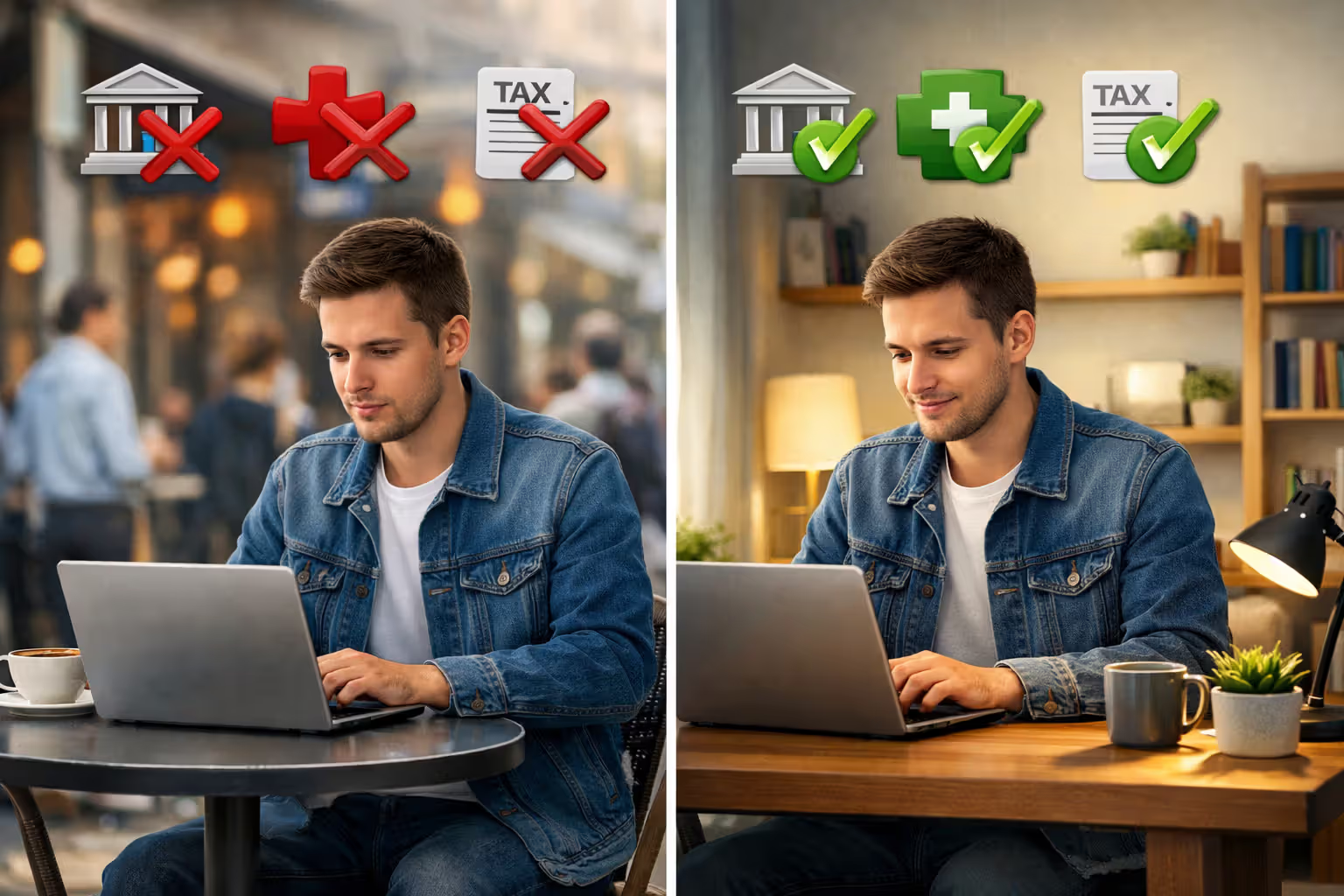
Banking and financial transactions: Logging into your bank account, transferring money, or accessing investment accounts should wait until you're on a trusted network. Yes, your VPN encrypts the connection, but you're still relying on multiple security layers working perfectly. A sophisticated attacker might exploit device vulnerabilities, or the public WiFi router itself might be compromised to attempt phishing attacks. The potential loss from a successful attack far outweighs the convenience of checking your balance at a coffee shop.
Accessing medical records: HIPAA-protected health information deserves maximum security. Patient portals, telehealth appointments, and medical test results contain deeply personal information. Beyond privacy concerns, medical identity theft can have serious consequences. Wait until you're home.
Business admin panels and critical systems: If you have administrative access to company systems, databases, or customer information, public WiFi isn't the place to use those credentials—even briefly, even with a VPN. The risk to your organization is too high. Your company's security policy likely prohibits this anyway.
Filing taxes or accessing government services: Tax returns contain everything identity thieves need: Social Security numbers, financial data, employment history. Government portals for benefits, licenses, or legal matters similarly hold sensitive personal information. These tasks can wait for a secure connection.
Setting up new accounts with sensitive information: Creating a bank account, applying for credit, or registering for services that require your Social Security number should happen on trusted networks. You're entering the most valuable data all at once, creating maximum opportunity for interception if something goes wrong.
The rule of thumb: if unauthorized access would cause significant financial loss, identity theft, or serious privacy violation, avoid public WiFi entirely. Use your phone's cellular data connection instead, or wait until you're on a network you control and trust.
Author: Caroline Prescott;
Source: flexstarsolutions.com
Frequently Asked Questions About VPNs and Public WiFi Security
Using a VPN on public WiFi transforms your security from "completely exposed" to "reasonably protected." The encrypted tunnel blocks the most common attacks that plague public networks. But reasonable protection isn't the same as complete safety. Your VPN handles network-level threats while device vulnerabilities, user errors, and certain sophisticated attacks remain possible.
The smart approach combines VPN protection with good security habits: keeping software updated, avoiding your most sensitive activities, verifying HTTPS connections, and maintaining awareness of what you're doing. Think of your VPN as a seatbelt, not a force field. It dramatically improves your safety, but you still need to drive carefully.
For everyday browsing, email, and general internet use, a quality VPN makes public WiFi acceptably safe. For banking, medical records, and other high-stakes activities, skip the public network entirely. Your cellular data or a few hours of patience until you're home is a small price for genuine security.