
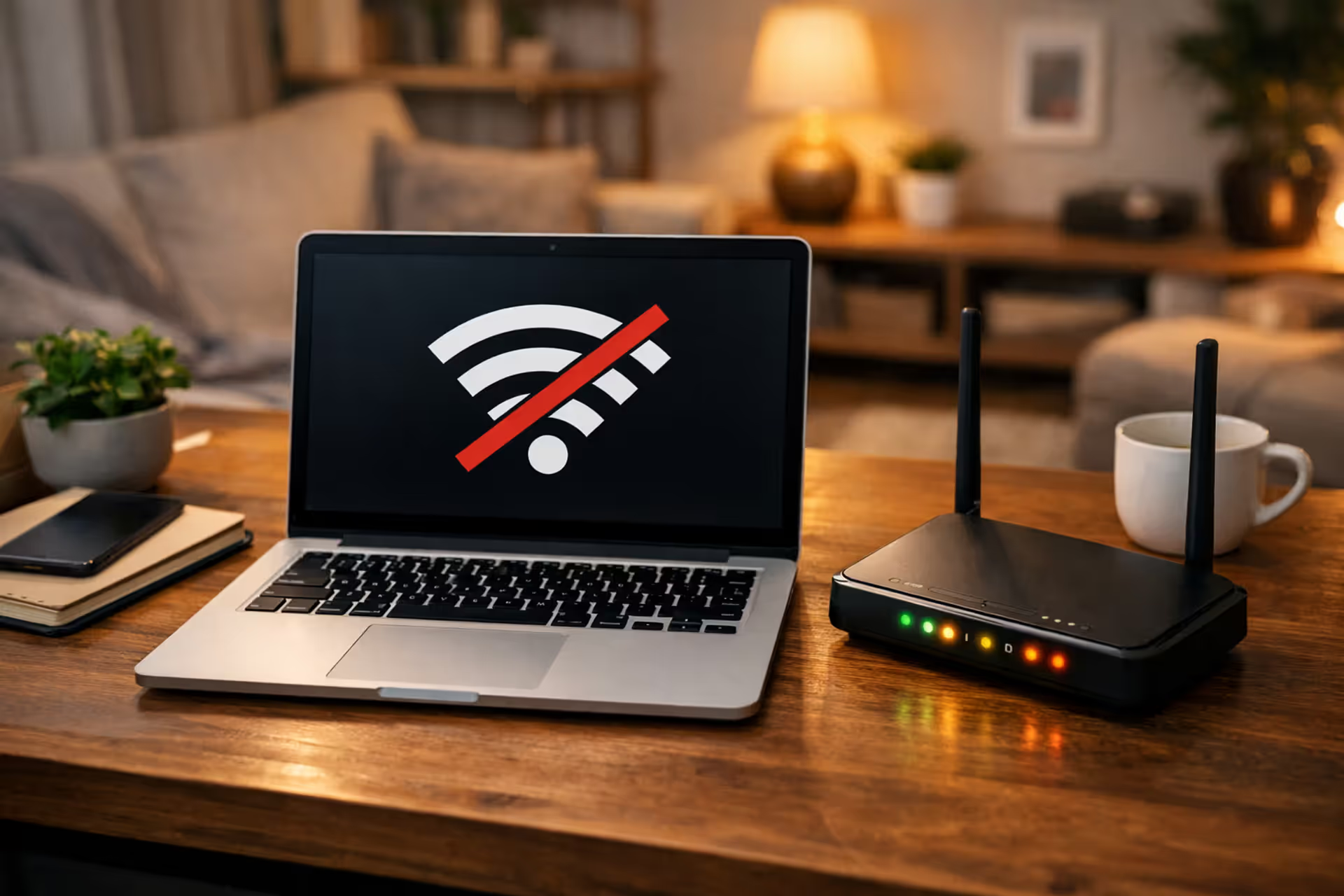
Laptop on home desk showing no internet connection icon next to an Xfinity modem with blinking LED lights
How to Check If There's an Xfinity Internet Outage in Your Area

Content
Content
Your Zoom meeting crashes. Netflix buffers endlessly. Email won't refresh. When Xfinity internet drops without warning, you need to figure out fast whether it's just your house or half the city. Knowing how to diagnose the real problem—and what to do about it—beats spending your afternoon unplugging random equipment or waiting on hold with tech support.
How to Check If Xfinity Is Down in Your Area
Don't waste an hour fiddling with cables before you confirm whether this is actually your problem to solve. A few quick checks reveal if you're dealing with a neighborhood-wide issue or something broken in your own setup.
Pull up the Xfinity Status Center by visiting xfinity.com/support/status. Type in your address or ZIP code, and within seconds you'll see whether Xfinity has logged any problems affecting your block. When outages are confirmed, this page usually shows repair progress and gives you a timeframe for when service should come back.
The Comcast outage map zooms out to show you the bigger picture. Meanwhile, websites like Downdetector collect complaints from users everywhere, creating heat maps of problem areas. Look for a massive spike in the graph—if hundreds of people started reporting issues in the last twenty minutes, you're definitely caught in something bigger than a loose cable in your living room.
Social media turns into an instant neighborhood bulletin board during outages. Search "Xfinity down
" on Twitter or check your local Facebook groups. When service tanks across an area, people flood these channels with complaints within minutes. Five posts from your neighborhood in the last half-hour? That's confirmation.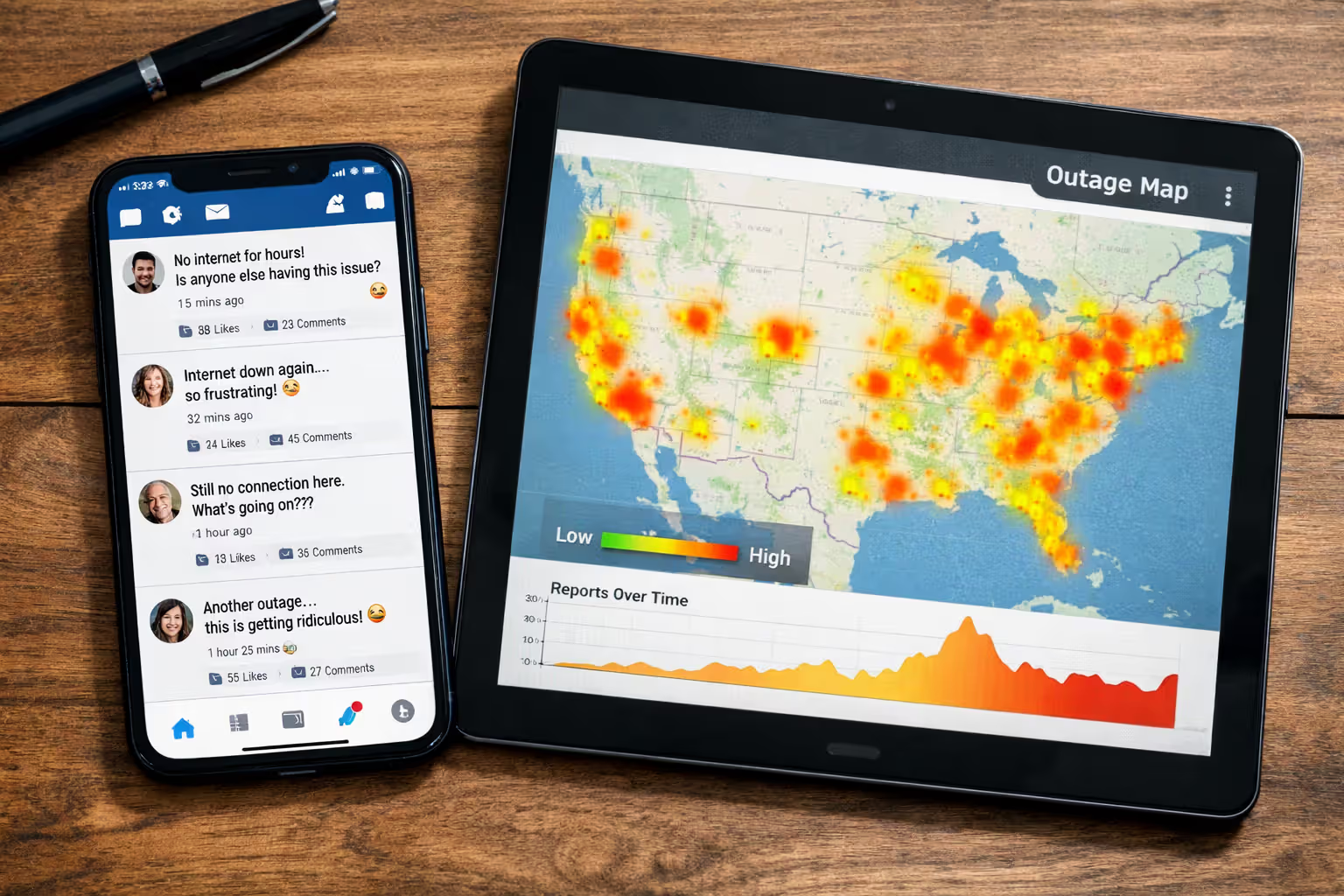
Author: Tyler Beaumont;
Source: flexstarsolutions.com
Or just text your neighbor. Sometimes the simplest approach cuts through all the noise. If their internet's dead too, you've got your answer and can skip the troubleshooting dance entirely.
Using the Xfinity My Account App for Real-Time Status
Download the Xfinity app (works on both iPhone and Android), and you'll get outage alerts customized to your actual service address. The moment you open it, any active problems pop up right on the home screen—no hunting through menus required.
Tap into the Internet section for details specific to your modem. The app distinguishes between "Xfinity's network is having issues" and "something's weird with your equipment." When repair crews are actively working on the problem, you'll see updates as they make progress, including revised estimates if things take longer than expected.
Here's a useful feature most people miss: you can test your connection remotely through the app without touching any physical equipment. Hit the Troubleshoot button and Xfinity's system runs diagnostics from their end. You'll know within a minute whether the breakdown happens between your house and their infrastructure, or somewhere inside your four walls.
The app also keeps a log of past outages. If your connection drops constantly, this history becomes valuable evidence when you're pushing for bill credits or demanding a technician visit.
What Your Xfinity Modem Lights Are Telling You
That little LED on your gateway isn't just decorative—it's essentially your modem talking to you in a simple color code. Learn what each pattern means and you'll diagnose most problems faster than customer service can.
Solid white is what you want to see. Everything's connected, working normally, broadcasting Wi-Fi to your devices. If you've got a solid white light but your internet still crawls along at dial-up speeds, look elsewhere for the culprit—network congestion, too many devices connected, or problems with your laptop rather than the modem itself.
Blinking white shows up when the gateway is booting through its startup routine or trying to make contact with Xfinity's network. This should resolve itself within five to seven minutes after you plug the device in. Still blinking after ten minutes? The modem can't complete its handshake with Xfinity's servers, which points to either an area outage or an activation problem on your account.
Solid orange (some units show amber) indicates a partial connection—your modem sees Xfinity's network but can't finish connecting. This often appears during the tail end of outage repairs, when technicians have fixed the main infrastructure but individual modems haven't quite synced back up yet. Give it a few more minutes.
Blinking orange means a firmware update is running. Here's what you absolutely must not do: unplug anything. Interrupting a firmware update can brick your device completely, forcing you to wait for a technician to bring replacement hardware. These updates wrap up in about fifteen minutes—resist the urge to "fix" it.
Red light (whether solid or flashing) signals serious trouble. The modem's self-test has failed, or it's detecting zero network signal. After you've confirmed through other sources that no widespread outage exists, a red light typically means you need professional help or new equipment.
No light whatsoever points to a power problem. Verify the cable is actually plugged in at both ends—the wall outlet and the back of the modem. Test that outlet with your phone charger or a lamp. Power strips sometimes trip their internal breakers and need resetting.
| Light Pattern | What's Happening | What You Should Do |
| Solid white | Everything's functioning; you're online | Nothing—you're good to go |
| Blinking white | Starting up or trying to connect | Give it 10 minutes; still blinking? Check the Status Center |
| Solid orange/amber | Partial connection; can't authenticate | Visit the Status Center; might fix itself shortly |
| Blinking orange | Firmware installing itself | Leave it alone for 15-20 minutes; don't unplug |
| Solid or flashing red | Hardware problem or zero signal | Call Xfinity support—this needs attention |
| No light | Power isn't reaching the modem | Check both ends of the power cable and test the outlet |
Step-by-Step: Restart Your Xfinity Gateway or Modem
After confirming no widespread outage exists in your area, but your connection's still toast, a proper restart fixes the problem about six times out of ten. The catch? Most people do it wrong, which is why it doesn't work for them.
First move: Pull the power cord from the back of your gateway. If you're running separate modem and router units, disconnect power from both.
Second: Count to thirty. Seriously—pull out your phone and watch the seconds tick by. This gives the capacitors inside time to fully drain and wipes the modem's temporary memory cache. People who wait only five or ten seconds wonder why restarting doesn't help—the device never actually resets its connection state.
Third: While you're waiting out those thirty seconds, inspect your coaxial cable connection. The cable screwing into your modem from the wall should be snug enough that it doesn't spin when you touch it. Tighten it with your fingers, but don't grab pliers or you'll strip the threads.
Fourth: Reconnect power to the modem. Watch that front light—it'll cycle through different colors over the next three to five minutes while the device boots up.
Fifth: Wait for solid white before you do anything else. Don't open your browser, don't run speed tests, don't try connecting to Wi-Fi yet. Interrupting the authentication process while the modem's still negotiating with Xfinity's servers can cause the whole thing to fail.
Sixth: If you've got a standalone router, plug it in now—but only after you've seen that solid white light on the modem. Give the router two more minutes to complete its own startup process.
Here's where people go wrong repeatedly: they restart the modem three or four times in quick succession. Each restart forces the device through that entire multi-minute authentication dance again. If the first restart hasn't fixed things after the light turns solid white, wait at least ten minutes before trying again. Rapid-fire restarts can actually trigger security systems that temporarily block your modem's hardware address.
Consumer modems develop memory leaks in their firmware—little software hiccups that accumulate over time. Cutting power for a full thirty seconds clears these glitches. But here's the thing: if you're restarting your modem weekly, you're putting a band-aid on something that needs stitches. That pattern means there's a deeper issue—line signal problems, overheating, or failing hardware—that needs a technician's eyes on it
— Marcus Chen
When to Report an Outage vs. Troubleshoot at Home
Knowing when to call for help versus when to keep tinkering prevents you from wasting effort on problems you can't fix—and keeps you from bothering support about things you can handle yourself.
You should report it when: - Three different neighbors confirm their Xfinity service is also down - The Status Center claims everything's fine, but your equipment checks out completely (solid white light, tight connections, successful restart) - Your connection drops every single day at 2 PM like clockwork, suggesting infrastructure issues - Total signal loss (red light on the modem, won't connect at all) persists after you've eliminated power problems and loose cables - A storm just rolled through and service hasn't returned after a couple hours
Keep troubleshooting yourself when: - Your phone connects fine to Wi-Fi but your laptop won't - Devices connected by ethernet cable work, but Wi-Fi doesn't (or the reverse) - Everything connects but runs painfully slow - Problems started immediately after you changed a setting or added new equipment - Your modem light indicates it's updating firmware or still working through startup
Author: Tyler Beaumont;
Source: flexstarsolutions.com
Intermittent disconnections fall into a gray area. If your connection cuts out for thirty seconds every few hours, start documenting it. Note exact times and what you were doing—working, streaming, gaming, or just idle. Drops during specific high-bandwidth activities might indicate throttling or capacity limits rather than outages. Random disconnections regardless of what you're doing suggest line signal degradation. Track the pattern for three days, then contact Xfinity with your detailed log. That data helps technicians identify problems they can't see from their end.
How to Report a Service Outage to Xfinity
The mobile app gets you the fastest response. Open it, tap Internet, then select Report an Issue. The system automatically runs diagnostics first. When those tests detect problems on Xfinity's side of the connection, your report gets logged instantly and attached to the closest open service ticket.
Calling 1-800-XFINITY (1-800-934-6489) works too. The robot answering the phone will ask for your account phone number and attempt automated diagnostics. Want to skip ahead to a human? Say "technical support" at every prompt—it bypasses several menu layers.
For web-based reporting, log into xfinity.com/support, navigate to Internet support, and choose Report an outage. The website offers the same diagnostic tools as the mobile app.
Have this information ready before you contact them: - Account number or the phone number linked to your account - Exact error messages or modem light colors you're seeing - Whether you've already done a proper restart - Approximate time when the problem started
Xfinity's system cross-references your report against known service disruptions automatically. If you're the first person in your area reporting this specific problem, they may escalate it for field investigation—which can take a day or two. If ten other customers have already reported the same issue, you'll get an estimated restoration time immediately.
Common Reasons Xfinity Internet Goes Down
Understanding what typically causes outages helps you set realistic expectations instead of fuming about something that's genuinely out of everyone's control.
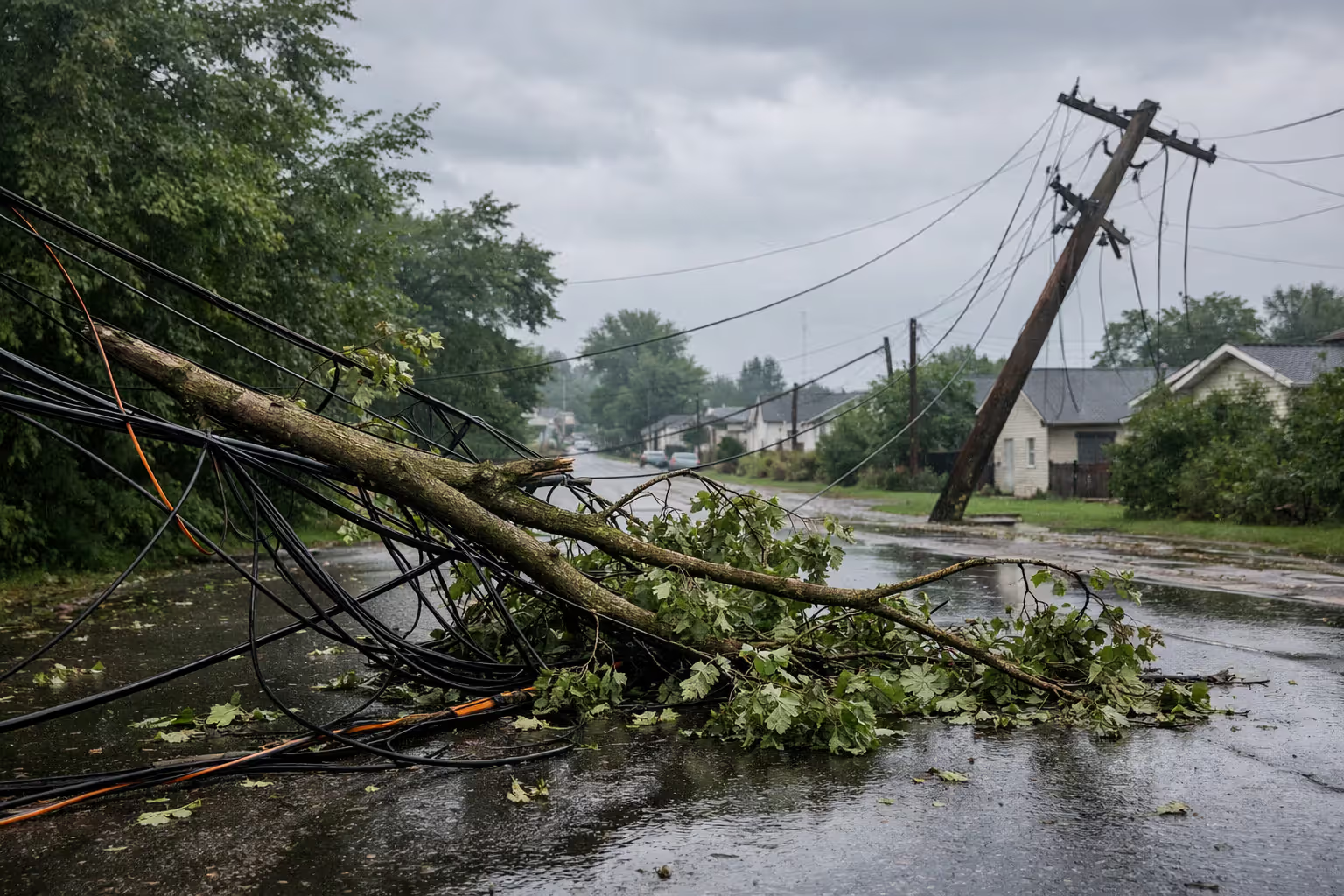
Weather tops the list of service killers. Snow piles up on aerial cables until they sag or snap. Ice storms coat everything and add crushing weight to lines. Lightning strikes network equipment. Wind blows tree branches into infrastructure. In suburban neighborhoods with overhead lines, weather-related widespread outages usually get fixed within four to eight hours, though isolated damage might take longer.
Planned maintenance happens mostly between 1 and 5 in the morning. Xfinity upgrades network hardware, swaps out aging equipment, and pushes software updates during these windows when fewer people are online. Most maintenance-related interruptions last somewhere between fifteen minutes and an hour. They're supposed to notify affected customers by email 48 hours ahead of time, though these warnings have a nasty habit of landing in spam folders.
When equipment at network hubs dies, hundreds of customers lose service simultaneously. A failed fiber node means nobody's getting online until technicians physically replace the hardware. These fixes typically wrap up within six hours if they happen during business hours—overnight or weekend repairs take longer because fewer techs are working.
Construction crews accidentally hitting buried cables creates sudden, unplanned outages that nobody saw coming. A backhoe slices through a fiber line, or roadwork damages a junction box. Repairs take twelve to twenty-four hours because splicing fiber optic cables requires precision work that can't be rushed.
Vehicle accidents that knock down utility poles create extended downtime. Beyond fixing internet infrastructure, the power company has to restore electrical lines and make sure the structure is safe. Figure on eight to sixteen hours for scenarios requiring full pole replacement.
Author: Tyler Beaumont;
Source: flexstarsolutions.com
Heavy network congestion during peak hours (usually 7 to 11 PM) doesn't cause complete outages but can make it feel like your connection's dead when everyone in the neighborhood tries streaming 4K video simultaneously. Everyone gets buffering and slowdowns. This represents a capacity constraint that Xfinity addresses through infrastructure expansion, not a technical failure.
Cyber attacks rarely touch residential customers directly. On the rare occasions when they do, Xfinity's security systems might briefly cut your connection while blocking malicious traffic. These protective disconnections typically last under five minutes.
Frequently Asked Questions About Xfinity Outages
Taking Control When Service Drops
Internet outages disrupt everything—work deadlines, entertainment plans, keeping in touch with people. But methodical troubleshooting beats panicked button-pressing every time. Start by confirming the problem extends beyond your walls. Checking the Status Center and asking a neighbor takes three minutes and prevents you from wasting an hour resetting equipment that isn't the problem.
Your modem's lights give you real-time information about what's actually happening. Solid white with connection problems? Look at device-specific issues rather than service outages. Blinking orange? A firmware update is running—you need patience, not tools.
When you restart your gateway, that 30-second pause between unplugging and reconnecting matters more than most people think. This waiting period clears the device's memory and enables proper re-authentication with Xfinity's network.
Know when to stop fiddling and call for help. Once you've confirmed tight connections, performed a proper restart, and verified your modem displays appropriate indicators, continuing to mess with settings often makes diagnosis harder for technical support. Write down what you've already tried, note any error messages or unusual light patterns, and contact Xfinity with specifics.
Most service disruptions resolve within several hours. Understanding typical causes—storms, maintenance windows, equipment failures—helps you set realistic expectations rather than building frustration over normal repair timelines. While you're waiting, mobile hotspots provide temporary access for anything urgent.
The gap between an informed customer and a frustrated one often comes down to knowing where to look. Bookmark the Status Center now, install the mobile app today, and remember your modem's lights are communicating valuable diagnostic information. These simple preparations transform confusing connection failures into manageable situations with clear paths forward.
Related Stories
Read more
Read more


The content on this website is provided for general informational and educational purposes only. It is intended to offer guidance on internet technology topics, including internet providers, connection types (fiber, cable, and 5G home internet), WiFi setup, router configuration, internet speed requirements, and online security practices. The information presented should not be considered technical, legal, or professional networking advice.
All information, articles, comparisons, and technical explanations on this website are for general informational purposes only. Internet service availability, performance, speeds, equipment requirements, and security features may vary by provider, location, infrastructure, and individual network configuration. Actual internet performance and reliability depend on many factors, including hardware, service plans, local network conditions, and user behavior.
This website is not responsible for any errors or omissions in the content or for actions taken based on the information provided. Reading this website does not create a professional or service relationship. Users are encouraged to consult with their internet service provider, network specialist, or qualified technical professional for advice specific to their internet setup, equipment, or connectivity needs.